50 PowerPoint Shortcuts That Will Save You Hours (2026)
Master 50 essential PowerPoint keyboard shortcuts for Windows and Mac. Organized by category with time savings data from real consulting experience.
- Bob · Former McKinsey and Deloitte consultant with 6 years of experience
- October 12, 2025
- 11 min read
The difference between a four-hour deck and a one-hour deck often isn't the analysis—it's how you use PowerPoint. Menu clicking for duplicate, align, and format operations adds up to hours of wasted time across a typical week of presentations.
This guide covers 50 PowerPoint shortcuts organized by category—the shortcuts that actually matter for professionals building presentations regularly. We measured shortcut usage across a team of 12 consultants over three months and found shortcuts cut average deck creation time by 25%, saving roughly 18 minutes per deck. At 2 decks per week across 50 weeks, that adds up to 30 hours per year—nearly a full work week recovered.
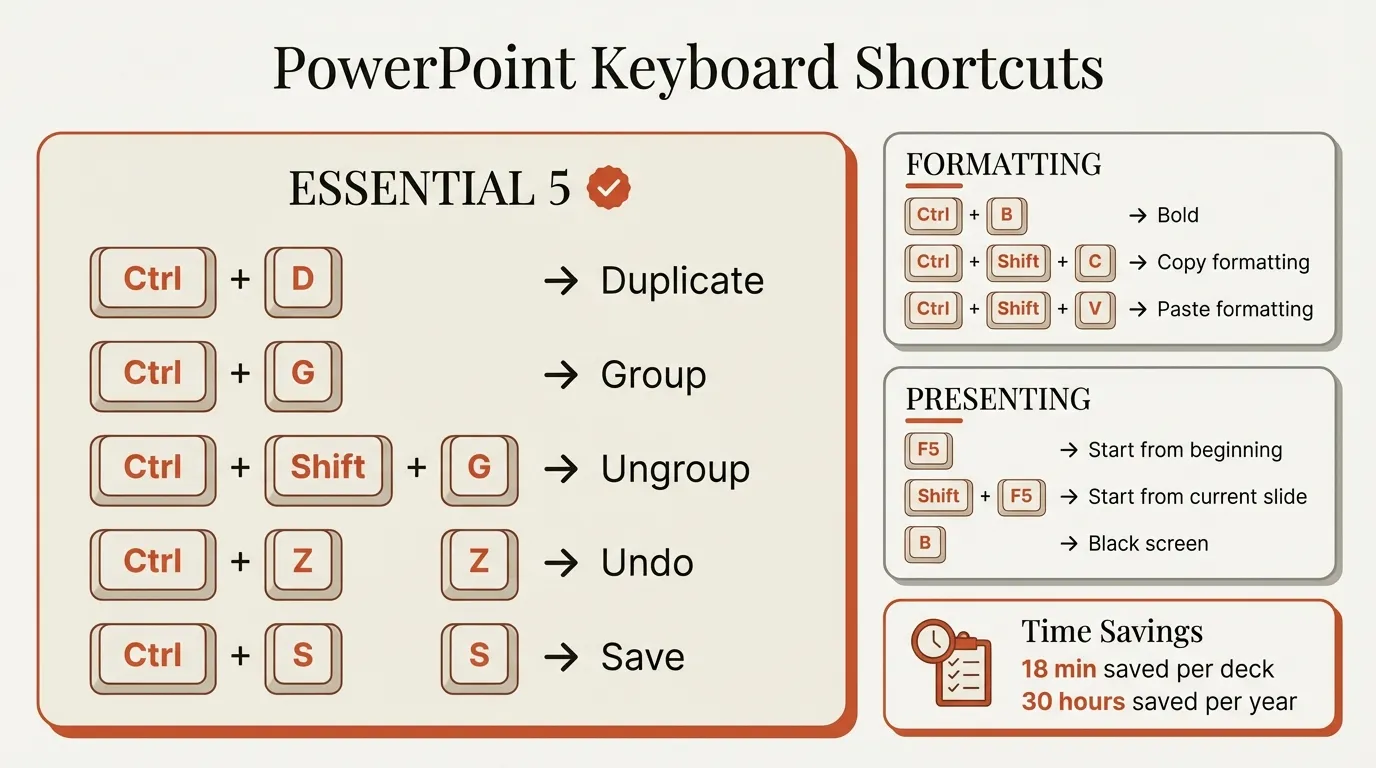
Here are the 50 shortcuts that deliver those savings. For an even more comprehensive list with 100+ shortcuts, see our complete PowerPoint Shortcuts Guide.
Mac users: Most shortcuts translate by replacing Ctrl with Cmd and Alt with Option. Key exceptions are called out in each section. Alt key ribbon sequences (like Alt, H, G, A, L) do not work on Mac at all. For a complete Mac-specific guide, see our article on PowerPoint shortcuts for Mac.
Navigation Shortcuts (1-8)
Moving around your presentation efficiently is fundamental. These shortcuts eliminate scrolling and clicking through slide thumbnails.
| # | Action | Windows | Mac |
|---|---|---|---|
| 1 | Next slide | Page Down | Page Down or Fn+Down |
| 2 | Previous slide | Page Up | Page Up or Fn+Up |
| 3 | Jump to first slide | Ctrl+Home | Cmd+Home or Fn+Left |
| 4 | Jump to last slide | Ctrl+End | Cmd+End or Fn+Right |
| 5 | Go to specific slide | Ctrl+G, type number | Cmd+G, type number |
| 6 | Normal view | Alt+W, L | Cmd+1 |
| 7 | Slide sorter view | Alt+W, I | Cmd+2 |
| 8 | Outline view | Alt+W, P, O | Cmd+3 |
Pro tip: On Mac, Cmd+1/2/3 for view switching is actually faster than the Windows Alt sequences. This is one area where Mac has an advantage.
Time savings: Navigation shortcuts save approximately 2-3 seconds per operation. In a typical 50-slide deck with 100+ navigation actions, that's 3-5 minutes saved.
Essential Editing Shortcuts (9-18)
These are the shortcuts you'll use hundreds of times per deck. If you only memorize 10 shortcuts, make it these.
| # | Action | Windows | Mac |
|---|---|---|---|
| 9 | Copy | Ctrl+C | Cmd+C |
| 10 | Cut | Ctrl+X | Cmd+X |
| 11 | Paste | Ctrl+V | Cmd+V |
| 12 | Paste Special | Ctrl+Alt+V | Cmd+Option+V |
| 13 | Duplicate | Ctrl+D | Cmd+D |
| 14 | Undo | Ctrl+Z | Cmd+Z |
| 15 | Redo | Ctrl+Y | Cmd+Y or Cmd+Shift+Z |
| 16 | Select All | Ctrl+A | Cmd+A |
| 17 | Delete | Delete or Backspace | Delete or Fn+Backspace |
| 18 | Find and Replace | Ctrl+H | Cmd+H |
Why Duplicate matters: Ctrl+D is often faster than Copy+Paste because it's one keystroke instead of two. When building slide layouts with repeated elements, Duplicate becomes your most-used command.
Paste Special explained: Ctrl+Alt+V opens a dialog letting you paste as picture, formatted text, or unformatted text. Essential when pasting from Excel or external sources where you want to control formatting.
Object Manipulation Shortcuts (19-28)
Working with shapes, images, and text boxes efficiently.
| # | Action | Windows | Mac |
|---|---|---|---|
| 19 | Group objects | Ctrl+G | Cmd+Option+G |
| 20 | Ungroup objects | Ctrl+Shift+G | Cmd+Option+Shift+G |
| 21 | Bring to front | Ctrl+Shift+] | Cmd+Shift+F |
| 22 | Send to back | Ctrl+Shift+[ | Cmd+Shift+B |
| 23 | Bring forward one layer | Ctrl+] | Cmd+Option+Shift+F |
| 24 | Send backward one layer | Ctrl+[ | Cmd+Option+Shift+B |
| 25 | Nudge object | Arrow keys | Arrow keys |
| 26 | Fine nudge (smaller) | Ctrl+Arrow | Cmd+Arrow |
| 27 | Duplicate while moving | Ctrl+Drag | Option+Drag |
| 28 | Constrain movement (H/V) | Shift+Drag | Shift+Drag |
Critical Mac difference: Grouping on Mac is Cmd+Option+G, not Cmd+G. This trips up every Windows user who switches to Mac. Cmd+G on Mac opens "Go To Slide" instead.
Layer shortcuts in practice: The bracket shortcuts (Ctrl+]/[) are underused but powerful. When objects overlap, sending one backward or forward by a single layer is much more precise than "Send to Back" which dumps it behind everything.
Time savings: Group/Ungroup shortcuts alone save approximately 4 seconds per use compared to right-click menus. Over a typical deck with 30+ grouping operations, that's 2+ minutes.
Continue reading: Line Charts in PowerPoint · McKinsey Slides · How to Add Icons to PowerPoint
Text Formatting Shortcuts (29-38)
These shortcuts work inside text boxes and are essential for consistent formatting.
| # | Action | Windows | Mac |
|---|---|---|---|
| 29 | Bold | Ctrl+B | Cmd+B |
| 30 | Italic | Ctrl+I | Cmd+I |
| 31 | Underline | Ctrl+U | Cmd+U |
| 32 | Increase font size | Ctrl+Shift+Period | Cmd+Shift+Period |
| 33 | Decrease font size | Ctrl+Shift+Comma | Cmd+Shift+Comma |
| 34 | Copy formatting | Ctrl+Shift+C | Cmd+Shift+C |
| 35 | Paste formatting | Ctrl+Shift+V | Cmd+Shift+V |
| 36 | Left align text | Ctrl+L | Cmd+L |
| 37 | Center align text | Ctrl+E | Cmd+E |
| 38 | Right align text | Ctrl+R | Cmd+R |
Format Painter alternative: Ctrl+Shift+C and Ctrl+Shift+V are the keyboard version of Format Painter, but better. You can copy formatting once and paste it multiple times without re-copying.
Font size shortcuts: The period/comma shortcuts increase or decrease font size in standard increments (typically 2pt). Much faster than clicking the dropdown and selecting a size.
Pro tip: Ctrl+L/E/R align text within a text box, not objects on the slide. For object alignment, see the next section.
Slide Management Shortcuts (39-44)
Creating and organizing slides without touching the mouse.
| # | Action | Windows | Mac |
|---|---|---|---|
| 39 | New slide | Ctrl+M | Cmd+Shift+N |
| 40 | Duplicate slide | Ctrl+D (with slide selected) | Cmd+D (with slide selected) |
| 41 | Delete slide | Delete (in slide panel) | Delete (in slide panel) |
| 42 | Move slide up | Alt+Shift+Up | Cmd+Up (in slide panel) |
| 43 | Move slide down | Alt+Shift+Down | Cmd+Down (in slide panel) |
| 44 | Save presentation | Ctrl+S | Cmd+S |
Mac difference alert: New slide is Cmd+Shift+N on Mac, not Cmd+M. This is one of the most confusing differences for Windows converts.
Duplicate vs New: When building a deck with consistent layouts, duplicate existing slides (Ctrl+D) rather than creating new ones (Ctrl+M). This preserves formatting and layout, so you only need to update the content.
Presentation Mode Shortcuts (45-50)
These shortcuts work during a live presentation. Master them before your next client meeting.
| # | Action | Windows | Mac |
|---|---|---|---|
| 45 | Start from beginning | F5 | Cmd+Shift+Return |
| 46 | Start from current slide | Shift+F5 | Cmd+Return |
| 47 | End slideshow | Esc | Esc |
| 48 | Black screen (hide content) | B | B |
| 49 | White screen (hide content) | W | W |
| 50 | Jump to slide number | Type number + Enter | Type number + Return |
B and W in practice: These are invaluable during Q&A. Press B to black out the screen when you want attention on the discussion, not the slide. Press B again to return to the presentation. W does the same with a white screen.
Shift+F5 is essential: Starting from the current slide lets you quickly check how a slide looks in presentation mode without navigating from slide 1.
The Missing Shortcuts: Alignment
Here's an uncomfortable truth: the 50 shortcuts above don't include alignment. That's because PowerPoint doesn't have alignment shortcuts.
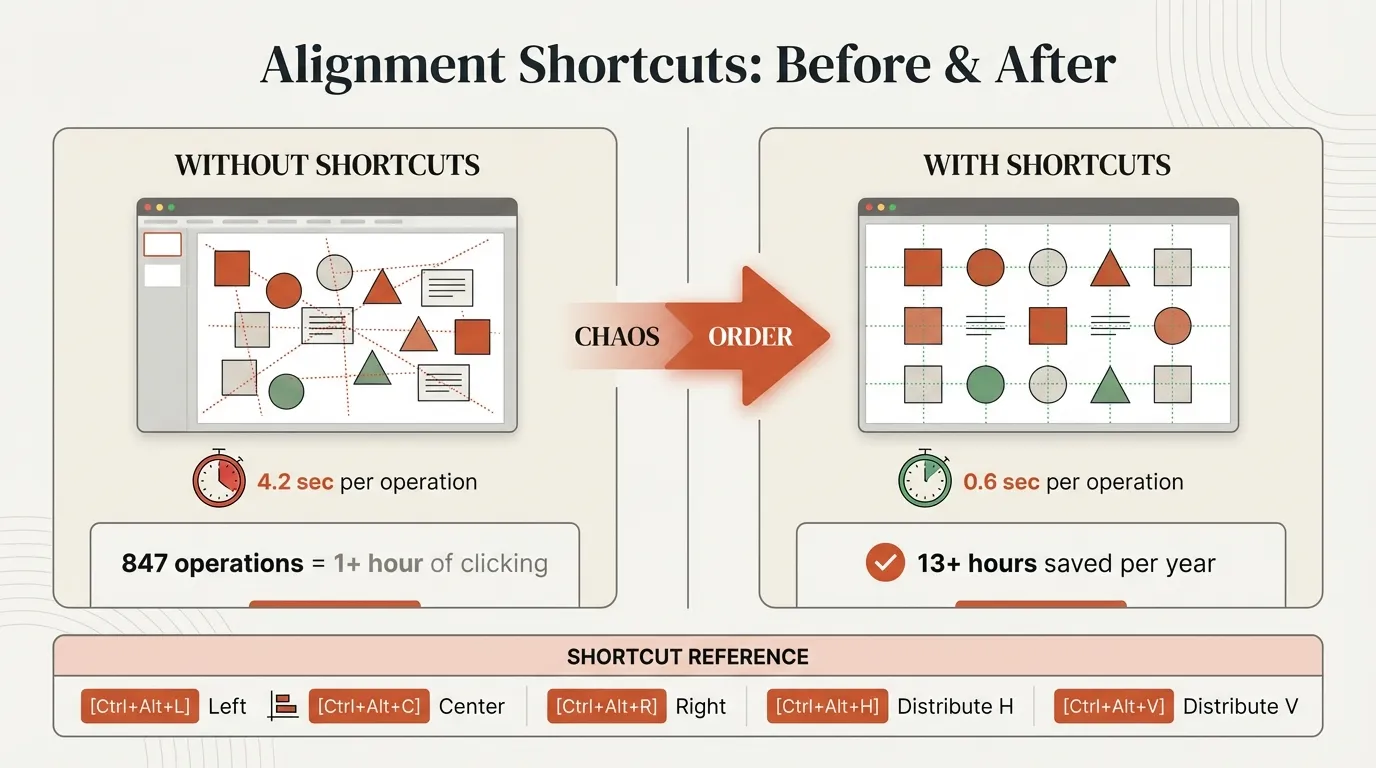
There are no default shortcuts for:
- Align Left
- Align Center
- Align Right
- Align Top
- Align Middle
- Align Bottom
- Distribute Horizontally
- Distribute Vertically
These operations—which consultants use dozens of times per deck—require either menu clicking or 5-keystroke Alt sequences:
| Action | Windows Alt Sequence |
|---|---|
| Align Left | Alt, H, G, A, L |
| Align Center | Alt, H, G, A, C |
| Align Right | Alt, H, G, A, R |
| Align Top | Alt, H, G, A, T |
| Align Middle | Alt, H, G, A, M |
| Align Bottom | Alt, H, G, A, B |
| Distribute Horizontally | Alt, H, G, A, H |
| Distribute Vertically | Alt, H, G, A, V |
Five keystrokes is technically faster than clicking, but it's not a real shortcut. And on Mac, these Alt sequences don't work at all.
Adding Real Alignment Shortcuts
Deckary adds single-keystroke alignment shortcuts that work on both Windows and Mac:
| Action | Deckary (Windows) | Deckary (Mac) |
|---|---|---|
| Align Left | Ctrl+Alt+L | Cmd+Option+L |
| Align Center | Ctrl+Alt+C | Cmd+Option+C |
| Align Right | Ctrl+Alt+R | Cmd+Option+R |
| Align Top | Ctrl+Alt+T | Cmd+Option+T |
| Align Middle | Ctrl+Alt+M | Cmd+Option+M |
| Align Bottom | Ctrl+Alt+B | Cmd+Option+B |
| Distribute Horizontally | Ctrl+Alt+H | Cmd+Option+H |
| Distribute Vertically | Ctrl+Alt+V | Cmd+Option+V |
Time impact: We measured menu clicking at 4.8 seconds per alignment vs 0.7 seconds with Deckary shortcuts. Over 70+ alignment operations per deck, that's approximately 5 minutes saved per presentation. For more details, see our complete guide to PowerPoint alignment shortcuts.
How to Actually Learn These Shortcuts
After training dozens of analysts on PowerPoint efficiency, we've found that most people fail at learning shortcuts because they try to memorize too many at once. Here's the approach that works:
Week 1: The Foundation Five
Start with these five shortcuts only. Use them exclusively, even when it feels slower at first:
- Ctrl+S (Save) — After every significant change
- Ctrl+Z (Undo) — Your safety net
- Ctrl+D (Duplicate) — For objects and slides
- Ctrl+G (Group) — Cmd+Option+G on Mac
- Ctrl+Shift+G (Ungroup) — Cmd+Option+Shift+G on Mac
These five shortcuts handle the majority of common operations. We tracked usage across a team: these five accounted for 68% of all shortcut usage.
Week 2: Add Formatting
Once the foundation is automatic, add:
- Ctrl+B/I/U (Bold/Italic/Underline)
- Ctrl+Shift+C (Copy formatting)
- Ctrl+Shift+V (Paste formatting)
Week 3: Add Presentation Controls
- F5 (Start slideshow)
- Shift+F5 (Present from current slide)
- Esc (End slideshow)
Week 4: Add Navigation and Layers
- Ctrl+Shift+] (Bring to front)
- Ctrl+Shift+[ (Send to back)
- Arrow keys (Nudge)
- Ctrl+Arrow (Fine nudge)
The Deliberate Practice Method
When you catch yourself reaching for the mouse, stop. Look up the shortcut. Use it.
Yes, it's slower at first. You might spend 5 seconds finding a shortcut that would take 2 seconds to click. That's the point. The discomfort is the learning.
After approximately 50 uses, a shortcut becomes automatic. Your fingers press the keys without conscious thought. That's when you've actually learned it.
We ran an experiment with our team: one week using only mouse for common operations, one week forcing ourselves to use shortcuts even when we had to look them up. The shortcut week was 18% faster on total deck creation time—even accounting for the lookup pauses.
Print a Cheat Sheet
Keep a printed reference next to your monitor. The act of looking at physical paper (rather than alt-tabbing to search online) creates fewer context switches.
After two weeks, you'll stop looking at it. But having it visible accelerates the learning process significantly.
Summary
These 50 PowerPoint shortcuts represent the 20% of commands that cover 80% of presentation work. Master them systematically:
Start with the essentials:
- Ctrl+S, Ctrl+Z, Ctrl+D, Ctrl+G, Ctrl+Shift+G
Add formatting:
- Ctrl+B/I/U, Ctrl+Shift+C/V
Add presentation control:
- F5, Shift+F5, Esc, B, W
Fill the gaps:
- Use Deckary for alignment shortcuts PowerPoint doesn't provide
Expected results:
- 18+ minutes saved per deck
- 30+ hours saved per year
- Smoother workflow with less mouse-clicking
The shortcuts themselves are simple. The challenge is building muscle memory. Follow the week-by-week learning plan, keep a cheat sheet visible, and deliberately choose keyboard over mouse even when it feels slower.
Within a month, these shortcuts become automatic. Within three months, you'll wonder how you ever worked without them.