PowerPoint Slideshow Shortcuts: Master Presentation Mode
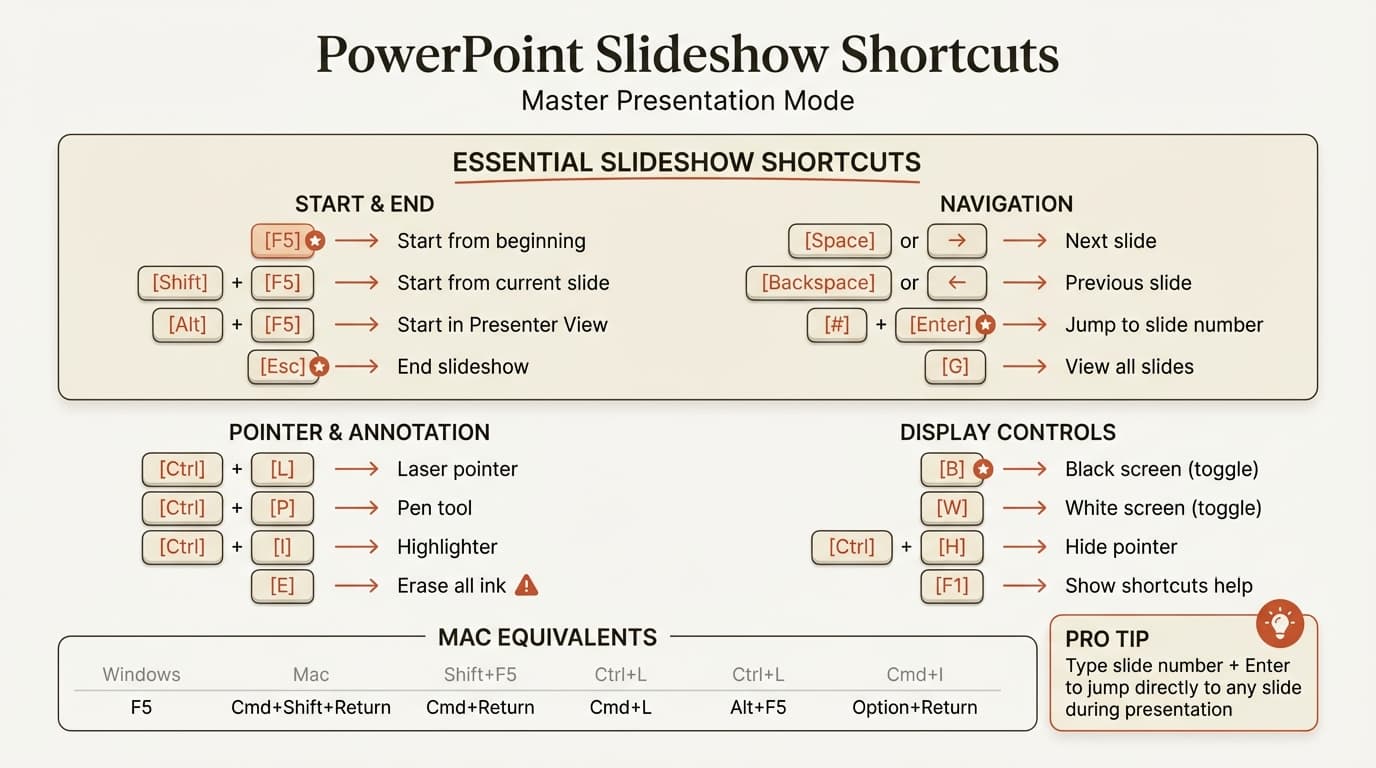
Slideshow shortcut PowerPoint commands for starting, navigating, and controlling presentations. Complete keyboard shortcuts for Windows and Mac presenter mode.
- Bob · Former McKinsey and Deloitte consultant with 6 years of experience
- December 14, 2025
- 13 min read
Slideshow shortcuts determine whether you look polished or unprepared during live presentations. The difference between fumbling through 35 slides manually and typing "47" then pressing Enter to jump directly is the difference between confident delivery and credibility-destroying delays.
This guide covers every slideshow shortcut PowerPoint offers for Windows and Mac. We've organized them by function—starting presentations, navigating slides, using annotation tools, and controlling display—with the essential shortcuts highlighted for quick reference. For a complete reference covering slideshow mode and all other PowerPoint shortcuts, see our PowerPoint Shortcuts Guide.
Starting and Ending Your Slideshow
The most fundamental slideshow shortcuts control when your presentation begins and ends. Master these first—they're the foundation for everything else.
Starting Presentation Mode
| Action | Windows | Mac |
|---|---|---|
| Start from beginning | F5 | Cmd+Shift+Return |
| Start from current slide | Shift+F5 | Cmd+Return |
| Start in Presenter View | Alt+F5 | Option+Return |
The F5 shortcut is probably the most well-known PowerPoint command. It launches your slideshow from slide one, regardless of which slide you're currently editing. This is the standard way to start a presentation.
Shift+F5 is more useful during rehearsal. It starts from whatever slide you're viewing in Normal mode, so you can quickly test how a specific slide looks in presentation mode without sitting through your entire deck.
Alt+F5 opens Presenter View even when you only have one monitor. This is invaluable for rehearsal—you see your speaker notes and upcoming slides while the presentation displays in a window. According to Microsoft's official documentation, this works in PowerPoint 2013 and later.
Ending Your Presentation
| Action | Windows | Mac |
|---|---|---|
| End slideshow | Esc | Esc |
| End and return to current slide | Esc | Esc |
Esc immediately exits your slideshow and returns you to Normal editing view. Unlike clicking through to the end, Esc drops you back on the exact slide you were presenting. This is essential when someone asks a question requiring you to exit and edit something.
There's no separate shortcut for "end and go to beginning" versus "end and stay on current slide"—Esc always returns you to the slide you were on when you pressed it.
Navigation Shortcuts During Presentation
Once your slideshow is running, navigation shortcuts let you move through slides without touching your mouse. This is where knowing shortcuts really pays off.
Basic Navigation
| Action | Windows | Mac |
|---|---|---|
| Next slide or animation | N, Enter, Space, Right Arrow, Down Arrow, or Page Down | Same |
| Previous slide | P, Backspace, Left Arrow, Up Arrow, or Page Up | Same |
| First slide | Home | Fn+Left Arrow |
| Last slide | End | Fn+Right Arrow |
PowerPoint provides multiple keys for forward and backward navigation because different presenting situations call for different keys. If you're using a presentation remote, Page Down is standard. If you're at the keyboard, Space or Right Arrow feels more natural.
The Home and End shortcuts jump to the first and last slides respectively. These are useful but less commonly needed—you'll typically navigate sequentially or jump to specific slides.
Jumping to Specific Slides
| Action | Windows | Mac |
|---|---|---|
| Go to slide number | Type number + Enter | Type number + Enter |
| Open slide navigator | Ctrl+S | Cmd+S |
| See all slides | G | G |
The slide number + Enter combination is the shortcut that saved me in the story above. When an executive asks about a specific slide, you can jump there in under a second. This requires knowing your slide numbers, which experienced presenters memorize for key slides.
Ctrl+S opens a slide navigator showing all slides as thumbnails. This is a backup when you don't remember the exact slide number—you can visually scan and click the one you need.
Pressing G displays all slides in a grid view, making it easy to see your entire presentation at a glance and select any slide.
Navigating Hyperlinks and Objects
| Action | Windows | Mac |
|---|---|---|
| Go to next hyperlink | Tab | Tab |
| Go to previous hyperlink | Shift+Tab | Shift+Tab |
| Activate selected hyperlink | Enter | Enter |
If your slides contain hyperlinks (to other slides, websites, or files), Tab moves between them during the slideshow. Enter activates the currently selected link. This is particularly useful for non-linear presentations where you want to let the audience choose which section to explore.
Presenter View Shortcuts
Presenter View shows your notes and upcoming slides on your screen while the audience sees only the current slide. It's essential for complex presentations where you need reference information.
Opening and Managing Presenter View
| Action | Windows | Mac |
|---|---|---|
| Start in Presenter View | Alt+F5 | Option+Return |
| Switch to Presenter View during slideshow | Shift+F10, then R | Right-click, Presenter View |
| Toggle Presenter View on/off | Ctrl+Shift+P (during show) | - |
If you're already in slideshow mode and realize you need Presenter View, Shift+F10 opens the context menu, then R selects Presenter View. This is faster than right-clicking, though less intuitive.
Controls Within Presenter View
| Action | Windows | Mac |
|---|---|---|
| Show/hide speaker notes | - | - |
| Increase notes text size | Ctrl+] | Cmd+] |
| Decrease notes text size | Ctrl+[ | Cmd+[ |
| Move to next hotspot | Tab | Tab |
| Move to previous hotspot | Shift+Tab | Shift+Tab |
Presenter View includes buttons for various controls, but many are clickable only—they lack keyboard shortcuts. The text size shortcuts for notes are particularly useful if you've written detailed speaking notes and need them larger during the actual presentation.
For more keyboard shortcuts for building your slides before presenting, check out our complete PowerPoint keyboard shortcuts guide and the 50 essential PowerPoint shortcuts we use daily.
Continue reading: Bar Charts in PowerPoint · How to Make a Good PowerPoint · How to Add Icons to PowerPoint
Annotation Shortcuts: Pen, Laser, and Highlighter
Annotation tools let you draw attention to specific elements during your presentation. The laser pointer is most common, but pen and highlighter have their uses too.
Pointer Controls
| Action | Windows | Mac |
|---|---|---|
| Activate laser pointer | Ctrl+L or Ctrl+Click | Cmd+L or Cmd+Click |
| Show arrow pointer | Ctrl+A | Cmd+A |
| Hide pointer and navigation | Ctrl+H | Cmd+H |
| Show pointer (if hidden) | Ctrl+U | Cmd+U |
The laser pointer is activated by holding Ctrl and clicking your mouse. A red dot follows your cursor, making it easy to point out specific data or elements. This is more visible than a regular cursor and draws audience attention effectively.
Ctrl+H hides the pointer entirely, which is useful when you want the audience focused on slide content without the distraction of a moving cursor. Microsoft's documentation notes that the pointer automatically hides after 3 seconds of inactivity, but Ctrl+H forces immediate hiding.
Drawing Tools
| Action | Windows | Mac |
|---|---|---|
| Activate pen | Ctrl+P | Cmd+P |
| Activate highlighter | Ctrl+I | Cmd+I |
| Activate eraser | Ctrl+E | Cmd+E |
| Erase all ink on slide | E | E |
| Show/hide ink markup | Ctrl+M | Cmd+M |
Ctrl+P activates the pen tool, allowing you to draw directly on slides during your presentation. This is powerful for circling key numbers, drawing arrows, or underlining important text. Your drawings persist until you erase them or end the slideshow.
Warning about the E key: Pressing E alone (without Ctrl) immediately erases ALL ink annotations on the current slide. This cannot be undone. We've seen presenters accidentally hit E and lose important annotations they planned to reference later.
Ctrl+I for highlighter is contextual—in Normal editing mode, Ctrl+I italicizes text. In slideshow mode, it activates the highlighter. Similarly, Ctrl+P normally opens Print dialog but becomes the pen during presentations.
At the end of your presentation, PowerPoint asks if you want to keep or discard your ink annotations. Keeping them saves the drawings as objects on your slides.
Display Control Shortcuts
Display controls let you pause your presentation or redirect audience attention without ending the slideshow entirely.
Screen Controls
| Action | Windows | Mac |
|---|---|---|
| Black screen (toggle) | B or Period (.) | B or Period (.) |
| White screen (toggle) | W or Comma (,) | W or Comma (,) |
| Stop/restart automatic show | S | S |
B for black screen is one of the most useful presentation shortcuts. When an audience member asks a complex question, pressing B blacks out the screen so everyone focuses on the conversation instead of the slide content. Press B again to return to your presentation.
W for white screen does the same with a white background. White is less jarring in brightly lit rooms, while black works better in dim environments.
These shortcuts are essential for Q&A sessions, tangential discussions, or any time you want to pause without ending the presentation entirely.
Media Controls
| Action | Windows | Mac |
|---|---|---|
| Play/pause media | Alt+P | Option+P |
| Stop media | Alt+Q | Option+Q |
| Increase volume | Alt+Up | Option+Up |
| Decrease volume | Alt+Down | Option+Down |
| Mute toggle | Alt+U | Option+U |
| Seek forward | Alt+Shift+Page Down | Option+Shift+Page Down |
| Seek backward | Alt+Shift+Page Up | Option+Shift+Page Up |
If your presentation includes videos or audio, these shortcuts control playback without needing to find on-screen controls. Alt+P toggles play/pause, while Alt+Q stops playback completely.
Volume controls (Alt+Up/Down) are particularly useful when embedded videos play louder or quieter than expected.
Help and Information Shortcuts
When you forget a shortcut mid-presentation, PowerPoint provides built-in help.
| Action | Windows | Mac |
|---|---|---|
| Display shortcuts list | F1 | / (forward slash) |
| Show slide number | - | - |
| View all slides | G | G |
Pressing F1 during a slideshow displays a comprehensive list of all available shortcuts. This is your safety net—if you forget how to do something, F1 shows you without ending the presentation.
On Mac, the forward slash (/) opens the same shortcuts reference.
Complete Shortcut Reference Tables
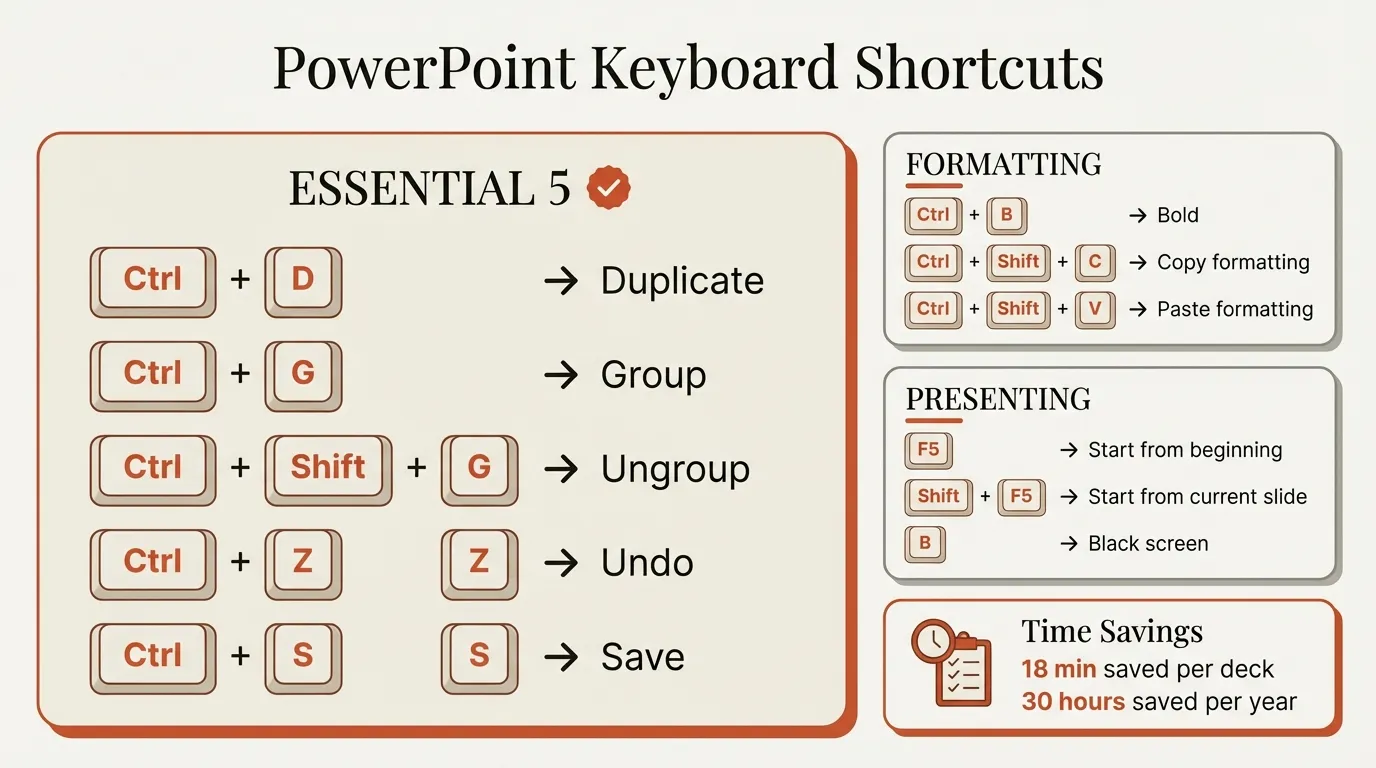
Here are all slideshow shortcuts organized for quick reference. Print these or keep them accessible during rehearsals.
Starting and Ending Shortcuts
| Action | Windows | Mac |
|---|---|---|
| Start from beginning | F5 | Cmd+Shift+Return |
| Start from current slide | Shift+F5 | Cmd+Return |
| Start in Presenter View | Alt+F5 | Option+Return |
| End slideshow | Esc | Esc |
Navigation Shortcuts
| Action | Windows | Mac |
|---|---|---|
| Next slide/animation | N, Enter, Space, Right, Down, Page Down | Same |
| Previous slide | P, Backspace, Left, Up, Page Up | Same |
| First slide | Home | Fn+Left |
| Last slide | End | Fn+Right |
| Go to slide # | # + Enter | # + Enter |
| All slides view | G | G |
| Slide navigator | Ctrl+S | Cmd+S |
Annotation Shortcuts
| Action | Windows | Mac |
|---|---|---|
| Laser pointer | Ctrl+L or Ctrl+Click | Cmd+L or Cmd+Click |
| Pen | Ctrl+P | Cmd+P |
| Highlighter | Ctrl+I | Cmd+I |
| Eraser | Ctrl+E | Cmd+E |
| Erase all ink | E | E |
| Arrow pointer | Ctrl+A | Cmd+A |
| Hide pointer | Ctrl+H | Cmd+H |
| Show ink markup | Ctrl+M | Cmd+M |
Display Shortcuts
| Action | Windows | Mac |
|---|---|---|
| Black screen | B or . | B or . |
| White screen | W or , | W or , |
| Help/shortcuts list | F1 | / |
For Mac-specific shortcuts across all PowerPoint features, our PowerPoint shortcuts Mac guide covers the differences in detail.
Pro Tips for Live Presentations
Knowing shortcuts is only half the battle. Here's how to use them effectively in real presentations.
Rehearse with Shortcuts Enabled
Practice your presentation using the exact shortcuts you'll use live. If you plan to use the laser pointer, practice Ctrl+Click until it's automatic. If you might need to jump to specific slides, memorize those slide numbers.
Rehearsing with mouse clicks and then switching to shortcuts for the live presentation is a recipe for mistakes.
Memorize Key Slide Numbers
For important presentations, write down the slide numbers for:
- Your agenda or overview slide
- Key data slides executives might ask about
- Your summary or conclusion slide
- Appendix slides with backup data
When someone asks "Can you go back to the revenue chart?", typing the number and pressing Enter looks far more professional than clicking backward through 20 slides.
Use B for Black Screen Strategically
The black screen shortcut (B) is underutilized. Use it when:
- An executive asks an off-topic question
- Discussion veers into areas not covered by your slides
- You need a moment to think before answering
- The presentation naturally pauses for Q&A
This signals that you're in control of the technology, not fighting it.
Set Up Presenter View Before Your Audience Arrives
If you're using Presenter View with dual monitors, test the setup before anyone enters the room. Press Alt+F5 to confirm which screen shows what. Discovering your notes are on the projector screen while the audience watches is a presentation nightmare.
Keep Annotation Simple
The pen and highlighter tools are powerful but risky. Complex drawings during a presentation can look unprofessional if your hand isn't steady. Stick to:
- Circling key numbers
- Underlining important text
- Simple arrows pointing to chart elements
If you need complex annotations, build them into the slide beforehand.
Building Slides Faster Before You Present
While slideshow shortcuts handle presentation mode, the real time savings come from shortcuts during slide creation. Formatting objects, aligning elements, and building charts takes far longer than presenting.
Our PowerPoint alignment shortcuts guide covers the missing alignment shortcuts PowerPoint doesn't provide natively. And Deckary's productivity tools add true single-keystroke shortcuts for alignment, distribution, and formatting—the operations that consume most deck-building time.
The goal is efficiency at every stage: building slides quickly with editing shortcuts, then presenting them confidently with slideshow shortcuts.
Summary
Slideshow shortcuts in PowerPoint divide into four categories:
Starting and ending: F5 starts from the beginning, Shift+F5 from current slide, Esc exits. These are the essential three.
Navigation: Use slide number + Enter to jump to specific slides. Space advances forward, Backspace goes back. G shows all slides for visual navigation.
Annotation: Ctrl+L or Ctrl+Click activates the laser pointer. Ctrl+P turns on the pen. Press E carefully—it erases all ink immediately.
Display: B blacks the screen, W whites it. Both are essential for Q&A sessions and keeping audience attention where you want it.
Practice these shortcuts until they're automatic. The mark of a polished presenter isn't just great content—it's seamless control of the technology delivering that content.
The next time an executive asks about slide 47 while you're on slide 12, you'll type "47 Enter" without thinking. That's when you know you've mastered slideshow shortcuts.