Comparison Slide PowerPoint: 5 Formats That Drive Decisions
Comparison slide PowerPoint guide for consultants. Covers side-by-side layouts, decision matrices, pros/cons formats, and design standards from McKinsey and BCG.
Comparison slides decide whether executives approve your recommendation or demand more analysis. When a board evaluates three M&A targets, a CFO chooses between ERP vendors, or a steering committee weighs strategic options, the comparison slide determines which choice moves forward.
At McKinsey, BCG, and Bain, comparison slides follow strict formatting rules: criteria in rows, options in columns, visual emphasis on the recommended choice, and zero ambiguity about which option wins. These are not neutral frameworks—they are decision-support tools designed to guide audiences toward a specific conclusion.
After building comparison slides for 120-plus strategy decks, vendor evaluations, and investment decisions, we have identified five formats that consistently drive decisions, the design principles that make comparisons scannable in under 10 seconds, and the mistakes that turn comparison slides into indecisive data dumps.
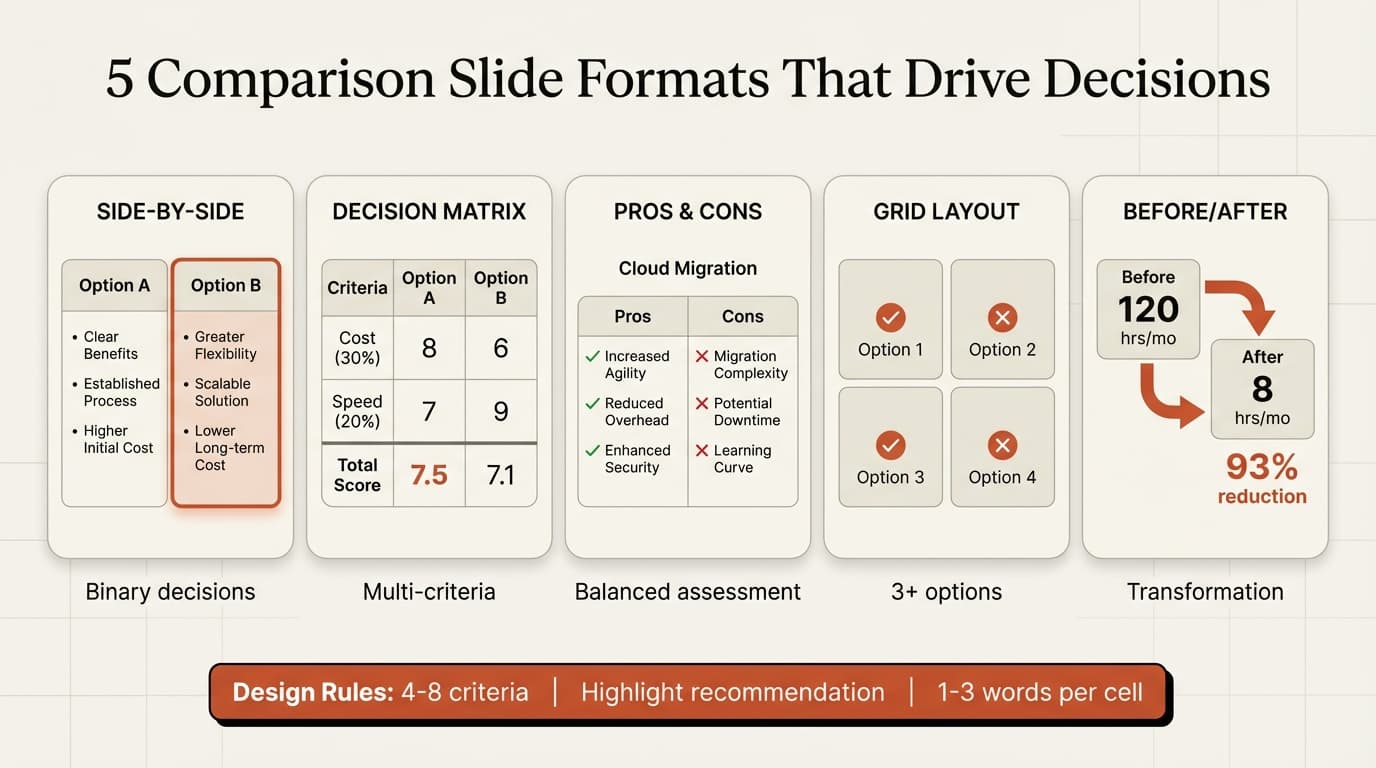
Why Comparison Slides Matter in Business Presentations
Comparison slides convert analysis into action. They take complex evaluations and distill them into a single, decision-ready visual.
1. Replacing subjective debate with structured evaluation. Decision matrices replace opinion with objective evaluation, translating complex choices into measurable criteria and making trade-offs explicit.
2. Making the recommendation obvious. By highlighting strengths and visually emphasizing the recommended option, comparison slides reduce cognitive load on decision-makers.
3. Supporting defensibility. Comparison slides document the decision logic. When a board asks "Why did we choose Vendor A over Vendor B?" six months later, the comparison slide provides the answer.
| Decision Context | Comparison Format | Key Emphasis |
|---|---|---|
| Vendor selection | Decision matrix | Weighted criteria, total scores |
| M&A target evaluation | Side-by-side columns | Financial metrics, strategic fit |
| Strategy options | Pros/cons or grid | Risk/reward balance |
| Before/after case | Before/after layout | Impact metrics, improvement delta |
| Product feature comparison | Grid or table | Feature availability, gaps |
Five Comparison Slide PowerPoint Formats That Work
1. Side-by-Side Column Layout
Two options displayed in parallel columns with criteria listed as rows or bullets.
Structure:
[Option A Header]              [Option B Header]
- Criterion 1: Value           - Criterion 1: Value
- Criterion 2: Value           - Criterion 2: Value
- Criterion 3: Value           - Criterion 3: Value
Best for: Binary decisions (build vs. buy, organic growth vs. acquisition, in-house vs. outsource).
Design tips:
- Use a 50/50 column split for equal weight or 60/40 to emphasize the recommended option
- Highlight key differences with bold text or background color
- Add icons or checkmarks to show feature availability
- Keep bullet text to 3-5 words per line
- Place a summary statement at the bottom ("Option A offers 30% lower cost with comparable features")
Side-by-side layouts mirror how people naturally compare. For more on two-column slide design, see our consulting slide standards guide.
2. Decision Matrix (Weighted Scoring Table)
A table with options as columns and evaluation criteria as rows, often including weights and total scores. This is the gold standard for multi-criteria decisions.
Structure:
Criterion (Weight)    | Option A | Option B | Option C
Cost (30%)            |    8     |    6     |    7
Speed (20%)           |    7     |    9     |    6
Risk (25%)            |    6     |    7     |    9
Strategic Fit (25%)   |    9     |    7     |    8
-----------------------------------------------------------
Weighted Total        |   7.5    |   7.1    |   7.6
Best for: Vendor selection, M&A target evaluation, technology platform decisions.
Design tips:
- Use 4-8 criteria—fewer than four oversimplifies, more than eight creates clutter
- Weight criteria based on strategic importance, with weights summing to 100%
- Score on a consistent scale (1-10 or 1-5)
- Highlight the winning option with bold borders or colored fill
- Include a "Recommendation" row at the bottom
- Show the scoring methodology in a footnote or appendix
BCG and McKinsey use weighted decision matrices in due diligence and strategy projects because they make trade-offs explicit.
3. Pros and Cons List
Each option gets two columns: advantages on the left, disadvantages on the right. This format emphasizes balanced assessment.
Structure:
Option A: Cloud Migration

Pros                          | Cons
- 40% lower infrastructure    | - 12-month migration timeline
  cost over 3 years            | - Vendor lock-in risk
- Automatic scaling            | - Requires team retraining
- 99.9% uptime SLA             | - Data sovereignty concerns
Best for: Strategic go/no-go decisions, change management presentations, investment proposals.
Design tips:
- Limit to 4-5 pros and 4-5 cons (more suggests insufficient synthesis)
- Use parallel structure (all bullets start with verbs or all with nouns)
- Bold the most critical pros and cons
- Add a "Net Assessment" section below to state the recommendation
- Use green/red color coding sparingly—it can feel heavy-handed
Pros/cons slides work when the decision is not purely quantitative. They acknowledge uncertainty.
4. Grid Layout (Three-Plus Options)
A grid or table comparing three or more options across multiple criteria. This extends the side-by-side format for complex evaluations.
Structure:
Criterion         | Option A | Option B | Option C | Option D
Cost              | $$       | $$$      | $        | $$
Implementation    | 6 months | 3 months | 9 months | 6 months
Scalability       | High     | Medium   | Low      | High
Vendor Support    | 24/7     | Business | Email    | 24/7
Best for: Software evaluation, vendor shortlists, product feature comparisons.
Design tips:
- Use icons, checkmarks, and symbols to replace text where possible (✓ for "Yes", ✗ for "No", $ symbols for cost tiers)
- Color-code cells (green for strong, yellow for acceptable, red for weak)
- Keep table width under 80% of slide to maintain readability
- Bold the column for the recommended option
- Add a summary row highlighting the winner
Grid layouts handle complexity but require careful formatting. Overstuffed tables become unreadable. Tools like Deckary can auto-format tables with consistent spacing and alignment.
5. Before/After Layout
Two columns showing the current state and the proposed state, with delta metrics between them.
Structure:
Before                        | After
Manual reconciliation         | Automated reconciliation
- 120 hours/month             | - 8 hours/month
- 15% error rate              | - Under 2% error rate
- 5-day close cycle           | - 1-day close cycle

Impact: 93% time reduction, 87% error reduction
Best for: Process improvement proposals, transformation business cases, product enhancement pitches.
Design tips:
- Use left-to-right flow (before on left, after on right) to match reading direction
- Include quantified improvement deltas (percentages, time saved, cost reduction)
- Add visual elements like arrows or progress bars to show change magnitude
- Keep language parallel ("Manual X" vs. "Automated X")
- Include a timeline or implementation plan below the comparison
Before/after slides are persuasive because they show impact, not just features. For visual impact examples, see our before and after slide guide.
Format Comparison
| Format | Options | Criteria | Complexity | Best Use Case |
|---|---|---|---|---|
| Side-by-Side | 2 | 3-6 | Low | Binary decisions |
| Decision Matrix | 2-5 | 4-8 | High | Multi-criteria evaluation |
| Pros/Cons | 1-2 | N/A | Low | Risk/reward balance |
| Grid Layout | 3-6 | 4-10 | Medium | Product/vendor shortlists |
| Before/After | 2 | 3-8 | Low | Transformation cases |
Continue reading: Agile vs Waterfall · Flowchart in PowerPoint · Competitive Landscape Slide
Use consulting-grade layouts in PowerPoint
Start from structured business slides and customize them in your own deck. 10 free AI prompts. No credit card required.
Design Principles for Effective Comparison Slides
Principle 1: Visual Hierarchy Guides the Eye
Techniques:
- Color emphasis: Highlighted border or filled background for the recommended column
- Checkmark or badge: A "Recommended" icon in the header
- Size differential: Slightly wider column for the winner (60/40 split instead of 50/50)
- Bold totals: In decision matrices, bold the highest weighted score
Principle 2: Ruthless Text Economy
Rules:
- Criteria labels: 2-4 words ("Implementation Time" not "How long will implementation take?")
- Cell values: 1-3 words or a number ("6 months", "High", "$2.4M")
- Replace text with symbols where possible (✓/✗, $/$$/$$$, 1-5 stars)
- Limit explanatory footnotes to one per slide
Principle 3: Consistent Formatting Across Criteria
Checklist:
- Same font and size for all cell text (14-16pt for body, 18-20pt for headers)
- Consistent alignment (center-align numbers, left-align text)
- Uniform cell padding and row height
- Consistent value formats (all percentages, all currency, all time periods)
- Identical column widths unless intentionally emphasizing one option
Use PowerPoint's table formatting tools or master slides to enforce consistency. For alignment precision, Deckary's keyboard shortcuts enable pixel-perfect table formatting in seconds.
Common Comparison Slide Mistakes
Mistake 1: Too Many Criteria
Problem: Listing 12-15 evaluation criteria in a decision matrix or grid layout.
Why it fails: Most effective decision matrices use between four and eight criteria. More than eight makes the slide unreadable.
Fix: Consolidate related criteria or create a summary slide with 5-6 key criteria and move the full matrix to the appendix.
Mistake 2: No Clear Recommendation
Problem: Presenting a neutral comparison without highlighting which option the presenter recommends.
Why it fails: Decision-makers expect consultants to have a point of view.
Fix: Visually emphasize the recommended option with bold borders, colored fills, or a "Recommended" badge. Add a summary statement below the comparison: "Option B is recommended based on superior cost-effectiveness and faster implementation timeline."
Mistake 3: Mixing Quantitative and Qualitative Without Context
Problem: Comparing "6 months" (quantitative) with "Fast" (qualitative) in the same column.
Why it fails: Mixing scales makes comparisons meaningless.
Fix: Use consistent scales across all options. If Option A shows "6 months," Option B must show "3 months," not "Fast." If qualitative labels are unavoidable, define the scale in a footnote ("Fast = under 3 months, Medium = 3-6 months, Slow = over 6 months").
Mistake 4: Overloading with Color
Problem: Color-coding every cell—green for good, yellow for acceptable, red for bad—across the entire table.
Why it fails: Rainbow tables are visually exhausting.
Fix: Use color sparingly. Highlight only the most critical differences or the recommended option. For large tables, stick to neutral backgrounds with selective bold text for emphasis. For color guidance, see our PowerPoint color schemes guide.
Mistake 5: Using Comparison Slides as Appendix Dumps
Problem: Including a 10-column, 20-row comparison table in the appendix "for completeness."
Why it fails: Appendix slides should support the main narrative, not archive every data point.
Fix: Create a summary comparison for the main deck (5-6 criteria, 2-4 options) and a focused appendix table that answers anticipated questions. Cut the rest.
Tools and Automation
| Tool | Best For | Price |
|---|---|---|
| Deckary | AI-generated comparison slides, auto-formatting | $120-180/yr |
| PowerPoint Tables | Basic grids and matrices | Built-in |
| Excel Linked Charts | Dynamic data-driven comparisons | Built-in |
Deckary's AI Slide Builder generates decision matrices and comparison tables from text descriptions, automatically formatting criteria, scoring, and visual emphasis. For a ready-made starting point, use the Comparison Table Template.
Summary
Comparison slides drive decisions by making trade-offs explicit, guiding audiences toward recommended options, and documenting the decision logic for future reference.
Key principles:
- Choose the right format: Side-by-side for binary choices, decision matrices for multi-criteria evaluation, pros/cons for balanced risk assessment, grids for three-plus options, before/after for transformation cases.
- Use 4-8 criteria: Fewer oversimplifies, more overwhelms.
- Highlight the recommendation: Visual emphasis on the winning option using bold borders, colored fills, or badges.
- Ruthless text economy: 1-3 words per cell, icons and symbols over sentences.
- Consistent formatting: Same fonts, alignment, spacing, and value formats across all rows and columns.
- Make trade-offs explicit: Decision matrices should show why one option wins even if it does not dominate every criterion.
The best comparison slides make the right choice obvious in under 10 seconds. For ready-to-use comparison templates and AI-generated decision frameworks, explore Deckary's slide library or build custom comparison slides with the AI Slide Builder.
Sources
- SlideModel — McKinsey Presentation Structure
- Asana — Decision Matrix Examples
- Monday.com — Decision Matrix Guide
- SlidesAI — PowerPoint Comparison Slide
- PresentationGo — Side by Side Comparison Template
- Airfocus — Weighted Decision Matrix Prioritization
- Miro — What is a Decision Matrix
- Prezentio — Comparison Tables PowerPoint
- SlideUpLift — Comparison PowerPoint Templates
- InkPPT — Creating Beautiful Comparison Slides PowerPoint
- Cognism — Vendor Selection Matrix
- Eloquens — Vendor Evaluation and Selection Matrix
Use consulting-grade layouts in PowerPoint
Start from structured business slides and customize them in your own deck. 10 free AI prompts. No credit card required.