Share PowerPoint: 6 Methods Compared (Email, OneDrive, Link)
Learn how to share PowerPoint presentations via email, OneDrive, SharePoint, and link sharing. Step-by-step guide with permission settings and file size fixes.
Sharing a PowerPoint presentation means getting slides to colleagues, clients, or stakeholders—whether for review, collaboration, or final delivery. The method you choose affects edit permissions, file size limits, version control, and whether recipients can open the file at all.
After sharing over 400 client presentations across email, OneDrive, SharePoint, and collaboration platforms, we have identified which methods work for common scenarios and where each approach fails. This guide covers six sharing methods with step-by-step instructions, permission settings, and fixes for file size issues that block email attachments.
Share PowerPoint via Email (Attachment)
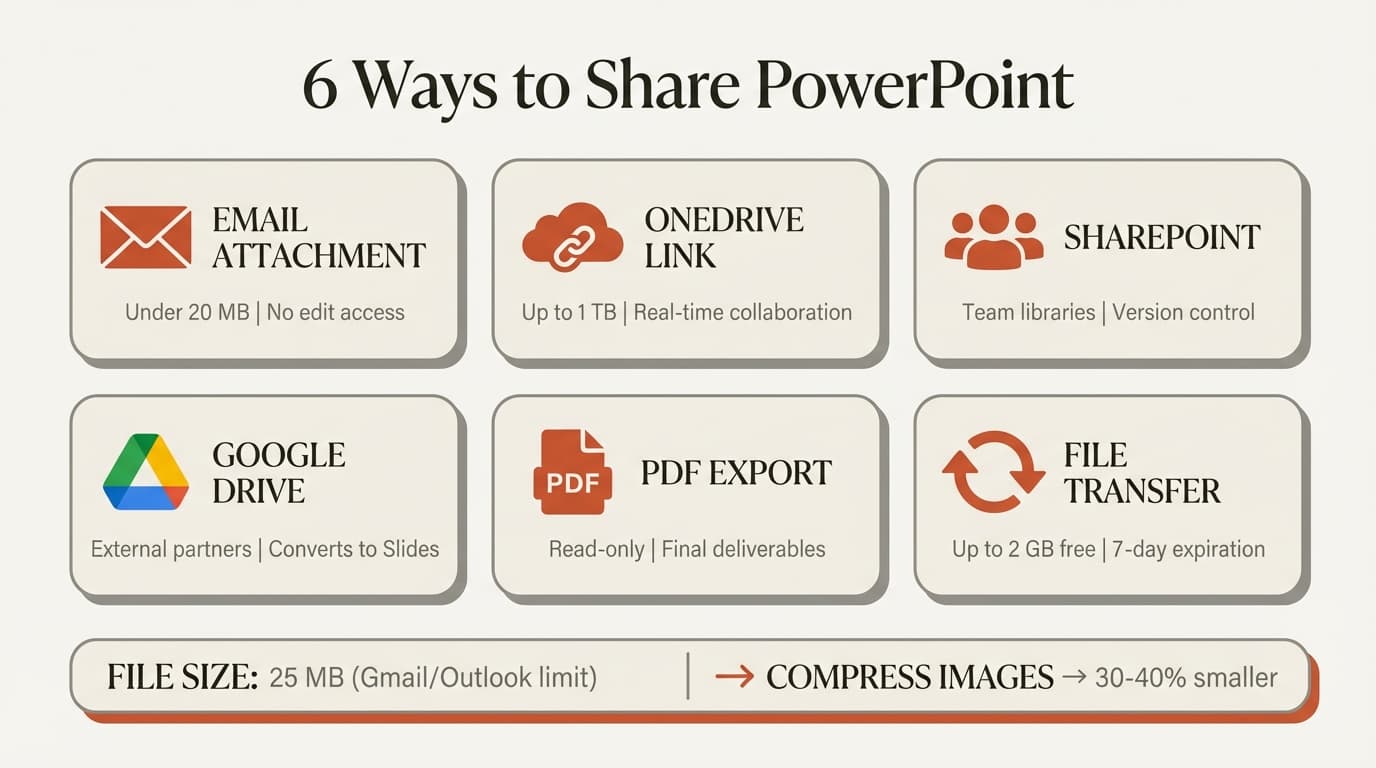
Email attachment is the simplest method when your file is under the size limit.
Steps to Share PowerPoint as Email Attachment
- Open your presentation in PowerPoint
- Click File then Share then Email
- Select Send as Attachment to send the full PPTX file
- Your default email client opens with the file attached
- Add recipients and send
Email Attachment Size Limits
Most email providers enforce strict attachment limits:
| Email Provider | Attachment Limit | What Happens When Exceeded |
|---|---|---|
| Gmail | 25 MB | Email rejected, prompts Google Drive upload |
| Outlook.com | 20 MB | Email rejected, suggests OneDrive link |
| Outlook (corporate) | 10-20 MB | Varies by organization |
| Yahoo Mail | 25 MB | Email rejected |
According to iSpring Solutions' 2026 analysis, high-resolution images and embedded videos are the most common causes of oversized PowerPoint files.
Use email when files are under 20 MB and recipients only need to view once. Avoid for files exceeding size limits, collaborative editing, or when version control matters.
Share PowerPoint via OneDrive Link
OneDrive link sharing is the recommended method for files over 20 MB, collaborative editing, and when you need to control permissions after sharing.
Steps to Share PowerPoint via OneDrive
- Open your presentation in PowerPoint
- Click the Share button in the top right corner of the ribbon
- If the file is not already on OneDrive, PowerPoint prompts you to save it there
- Choose a OneDrive folder and click Save
- Enter email addresses or click Copy link at the bottom
- Set permissions: Can edit or Can view
- Click Send to email the link, or paste the copied link elsewhere
Microsoft's official OneDrive sharing guide confirms that the Share button automatically saves to OneDrive if the file is local.
OneDrive Link Permission Options
When sharing via OneDrive, you control who can access and what they can do:
| Permission Setting | Who Can Access | What They Can Do |
|---|---|---|
| Specific people | Only email addresses you enter | View or edit (you choose) |
| People in [Organization] | Anyone with your company email domain | View or edit (you choose) |
| Anyone with the link | Anyone who receives the link | View or edit (you choose) |
Can edit allows recipients to modify slides and see real-time changes. Can view allows opening and downloading but blocks editing.
To change permissions after sharing, click File then Info then Manage Access.
Use OneDrive link sharing when files exceed email limits, multiple people need to edit simultaneously, or you need to revoke access later. When multiple users edit a shared PowerPoint on OneDrive, each person's cursor appears with their name. According to Microsoft's Work Trend Index 2025, 65% of interactions with Office files in OneDrive and SharePoint in 2025 were edits, up from 58% in 2024.
Share PowerPoint via SharePoint
SharePoint is designed for team collaboration within organizations. It adds document libraries, approval workflows, and version history beyond what OneDrive offers.
Steps to Share PowerPoint via SharePoint
- Upload your presentation to a SharePoint document library
- Select the file and click Share
- Enter email addresses and set permissions
- Click Share
SharePoint vs OneDrive for Sharing
| Feature | OneDrive | SharePoint |
|---|---|---|
| Best for | Individual work, small teams | Teams, departments, projects |
| Permissions | Owner controls all access | Admins can set site-level permissions |
| Version history | Yes | Yes, with restore and approval workflows |
| Integration | Personal Microsoft 365 account | Organizational Microsoft 365 |
| Storage limit | 1 TB per user (Microsoft 365) | Varies by organization plan |
Microsoft documentation on SharePoint sharing confirms that SharePoint supports the same real-time co-authoring as OneDrive.
Continue reading: Fishbone Diagram in PowerPoint · Case Study Presentation · How to Add Icons to PowerPoint
Work faster in PowerPoint
Use shortcuts, icons, logos, and reusable slides without leaving PowerPoint. 14-day free trial. No credit card required.
Share PowerPoint via Google Drive
Google Drive is useful when sharing with external collaborators who do not use Microsoft 365 or when working across organizations.
Steps to Share PowerPoint via Google Drive
- Open Google Drive
- Click New then File upload and select your PPTX file
- Right-click the file and select Share
- Enter email addresses and set permissions
- Click Send
Important: When someone opens a PPTX file from Google Drive, it converts to Google Slides format. Formatting often breaks—fonts change, alignment shifts, and charts may not render correctly.
Use Google Drive for external collaborators who prefer Google Workspace. Avoid for client deliverables or presentations with Excel-linked charts.
Share PowerPoint as PDF
Converting to PDF before sharing eliminates compatibility issues, prevents unwanted edits, and reduces file size. PDF is the standard format for final deliverables.
Steps to Share PowerPoint as PDF
- Click File then Export then Create PDF/XPS
- Choose Standard quality for print or Minimum size for email
- Click Publish
For detailed PDF export settings, see our PowerPoint to PDF guide.
Share as PDF when recipients only need to view, not edit, or to prevent changes. PDF files are typically 30-50% smaller than PPTX when using Minimum size export.
Share PowerPoint via Cloud File Transfer Services
When email attachment limits block your file and OneDrive is not an option, cloud file transfer services provide temporary download links.
Popular File Transfer Services
| Service | Free File Size Limit | Link Expiration | Registration Required |
|---|---|---|---|
| WeTransfer | 2 GB | 7 days | No |
| Dropbox Transfer | 100 MB | 7 days | Yes (free account) |
| Google Drive | 15 GB | Permanent (until deleted) | Yes (Google account) |
| OneDrive | 1 TB | Permanent (until deleted) | Yes (Microsoft account) |
Steps to Use WeTransfer
- Go to wetransfer.com
- Click Add your files and select your PPTX
- Enter recipient email addresses and click Transfer
WeTransfer works for one-time sharing when you do not need edit permissions or version control.
Fixing PowerPoint File Size Issues Before Sharing
If your presentation exceeds email limits, these compression methods reduce file size:
Compress Images in PowerPoint
- Select any image in your presentation
- Click Picture Format then Compress Pictures
- Choose a resolution:
- Email (96 ppi) for screen-only viewing
- Web (150 ppi) for balanced quality
- Print (220 ppi) for high-quality output
- Uncheck Apply only to this picture to compress all images
- Click OK
According to Adobe's PowerPoint compression guide, image compression can reduce file size by 30-40% with minimal quality loss.
Compress Media Files
- Click File then Info
- Click Compress Media
- Choose Full HD, HD, or Standard Definition
- PowerPoint compresses embedded videos
Embedded videos are the largest file size contributors. A single 2-minute video can add 100+ MB. Compress to Standard Definition unless the video will be projected on a large screen.
Remove Cropped Image Data
When you crop an image in PowerPoint, the cropped portions remain in the file:
- Select an image
- Click Picture Format then Compress Pictures
- Check Delete cropped areas of pictures and click OK
Link to External Videos
Link to video files instead of embedding them to reduce file size. The video must remain in the same location for the link to work.
For presentations with data-driven charts, tools like Deckary generate vector-based charts directly in PowerPoint, which export cleanly without adding image weight. Charts pasted as images from Excel bloat file size unnecessarily.
PowerPoint Sharing: Method Comparison
| Method | File Size Limit | Real-Time Collaboration | Edit Permissions | Best For |
|---|---|---|---|---|
| Email attachment | 20-25 MB | No | None (recipient gets full file) | One-time sharing, small files |
| OneDrive link | 1 TB | Yes | Can edit / Can view | Team collaboration, large files |
| SharePoint | Varies | Yes | Can edit / Can view | Organizational teams |
| Google Drive | 15 GB (free) | Limited (Google Slides) | Viewer / Commenter / Editor | External collaborators |
| PDF export | Smaller than PPTX | No | Read-only | Final deliverables |
| File transfer service | 2 GB (free) | No | None (download only) | Temporary large file sharing |
For consulting work where version control and formatting precision matter, OneDrive link sharing provides the most control. Email attachment works for final PDFs and small files under 20 MB.
Best Practices for Sharing PowerPoint Presentations
Compress before sharing. Run image compression and media compression before sending to reduce upload time and storage usage.
Use Can view for final versions. Set permissions to Can view to prevent accidental changes while allowing download.
Share as PDF for clients. Client deliverables and board presentations should be sent as PDF unless explicitly requested as PPTX. See our PowerPoint to PDF guide.
Keep a master version on OneDrive. Even if you send email attachments, keep the master on OneDrive or SharePoint to prevent version control issues.
Common Sharing Problems and Fixes
Recipient cannot open the file: Share as PDF or direct them to PowerPoint for the web.
Recipient cannot edit despite having permission: Click Edit Presentation in the top bar, then select Edit in Desktop App.
Changes are not syncing in real time: Turn on AutoSave in the top left. If grayed out, move the file to OneDrive via Save As.
Link sharing is grayed out: Save the file to OneDrive first. If still grayed out, check with your IT administrator about external sharing settings.
When to Use Each Sharing Method
| Scenario | Recommended Method |
|---|---|
| Final client deliverable | PDF via email attachment |
| Team collaboration on draft slides | OneDrive link (Can edit) |
| Sharing with external partner for review | OneDrive link (Can view) |
| Board presentation (read-only) | PDF via email or OneDrive link (Can view) |
| Large file over 25 MB | OneDrive link or file transfer service |
| Temporary sharing with someone outside your organization | WeTransfer or Google Drive |
| Departmental project file | SharePoint document library |
Choosing the right method prevents version conflicts, file size rejections, and permission issues that waste time in high-stakes situations.
Sources
Work faster in PowerPoint
Use shortcuts, icons, logos, and reusable slides without leaving PowerPoint. 14-day free trial. No credit card required.