PowerPoint Version History: Access, Restore, and Manage Previous Versions
Learn how to access, restore, delete, and manage PowerPoint version history, including OneDrive, SharePoint, AutoRecover, and unsaved presentations.
PowerPoint's version history is invisible until you need it. When a partner overwrites critical analysis, a colleague deletes the wrong section, or your file crashes mid-edit, version history is the fastest path back to a working state.
This guide covers how to access PowerPoint version history, restore previous versions, manage version limits, and handle the storage impact that catches most teams by surprise.
Start with the recovery situation
| Situation | First action | Before replacing anything |
|---|---|---|
| A colleague changed a cloud-saved deck | Open the file name menu and choose Version History | Preview the version and compare the affected slides |
| You want only one old slide | Open the older version and copy the needed slide into a separate copy | Preserve changes made since that version |
| Version History is missing | Check that you opened the OneDrive or SharePoint file, not a downloaded local copy | Confirm the account and library permissions |
| PowerPoint crashed before a save | Check Document Recovery or AutoRecover | Save recovered work under a new name first |
Microsoft's previous-version instructions cover Windows, Mac, and the web. For the web route, use OneDrive's version history. Restoring a full file can affect collaborators, so coordinate before replacing the current version.
After recovery, save a working copy before further editing. If you need help revising its narrative or individual slides, see the PowerPoint AI editing workflow. Deckary is an editing tool, not a replacement for file backups.
PowerPoint Version History: Quick Answer
To access PowerPoint version history, open a file stored in OneDrive or SharePoint, click the file name or go to File > Info, then choose Version History. Select a previous version to preview it, click Restore to make it current, or use Save As when you want to keep both versions.
| Task | Where to Go | Important Limit |
|---|---|---|
| Access version history | File name dropdown or File > Info | OneDrive or SharePoint files only |
| Restore a previous version | Version preview > Restore | Current file is replaced, but saved as a new version |
| Recover unsaved work | AutoRecover or Document Recovery | Temporary crash recovery, not full history |
| Delete/manage versions | OneDrive/SharePoint version panel | May require admin permissions |
What Is PowerPoint Version History
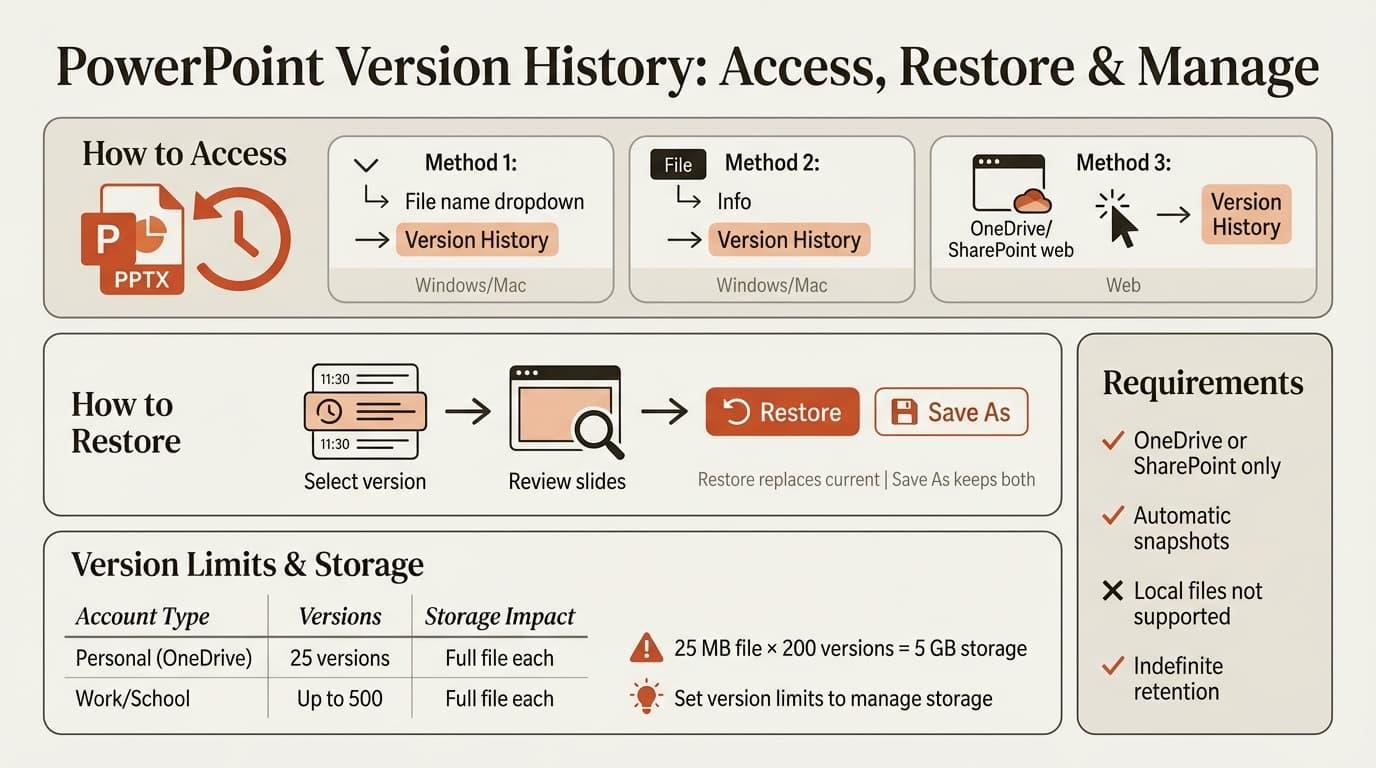
PowerPoint version history is an automatic backup system built into Microsoft 365 that saves snapshots of your file every time you or a collaborator makes changes. Each snapshot captures the entire presentation at that moment. You can view or restore any past version.
Microsoft 365 supports viewing and restoring earlier versions of files stored in OneDrive or SharePoint. Available history depends on the account and library settings. Personal Microsoft accounts retrieve the last 25 versions. Work or school accounts depend on library configuration, but SharePoint Online defaults to 500 versions as the standard setting.
| Account Type | Version Limit | Retention Period | Storage Impact |
|---|---|---|---|
| Personal (OneDrive) | 25 versions | Indefinite | Full file size per version |
| Work/School (default) | Up to 500 versions | Indefinite or admin-set expiration | Full file size per version |
| Work/School (manual limit) | Custom (e.g., 100 versions, 365 days) | Admin-defined | Full file size per version |
Version history works only for files stored in OneDrive or SharePoint. Local files require Windows File History or manual backups.
How to Access PowerPoint Version History
There are three ways to open version history depending on where you are working.
Method 1: From PowerPoint Desktop (Windows or Mac)
- Open your PowerPoint file stored on OneDrive or SharePoint
- Click the file name at the top center of the window
- Select Version History from the dropdown
A sidebar opens on the right showing all saved versions with timestamps and authors. Mac users: Select the document name in the title bar, then Browse Version History.
Method 2: From File Menu
- Go to File > Info
- Click Version History
This opens the same sidebar as Method 1.
Method 3: From PowerPoint for the Web
- Open your file in PowerPoint for the web (office.com)
- Go to File > Version History
The web version displays versions in a panel with preview thumbnails.
| Access Method | Platform | When to Use |
|---|---|---|
| File name dropdown | Windows, Mac | Fastest method during active editing |
| File > Info | Windows, Mac | When title bar is hidden or using older versions |
| File > Version History | Web | Remote access or non-desktop workflows |
Continue reading: Bar Charts in PowerPoint · Case Study Presentation · How to Add Icons to PowerPoint
Work faster in PowerPoint
Use shortcuts, icons, logos, and reusable slides without leaving PowerPoint. 14-day free trial. No credit card required.
How to Restore a Previous Version of PowerPoint
Once you have version history open, restoring a previous version takes three steps.
Step 1: Select the Version
In the version history sidebar, click the version you want to restore. Versions are listed with:
- Timestamp (e.g., "Today at 2:34 PM" or "February 21 at 10:15 AM")
- Author name
- Optional version label (if manually named)
Clicking a version opens it in a new read-only window so you can review before restoring. Scroll through slides to confirm this is the version you need.
Step 2: Restore or Save As
Once you have confirmed the version, you have two options:
Option A: Restore (replaces current file)
Click Restore at the top of the preview window. Microsoft's official documentation confirms this makes the selected version the current file. The previous current version is saved as a new entry in version history, so nothing is permanently lost.
Option B: Save As (keeps both versions)
Go to File > Save As and choose a new file name and location. This saves the restored version as a separate file, leaving the current version untouched.
| Restore Method | Effect | When to Use |
|---|---|---|
| Restore button | Replaces current file, saves old current as new version | Certain the old version is correct |
| Save As | Creates separate file, preserves both | Need to compare or unsure which to keep |
Accessing Version History from OneDrive and SharePoint
If you are not actively editing the file in PowerPoint, you can access version history directly from OneDrive or SharePoint.
From OneDrive
- Go to onedrive.com and sign in
- Navigate to your PowerPoint file
- Right-click the file and select Version History
The version history panel opens in your browser. Click any version to open it in PowerPoint for the web, then restore or download as needed.
From SharePoint
- Open your SharePoint document library
- Right-click the PowerPoint file
- Select Version History
SharePoint displays versions with version numbers (e.g., 1.0, 2.0) in addition to timestamps.
| Platform | Access Method | Version Display | Best For |
|---|---|---|---|
| OneDrive | Right-click file then Version History | Timestamp + author | Personal files, small teams |
| SharePoint | Right-click file then Version History | Version number + timestamp + author | Enterprise, formal version control |
| PowerPoint Desktop | File name dropdown or File then Info | Timestamp + author | Active editing sessions |
Managing Version History Storage Impact
Version history is useful until it consumes your storage quota. Each saved version counts the full file size against your OneDrive or SharePoint limit, even if only one slide changed.
How Much Storage Version History Uses
A 25 MB PowerPoint deck with 200 versions consumes over 5 GB of storage if each version is roughly the same size. Orchestry's analysis found that version history can make one 25 MB PowerPoint file consume 5 GB of storage in typical corporate use.
| File Size | Versions | Total Storage Used |
|---|---|---|
| 10 MB | 50 | 500 MB |
| 25 MB | 200 | 5 GB |
| 50 MB | 100 | 5 GB |
| 100 MB | 50 | 5 GB |
Reducing Version History Storage
Microsoft introduced Intelligent Versioning to automatically trim older versions over time. Under automatic settings, intermittent older versions are deleted, resulting in 96% version storage reduction over six months compared to count limits alone.
Manual version limits (SharePoint admins):
- Go to SharePoint library settings
- Select Versioning settings
- Set version limits:
- Limit major versions to 100 or 200 instead of 500
- Enable expiration (e.g., delete versions older than 365 days)
Individual file cleanup:
- Open version history
- Right-click versions you no longer need
- Select Delete (if your organization allows manual deletion)
Not all SharePoint configurations allow individual users to delete versions. If the option is unavailable, contact your IT admin to adjust library-wide settings.
When Version History Does Not Work
Version history has limitations that catch users by surprise.
Local Files
Version history only works for files stored in OneDrive or SharePoint. If you save a PowerPoint file to your desktop, C: drive, or external hard drive, there is no automatic version history.
Workaround for local files:
- Enable Windows File History under Settings > Update & Security > Backup. This creates system-level snapshots of local files.
- Manually save dated copies (e.g., "Deck_2026-02-23.pptx") before major edits.
AutoRecover vs. Version History
PowerPoint's AutoRecover saves temporary files every 10 minutes to protect against crashes. These are not the same as version history snapshots. AutoRecover files are temporary and typically cleared when PowerPoint closes normally.
Version history is permanent and accessible indefinitely (or until your admin sets expiration rules). AutoRecover is temporary and designed for crash recovery, not version control.
| Feature | Purpose | Retention | Location |
|---|---|---|---|
| Version History | Restore previous file states | Indefinite (or admin-set limit) | OneDrive/SharePoint only |
| AutoRecover | Recover from crashes | Until PowerPoint closes normally | Local temp folder |
| File History (Windows) | Local file backups | User-defined | External drive or network location |
Best Practices for Using PowerPoint Version History
Version history works best when you treat it as automatic insurance, not a substitute for intentional file management.
Review Version History Before Major Edits
Before restructuring a deck, deleting slides, or applying a new master template, open version history and confirm recent versions are saved. This gives you a clean restore point if the changes do not work.
Use Version History for Q&A Audit Trails
When a partner asks, "Why did this number change between the draft and the final?" version history provides the answer. Open the relevant version, compare slides, and identify who changed what and when.
Summary
PowerPoint version history is automatic backup built into Microsoft 365 for OneDrive and SharePoint files. Access it by clicking the file name and selecting Version History, or go to File then Info. Personal accounts save the last 25 versions; work accounts default to 500. Restore a version by opening it, clicking Restore, or using Save As to keep both copies.
Version history only works for cloud-stored files, not local files. Each version uses the full file size against your storage quota, so a 25 MB deck with 200 versions can consume over 5 GB. Admins can set version limits and expiration rules to manage storage. For local files, enable Windows File History or manually save dated copies.
Sources
- View previous versions of Office files - Microsoft Support
- Maximizing Microsoft 365 storage: managing version history - Harvard University Information Technology
- Version history limits for document library and OneDrive - SharePoint in Microsoft 365 - Microsoft Learn
- How version history affects SharePoint and OneDrive storage - Orchestry
- View the version history of an item or file in a list or library - Microsoft Support
- Plan version storage for document libraries - SharePoint in Microsoft 365 - Microsoft Learn
Work faster in PowerPoint
Use shortcuts, icons, logos, and reusable slides without leaving PowerPoint. 14-day free trial. No credit card required.