PowerPoint SmartArt: Complete Guide to Creating Visual Diagrams
Learn how to use SmartArt in PowerPoint to transform text into professional diagrams. Includes all 11 categories, step-by-step instructions, and when to use SmartArt vs manual shapes.
SmartArt transforms bullet lists and text blocks into professional diagrams without manually positioning shapes or connectors. It handles the layout mechanics automatically, which means adding a fifth step to a process flow or a new team member to an org chart does not break your carefully aligned design.
After building presentations that required 180+ diagrams across strategy decks, board materials, and pitch books, we found that SmartArt works exceptionally well for standard business diagrams where speed and consistency matter more than pixel-perfect custom design. The challenge is knowing which of the 11 SmartArt categories to use, when SmartArt is the wrong choice, and how to customize layouts without converting everything to shapes and losing the auto-formatting benefits.
This guide covers how to insert and edit SmartArt, all 11 categories with use cases, customization options, and the decision framework for choosing SmartArt versus manual shapes.
What Is PowerPoint SmartArt
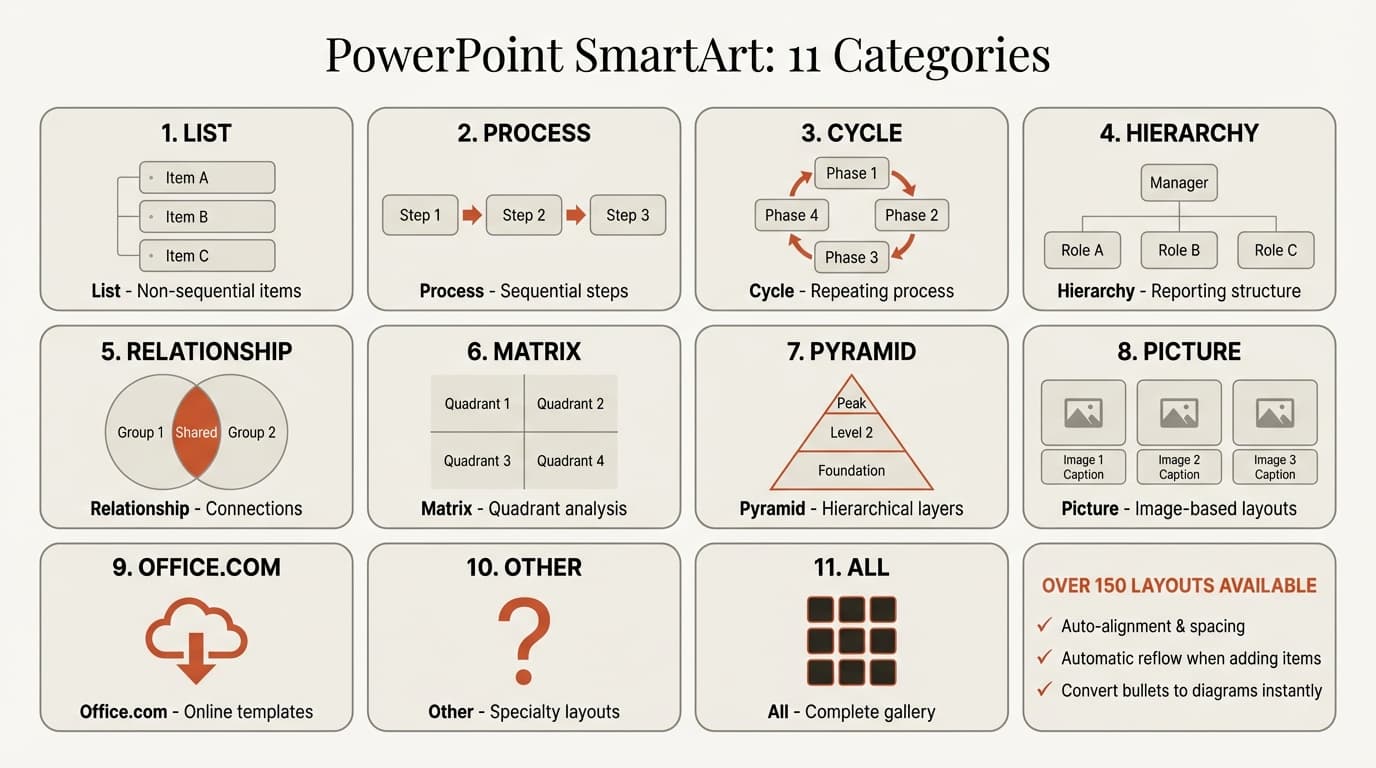
SmartArt is a visual representation tool in Microsoft PowerPoint (and other Office applications) that converts plain text into structured diagrams. Microsoft's SmartArt documentation describes it as a way to create designer-quality illustrations with preset layouts that automatically manage alignment, spacing, and sizing.
Office 365 includes over 150 SmartArt layouts organized into 11 categories: List, Process, Cycle, Hierarchy, Relationship, Matrix, Pyramid, Picture, Office.com, and Other. Each layout is optimized for a specific type of information—organization charts for Hierarchy, step-by-step workflows for Process, repeating cycles for Cycle.
The main difference between SmartArt and manually building diagrams with shapes is that SmartArt maintains a relationship between the text you type and the visual elements. When you add a sixth bullet point, the diagram automatically reflows to fit all six items. When you delete one, the remaining elements redistribute. Manual shapes require you to reposition, resize, and realign everything by hand.
How to Insert SmartArt in PowerPoint
Insert from scratch: Go to Insert > SmartArt, select a category (Process, Hierarchy, etc.), choose a layout, and click OK. The SmartArt appears with a text pane where each bullet becomes a shape.
Convert existing bullets: Click your text box, go to Home > Convert to SmartArt, and select a layout. PowerPoint preserves text hierarchy during conversion—top-level bullets become main shapes, indented bullets become sub-shapes.
| Action | Windows Shortcut | Mac Shortcut |
|---|---|---|
| Insert SmartArt | Alt, N, M | (use ribbon) |
| Convert to SmartArt | Alt, H, G | (use ribbon) |
| Open text pane | Ctrl+Shift+F2 | Cmd+Shift+F2 |
| Add shape (in text pane) | Enter | Enter |
| Indent shape (demote) | Tab | Tab |
| Outdent shape (promote) | Shift+Tab | Shift+Tab |
For more PowerPoint keyboard shortcuts that speed up slide creation, see our complete shortcuts guide.
Adding and Editing Text in SmartArt
Add content through the text pane (appears on the left when you insert SmartArt) or by clicking shapes directly. The text pane works like an outline editor:
- Press Enter to create a new shape
- Press Tab to indent (creates a sub-shape)
- Press Shift+Tab to outdent (promotes to a main shape)
- Press Delete to remove a shape
SmartArt automatically rebalances when you add or remove shapes. Delete one step from a five-step process and the remaining four steps spread evenly across the available space.
All 11 SmartArt Categories and When to Use Each
Microsoft's SmartArt category documentation organizes layouts by the type of information they communicate. Here is what each category does and the best use cases.
1. List
Purpose: Display non-sequential information or grouped items that do not follow a step-by-step order.
Best for: Feature comparisons, agenda items, summary points, lists of deliverables where each item is equally important.
Example layouts: Vertical Block List, Grouped List, Bending Picture Accent List.
2. Process
Purpose: Show steps, stages, or phases that follow a directional flow.
Best for: Workflows, project phases, timelines, step-by-step instructions, product development cycles.
Example layouts: Basic Process, Step-Down Process, Continuous Block Process.
For complex timelines, see our guide to Gantt charts and project timelines.
3. Cycle
Purpose: Illustrate a continuous or repeating process with no defined end.
Best for: Product life cycles, feedback loops, Agile sprints, quarterly review cycles, PDCA (Plan-Do-Check-Act).
Example layouts: Basic Cycle, Text Cycle, Block Cycle.
4. Hierarchy
Purpose: Show hierarchical relationships, typically top-to-bottom or parent-to-child structures.
Best for: Organization charts, reporting structures, decision trees, classification systems, family trees. The most widely used category in business presentations.
Example layouts: Organization Chart, Labeled Hierarchy, Horizontal Hierarchy.
5. Relationship
Purpose: Display connections, overlaps, or associations between concepts or groups.
Best for: Venn diagrams, gear/interlock metaphors, concept relationships showing how ideas overlap or connect without implying sequence.
Example layouts: Basic Venn, Radial Venn, Converging Radial.
6. Matrix
Purpose: Show how parts relate to a whole, typically in a quadrant or grid layout.
Best for: 2x2 matrices (BCG, Eisenhower), portfolio analysis, categorizing items along two dimensions like importance versus urgency.
Example layouts: Basic Matrix, Grid Matrix, Titled Matrix.
For more strategic frameworks, see our guide covering BCG, Ansoff, Porter's Five Forces, and 40+ other models.
7. Pyramid
Purpose: Show proportional, hierarchical, or foundation-based relationships that build upward.
Best for: Maslow's hierarchy, skill progression, foundation-to-apex concepts, tiered pricing, proportional breakdowns.
Example layouts: Basic Pyramid, Segmented Pyramid, Pyramid List.
8. Picture
Purpose: Combine images with explanatory text or use images as the primary message.
Best for: Team photos with names, product showcases, visual timelines. Picture layouts automatically format image placeholders with captions.
9-11. Office.com, Other, and All
Office.com: Deprecated category for online templates (now integrated into main categories).
Other: Specialty layouts that do not fit elsewhere. Rarely used.
All: Shows every available layout in a single list when you are unsure which category contains the layout you want.
Continue reading: Flowchart in PowerPoint · Case Study Presentation · How to Add Icons to PowerPoint
Work faster in PowerPoint
Use shortcuts, icons, logos, and reusable slides without leaving PowerPoint. 14-day free trial. No credit card required.
How to Customize SmartArt
Changing Colors and Styles
Click the SmartArt graphic, go to SmartArt Tools > Design, then:
- Change Colors: Select from color schemes grouped as Colorful (each shape a different color), Accent variations (shades of one color), or Primary Theme Color options
- SmartArt Styles: Apply visual effects like shadows, reflections, or 3D bevels to the entire diagram at once
Changing the Layout
Click the SmartArt graphic, go to SmartArt Tools > Design, and select a new layout from the gallery. PowerPoint preserves your text when switching, though some layouts support different levels, so content may reflow.
Formatting Individual Shapes
Click a shape, go to SmartArt Tools > Format, and use Shape Fill, Outline, or Effects to customize that shape only. Useful for highlighting one step in a process.
Resize the entire graphic by dragging corner handles. SmartArt maintains internal spacing and alignment as you resize.
SmartArt vs Manual Shapes: When to Use Each
Use SmartArt when:
- You need standard diagrams (org charts, process flows, Venn diagrams)
- Speed matters more than pixel-perfect design
- Content changes frequently (team members, project phases)
- You are working with less design-experienced team members
Use manual shapes when:
- You need custom infographics or branded design
- You want individual animation control (SmartArt groups elements)
- The diagram does not fit any SmartArt layout
- You are building data dashboards with layered elements
Hybrid approach: Insert SmartArt for base structure, then convert to shapes (right-click > Convert to Shapes) for final customization. You get SmartArt's speed with manual shapes' flexibility, but lose auto-reflow.
| Feature | SmartArt | Manual Shapes |
|---|---|---|
| Automatic alignment | Yes | No |
| Auto-reflow when adding items | Yes | No |
| Custom positioning | Limited | Full control |
| Individual shape animation | No (grouped) | Yes |
| Design flexibility | Preset layouts | Unlimited |
| Time to create | Fast | Slow |
| Best for | Standard business diagrams | Custom infographics |
Common SmartArt Mistakes and How to Avoid Them
Forcing too much text into shapes. SmartArt is designed for concise labels (under 6-8 words). Pasting full sentences makes text shrink to unreadable sizes. Use speaker notes for longer explanations.
Using the wrong category. Match the layout to your content structure: sequential information needs Process, repeating cycles need Cycle, independent items need List.
Over-customizing individual shapes. Changing colors and fonts on individual shapes defeats SmartArt's consistency benefits. If you need that much control, convert to shapes (right-click > Convert to Shapes) instead.
Ignoring theme colors. SmartArt pulls from your presentation theme. Customize your PowerPoint theme to use brand colors before inserting SmartArt.
SmartArt for Consulting Presentations
SmartArt works well for high-level process flows (3-7 steps), simple org charts (under 15 boxes), and basic Venn diagrams. It does not work for complex multi-level hierarchies, financial waterfall charts, custom framework diagrams, or data-driven visualizations.
For consulting-specific needs like waterfall charts, Mekko charts, and Excel-linked data, dedicated tools like Deckary provide more control than SmartArt. Use SmartArt for standard business diagrams where speed matters. Use specialized charting tools or manual shapes for everything else.
Sources
Work faster in PowerPoint
Use shortcuts, icons, logos, and reusable slides without leaving PowerPoint. 14-day free trial. No credit card required.