PowerPoint Zoom: Create Interactive Presentations
Learn how to use PowerPoint Zoom to create non-linear, interactive presentations. Complete guide to Summary Zoom, Slide Zoom, and Section Zoom with step-by-step instructions.
PowerPoint Zoom lets you create non-linear presentations where you jump between slides in any order you choose during the presentation, not the fixed sequence you built. This gives you Prezi-style navigation inside standard PowerPoint, without learning new software or moving your deck to a cloud platform.
After building 150+ board presentations, client pitches, and executive briefings where Q&A required jumping to backup slides, appendix data, or specific sections on demand, we found that PowerPoint Zoom eliminates the awkward "let me click back 15 slides" moments that kill presentation momentum. The challenge is knowing which of the three Zoom types—Summary Zoom, Slide Zoom, or Section Zoom—fits your presentation structure, and when traditional hyperlinks or linear flow work better.
This guide covers how to insert each Zoom type, when to use each one, customization options, and the decision framework for choosing Zoom versus hyperlinks versus standard slide progression.
What Is PowerPoint Zoom
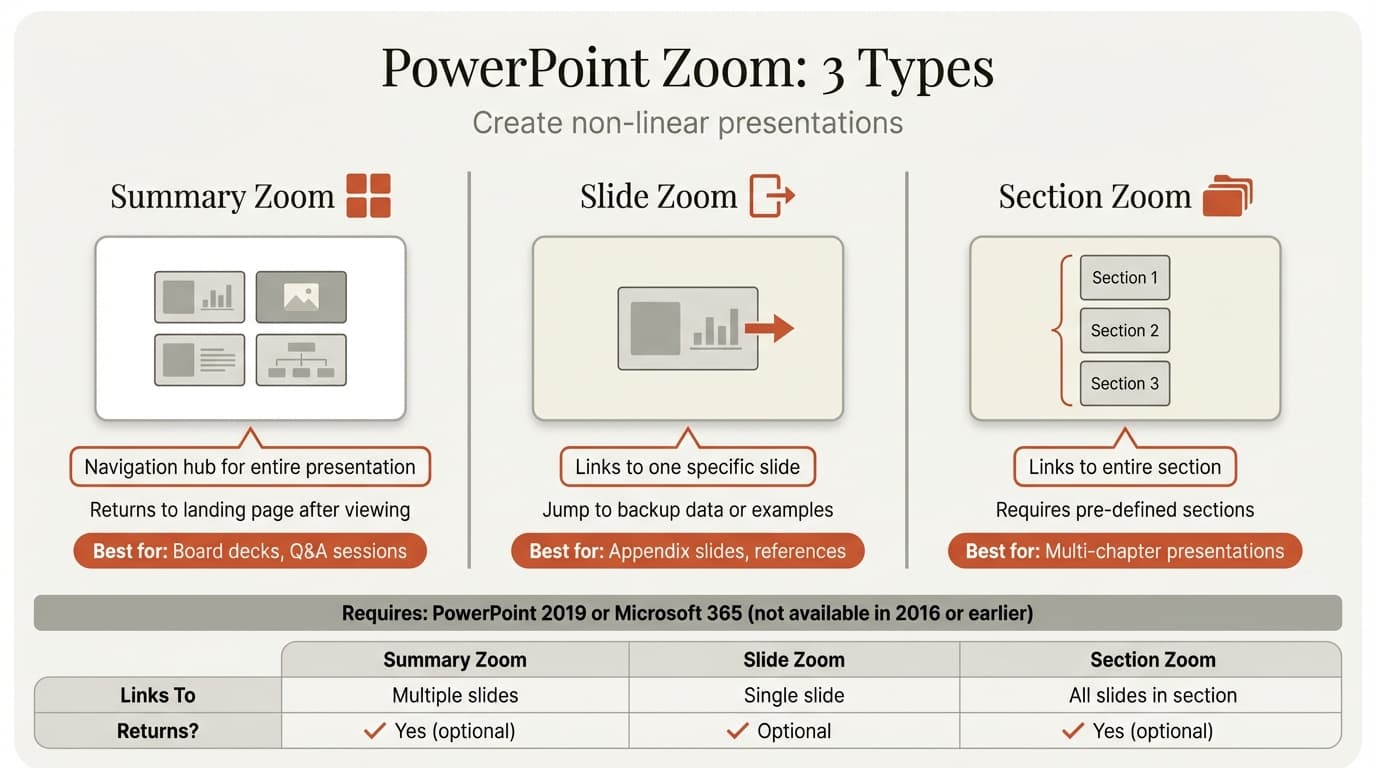
PowerPoint Zoom is an interactive navigation feature introduced in PowerPoint 2019 and Microsoft 365 that creates clickable slide thumbnails linking to other slides or sections. Unlike hyperlinks (text or shapes you manually format), Zoom creates visual slide previews that update automatically when the linked slide changes.
Three types exist:
- Summary Zoom — Creates a landing page with thumbnails of multiple slides or sections
- Slide Zoom — Links to a single specific slide
- Section Zoom — Links to all slides within a section
PowerPoint Zoom requires Microsoft 365 or PowerPoint 2019 or later. It works on both Windows and Mac.
The Three PowerPoint Zoom Types
Understanding the differences between Summary Zoom, Slide Zoom, and Section Zoom determines which type fits your presentation structure.
Summary Zoom
Creates a single overview slide with thumbnails of multiple slides. Clicking a thumbnail during the slideshow zooms into that content, then optionally returns to the summary slide.
Best for: Board presentations with multiple sections, sales decks with different product paths, training presentations where topic order varies based on audience questions.
Slide Zoom
Links to a single specific slide. Essentially a visual hyperlink using a slide thumbnail instead of text.
Best for: Linking to backup slides in appendix, referencing detailed data from executive summary, jumping to specific examples mid-presentation.
Section Zoom
Links to all slides within a PowerPoint section. Clicking the thumbnail jumps to the first slide of that section. Requires sections already created in your presentation (Insert tab → Section → Add Section).
| Zoom Type | Links To | Best Use Case | Requires Sections? |
|---|---|---|---|
| Summary Zoom | Multiple slides or sections | Navigation hub for entire presentation | No (but works with sections) |
| Slide Zoom | Single slide | Jump to backup data or specific examples | No |
| Section Zoom | All slides in a section | Multi-chapter or modular presentations | Yes |
How to Insert PowerPoint Zoom
All three Zoom types are accessed from Insert tab → Zoom.
Summary Zoom
- Insert tab → Zoom → Summary Zoom
- Check boxes next to slides or sections you want included
- Click Insert
PowerPoint creates a new slide with thumbnails at the beginning of your presentation. Drag it to any position in slide sorter view.
Slide Zoom
- Navigate to the slide where you want the link
- Insert tab → Zoom → Slide Zoom
- Select the target slide
- Click Insert
Section Zoom
First create sections: Right-click between two slides → Add Section → name your section. Repeat for all sections.
Then:
- Insert tab → Zoom → Section Zoom
- Check boxes next to sections you want to link
- Click Insert
| Action | Windows Shortcut | Mac Shortcut |
|---|---|---|
| Insert Zoom | Alt, N, Z | (use ribbon) |
| Add Section | (right-click menu) | (right-click menu) |
| Navigate to next slide in slideshow | N, Enter, or Right Arrow | Same |
| Return to Summary Zoom (if enabled) | Automatic after viewing | Automatic after viewing |
For more PowerPoint keyboard shortcuts that improve presentation speed, see our complete shortcuts guide.
Continue reading: Bar Charts in PowerPoint · PowerPoint Table of Contents · How to Add Icons to PowerPoint
Work faster in PowerPoint
Use shortcuts, icons, logos, and reusable slides without leaving PowerPoint. 14-day free trial. No credit card required.
Customizing PowerPoint Zoom
Click a Zoom thumbnail to access Zoom Tools → Format tab.
Zoom Styles: Browse the Zoom Styles gallery to apply borders, shadows, or effects.
Thumbnail Image: Right-click thumbnail → Change Image → select custom image. Useful when actual slide content is text-heavy or unappealing.
Return to Zoom: In Zoom Tools Format tab, check or uncheck Return to Zoom. When enabled, PowerPoint returns to the zoom slide after viewing linked content. When disabled, presentation continues forward.
- Enable for Summary Zoom landing pages
- Disable for Slide Zoom links where you want linear continuation
Zoom Transition Duration: Select thumbnail → Transitions tab → change duration. Shorter durations (under 1 second) feel snappier.
Arranging Thumbnails: Drag to rearrange, use alignment guides (Alt+F9 on Windows), or group thumbnails (Ctrl+G) to move together. For precise alignment, Deckary provides keyboard shortcuts that work faster than manual dragging.
When to Use PowerPoint Zoom vs Hyperlinks
PowerPoint Zoom and traditional hyperlinks both create navigation paths, but they serve different use cases.
Use PowerPoint Zoom When:
- You want visual slide previews as navigation buttons
- The presentation will be delivered live where you control navigation
- You need a central landing page for modular content
- Audience questions determine presentation order
- You are building a non-linear presentation with multiple paths
- Visual consistency matters—Zoom thumbnails update automatically when slides change
Zoom creates a polished, visual navigation experience that works well in board meetings, sales presentations, and workshops where the presenter controls the flow.
Use Hyperlinks When:
- The presentation will be self-guided (sent via email, posted online)
- You need text-based navigation ("Click here for detailed methodology")
- You want to link to external content (websites, documents, other presentations)
- You need more granular control over link appearance
- The presentation will be printed or converted to PDF (Zoom effects do not work in static formats)
Hyperlinks are more versatile but less visually appealing. They work in all PowerPoint versions, not just 2019 and later.
Use Standard Linear Flow When:
- The narrative has a clear beginning, middle, and end that should not be disrupted
- The audience is unfamiliar with the content and needs guided progression
- You are presenting data that builds sequentially (each slide depends on the previous one)
- Time is limited and jumping around would create confusion
- You are delivering a pitch deck or investor presentation with a story arc
Most presentations benefit from linear flow. Zoom adds complexity that should only be used when non-linear navigation provides clear value.
| Feature | PowerPoint Zoom | Hyperlinks | Linear Flow |
|---|---|---|---|
| Visual thumbnails | Yes | No | No |
| Works in PowerPoint 2016 | No | Yes | Yes |
| Self-guided presentations | Limited | Yes | Yes |
| External links | No | Yes | No |
| Auto-updates when slides change | Yes | No | N/A |
| Best for | Live presentations, Q&A navigation | Self-guided decks, external resources | Story-driven presentations |
PowerPoint Zoom vs Prezi
PowerPoint Zoom: Maintains traditional slide-based structure with optional jumps. Requires no new software. Works well for board reports, client meetings, and formal presentations.
Prezi: Uses an infinite canvas where content lives on a single zoomable surface. Creative and dynamic, but requires learning entirely new software. Better for storytelling and educational content where visual impact outweighs traditional structure.
Choose PowerPoint Zoom if you already work in PowerPoint, present formal business content, or your audience expects traditional slide-based presentations. Choose Prezi if you want canvas-based mind maps and are willing to invest time learning new software.
Common PowerPoint Zoom Mistakes
Mistake 1: Overusing Zoom in Linear Presentations
Adding Summary Zoom to a presentation that should flow sequentially creates unnecessary complexity. If your narrative has a clear beginning-to-end structure, forcing non-linear navigation confuses the audience.
Fix: Only use Zoom when the content truly benefits from flexible navigation—modular topics, Q&A-driven sections, or choose-your-own-path scenarios.
Mistake 2: Not Testing Return to Zoom Behavior
The Return to Zoom checkbox controls whether PowerPoint returns to the zoom slide after viewing linked content. Leaving this enabled when you want to continue forward (or vice versa) disrupts presentation flow.
Fix: In the Zoom Tools Format tab, check or uncheck Return to Zoom based on your desired navigation. Test the slideshow before presenting to confirm behavior.
Mistake 3: Creating Too Many Zoom Thumbnails on One Slide
A Summary Zoom with 12+ thumbnails becomes cluttered and hard to read during a live presentation. Audiences cannot process that many options at once.
Fix: Limit Summary Zoom to 6-8 sections maximum. If you have more content, group related slides into broader sections or use multiple summary slides for different content areas.
Mistake 4: Using Zoom in Self-Guided Presentations
PowerPoint Zoom requires a live presenter to click the thumbnails. When you email a presentation or post it online, recipients do not intuitively know to click thumbnails—they press the arrow key and skip the zoom slide entirely.
Fix: For self-guided presentations, use hyperlinks with clear text instructions ("Click here for detailed financials") or stick to linear slide progression.
Mistake 5: Forgetting to Update Sections
When you use Section Zoom, the thumbnails link to PowerPoint sections. If you reorganize your slides but forget to update section boundaries, clicking a thumbnail jumps to the wrong content.
Fix: After reorganizing slides, go to slide sorter view and verify that section dividers still accurately group your content. Right-click sections to rename or reposition them.
When Business Presentations Need Zoom
Zoom works best for modular content where question order varies—board presentations with strategy, financials, operations sections; sales decks with multiple product lines; quarterly business reviews with departmental sections.
Zoom does not work well for linear narratives—pitch decks and investor presentations requiring specific story arcs, or financial models that build sequentially.
If the question "What order should I present this in?" depends on the audience, Zoom adds value. If the answer is "This specific sequence," stick to linear flow.
For building the underlying slides, Deckary provides consulting-grade charts (waterfall, Mekko, Gantt), keyboard shortcuts for alignment, and an AI slide builder. But Zoom determines how you navigate them during the presentation.
Sources
Work faster in PowerPoint
Use shortcuts, icons, logos, and reusable slides without leaving PowerPoint. 14-day free trial. No credit card required.