PowerPoint Slide Numbers: How to Add, Format, and Fix Issues
Learn how to add slide numbers in PowerPoint, skip the title slide, customize formatting, and troubleshoot common issues on Windows and Mac.
PowerPoint slide numbers help audiences track position in a presentation and jump to specific slides during Q&A. They also signal professionalism—board presentations, investor decks, and client deliverables without slide numbers feel incomplete, especially when someone asks "Can you go back to the slide about revenue breakdown?" and you have no reference point.
After formatting slide numbers across 350+ client presentations, including partner reviews, earnings calls, and pitch decks, we have documented the exact steps that work, the formatting decisions that matter, and the troubleshooting fixes for the most common problems. This guide covers how to add slide numbers, skip the title slide, customize position and style, change the starting number, and fix issues when numbers do not appear.
How to Add Slide Numbers in PowerPoint
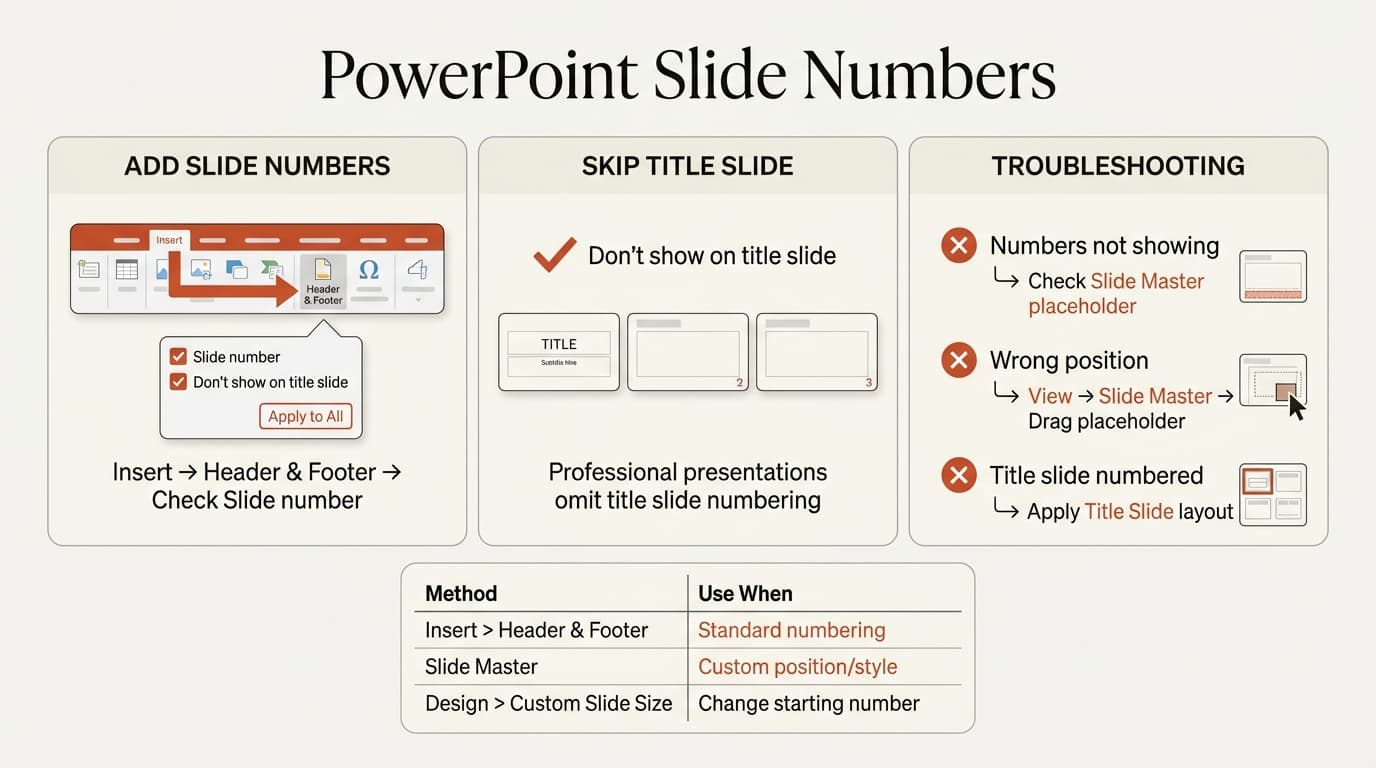
PowerPoint adds slide numbers via the Header & Footer dialog, which applies numbers to all slides or selected slides with one click.
Steps to Add Slide Numbers
- Open your presentation in PowerPoint
- Click Insert in the ribbon
- Click Header & Footer in the Text group
- In the dialog box, go to the Slide tab
- Check the Slide number box
- Optionally check Don't show on title slide if you want to skip numbering on the first slide
- Click Apply to All to add numbers to every slide, or click Apply to add only to the currently selected slide
Numbers appear in the bottom right corner of each slide by default. You can move or format them via Slide Master, which is covered in the formatting section below.
Apply to All adds numbers to every slide. Apply adds numbers only to selected slides—useful when numbering only appendix slides while leaving the main deck unnumbered.
How to Skip Slide Numbers on the Title Slide
Most professional presentations omit slide numbers from the title slide. PowerPoint provides a one-checkbox solution.
Steps to Skip Title Slide Numbering
- Go to Insert then Header & Footer
- Check Slide number
- Check Don't show on title slide
- Click Apply to All
The title slide will have no number visible. Slide 2 displays "2", slide 3 displays "3", and so on. The title slide is still counted in the sequence—it is slide 1, but the number is hidden.
If Don't Show on Title Slide Is Not Working
If numbers still appear on the title slide after checking this box, the slide may not use the Title Slide layout. PowerPoint only hides numbers on slides that use a layout named "Title Slide."
To fix this:
- Select the title slide in the thumbnail pane
- Go to the Home tab
- Click Layout in the Slides group
- Select Title Slide layout
- Reapply slide numbers via Insert, Header & Footer
According to PPT Productivity's troubleshooting guide, this layout mismatch is the most common reason the Don't show on title slide option fails.
How to Change the Starting Slide Number
By default, PowerPoint numbers the first slide as 1. If you are combining multiple decks or your presentation is part of a larger report, you may want to start numbering from a different number.
Steps to Change the Starting Number
- Go to the Design tab
- Click Slide Size in the Customize group
- Select Custom Slide Size
- In the dialog box, find Number slides from
- Enter your desired starting number (e.g., 5, 10, 25)
- Click OK
If your presentation has 20 slides and you set "Number slides from" to 10, the first slide is numbered 10 and the last slide is numbered 29. This setting changes the numbering sequence but does not override visibility settings—if you have "Don't show on title slide" checked, the title slide still has no visible number.
Continue reading: Harvey Balls in PowerPoint · Case Study Template PowerPoint · How to Add Icons to PowerPoint
Work faster in PowerPoint
Use shortcuts, icons, logos, and reusable slides without leaving PowerPoint. 14-day free trial. No credit card required.
How to Customize Slide Number Position and Format
The default slide number position is bottom right corner in a small gray font. For presentations with branded footers, dark backgrounds, or specific layout requirements, you can customize position, font, size, and color.
Steps to Customize Slide Number Formatting
- Go to View in the ribbon
- Click Slide Master
- In the left thumbnail pane, select the top slide (the master slide that controls all layouts)
- Locate the slide number placeholder on the master slide (usually bottom right corner with
<#>text) - Click the placeholder to select it
- Drag the placeholder to a new position if needed
- With the placeholder still selected, use the Home tab to change:
- Font (font dropdown)
- Font size (size dropdown)
- Font color (font color button)
- Bold, italic, or underline (formatting buttons)
- Click Close Master View when done
Any changes made to the master slide automatically apply to all slides using that master. For specific layouts, select that layout in the Slide Master thumbnail pane instead.
| Presentation Type | Typical Number Format |
|---|---|
| Corporate decks | Bottom right, 10pt gray, sans-serif |
| Investor pitch decks | Bottom right, 8-10pt light gray, matches brand font |
| Academic presentations | Bottom center, 12pt black, serif font |
| Conference slides | Bottom right, 14pt white (for dark backgrounds) |
How to Add Slide Numbers with Total Slide Count
To display "Slide 5 of 20" format, go to View > Slide Master, click the slide number placeholder, and edit it to <#> of 20. The <#> automatically updates with the current slide number. The total ("of 20") is static text you must update manually when adding or removing slides.
Troubleshooting: Slide Numbers Not Showing
If you have enabled slide numbers but they do not appear on some or all slides, these are the most common causes and fixes.
Slide Number Placeholder Is Missing or Deleted
Go to View > Slide Master and look for a text box with <#> in the bottom right corner. If missing, click Insert Placeholder > Number, draw a text box where you want the number, then close Master View. This is the most common cause of missing slide numbers.
Slides Use Different Master Layouts
If your presentation uses multiple Slide Master themes, select a slide where numbers are not showing, go to View > Slide Master, verify that master has a slide number placeholder, and add one via Insert Placeholder > Number if needed.
Slide Number Placeholder Is Covered by Another Object
If a shape, image, or text box is layered on top of the slide number, go to Home > Select > Selection Pane. Click the eye icon next to objects at the bottom right to identify which one is covering the number, then reorder or move it.
Header & Footer Settings Are Not Applied Correctly
Go to Insert > Header & Footer, ensure Slide number is checked, and click Apply to All (not Apply). If numbers still do not appear, verify the placeholder exists in Slide Master.
Best Practices for Slide Numbering
Always number client deliverables. Slide numbers are expected in board presentations, investor decks, and consulting deliverables.
Use "Don't show on title slide" by default. Every professional presentation we have reviewed omits numbers from the title slide. This is the standard.
Match slide number formatting to your brand. If your presentation uses a custom footer with company logo and date, ensure the slide number font and color match.
Test slide numbers after importing slides. When you copy slides from another presentation, they may bring their original Slide Master, causing numbering inconsistencies.
For presentations with data-driven charts and executive summary slides, slide numbers become essential during Q&A sessions. Tools like Deckary generate waterfall charts and professional slide layouts with proper numbering applied.
Common Slide Numbering Mistakes
Numbering the title slide. This looks amateurish. Always check "Don't show on title slide" unless you have a specific reason not to.
Inconsistent formatting across slides. This happens when copying slides from multiple sources. Each slide brings its own Slide Master, resulting in slide numbers that change position, size, or font midway through the deck. Fix this by going to View, Slide Master, deleting unused masters, and ensuring all slides use the same master layout.
Placing slide numbers where they overlap content. If your slides have footer content, charts, or images in the bottom right, move the slide number placeholder in Slide Master.
Manually typing slide numbers. If you type "1", "2", "3" in text boxes instead of using PowerPoint's slide number feature, the numbers will not update when you reorder slides.
Sources
- Microsoft — Insert or change slide numbers (2024)
- Microsoft — Change the starting slide number (2024)
- PPT Productivity — Troubleshooting PowerPoint Slide Numbering (2024)
- PPT Productivity — Manage Slide Numbering Format & Totals (2024)
- Avantix Learning — Troubleshooting Slide Numbers in PowerPoint Decks (2024)
Work faster in PowerPoint
Use shortcuts, icons, logos, and reusable slides without leaving PowerPoint. 14-day free trial. No credit card required.