PowerPoint Recording: Complete Guide for Slide Narration & Screen Capture
Learn how to record PowerPoint presentations with audio narration and video. Step-by-step instructions for slide recording and screen capture on Windows and Mac.
PowerPoint presentation recording is the standard method for creating self-running presentations for training, asynchronous communication, and conference sessions. The recording embeds your voice narration, timing, and optional video directly into the PowerPoint file so recipients can view the presentation exactly as you delivered it without needing you present live.
After recording over 80 presentation narrations for client deliverables, training sessions, and remote team updates, we have identified exactly which recording methods work reliably and which settings prevent the audio sync failures and export errors that ruin recordings at the last minute.
This guide covers PowerPoint's slide recording feature for narration and video, the screen recording tool for capturing external content, and the export workflow to convert recorded presentations into portable video files.
How to Record a PowerPoint Presentation with Audio
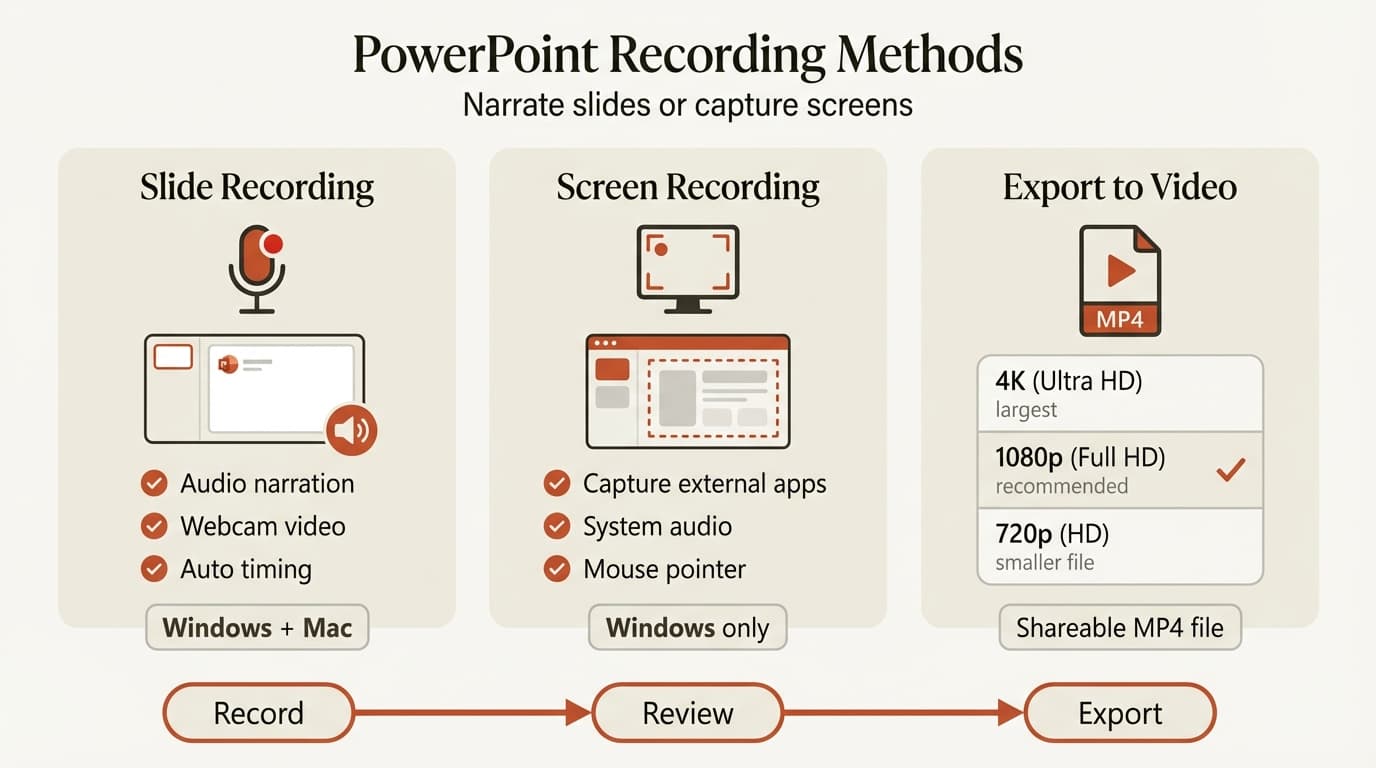
PowerPoint's built-in slide recording feature captures your voice narration and optional webcam video as you advance through your slides. The recording embeds directly in the PPTX file and plays automatically during slideshow mode.
Step-by-step instructions (Windows and Mac):
- Open your presentation
- Navigate to the slide where you want to start recording
- Click the Record button in the ribbon (near the upper right)
- Choose Record from Current Slide or Record from Beginning
- A recording window appears with controls and a 3-second countdown
- Click the red Record button and begin speaking
- Advance slides as you narrate using arrow keys or on-screen controls
- Click the Stop button when finished
- Review your recording, then click Save or re-record if needed
PowerPoint automatically saves slide timings and audio narration. A small speaker icon appears in the lower-right corner of each recorded slide.
During recording, use Pause/Resume to stop without ending the session, Laser Pointer to highlight content, and Pen/Highlighter to draw annotations that save with the recording. Narration does not record during slide transitions — pause briefly during a transition, then resume on the next slide.
Screen Recording in PowerPoint (Windows Only)
PowerPoint for Windows includes a screen recording feature that captures activity from your screen and embeds it directly into a slide. This is useful for demonstrating software workflows, recording browser activity, or capturing content from other applications.
Step-by-step instructions (Windows):
- Click Insert, then Screen Recording
- Click Select Area and drag to choose your recording region
- Click Record (or press Windows key + Shift + R)
- Perform the actions you want to capture
- Press Windows key + Shift + Q to stop
PowerPoint embeds the video on the current slide. Audio and mouse pointer recording are enabled by default.
Mac Limitation and Workaround
PowerPoint for Mac does not include a screen recording feature. Microsoft's official documentation confirms this limitation is platform-specific.
Mac workaround: Use QuickTime Player for basic recording or ScreenFlow for advanced features. Both save video files that you can insert into PowerPoint using Insert, Video, This Device. For details on embedding video files, see our guide on embedding video in PowerPoint.
Continue reading: Box Plot in PowerPoint · How to Make a Good Presentation · How to Add Icons to PowerPoint
Work faster in PowerPoint
Use shortcuts, icons, logos, and reusable slides without leaving PowerPoint. 14-day free trial. No credit card required.
Comparing PowerPoint Recording Methods
PowerPoint offers two distinct recording approaches with different purposes and outputs:
| Feature | Slide Recording | Screen Recording |
|---|---|---|
| Platform | Windows and Mac | Windows only |
| Purpose | Narrate slides with audio/video | Capture external software or browser |
| Audio | Microphone narration | Optional system audio and mic |
| Output | Embedded in PPTX, plays in slideshow | Video file inserted on a slide |
| Timing | Automatic per-slide timing | Single continuous video |
| Editing | Re-record individual slides | Re-record entire clip or trim |
| Best for | Training decks, webinar replays | Software demos, external content |
Our recommendation: Use slide recording for presentations where the PowerPoint content is the primary material and you are adding narration. Use screen recording (or QuickTime on Mac) when you need to capture activity outside of PowerPoint and insert it as supporting content.
How to Edit a Recording in PowerPoint
Re-record individual slides: Click the microphone icon on the slide thumbnail, select Delete, then click Record and choose Record from Current Slide.
Clear all recordings: Select slides, click the Recording tab, then Clear. Choose whether to remove audio/video/timings from current slide, timings only from all slides, or recordings from all slides.
Trim video clips: Click the video, select Video Format, then Trim Video. Drag the green start and red end markers to set cut points. This affects playback only, not the original file.
Exporting Recorded Presentations as Video
Converting your recorded PowerPoint to a standalone video file makes it portable, shareable via email or cloud storage, and playable on devices without PowerPoint installed.
Step-by-step instructions:
- Click File, Export, then Create a Video
- Choose quality: Ultra HD (4K), Full HD (1080p), or HD (720p)
- Select Use Recorded Timings and Narrations or set seconds per slide manually
- Click Create Video, choose location, and save
PowerPoint exports an MP4 file. A 20-slide deck with 5 minutes of narration exports in under 3 minutes at 1080p.
For teams that share presentations as PDFs, video export offers an alternative that preserves animations, transitions, and narration that static PDFs cannot capture.
Common Recording Issues and Fixes
Audio not recording: PowerPoint cannot access your microphone. On Windows, verify microphone is the default input device in Settings. On Mac, grant PowerPoint microphone permission in System Settings under Privacy & Security.
Recording playback out of sync: Re-record the affected slides. If exporting to video, use 1080p instead of 4K — higher resolutions sometimes introduce sync drift on older hardware.
Recording stops unexpectedly: Verify you have at least 5 GB of free disk space. Close memory-intensive applications. Record in smaller segments rather than the entire deck in one session.
Video export fails: Verify embedded videos are MP4 format with H.264 encoding. Remove broken file links in File, Info, Edit Links to Files.
Screen recording missing (Mac): PowerPoint for Mac lacks this feature. Use QuickTime Player: File, New Screen Recording, then insert the saved file using Insert, Video, This Device.
Best Practices for Professional Recordings
Test your audio first. Record a test slide and play it back to check volume, clarity, and background noise. This 30-second check prevents re-recording an entire presentation due to inaudible audio.
Script your narration. Bullet point outlines for each slide keep narration tight. Scripted narration averages under 2 minutes per slide, while improvised recordings often exceed 3 minutes for the same content.
Record in a quiet environment. Close windows, disable notifications, and use a headset microphone rather than a laptop mic.
Keep recordings under 10 minutes. Split longer topics into multiple short presentations. This makes editing easier — update one segment without re-recording the entire deck.
Export at 1080p. Full HD balances quality and file size. 4K adds file weight with minimal visual improvement on standard displays.
Store the original PPTX file. Exported videos are not editable. Keep the original so you can update slides or re-export at different resolutions.
When Recording Makes Sense
Training and onboarding. Recorded presentations let new hires watch modules on their schedule and revisit sections as needed.
Asynchronous team communication. When teams work across time zones, recording a strategy update or project review allows everyone to view the presentation without scheduling a live meeting.
Conference sessions and webinars. Recording your live presentation creates an on-demand version for attendees who could not join.
Client deliverables. Some consulting deliverables benefit from recorded walkthroughs that explain complex slides and guide clients through recommendations.
When Recording Does Not Make Sense
Interactive presentations. If your presentation depends on audience questions or real-time discussion, present live instead.
Frequently updated content. Recording a deck that changes weekly creates a maintenance burden. For dynamic content, share slides without narration or present live.
Highly confidential material. Recorded video files are easier to copy and distribute than access-controlled live presentations. Present live with screen sharing for sensitive data.
Summary
PowerPoint recording embeds voice narration, webcam video, and timing directly into presentation files. Slide recording works on Windows and Mac. Screen recording captures external content but only works on Windows — Mac users need QuickTime Player or ScreenFlow.
Export as MP4 at 1080p for most uses. Test audio before recording, script your narration, and keep recordings under 10 minutes per segment.
Use recording for training, asynchronous communication, and conference replays. Present live when interactivity, frequent updates, or confidentiality matter more.
Sources
Work faster in PowerPoint
Use shortcuts, icons, logos, and reusable slides without leaving PowerPoint. 14-day free trial. No credit card required.