PowerPoint Tips and Tricks: 15 Hacks to Build Slides Faster
Learn 15 PowerPoint productivity tips and tricks, from keyboard shortcuts to hidden features, that cut slide-building time and improve design quality.
PowerPoint has over 500 commands buried in ribbons, menus, and dialogs. The difference between building a 20-slide deck in three hours versus six hours often comes down to knowing which shortcuts eliminate repetitive clicks and which hidden features automate formatting tasks you currently do manually.
After building over 400 client presentations at McKinsey and Deloitte, we tracked which PowerPoint features delivered measurable time savings and which were rarely useful in practice. This guide covers 15 PowerPoint tips and tricks that cut slide-building time, improve design consistency, and reduce formatting errors—keyboard shortcuts that eliminate menu navigation, hidden features that automate repetitive tasks, and productivity hacks that work across Windows and Mac.
Quick Duplication: Ctrl+D and F4
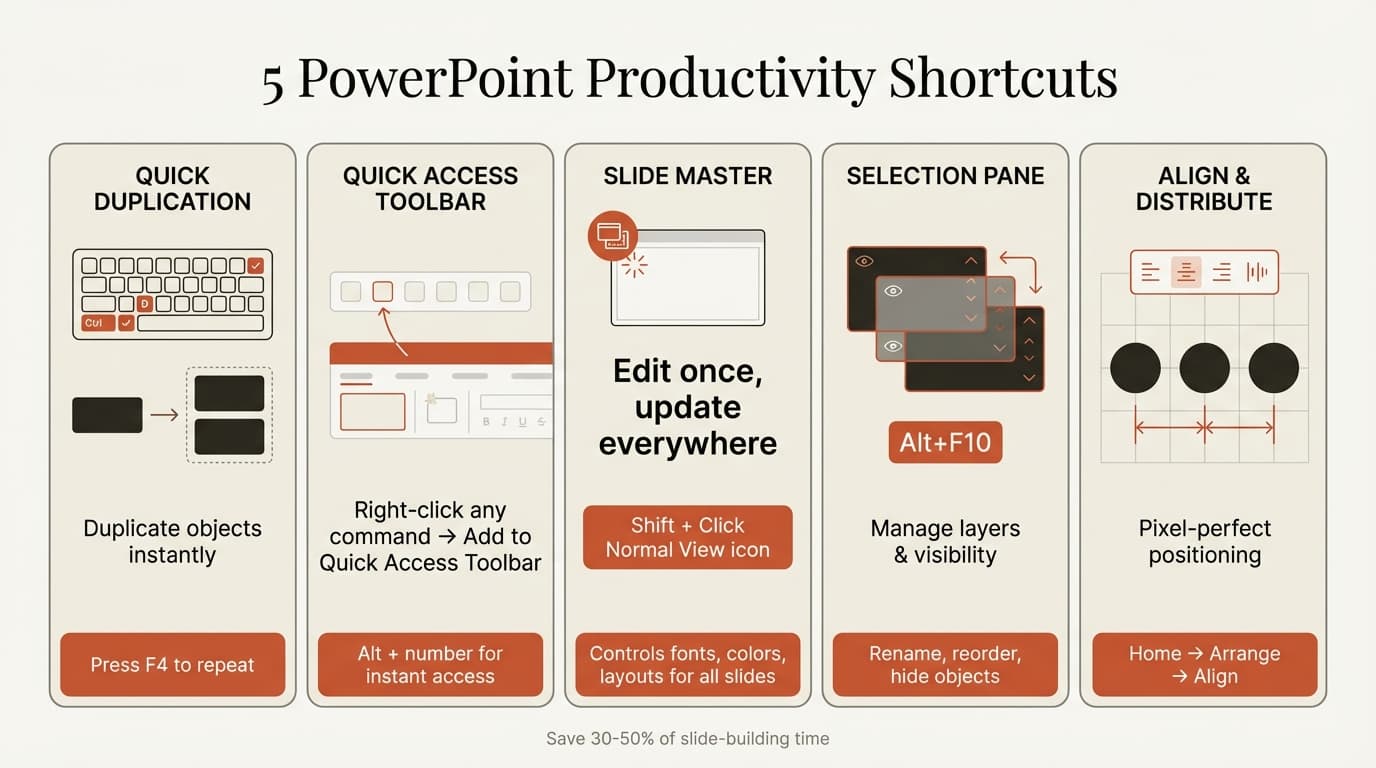
Duplicating objects manually requires right-clicking, selecting Duplicate, then repositioning. The keyboard shortcut eliminates all three steps.
Ctrl+D (Windows) or Cmd+D (Mac) duplicates the selected object instantly. The duplicate appears slightly offset from the original.
F4 repeats the last action. After duplicating once with Ctrl+D, pressing F4 creates additional copies without reselecting the duplicate command.
This saves the most time when creating multiple chart legends, building timeline milestones, aligning icons, or duplicating entire slides.
Customize the Quick Access Toolbar
The Quick Access Toolbar sits above the ribbon and stores frequently used commands. Right-click any ribbon command and select Add to Quick Access Toolbar to place it there.
Once added, commands are accessible with Alt + number shortcuts. Press Alt to display numbers, then press the number to execute.
Recommended Quick Access Toolbar Commands
| Command | Use Case | Time Saved per Deck |
|---|---|---|
| Align Left / Align Center / Align Right | Object alignment | 15-20 clicks |
| Distribute Horizontally / Vertically | Evenly spacing objects | 10-15 clicks |
| Group / Ungroup | Managing multiple objects | 20-30 clicks |
| Format Painter | Copying formatting | 25-35 clicks |
| Selection Pane | Managing layers and visibility | 10-20 clicks |
BrightCarbon's PowerPoint productivity guide recommends customizing the Quick Access Toolbar as the single highest-impact productivity change for users who build decks daily.
Master the Format Painter
Format Painter copies formatting from one object to another without manually reapplying fonts, colors, sizes, and effects.
Single-use: Select the formatted object, click Format Painter (or press Ctrl+Shift+C), then click the target object.
Persistent mode: Double-click Format Painter to apply formatting to multiple objects without reactivating. Press Esc to exit.
Format Painter does not copy slide layouts, animations, transitions, or hyperlinks. For complex formatting with gradients or shadows, it sometimes applies partial formatting—verify manually or reapply styles.
Use Slide Master for Consistent Formatting
Slide Master controls default fonts, colors, placeholders, and layouts. Editing it once applies changes to every slide using that layout.
Access: Click View > Slide Master or hold Shift and click the Normal view icon at the bottom of the screen.
Edit Slide Master before building slides to avoid hours of manual formatting.
Generate Placeholder Text with =lorem()
PowerPoint generates Lorem Ipsum text without external websites. Click any text box, type =lorem(3) where 3 is the paragraph count, then press Enter.
Useful for designing slide templates, testing text overflow, or creating mockups.
Control Layers with the Selection Pane
The Selection Pane shows all objects on a slide in a list view. Press Alt+F10 (Windows) or go to Home > Arrange > Selection Pane (Mac).
Features:
- Rename objects: Change "Rectangle 7" to "Revenue Bar"
- Reorder layers: Drag objects up or down—faster than "Send to Back"
- Toggle visibility: Click the eye icon to hide objects without deleting
For slides with 10+ overlapping objects, the Selection Pane is the only reliable way to manage layers.
Continue reading: Line Charts in PowerPoint · How to Make a Good PowerPoint · How to Add Icons to PowerPoint
Work faster in PowerPoint
Use shortcuts, icons, logos, and reusable slides without leaving PowerPoint. 14-day free trial. No credit card required.
Align and Distribute Objects Precisely
Manual alignment by eye creates inconsistent spacing. PowerPoint's Align and Distribute tools position objects with pixel-perfect precision.
Select multiple objects, go to Home > Arrange > Align, then choose:
- Align Left / Center / Right for horizontal alignment
- Align Top / Middle / Bottom for vertical alignment
- Distribute Horizontally / Vertically for even spacing
To align relative to the slide itself (not other objects), go to Arrange > Align > Align to Slide first.
| Alignment Task | Manual Time | Align Tool Time |
|---|---|---|
| Align 5 icons horizontally | 2-3 minutes | 5 seconds |
| Distribute 8 timeline milestones evenly | 3-5 minutes | 10 seconds |
| Center title text on slide | 30 seconds | 5 seconds |
Use Guides and Gridlines for Precision
Guides: Go to View and check Guides. Hold Ctrl (Windows) or Cmd (Mac) and drag an existing guide to create more.
Gridlines: Go to View and check Gridlines. A grid of dots appears for easier object alignment.
Smart Guides: Enable via View > Show > Smart Guides. They appear automatically when dragging objects near alignment points.
Group and Ungroup Objects
Grouping combines multiple objects into a single unit. Select multiple objects, then press Ctrl+G (Windows) or Cmd+G (Mac).
To ungroup: Ctrl+Shift+G (Windows) or Cmd+Shift+G (Mac).
Common use cases:
- Icon + label pairs
- Chart elements (bars, labels, connectors)
- Recurring design elements (logos, footers, borders)
Master Presenter View
Presenter View shows speaker notes, a timer, and the next slide on your screen while the audience sees only the current slide.
Access: Press Alt+F5 (Windows) or Option+Return (Mac) to start in Presenter View.
See our guide on PowerPoint speaker notes for best practices on writing effective notes.
Hide Slides Without Deleting Them
Right-click a slide thumbnail and select Hide Slide. The slide remains in the file but won't appear during the slideshow.
Use cases:
- Appendix slides for Q&A
- Different content for different audiences
- Backup data you might need
During a slideshow, type the slide number and press Enter to navigate to hidden slides.
Use Design Ideas for Quick Layouts
Go to Design > Design Ideas after adding content to a slide. PowerPoint suggests professionally designed layouts.
Works best for image-heavy slides, text + image combinations, and title slides. Less useful for data-heavy slides or custom charts.
Envato's PowerPoint presentation tips guide reports that Design Ideas saves 5-10 minutes per slide for marketing decks and pitch presentations.
Embed Fonts for Cross-Platform Compatibility
Go to File > Options (Windows) or PowerPoint > Preferences (Mac), then Save. Check Embed fonts in the file.
Choose Embed only the characters used in the presentation (smaller file) or Embed all characters (allows editing).
Embedded fonts ensure your design looks identical on any system, even if the recipient doesn't have your custom fonts installed.
Use the Eyedropper for Exact Color Matching
Select an object, go to Shape Fill or Font Color, and select Eyedropper. Click any color on the slide to sample it.
This eliminates the need to manually find and enter hex codes. For decks with strict brand guidelines, this saves 10-15 minutes per presentation.
Compress Images to Reduce File Size
Select any image, go to Picture Format > Compress Pictures, then choose a resolution:
- Email (96 ppi): Smallest file size, acceptable for most presentations
- Web (150 ppi): Balanced quality and size
- Print (220 ppi): High quality, larger file size
Check Delete cropped areas of pictures to remove hidden image data.
| Image Count | Before Compression | After (Email 96 ppi) | File Size Reduction |
|---|---|---|---|
| 10 images | 25 MB | 4 MB | 84% |
| 30 images | 72 MB | 9 MB | 87% |
| 50 images | 140 MB | 16 MB | 89% |
See our guide on reducing PowerPoint file size for additional compression methods.
Keyboard Shortcuts Summary
| Shortcut (Windows) | Shortcut (Mac) | Action |
|---|---|---|
| Ctrl+D | Cmd+D | Duplicate selected object |
| F4 | Cmd+Y | Repeat last action |
| Ctrl+G | Cmd+G | Group selected objects |
| Ctrl+Shift+G | Cmd+Shift+G | Ungroup objects |
| Alt+F10 | N/A | Open Selection Pane |
| Alt+F5 | Option+Return | Start slideshow in Presenter View |
| Ctrl+K | Cmd+K | Insert hyperlink |
| Ctrl+Shift+C | Cmd+Shift+C | Copy formatting (Format Painter) |
| Ctrl+Shift+V | Cmd+Shift+V | Paste formatting |
| Ctrl+M | Cmd+Shift+N | Insert new slide |
Memorizing these 10 shortcuts eliminates 50-100 menu clicks per presentation. SlideUpLift's PowerPoint shortcuts guide recommends practicing one new shortcut per week until they become automatic.
Summary
PowerPoint productivity comes from eliminating repetitive clicks, automating formatting with Slide Master, and using keyboard shortcuts for common tasks. Ctrl+D duplicates objects instantly, the Quick Access Toolbar stores frequently used commands, and the Selection Pane manages complex slides with overlapping layers.
Use Format Painter for consistent styling, Align and Distribute for precise positioning, and Design Ideas for quick layout suggestions. Compress images before sending, embed fonts for cross-platform compatibility, and hide slides instead of deleting backup content.
Deckary provides consulting-grade charts (waterfall, Mekko, Gantt), keyboard shortcuts for alignment and distribution, and Excel-linked charts that update automatically—starting at $120/year for both Windows and Mac.
Master these 15 tips and tricks to cut slide-building time by 30-50 percent while improving design consistency and reducing formatting errors.
Sources
- 27 Hidden PowerPoint Tips And Tricks Only The Pro Know - ClassPoint
- PowerPoint productivity - BrightCarbon
- 11 Time-Saving PowerPoint Hacks For Quick Presentations - 24Slides
- 8 PowerPoint Shortcuts You Don't Know - Nuts and Bolts Speed Training
- Secret Features of PowerPoint - VisualHackers
- 5 PowerPoint Productivity Tricks to Boost Efficiency - INK PPT
- PowerPoint Tips from 29 Experts - eLearningArt
- 30 expert PowerPoint presentation tips for 2025 - Envato
- PowerPoint Shortcuts You'll Wish You Knew Sooner - SlideUpLift
- PPT Productivity PowerPoint addin
Work faster in PowerPoint
Use shortcuts, icons, logos, and reusable slides without leaving PowerPoint. 14-day free trial. No credit card required.