Remove Background PowerPoint: Complete Guide to Image Editing
Learn how to remove backgrounds from images in PowerPoint using the built-in Remove Background tool, Set Transparent Color, and advanced techniques.
PowerPoint ships with a built-in background removal tool that eliminates solid color backgrounds and complex backgrounds from images without opening Photoshop or dedicated background removal apps. The feature works directly in the Picture Format tab and processes images in under 30 seconds.
After removing backgrounds from over 800 product photos, headshots, and screenshots across client presentations, pitch decks, and marketing materials, we documented which PowerPoint tool works best for each background type, the exact steps that produce clean results, and workarounds for edge cases where automatic detection fails.
How to Remove Background from Image in PowerPoint
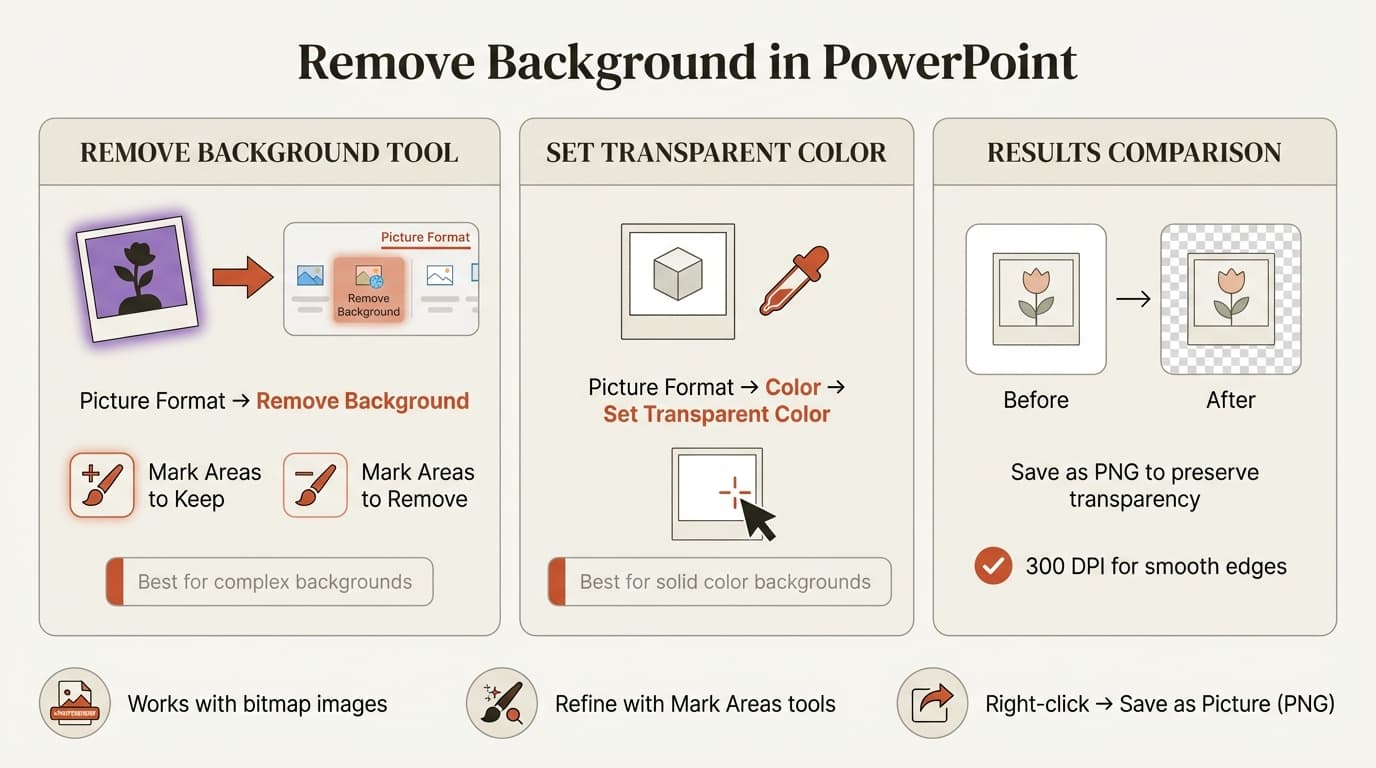
PowerPoint's Remove Background tool analyzes the image, automatically detects the foreground subject, and highlights the background area for removal. You can refine the selection before finalizing.
Steps to Remove Background
- Insert the image into a PowerPoint slide (Insert > Pictures)
- Select the image by clicking it
- Go to Picture Format in the ribbon (this tab only appears when an image is selected)
- Click Remove Background in the Adjust group (left side of the ribbon)
- PowerPoint highlights the background in purple and the foreground in normal colors
- If the automatic selection is accurate, click Keep Changes in the Background Removal tab
- If not, use Mark Areas to Keep or Mark Areas to Remove to refine the selection (see refinement steps below)
The background disappears, leaving a transparent area where the purple highlighting was. The transparent background appears as a checkerboard pattern in PowerPoint.
BrightCarbon's PowerPoint background removal guide confirms this method works identically on Windows and Mac from PowerPoint 2016 through the latest Microsoft 365 versions.
Refining Background Removal with Mark Areas Tools
PowerPoint's automatic detection misses details in about 30 percent of images—particularly around hair, shadows, fine edges, and objects with similar colors to the background. The Mark Areas tools let you correct these errors.
Mark Areas to Keep restores parts PowerPoint incorrectly removed. Click the button, then draw lines on purple areas that should stay.
Mark Areas to Remove deletes parts PowerPoint kept. Click the button, then draw lines on normal-colored areas that should be deleted.
When to Use Each Mark Areas Tool
| Scenario | Tool to Use | How to Use It |
|---|---|---|
| Hair is partially removed | Mark Areas to Keep | Draw lines through hair strands PowerPoint removed |
| Shadow should stay | Mark Areas to Keep | Click the shadow area to prevent removal |
| Background object wasn't removed | Mark Areas to Remove | Draw lines through the background object |
| Edge detail is missing | Mark Areas to Keep | Draw short lines along the edge to restore detail |
PowerPoint reprocesses the image after each marking. Click Keep Changes when the selection is accurate.
Background Removal Limitations
The Remove Background tool does not work on:
- Vector images (SVG, EMF, WMF)
- Images set as slide backgrounds via Design > Background Styles
- Screenshots or images pasted directly from the clipboard (insert them as files first)
- Animated GIFs (only the first frame processes)
For vector images and slide backgrounds, export them as PNG files first, reinsert them as pictures, then use Remove Background.
Continue reading: Bar Charts in PowerPoint · How to Make a Good PowerPoint · How to Add Icons to PowerPoint
Work faster in PowerPoint
Use shortcuts, icons, logos, and reusable slides without leaving PowerPoint. 14-day free trial. No credit card required.
Using Set Transparent Color for Solid Backgrounds
Set Transparent Color removes all pixels matching a single color in one click. This tool is faster than Remove Background for simple images but only works on uniform color backgrounds.
Steps to Set Transparent Color
- Select the image
- Go to Picture Format
- Click Color in the Adjust group
- Select Set Transparent Color at the bottom of the dropdown menu
- Your cursor changes to a dropper icon
- Click any pixel of the background color you want to remove
All pixels matching that exact color become transparent instantly.
When Set Transparent Color Fails
Gradients and shadows. Set Transparent Color only removes one hex value. If your white background has a gradient from white to light gray, clicking white removes only the pure white pixels. The gray pixels remain.
JPEG compression artifacts. JPEG images compress similar colors into slightly different shades. A background that looks solid white may contain 10-15 different shades of near-white. Set Transparent Color removes only the exact shade you click, leaving visible fringe pixels.
Anti-aliased edges. Images with smooth edges have semi-transparent pixels blending the foreground and background colors. Set Transparent Color removes the background but leaves a visible halo of blended pixels around the subject.
For these cases, use Remove Background instead. The algorithm handles gradients, compression artifacts, and anti-aliased edges better than single-color removal.
Comparison: Remove Background vs Set Transparent Color
| Feature | Remove Background | Set Transparent Color |
|---|---|---|
| Background type | Complex (gradients, multiple colors, patterns) | Solid single color only |
| Processing time | 5-30 seconds depending on image size | Instant (under 1 second) |
| Refinement options | Mark Areas to Keep/Remove | None—applies globally |
| Edge quality | Smooth anti-aliased edges | Can leave color fringe on edges |
| Best use case | Product photos, headshots, natural backgrounds | Icons, logos, clipart with solid backgrounds |
Remove Background handles most use cases. Set Transparent Color works only for simple graphics with uniform backgrounds.
Best Practices for Clean Background Removal
Use High-Resolution Images
PowerPoint's Remove Background tool analyzes pixel boundaries to detect edges. Low-resolution images produce rough, jagged edges.
Minimum recommended resolution: 300 DPI for images under 5 inches, 150 DPI for larger images. Images under 72 DPI require significantly more manual corrections.
Choose Images with Clear Subject-Background Separation
Blurred backgrounds, solid colors, and high-contrast subjects produce the best results. Avoid subjects with similar colors to the background or busy backgrounds with multiple objects.
Save as PNG to Preserve Transparency
After removing the background, the transparent area only stays transparent if you export the image in a format that supports transparency. PNG supports transparency; JPG does not.
How to export an image with transparent background:
- Right-click the image after removing the background
- Select Save as Picture
- In the Save As dialog, choose PNG (.png) from the file format dropdown
- Click Save
The exported PNG file has a transparent background and can be used in other applications, websites, or documents. If you save as JPG, the transparent area converts to a white background.
Process Images Before Inserting Them into Slides
For presentations with multiple instances of the same image, remove the background once, export as PNG, then reuse the transparent version. This reduces file size and prevents duplicate work.
Troubleshooting Background Removal Issues
When PowerPoint's automatic background detection fails, these fixes address the most common problems.
Rough or Jagged Edges
Cause: Low image resolution or aggressive compression.
Fix: Replace with a higher-resolution version. If that's not possible, apply Picture Format > Artistic Effects > Soften with a slight blur (5-10 percent) to smooth edges.
Background Detection Removes Part of the Subject
Cause: Similar colors or low contrast between subject and background.
Fix: Click Mark Areas to Keep and draw multiple short lines through the incorrectly removed areas. For hair, draw 3-5 short horizontal lines through different sections rather than tracing the entire hairline.
Background Remains After Using Remove Background
Cause: PowerPoint only removes areas highlighted in purple.
Fix: Click Mark Areas to Remove and draw lines through background areas not highlighted in purple. If large sections remain after multiple attempts, use external tools like Remove.bg or Photoshop, then import the transparent PNG.
Transparent Areas Show White Instead of Checkerboard
Cause: Display issue—PowerPoint shows transparent pixels as white on white slide backgrounds.
Test: Change the slide background to a color (Design > Background Styles). If the removed area now shows the slide color, the transparency worked correctly.
Remove Background Button Is Grayed Out
Cause: The object is not a bitmap image, or the image is linked instead of embedded.
Fix: Verify you selected an image (not a shape or chart). If the image is linked, right-click and select Save as Picture, then reinsert it. Ensure the format is JPG, PNG, BMP, GIF, or TIFF (not SVG).
When to Use External Tools
PowerPoint's Remove Background tool handles 80-90 percent of background removal tasks for internal presentations and pitch decks. Use external tools like Remove.bg or Photoshop for complex images with fine hair strands, transparent objects like glass or water, batch processing 20+ images, or marketing materials requiring professional quality.
Summary
PowerPoint's Remove Background tool eliminates image backgrounds directly in the Picture Format tab. Select the image, click Remove Background, refine with Mark Areas to Keep or Remove, then click Keep Changes. For solid color backgrounds, use Set Transparent Color for instant removal.
High-resolution images produce the cleanest results. Save as PNG to preserve transparency. If PowerPoint's automatic detection fails after refinement, use external tools like Remove.bg or Photoshop, then reinsert the transparent PNG.
Sources
Work faster in PowerPoint
Use shortcuts, icons, logos, and reusable slides without leaving PowerPoint. 14-day free trial. No credit card required.