PowerPoint Conditional Formatting: How to Create Dynamic Tables and Heatmaps
Learn how to apply conditional formatting in PowerPoint for tables, charts, and heatmaps. Step-by-step guide with Excel integration and add-in workarounds.
PowerPoint has no native conditional formatting for tables. Unlike Excel, where you select cells and apply color scales or data bars based on values, PowerPoint requires workarounds—pasting from Excel with the Embed option, using add-ins like OfficeReports or DataPoint, or manually formatting each cell.
After formatting tables and heatmaps for over 250 board presentations, client dashboards, and status reports where color-coded data visualization mattered, we documented exactly which methods preserve formatting when moving from Excel to PowerPoint, which add-ins provide the most reliable automation, and when manual formatting is faster than troubleshooting broken paste operations. This guide covers all three approaches with honest trade-offs and step-by-step instructions.
What Is Conditional Formatting in PowerPoint
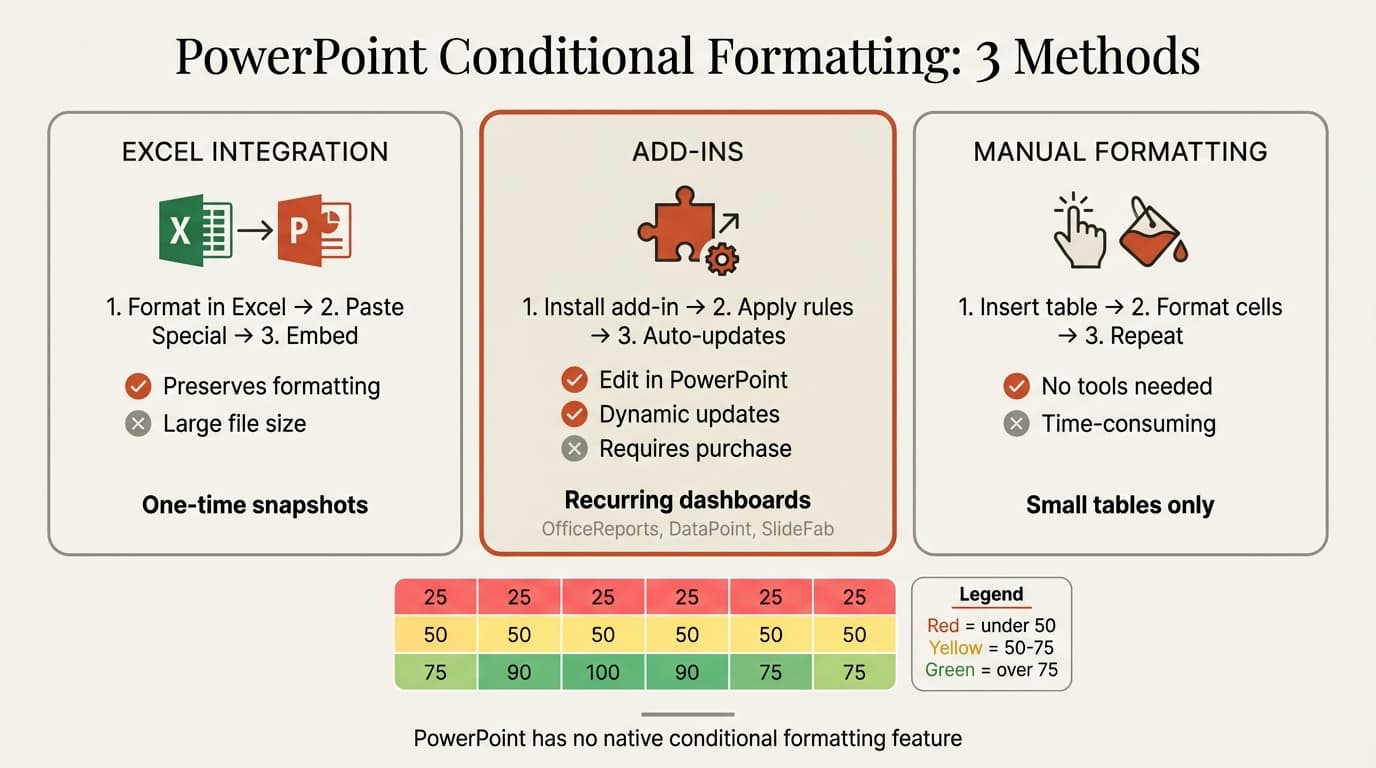
Conditional formatting changes cell appearance (fill color, font color, icons, or data bars) based on the values cells contain. In Excel, this is a built-in feature accessed via Home, Conditional Formatting. In PowerPoint, it does not exist natively.
When people refer to conditional formatting in PowerPoint, they mean one of three approaches:
- Excel integration — Creating formatted tables in Excel, then pasting them into PowerPoint while preserving the formatting
- Add-ins — Using third-party tools that bring Excel-style conditional formatting rules to PowerPoint shapes, tables, and charts
- Manual formatting — Applying fill colors and styles to individual cells by hand based on values
According to Microsoft's Q&A forums, PowerPoint does not support color scales or conditional formatting natively.
The most common use case is creating heatmaps—tables where cell colors represent performance, risk levels, sales figures, or project status. Color coding communicates patterns instantly.
Method 1: Copy Conditional Formatting from Excel to PowerPoint
The most common approach is formatting the table in Excel, then pasting it into PowerPoint.
Steps to Preserve Conditional Formatting When Pasting from Excel
- Open your data in Excel
- Select the cells you want to format
- Go to Home then Conditional Formatting
- Choose your formatting rule (Color Scales, Data Bars, Icon Sets, or custom rules)
- Once formatted, select the entire table including headers
- Copy the cells with Ctrl+C (Windows) or Cmd+C (Mac)
- Open your PowerPoint presentation
- Navigate to the slide where you want the table
- Click Home then the dropdown arrow under Paste
- Select Paste Special
- Choose Microsoft Excel Worksheet Object and check Paste Link if you want the table to update when Excel data changes
- Click OK
The table appears in PowerPoint with all conditional formatting intact. This method embeds an Excel object in PowerPoint, which increases file size.
Paste Options and Their Effects on Conditional Formatting
| Paste Option | Conditional Formatting Preserved? | Editable in PowerPoint? | File Size Impact |
|---|---|---|---|
| Default paste (Ctrl+V) | No | Yes | Minimal |
| Paste as Picture | Yes | No | Small |
| Embed (Paste Special) | Yes | Only in Excel | Large |
| Paste Link (Embed with link) | Yes (updates with Excel file) | Only in Excel | Large |
Default paste strips all conditional formatting. Paste as Picture preserves the visual appearance but converts the table to a static image. Embed maintains full Excel functionality including conditional formatting. Paste Link works like Embed but updates automatically when the source Excel file changes.
When to Use Excel Integration
Use this method when your data already exists in Excel with conditional formatting applied, you need a snapshot for a one-time presentation, file size is not a concern (Embed adds 50-200KB per table), or you want formatting to update automatically (Paste Link).
Avoid this method when you need to edit table values directly in PowerPoint, file size matters, or the presentation will be shared with people who do not have access to the source Excel file.
Continue reading: Heat Map in PowerPoint · Capacity Planning Template · How to Add Icons to PowerPoint
Build and improve Excel workbooks with AI
Create models, audit formulas, clean data, and generate output sheets inside Excel. 14-day free trial. No credit card required.
Method 2: Use PowerPoint Add-ins for Conditional Formatting
Add-ins bring Excel-style conditional formatting directly into PowerPoint, allowing you to apply color scales, data bars, and icon sets to PowerPoint-native tables and shapes.
Top Add-ins for Conditional Formatting in PowerPoint
OfficeReports Presento provides conditional formatting for PowerPoint tables and shapes. You can apply Excel's conditional formatting rules in PowerPoint, changing fill and font colors based on values.
DataPoint by PresentationPoint offers rules-based conditional formatting where you set conditions (greater than, less than, between) and actions (change color, show icon, apply data bar). DataPoint applies rules automatically to PowerPoint tables.
SlideFab automates heatmap creation from Excel data. The free version SlideFab Lite is sufficient for table-based heatmaps, generating PowerPoint slides automatically from Excel data with conditional formatting applied.
Chartrics preserves conditional formatting when copying Excel tables to PowerPoint, allowing you to apply conditional styles directly in PowerPoint.
How Add-ins Work
Add-ins run inside PowerPoint and provide additional ribbon commands for formatting. After installing an add-in, you select a table or range of shapes, specify formatting rules, and the add-in applies the formatting.
Most add-ins support color scales (gradients from red to yellow to green), data bars (horizontal bars proportional to cell values), icon sets (arrows, traffic lights, rating symbols), and custom rules (conditional logic based on thresholds).
When to Use Add-ins
Use add-ins when you need to edit table values directly in PowerPoint, you want conditional formatting to update automatically when you change cell values, you build recurring dashboards, or file size matters (add-ins format PowerPoint-native objects).
Avoid add-ins when you only need conditional formatting once or twice, your organization restricts third-party add-ins, or you already have formatted tables in Excel.
Add-ins range from free (SlideFab Lite) to subscription-based. For consultants who build client dashboards weekly, the time saved justifies the cost. For occasional users, Excel integration is more practical.
Method 3: Manual Conditional Formatting in PowerPoint
You can manually format table cells in PowerPoint based on values. This is time-consuming but requires no external tools.
Steps to Manually Format a PowerPoint Table as a Heatmap
- Insert a table in PowerPoint (Insert, Table, select rows and columns)
- Enter your data values into the table cells
- Click the cell you want to format
- Go to Table Design (or Table Tools in older versions)
- Click Shading and select a fill color based on the cell value
- Repeat for each cell, choosing colors that represent value ranges
This approach gives you full control over color choices and does not increase file size, but it is impractical for tables with more than 20-30 cells.
Creating a Color Scale Legend
Include a legend showing what each color represents. Without a legend, audiences guess what colors mean. Add the legend as a separate table on the slide or in the slide footer, close to the heatmap.
When to Use Manual Formatting
Use manual formatting when you have a small table (under 20 cells) that changes infrequently, you need precise control over specific color choices for branding or accessibility, you cannot use Excel or add-ins, or you are creating a one-time presentation.
Avoid manual formatting when the table has more than 30 cells, data updates frequently, or multiple people edit the presentation.
Best Practices for Conditional Formatting in PowerPoint
Choose colorblind-friendly palettes. Approximately 8% of men and 0.5% of women have some form of color vision deficiency. Use color schemes that differentiate by lightness as well as hue—tools like ColorBrewer provide colorblind-safe palettes. Avoid red-green combinations without additional visual cues.
Include actual values in heatmap cells. Color alone is ambiguous. A green cell could mean 85% or 95%. Adding the number inside the cell removes ambiguity.
Limit color scales to 3-5 gradations. Fewer colors make patterns easier to spot.
Test visibility on projectors. Colors that look distinct on your laptop screen may wash out on a projector or in poor lighting.
Update formatting when data changes. If you use Excel integration with Paste Link, the table updates automatically. If you use manual formatting or static paste, verify that colors still match values after editing.
Keep legends visible. If your heatmap spans multiple slides, repeat the legend on each slide.
For presentations combining heatmaps with waterfall charts, Mekko charts, or executive summary dashboards, consistent color usage across all visuals reinforces the narrative.
Tools like Deckary provide consulting-grade charts and keyboard shortcuts for alignment, but conditional formatting for tables still requires Excel integration or add-ins.
Common Conditional Formatting Mistakes in PowerPoint
Using default paste and expecting formatting to transfer. Default paste strips Excel conditional formatting. Always use Paste Special and select Embed or paste as a picture.
Embedding Excel tables without testing file size. Each embedded table adds 50-200KB. A presentation with 20 embedded tables can exceed 5MB. If file size is critical, paste as pictures or use add-ins.
Forgetting to update Paste Link paths. If you paste an Excel table with Paste Link and later move the Excel file, the link breaks. For presentations shared with external clients, embed without linking.
Applying too many colors in a single heatmap. Use 3 to 5 distinct colors rather than gradients with 10+ shades.
Not providing a legend. Always include a legend explaining what each color represents.
Inconsistent color use across slides. Standardize color meanings across the entire presentation.
Sources
- Microsoft Q&A — Conditional Formatting for Tables
- OfficeReports — Conditional Formatting in PowerPoint
- PresentationPoint — Data Rules or Conditional Formatting
- SlideFab — How to Create Conditional Formatting in PowerPoint for Heatmaps
- Chartrics — Conditional Formatting Feature
- ColorBrewer — Colorblind Safe Color Schemes
- SlideGenius — How to Create a Heatmap in PowerPoint
Build and improve Excel workbooks with AI
Create models, audit formulas, clean data, and generate output sheets inside Excel. 14-day free trial. No credit card required.