PowerPoint to Word: 4 Methods Tested (Step-by-Step Guide)
Convert PowerPoint to Word with handouts, RTF export, or free online tools. Detailed comparison shows which method preserves formatting and which fails.
The most reliable way to convert PowerPoint to Word is PowerPoint's built-in Create Handouts feature. It preserves slide images perfectly, includes speaker notes, and requires zero external tools. But it produces a handout format—not an editable text document—which catches people by surprise.
After exporting over 250 client presentations to Word for documentation, appendices, and leave-behind materials, the pattern is clear: the right conversion method depends on what you need the Word document for. This guide covers four approaches with step-by-step instructions, explains when each method works and when it fails, and includes fixes for the memory errors that stop large presentations from exporting.
Editing the Word doc once it's converted? Deckary's AI Word Agent rewrites, summarizes, and reviews proposals, memos, and reports directly inside Microsoft Word — useful for tightening a handout into a polished leave-behind.
How to Convert PowerPoint to Word on Windows
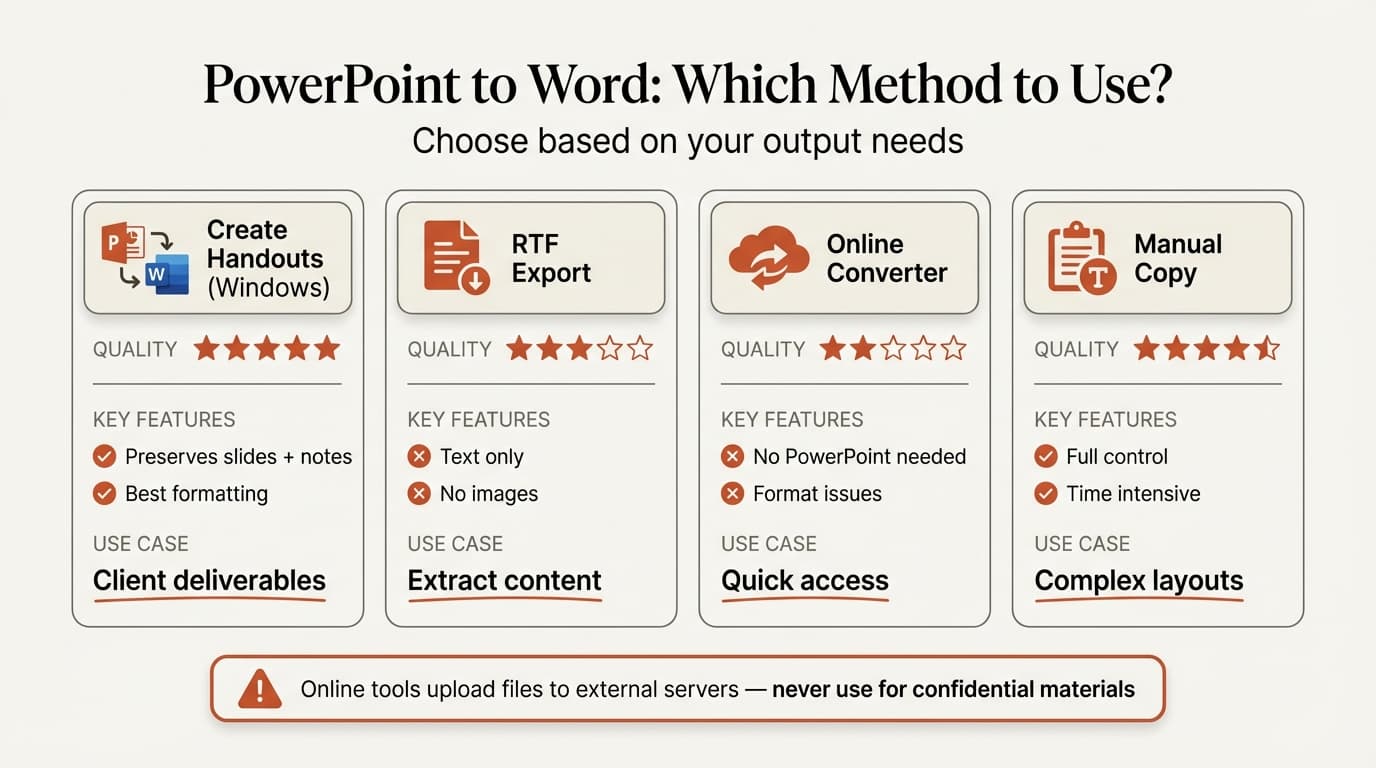
Windows PowerPoint offers the most complete conversion feature. The Create Handouts method exports slides and notes directly into a fully formatted Word document.
Method 1: Create Handouts (Recommended)
This is the official Microsoft method for PowerPoint to Word conversion. Microsoft's support documentation covers the basics; the steps below include the layout options Microsoft's guide glosses over.
Steps:
- Open your PowerPoint presentation
- Click File then Export
- Select Create Handouts
- Click Create Handouts button
- In the Send to Microsoft Word dialog, choose a layout (see table below)
- Select Paste for a static document or Paste link to keep the Word file synced with PowerPoint edits
- Click OK
PowerPoint opens Microsoft Word automatically with your converted document. The process can take 30 seconds to several minutes depending on presentation size.
Layout options explained:
| Layout | Result | Best For |
|---|---|---|
| Notes next to slides | Slide thumbnail left, speaker notes right | Meeting handouts with context |
| Blank lines next to slides | Slide thumbnail left, empty lines right | Attendee note-taking |
| Notes below slides | Slide thumbnail top, speaker notes below | Printed documentation |
| Blank lines below slides | Slide thumbnail top, empty lines below | Worksheets and exercises |
| Outline only | Text from slide titles and bullets, no images | Extracting text content |
For client deliverables and board materials, Notes next to slides is the standard choice. It shows exactly what was presented alongside the rationale from speaker notes.
Method 2: Export as RTF (Text Only)
If you need editable text without slide images, PowerPoint can export as Rich Text Format. This method strips out all visuals but preserves text hierarchy, bullet formatting, and paragraph structure.
Steps:
- Open your presentation in PowerPoint
- Click File then Export
- Select Change File Type
- Choose Outline/RTF (*.rtf)
- Click Save As
- Name your file and select a save location
- Click Save
- Open the .rtf file in Microsoft Word
The RTF export pulls text from slide titles, subtitles, and bullet points. It ignores text boxes, shapes, charts, and images entirely. For presentations where you need to repurpose written content—turning slides into a report outline or extracting key messages—RTF export is faster than manually copying text.
How to Convert PowerPoint to Word on Mac
Mac PowerPoint lacks the Create Handouts feature. RTF export is the primary built-in option.
Steps (Mac RTF Export)
- Open your presentation in PowerPoint for Mac
- Click File then Export
- In the File Format dropdown, select Rich Text Format (.rtf)
- Choose a save location and file name
- Click Export
- Open the exported .rtf file in Microsoft Word
The Mac RTF export behaves identically to the Windows version: text content only, no images or charts. Mac users who need slide images have two workarounds: upload to OneDrive and use PowerPoint for the web's export features, or copy slides as images (Cmd+C) and paste into Word manually.
Continue reading: Fishbone Diagram in PowerPoint · Case Study Presentation · How to Add Icons to PowerPoint
Create and edit Word documents with AI
Draft new content and edit professional documents directly in Word. 14-day free trial. No credit card required.
How to Convert PowerPoint to Word Online
Free online converters work without PowerPoint installed. They handle basic conversions but produce inconsistent results with complex formatting.
Top Free Converters Tested
| Tool | File Size Limit | Registration Required | Quality (Text) | Quality (Formatting) |
|---|---|---|---|---|
| Zamzar | 50 MB | No | Good | Poor |
| FreeConvert | 1 GB | No | Good | Moderate |
| Convertio | 100 MB | No | Good | Poor |
Steps (same for all tools):
- Navigate to the converter website
- Upload your PowerPoint file
- Select DOCX as the output format
- Click Convert
- Download the converted Word file
What works: Text-heavy presentations with simple bullet lists convert cleanly. Standard fonts like Calibri and Arial survive the process.
What breaks: Custom fonts substitute with defaults, shifting text boxes and changing line breaks. Charts convert to static images or disappear entirely. Tables lose cell formatting and alignment. Animations and transitions are stripped out.
Privacy warning: Online converters upload your file to external servers for processing. Do not use these tools for confidential materials, client data, or legally privileged presentations. According to FreeConvert's documentation, files are deleted after a few hours, but the upload itself introduces risk. For sensitive content, use PowerPoint's built-in export features.
Method Comparison: What Works and What Doesn't
Different conversion needs call for different methods. Here's the breakdown by use case:
| What You Need | Best Method | Why |
|---|---|---|
| Slides + speaker notes | Create Handouts (Windows) | Preserves slide images exactly |
| Editable text content | RTF export | Fast, clean text extraction |
| Full formatting preservation | None—manual rebuild | No method preserves complex layouts |
| Conversion without PowerPoint | Online converter | Works but expect cleanup |
| Large presentation (50+ slides) | Split file, then Create Handouts | Avoids memory errors |
| Charts and tables | Manual copy/paste | Converters flatten charts to images |
For consulting deliverables where slide quality matters, the Create Handouts method is the only option that delivers professional results. RTF export works well when you need text for reports or documentation but can discard visual elements. Online converters are a last resort when you lack access to PowerPoint.
Fixing Common PowerPoint to Word Conversion Problems
Every conversion method hits predictable problems. These fixes apply regardless of which approach you use.
Memory Error: "PowerPoint couldn't write to Microsoft Word"
This error occurs when PowerPoint runs out of memory during export. Large presentations (40+ slides) or decks with high-resolution images trigger it most often.
Fix:
- Close all other programs
- Restart your computer
- Open only PowerPoint (no browser, email, or other apps)
- Retry the export
If the error persists, split your presentation into smaller files:
- Save a copy of the original presentation
- Delete slides 21-40, leaving slides 1-20
- Export this smaller file
- Repeat with slides 21-40 in a separate file
- Combine the Word documents manually
Font Substitution
Fonts not installed on your system get replaced with defaults during conversion. Custom consultancy fonts—McKinsey's Bower Sans, BCG's Henderson Sans, Bain's proprietary typeface—rarely survive online converters.
Fix: Export using PowerPoint's built-in methods rather than online tools. The Create Handouts feature embeds slide images as pictures, so fonts render exactly as designed. RTF export uses system fonts, so install the presentation's fonts on your machine before exporting if text fidelity matters.
Missing Charts and Images
Online converters frequently drop charts or convert them to low-resolution images that look pixelated in Word.
Fix: After conversion, manually copy charts from PowerPoint and paste them into Word as images. Right-click the chart in PowerPoint, select Copy, switch to Word, and use Paste Special then Picture (Enhanced Metafile) for the sharpest output. For data-linked charts built with tools like Deckary, the chart remains editable in PowerPoint, so you maintain full control over data updates before exporting to Word.
Table Formatting Breaks
Complex tables lose cell alignment, borders, and shading during conversion. Merged cells often split incorrectly.
Fix: Rebuild tables in Word after conversion rather than trying to fix broken formatting. Copy the content cell-by-cell if the table has many rows. For simple tables, it's faster to recreate the structure from scratch than to repair misaligned cells.
When to Convert vs When to Rebuild
| Presentation Type | Recommendation | Rationale |
|---|---|---|
| Text slides with bullets | Convert via Create Handouts | Images preserve formatting perfectly |
| Data-heavy slides with charts | Rebuild charts in Word | Charts flatten during conversion |
| Custom-designed slides | Rebuild | Complex layouts rarely survive |
| Template-based slides | Convert | Standard layouts convert cleanly |
When rebuilding, extract text via RTF export first, then recreate visual elements in Word.
Best Practices for Consulting and Business Use
Use Create Handouts for client deliverables. The layout quality is high enough for printing and distribution. Select Notes next to slides so readers see both the visual and the rationale.
Export early drafts as RTF for text review. When stakeholders need to review messaging without getting distracted by design, RTF export provides clean text that's easy to comment on in Word's track changes mode.
Avoid online converters for confidential materials. Client data, financial projections, and M&A details should never pass through third-party servers.
Test the Word document before distributing. Open the converted file on a different computer to verify fonts, images, and layout survived the conversion.
Sources
Create and edit Word documents with AI
Draft new content and edit professional documents directly in Word. 14-day free trial. No credit card required.