PowerPoint Narration: Add Voice Recording to Slides
Learn how to add narration to PowerPoint presentations using Record Audio for single slides or Record Slide Show for full presentations with voice and timings.
PowerPoint narration transforms static slides into self-running presentations for training, asynchronous communication, and conference replays. The feature embeds your voice directly into the presentation file so recipients hear your explanation without requiring a live meeting.
After adding voice narration to over 150 client deliverables, training modules, and remote presentations, we have identified exactly which recording method to use for different scenarios and which audio settings prevent the playback failures and file bloat that force you to re-record at the last minute.
This guide covers PowerPoint's two narration tools — Record Audio for single-slide voice notes and Record Slide Show for full presentation recordings — with step-by-step instructions, audio format requirements, and best practices for professional narration delivery.
PowerPoint Narration Methods Compared
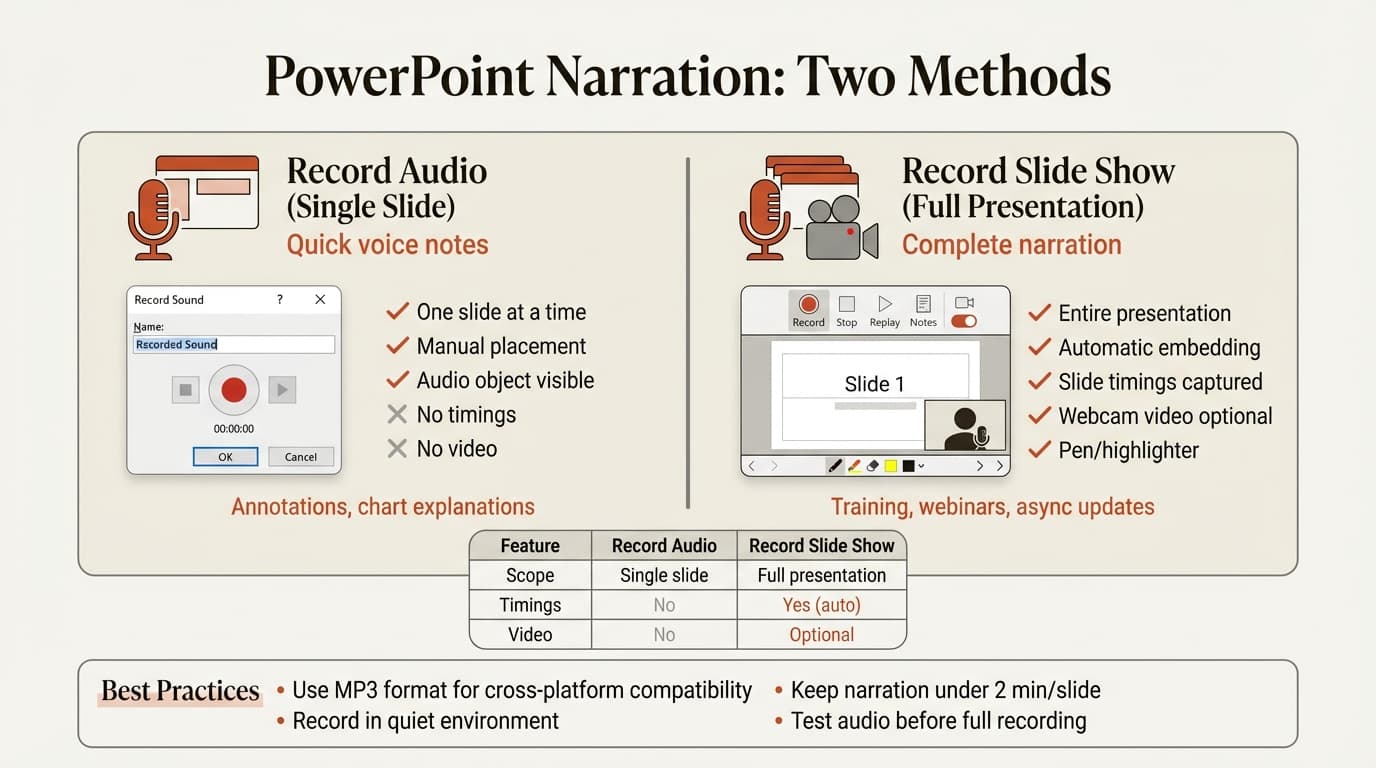
PowerPoint provides two distinct tools for adding voice narration, each designed for different use cases:
| Feature | Record Audio | Record Slide Show |
|---|---|---|
| Scope | Single slide at a time | Entire presentation in one session |
| Audio placement | Manual (audio object on slide) | Automatic (embedded in slide) |
| Webcam video | No | Optional |
| Slide timings | No | Yes (automatic) |
| Pen/highlighter | No | Yes (captured in recording) |
| Re-recording | Delete audio object, record again | Re-record from specific slide |
| Best for | Quick voice notes, annotations | Training, webinars, recorded deliveries |
Our recommendation: Use Record Audio when you need a short voice clip on one or two slides — explaining a complex chart, adding verbal context to data, or leaving a note for reviewers. Use Record Slide Show when you are creating a full presentation recording with narration throughout, especially for training modules, conference sessions, or asynchronous team updates.
How to Add Narration to a Single Slide
Record Audio is PowerPoint's legacy narration tool. It is faster to open, works well for single-slide voice notes, and gives you control over where the audio object appears on the slide.
Step-by-step instructions:
- Navigate to the slide where you want to add narration
- Click Insert in the ribbon
- Select Audio from the Media group
- Choose Record Audio from the dropdown
- A Record Sound dialog appears
- Type a name for your recording (optional but helpful for tracking)
- Click the red Record button
- Speak your narration clearly
- Click the square Stop button when finished
- Click OK to insert the audio
PowerPoint places an audio icon on your slide. You can drag it to any position or hide it off the slide edge if you do not want it visible during the presentation.
Audio Object Settings
After inserting the audio, the Playback tab appears in the ribbon. Set Start to Automatically and check Hide During Show for seamless narration playback without visible controls.
Limitations of Record Audio
Record Audio narrates one slide at a time and does not capture slide timings, webcam video, or pen annotations. For those features, use Record Slide Show instead.
How to Narrate an Entire Presentation
Record Slide Show is PowerPoint's comprehensive narration tool. It records your voice, optional webcam video, slide timings, and pen/highlighter annotations for the entire presentation in one session.
Step-by-step instructions:
- Open your presentation
- Navigate to the slide where you want to start (usually Slide 1)
- Click Record in the ribbon (near the upper right)
- Choose Record from Beginning or Record from Current Slide
- A recording window appears with a 3-second countdown
- Click the red Record button and begin speaking
- Advance slides using arrow keys or on-screen controls as you narrate
- Use the laser pointer, pen, or highlighter tools if needed
- Click Stop when finished
- Review your recording, then click Save
PowerPoint automatically embeds your narration and saves slide timings. A small speaker icon appears in the lower-right corner of each recorded slide in Normal view.
Recording Controls
During recording, use Pause/Resume to collect your thoughts, Laser Pointer to highlight content, and Pen or Highlighter to annotate slides. Annotations are saved with the recording.
Narration does not record during slide transitions. Pause briefly, wait for the next slide to appear, then resume.
Re-recording Individual Slides
To re-record a single slide, navigate to it, click the microphone icon in the slide thumbnail, select Delete, then click Record and choose Record from Current Slide. This preserves other slides' recordings.
Continue reading: Bar Charts in PowerPoint · Appendix Slide PowerPoint · How to Add Icons to PowerPoint
Work faster in PowerPoint
Use shortcuts, icons, logos, and reusable slides without leaving PowerPoint. 14-day free trial. No credit card required.
Audio File Format Requirements
PowerPoint supports multiple audio formats, but not all work reliably across platforms and versions. Microsoft's documentation lists the following supported audio formats:
| Format | Extension | Quality | File Size | Cross-Platform |
|---|---|---|---|---|
| MP3 | .mp3 | Good | Small (8% of original) | Yes (recommended) |
| M4A (AAC) | .m4a | Very good | Medium | Yes (PowerPoint 2016+) |
| WAV | .wav | Excellent | Large (uncompressed) | Yes |
| WMA | .wma | Good | Small | Windows only |
Our recommendation: Use MP3 for maximum compatibility across Windows, Mac, iOS, and Android. Use WAV when audio quality matters more than file size (rare for narration). Avoid WMA unless you are certain all recipients use Windows.
PowerPoint for Microsoft 365 and PowerPoint 2016 support all formats above on Windows. On Mac, MP3 and M4A are the most reliable choices.
Recording Quality Settings
PowerPoint defaults to 44.1 kHz, 16-bit stereo, which is sufficient for narration. For higher quality, record externally using Audacity or GarageBand, then insert the file using Insert, Audio, Audio on My PC (Windows) or Audio from File (Mac).
Editing and Trimming Narration
Trim Audio Duration
To remove silence or mistakes, click the audio icon, select the Playback tab, click Trim Audio, and drag the green (start) and red (end) markers to set cut points. This changes what portion plays without altering the original file.
Delete Recordings
Single slide (Record Audio): Click the audio icon and press Delete.
Single slide (Record Slide Show): Click the microphone icon in the slide thumbnail and select Delete.
All slides: Click Recording tab, Clear, then Clear Recording on All Slides.
Playback During Presentations
Narration plays automatically during slideshow mode when you use Record Slide Show or set Start: Automatically for Record Audio clips.
Presenter View with Narration
When presenting with narration, Presenter View still shows your speaker notes, next slide preview, and elapsed time. The narration plays on both your screen and the audience's view. Start the slideshow with F5 and narration plays automatically.
For audiences viewing independently, narration plays in Reading View or Slide Show mode without Presenter View.
Manual Playback Control
Set Start: In Click Sequence to require clicking the audio icon to start playback. This lets you present live or use narration from the same file.
Best Practices for Professional Narration
Test your microphone before recording. Record a test slide and check for volume, clarity, and background noise. This prevents re-recording 20 minutes of narration because the audio was inaudible.
Write a script or outline for each slide. Speaking without preparation leads to filler words and long pauses. LLCBuddy's 2025 presentation research found that individuals are 22 times more likely to recall a fact when it is presented as a narrative.
Record in a quiet environment. Close windows, disable desktop notifications, and use a headset microphone rather than a laptop's built-in mic.
Keep narration concise. Aim for under 2 minutes per slide. For longer topics, split content into multiple short presentations. This makes editing easier — update one segment without re-recording the entire deck.
Use Record Slide Show for consistency. Recording each slide separately with Record Audio results in volume variations and awkward transitions.
Avoid reading the slide verbatim. Narration should add context and explain insights — not repeat what is on screen. For teams building professional slides fast, narration adds the "why" and "so what" that text alone cannot convey.
When to Use Narration vs. Live Presentation
Use narration for:
- Training and onboarding — New hires watch on their own schedule
- Asynchronous team communication — Team members in different time zones view updates without scheduling meetings
- Conference session replays — Attendees review content later
- Client deliverables — Complex slides benefit from verbal walkthroughs
Present live for:
- Interactive discussions — Presentations that depend on audience questions or real-time feedback
- Frequently updated content — Decks that change weekly or monthly
- Highly confidential material — Narrated files are easier to copy and distribute
For presenters managing speaker notes, narration is an alternative to notes-based live delivery.
Common Narration Issues and Fixes
No audio during playback
Fix: On Windows, verify your microphone is set as the default input device in Settings, System, Sound. On Mac, grant PowerPoint microphone permission in System Settings, Privacy & Security, Microphone. Record a test slide and verify the waveform appears.
Audio out of sync with slides
Fix: Re-record the affected slides. Do not manually adjust slide timings after recording — this breaks synchronization. Microsoft's recording troubleshooting guide recommends using automatic timings from Record Slide Show.
Audio file increases presentation size significantly
Fix: Use MP3 instead of WAV. Convert WAV files to MP3 using Audacity before inserting into PowerPoint. This reduces file size to 8% of the original without quality loss.
Recording stops unexpectedly
Fix: Verify you have at least 5 GB of free disk space. Close other applications. Record in smaller segments (5-10 slides at a time).
Audio does not play on Mac after creating on Windows
Fix: Use MP3 or M4A formats for cross-platform compatibility. WMA is Windows-only. Re-record using Record Slide Show or insert MP3 files instead.
Summary
PowerPoint narration embeds voice recordings directly into presentation files for training, asynchronous communication, and recorded deliveries. Use Record Audio for single-slide voice notes and Record Slide Show for full presentation recordings with voice, timings, and optional video.
MP3 is the most reliable audio format for cross-platform compatibility. Record in a quiet environment, use a script or outline for structured narration, and keep recordings under 2 minutes per slide for maximum engagement.
Use narration when asynchronous access matters more than live interaction — training modules, remote team updates, conference replays. Present live when interactivity, frequent updates, or confidentiality outweigh the convenience of self-running recordings.
Sources:
Work faster in PowerPoint
Use shortcuts, icons, logos, and reusable slides without leaving PowerPoint. 14-day free trial. No credit card required.