Word to PowerPoint: 4 Methods Compared (Import Outline Guide)
Convert Word to PowerPoint using Import Outline, heading styles, and AI tools. Step-by-step instructions for turning documents into presentations.
PowerPoint can import structured Word documents directly through its Slides from Outline feature. When you format a Word document with Heading 1 for titles and Heading 2 for bullets, PowerPoint converts each heading into a slide automatically. This method is faster than manually copying content slide by slide and preserves the document's logical structure.
After converting over 180 Word strategy documents, project reports, and meeting notes into PowerPoint presentations, the pattern is clear: the Import Outline method works reliably when you prepare the Word document correctly, but formatting mistakes cause predictable failures. This guide covers four conversion methods with step-by-step instructions, explains the heading structure PowerPoint expects, and includes fixes for the import errors consultants encounter most often.
Cleaning up the source document first? Deckary's AI Word Agent applies Heading 1, Heading 2, and Quote styles directly to selections inside Microsoft Word — the exact structure PowerPoint's Import Outline relies on.
For a business presentation you can continue editing in PowerPoint, see the Deckary slide creation and editing workflow. If you already have a source report, the PDF-to-PowerPoint workflow shows how to turn readable source content into a new narrative.
How to Convert Word to PowerPoint Using Import Outline
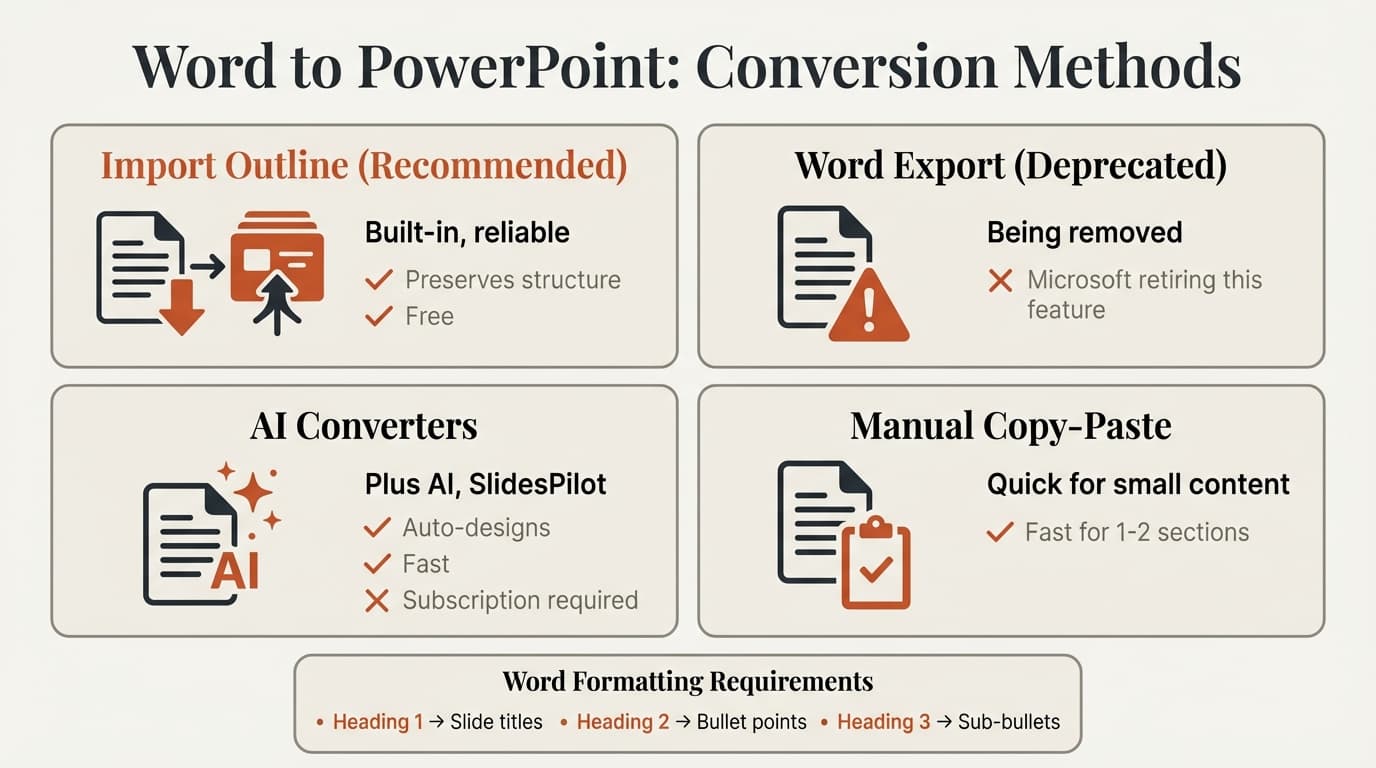
The Import Outline method is PowerPoint's official conversion feature. Microsoft's support documentation covers the basic steps; the instructions below include the heading structure requirements that Microsoft's guide assumes you already know.
Method 1: Import Outline (Recommended)
This method works on both Windows and Mac PowerPoint. The Word document must be closed before importing.
Steps:
- Open your Word document
- Apply heading styles (see formatting section below)
- Save and close the Word document
- Open PowerPoint
- Click Home then New Slide dropdown
- Select Slides from Outline
- Navigate to your Word document and click Insert
PowerPoint creates one slide for each Heading 1 in your document. Heading 2 text becomes bullet points on those slides. The import takes 5 to 30 seconds depending on document length.
Formatting Your Word Document for Import
PowerPoint requires specific heading styles to understand document structure. Without these styles, the import fails or produces one slide per paragraph.
| Word Style | PowerPoint Result | Usage |
|---|---|---|
| Heading 1 | Slide title | Each Heading 1 creates a new slide |
| Heading 2 | First-level bullet | Appears as bullet point on the slide |
| Heading 3 | Second-level bullet | Indented under Heading 2 bullets |
| Heading 4-9 | Additional indent levels | Nested bullets (rarely needed) |
| Body Text | Ignored | Not imported unless document has no headings |
Example structure:
Heading 1: Market Analysis
Heading 2: Total addressable market exceeds $2.4 billion
Heading 2: Three competitors control 67% market share
Heading 2: Customer acquisition cost declining 14% annually

Heading 1: Strategic Recommendations
Heading 2: Expand into adjacent verticals
Heading 3: Healthcare vertical shows 23% faster adoption
Heading 3: Financial services vertical has higher lifetime value
Heading 2: Optimize pricing for enterprise segment
This Word outline produces two slides. The first slide titled "Market Analysis" contains three bullets. The second slide titled "Strategic Recommendations" contains two main bullets, with the first bullet having two sub-bullets.
PowerPoint imports .docx, .rtf, and .txt files. For .txt files, use tabs for indentation instead of heading styles.
Continue reading: Fishbone Diagram in PowerPoint · Case Study Presentation · How to Add Icons to PowerPoint
Create an editable presentation in your browser
Turn a prompt or source files into slides you can edit and export to PowerPoint. 14-day free trial. No credit card required.
Alternative Method: Word's Export to PowerPoint Feature
Microsoft Word includes a direct export option that converts documents to PowerPoint without opening PowerPoint first. However, Microsoft announced this feature is being deprecated and will no longer be accessible after retirement.
This method worked through File → Export → Export to PowerPoint, applying a design theme during conversion. Microsoft retired this feature in March 2025. Use PowerPoint's Import Outline method instead.
How to Convert Word to PowerPoint with AI Tools
AI-powered converters analyze Word documents and generate designed slides automatically. These tools work well for long documents where manual heading formatting would be time-consuming.
Top AI Converters Tested
| Tool | Free Tier | Design Quality | Best For |
|---|---|---|---|
| Plus AI | Limited uses | Good | Google Slides integration |
| SlidesPilot | 3 free presentations | Good | Fast conversion |
| Presentations.AI | Trial available | Excellent | Visual polish |
AI tools handle long documents well, automatically summarize dense text, and apply professional design templates. For 10-plus page Word documents with minimal structure, AI conversion saves hours. However, AI frequently misinterprets document intent and produces layouts that need manual cleanup. Tables and charts often convert poorly.
Privacy warning: Uploading confidential documents to third-party AI services introduces risk. For sensitive content, use PowerPoint's built-in import feature.
Manual Copy-Paste Method
For single paragraphs or short bullet lists, manual copying is faster than formatting the entire document for import. Bullet formatting and hyperlinks preserve, but indentation often flattens and tables paste inconsistently.
Method Comparison: When to Use Each Approach
Different conversion needs call for different methods. Here's the breakdown by use case:
| What You Need | Best Method | Why |
|---|---|---|
| Structured outline to slides | Import Outline | Fast, reliable, preserves hierarchy |
| Long document with minimal structure | AI converter | Summarizes and designs automatically |
| Quick transfer of a few bullets | Manual copy-paste | Faster than formatting entire document |
| Report with tables and charts | Manual rebuild | No method preserves complex layouts |
| Document without heading styles | Apply headings, then import | Faster than AI for short documents |
For consulting deliverables where slide structure matters, the Import Outline method produces the most predictable results. AI converters work well for transforming dense text documents into visual presentations when you have time to review and refine the output.
Fixing Common Word to PowerPoint Conversion Problems
Every conversion method hits predictable problems. These fixes apply regardless of which approach you use.
Import Creates One Slide Per Paragraph
This happens when your Word document contains no Heading 1 or Heading 2 styles. PowerPoint treats every paragraph as a separate slide title.
Fix: Apply Heading 1 to slide titles and Heading 2 to bullets, then re-import. PowerPoint imports only styled content, so you can skip introductions and appendixes.
Document Must Be Closed Error
PowerPoint cannot import a Word document that is currently open, even if it is open in read-only mode.
Fix: Close the Word document in Word before starting the PowerPoint import. If the error persists, check Task Manager (Windows) or Activity Monitor (Mac) for lingering Word processes and force quit them.
Bullets Import at Wrong Indentation Level
Heading 2 text should import as first-level bullets, but sometimes it imports as second-level or third-level instead.
Fix: PowerPoint interprets heading hierarchy in sequence. If your document has Heading 1 followed by Heading 4, PowerPoint treats Heading 4 as a second-level bullet. Ensure heading styles progress logically: Heading 1 for titles, Heading 2 for main bullets, Heading 3 for sub-bullets. Do not skip heading levels.
Tables and Images Do Not Import
The Import Outline feature extracts text content only. Tables, images, charts, and other visual elements are ignored during import.
Fix: After importing the outline, manually copy tables and images from Word and paste them into the appropriate PowerPoint slides. For data tables that need frequent updates, consider rebuilding them in PowerPoint or linking to source data in Excel. Tools like Deckary can generate charts directly in PowerPoint with live Excel links, eliminating the need to paste static images from Word documents.
Formatting Disappears After Import
PowerPoint applies the active theme's formatting to all imported text, stripping Word formatting.
Fix: Import the text structure first, then apply formatting in PowerPoint. If you convert documents frequently, create a PowerPoint template with your brand styles.
Best Practices for Converting Reports and Documents
Structure Word documents with slides in mind. When drafting content you know will become a presentation, write in outline format from the start using Heading 1 for major topics and Heading 2 for supporting points.
Apply heading styles as you write. Formatting a finished 15-page document takes 20 to 30 minutes. Applying heading styles during writing takes seconds.
Import early, refine in PowerPoint. Convert the outline as soon as the structure is solid, then add charts and design in PowerPoint. Perfecting the Word document before importing wastes time on formatting that PowerPoint discards.
Use AI converters for dense technical documents. For 20-plus page reports, AI tools provide a faster starting point than manual outline formatting.
For teams that build presentations efficiently, standardizing on the Import Outline workflow eliminates inconsistencies.
Sources
Create an editable presentation in your browser
Turn a prompt or source files into slides you can edit and export to PowerPoint. 14-day free trial. No credit card required.