Presentation Design: The Complete Guide to Professional Slide Types
Master the 15 slide types that build business presentations, from title slides to appendices, with research-backed design principles and consulting-grade examples.
Professional presentation design is not about decoration. It is about clarity under pressure. Two consultants present the same market analysis to the same client. One uses slides that require 15 seconds to parse. The other uses slides that reveal their message within three seconds. The first consultant loses attention before finishing the point. The second holds the room and drives decisions.
After reviewing 300+ strategy presentations across board meetings, client deliverables, investor pitches, and executive updates, we have found that effective presentation design follows structural rules, not creative preferences. The slide types that appear consistently — title slides, agenda slides, content layouts, chart slides, comparison tables — exist because they match how audiences process information under time constraints.
This guide covers the 15 slide types that build business presentations, explains when to use each layout, provides research-backed design principles that reduce cognitive load and increase comprehension, and shows how consulting firms structure slides for maximum impact in high-stakes environments.
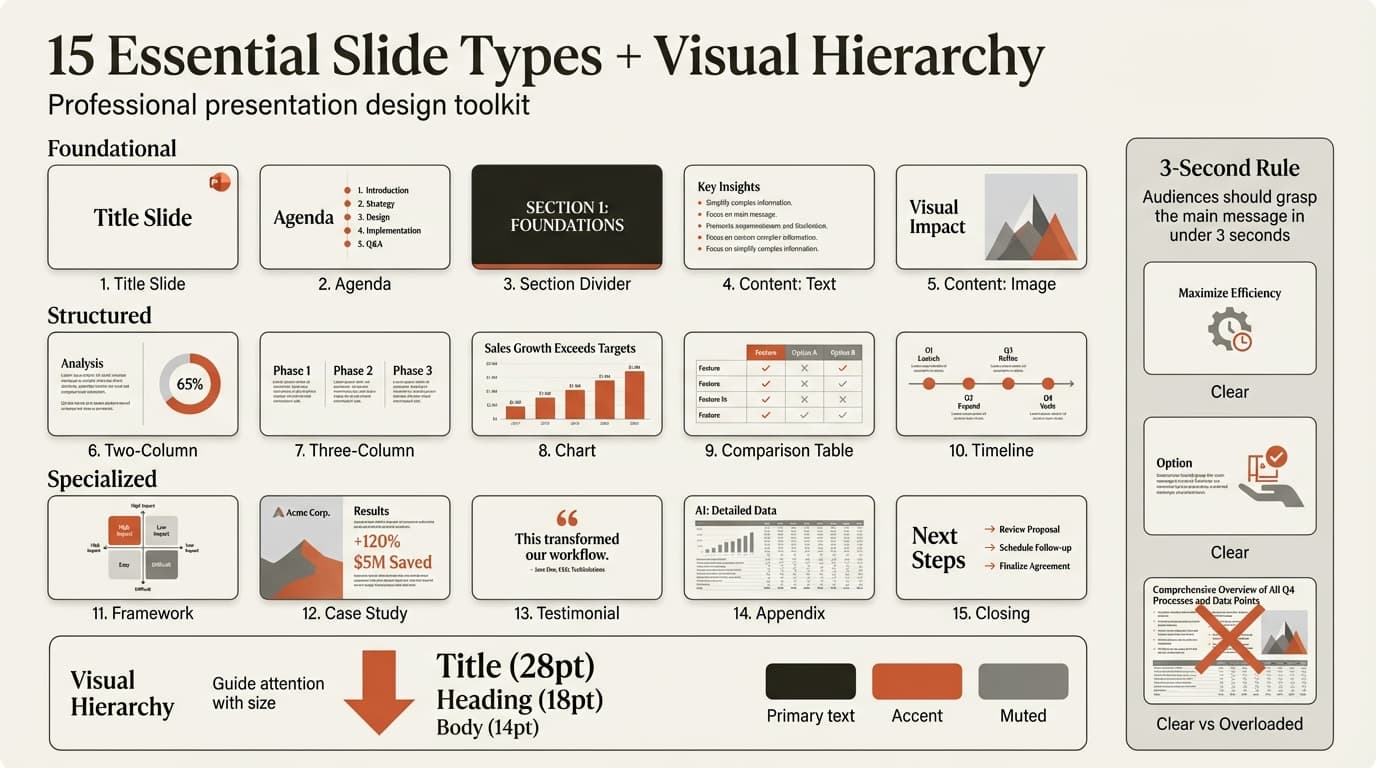
What Is Presentation Design (and Why Structure Matters)
Presentation design is the strategic arrangement of content, visuals, and formatting to communicate business insights clearly and persuasively. Unlike decorative design, which prioritizes aesthetics, presentation design prioritizes comprehension speed and decision-making support.
Research shows that well-designed slides reduce cognitive load and improve audience comprehension. A study from Penn State Engineering Communications found that engineering students who viewed assertion-evidence slides (slides with clear conclusions as titles) showed superior comprehension, fewer misconceptions, lower perceived cognitive load, and stronger recall compared to conventional designs.
The three-second rule recommends creating slides that viewers can understand in under three seconds, enabling learners to return attention to the speaker. Slides requiring longer processing times create cognitive overload, forcing audiences to choose between listening to the speaker or reading the slide.
The difference between effective and ineffective presentation design is structural. Effective designs guide attention using visual hierarchy, use white space to reduce cognitive load, state conclusions clearly in action titles, and match slide layouts to content types. Ineffective designs bury insights in body text, use decorative elements that compete for attention, and force audiences to work hard to extract meaning.
| Design Element | Purpose | Impact on Comprehension |
|---|---|---|
| Visual hierarchy | Guides attention to most important elements | Reduces time to identify key insight from 15 seconds to under 3 seconds |
| White space | Reduces cognitive load, provides visual rest | Improves comprehension by 20-30% vs cluttered slides |
| Action titles | States conclusion before evidence | Increases retention by 40% vs descriptive titles |
| Consistent formatting | Creates predictable visual patterns | Reduces processing effort, allows focus on content |
| One message per slide | Prevents information overload | Maintains attention, prevents multitasking |
The 15 Essential Slide Types
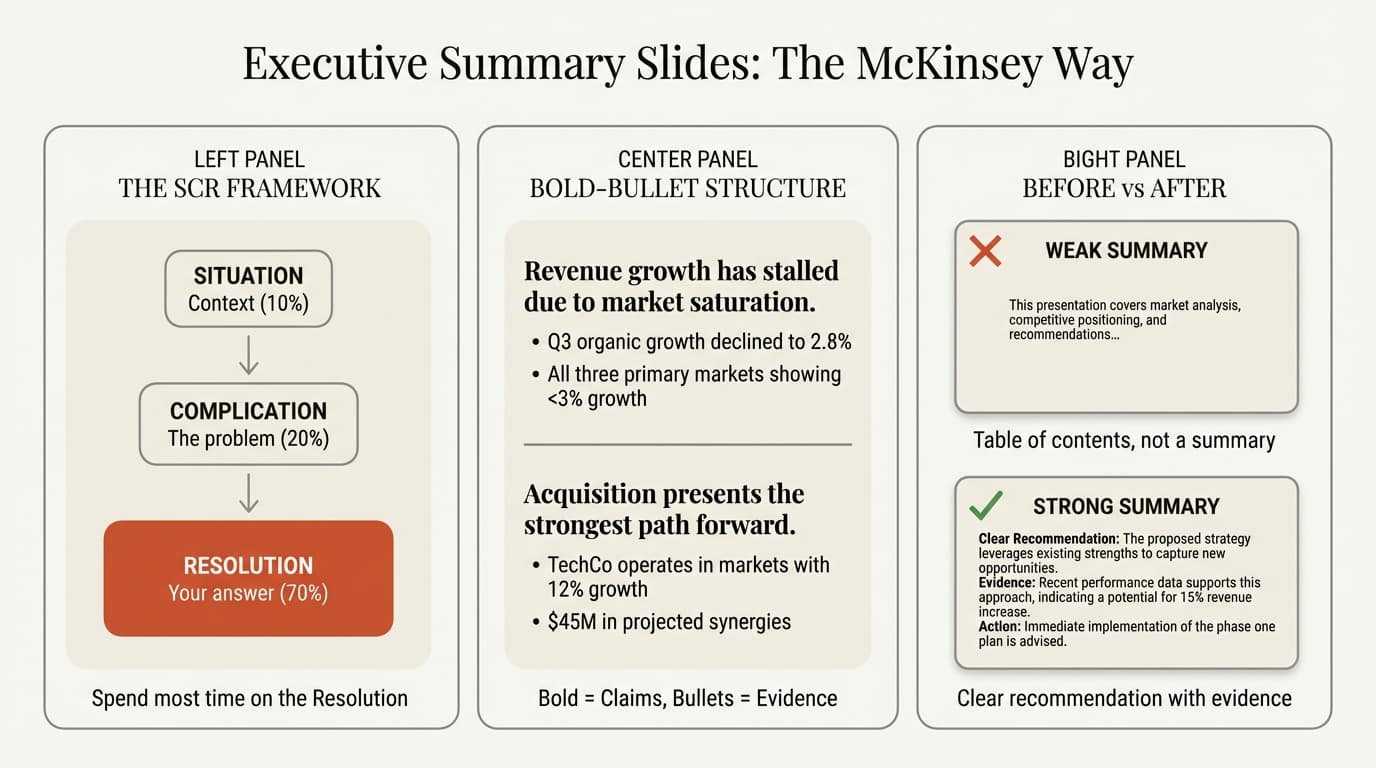
Every business presentation combines variations of 15 core slide types. Each type serves a specific communication purpose and follows distinct design principles.
1. Title Slide (Cover Slide)
The title slide establishes first impressions and sets the tone for your presentation. Research shows that 70% of people form an impression before you speak, making the cover slide your first opportunity to signal professionalism and credibility.
Purpose: Communicate presentation topic, presenter identity, date, and organizational branding.
Essential elements:
- Presentation title (large, bold, 32-44pt)
- Presenter name and role
- Organization or client name
- Date
- Optional: Company logo, confidentiality marking
Design principles:
- Title should be readable from the back of the room
- Avoid cluttering with images unless they support the topic
- Use brand colors consistently throughout deck
- Keep layout clean — this is not the place for decorative elements
Common mistakes:
- Generic titles ("Q3 Update" tells the audience nothing)
- Too many logos (company, division, department, partner logos create clutter)
- Overly decorative backgrounds that compete with text
For detailed guidance, see our guide on PowerPoint title slides and cover slide design.
2. Agenda Slide (Table of Contents)
The agenda slide establishes structure and sets expectations for presentation flow. It tells busy executives what topics you will cover, in what order, and approximately how long the presentation will run.
Purpose: Preview presentation structure, help audiences navigate content, enable executives to request priority topics first.
Essential elements:
- Numbered or bulleted list of main sections (typically 3-7 items)
- Optional: Estimated time per section
- Optional: Page numbers for each section
Design principles:
- Keep section names short (3-5 words each)
- Use parallel structure ("Market Analysis," "Competitive Landscape," "Recommendations")
- Avoid vague labels ("Introduction," "Conclusion") — state the actual topic
When to use:
- Presentations longer than 10 slides
- Executive presentations where time is limited and priorities may shift
- Client deliverables where structure signals thoroughness
When to skip:
- Short updates (under 5 minutes)
- Presentations following a known, repeated format
For implementation details, see our PowerPoint table of contents guide and agenda slide design. You can also start with our Agenda Slide Template for a ready-made layout.
3. Section Divider Slide
Section dividers signal transitions between major topics, providing visual and cognitive breaks between content sections.
Purpose: Reset attention, signal topic shifts, help audiences track progress through the presentation.
Essential elements:
- Section title (large, bold, centered)
- Optional: Section number ("Part 2: Competitive Analysis")
- Optional: Minimal visual element aligned with presentation theme
Design principles:
- High visual contrast with content slides (e.g., dark background if content slides are light)
- Minimal text — this is a transition, not content
- Consistent style across all section dividers in the deck
When to use:
- Presentations with 4+ distinct sections
- Long presentations where audiences need periodic reorientation
- When topics shift dramatically (from financials to operational recommendations)
4. Content Slide: Title and Text
The most common slide type in business presentations. Delivers key insights with supporting bullet points or short paragraphs.
Purpose: Communicate conclusions and supporting evidence in scannable format.
Essential elements:
- Action title stating the conclusion (not just the topic)
- 3-6 bullet points supporting the conclusion
- Optional: Visual element (icon, small chart) reinforcing the message
Design principles:
- Action titles, not descriptive titles. "Enterprise segment drove 67% of Q3 growth" vs "Q3 Revenue Analysis"
- 6x6 rule: Maximum 6 bullet points, maximum 6 words per line
- Parallel structure: Start each bullet with same part of speech (verb, noun, etc.)
- Visual hierarchy: Title largest (28-32pt), bullets medium (16-20pt)
Common mistakes:
- Paragraphs instead of bullets (audiences cannot scan quickly)
- Reading bullets verbatim (if you are reading text, audiences do not need you)
- Too many bullets (7+ bullets signals lack of editing)
The consulting approach: BCG uses Trebuchet MS for all body text, while McKinsey's 2020 template uses Arial for slide content and Georgia for titles. Both firms follow strict minimalism: no decorative elements, limited colors, and action titles on every slide.
5. Content Slide: Title and Image
Uses a dominant image to communicate the message, with minimal text. Most effective when the visual conveys meaning that text cannot.
Purpose: Show rather than tell, create emotional impact, illustrate concepts that resist verbal description.
Essential elements:
- Action title (stating what the image demonstrates)
- High-quality image (minimum 1920x1080 for full slides)
- Optional: Short caption or annotation
Design principles:
- Image should support the title's conclusion, not just decorate
- Avoid stock photos with fake enthusiasm (teams high-fiving, people pointing at whiteboards)
- Use annotations (arrows, callouts) to direct attention to specific image details
When to use:
- Product demonstrations or physical outputs
- Before/after comparisons
- Process illustrations requiring visual context
- Case study results with tangible outcomes
For visual comparison techniques, see our guide on before and after slides.
6. Content Slide: Two-Column Layout
Splits the slide vertically, allowing side-by-side content presentation. One of the most versatile layouts.
Purpose: Show comparisons, present text with supporting visual, or display two related but distinct concepts.
Common configurations:
- Text left, chart right: Conclusion in bullets, data visualization providing evidence
- Two lists: Pros/cons, current state/future state, option A/option B
- Text left, image right: Explanation with supporting visual
Design principles:
- Maintain visual balance (columns roughly equal width, or 40/60 split)
- Use divider line between columns for clarity
- Keep title centered or left-aligned across both columns
When to use:
- Comparing two approaches, states, or options
- Supporting textual conclusions with visual evidence
- Presenting related content that benefits from simultaneous viewing
For comparison-specific layouts, see our comparison slide guide.
7. Content Slide: Three-Column Layout
Divides the slide into three vertical sections. Best for structured frameworks or multi-option comparisons.
Purpose: Present three-part frameworks, compare three options, or show sequential phases.
Common uses:
- Strategic frameworks (People-Process-Technology, Cost-Quality-Speed)
- Three-option evaluations
- Three-phase roadmaps
Design principles:
- Keep content per column minimal (3-4 bullets maximum)
- Use icons or visual elements to differentiate columns
- Ensure columns have roughly equal content weight
When to use:
- Frameworks naturally organized in threes
- Comparing three distinct options
- Showing progression through three phases
When to avoid:
- When content does not naturally split into thirds (forcing content into three columns reduces clarity)
- Small screens or mobile presentations (columns become too narrow)
8. Chart Slide: Data Visualization
Presents quantitative data using charts, graphs, or diagrams. The most persuasive slide type when designed well, the most confusing when designed poorly.
Purpose: Make patterns visible, prove conclusions with data, enable comparison of quantities.
Essential elements:
- Action title interpreting the data (not just "Q3 Revenue")
- Chart with clear axes, labels, and legend
- Data source citation (especially for external data)
- Optional: Annotation highlighting the key insight
Design principles:
- Chart selection matches data type: Trends use line charts, comparisons use bar charts, composition uses pie or stacked bar charts, relationships use scatter plots
- Remove chart junk: Eliminate gridlines, 3D effects, unnecessary decoration
- Highlight the insight: Use color to draw attention to the data point supporting your conclusion
- Readable from distance: Minimum 16pt for axis labels, 18pt for data labels
Common mistakes:
- Dual-axis charts that mislead by scaling axes differently
- 3D charts that distort perception of quantities
- Too many series (5+ lines or bars creates visual chaos)
- Unlabeled axes or missing units
Research shows that visual aids increase persuasiveness by 43% compared to text-only presentations. However, poorly designed charts reduce comprehension and credibility.
For chart-specific guidance, see our guides on waterfall charts, Mekko charts, and presenting data effectively.
9. Comparison Table Slide
Uses a table or matrix to compare multiple options across multiple criteria. Essential for decision-making presentations.
Purpose: Enable systematic evaluation of alternatives, show trade-offs across dimensions, support selection recommendations.
Essential elements:
- Action title stating the recommended choice (if applicable)
- Table with clear column headers and row labels
- Visual differentiation (color coding, checkmarks, ratings)
- Optional: Summary row highlighting key differentiators
Design principles:
- Keep tables simple: Maximum 5 columns, 7 rows
- Use visual indicators: Checkmarks, X marks, or color coding (green/yellow/red) instead of text
- Highlight the winner: If recommending one option, use bold, color, or border to draw attention
- Align numbers right, text left: Improves scannability
Common uses:
- Vendor selection matrices
- Feature comparisons
- Strategic option evaluations
- Build vs buy decisions
For table formatting details, see our PowerPoint table design guide. Our Comparison Table Template provides a pre-formatted layout for vendor evaluations and feature comparisons.
10. Timeline Slide (Roadmap, Gantt Chart)
Visualizes events, milestones, or phases across time. Critical for project plans, implementation roadmaps, and strategic timelines.
Purpose: Show sequence, duration, and dependencies of activities over time.
Common formats:
- Linear timeline: Events along a horizontal line
- Gantt chart: Horizontal bars showing task duration and overlap
- Milestone roadmap: Key deliverables mapped to quarters or phases
Design principles:
- Time flows left to right: Matches natural reading direction
- Clear time labels: Mark months, quarters, or phases clearly
- Differentiate types: Use color or shape to distinguish milestones, tasks, and deliverables
- Show today: Mark current date with vertical line
When to use:
- Project kickoff presentations
- Implementation plans
- Product roadmaps
- Strategic planning reviews
For implementation guides, see our articles on Gantt charts in PowerPoint and timeline slides. Our Timeline Template includes milestone roadmap and Gantt chart layouts ready for customization.
11. Framework Slide (Process Diagram)
Illustrates business frameworks, processes, or conceptual relationships. Makes abstract concepts tangible through visual structure.
Purpose: Explain methodologies, show process flows, communicate strategic frameworks.
Common frameworks visualized:
- 2x2 matrices (BCG matrix, Eisenhower matrix)
- Funnels (sales funnels, conversion funnels)
- Cycles (product development cycles, continuous improvement loops)
- Pyramids (organizational hierarchies, Maslow's hierarchy)
Design principles:
- Match visual structure to concept: Hierarchies use pyramids, cyclical processes use circles, sequential processes use horizontal flows
- Label clearly: Every box, arrow, or section needs a label
- Use consistent visual language: Same shapes mean same things throughout the deck
- Avoid complexity: If the diagram needs 5+ minutes to explain, simplify it
When to use:
- Introducing methodologies or approaches
- Explaining business models
- Showing organizational structures (see our Org Chart Template for hierarchy layouts)
- Teaching concepts
For specific frameworks, see our guides on Venn diagrams and flowcharts. Our SWOT Analysis Template provides a ready-made 2x2 matrix layout for strategic assessments.
12. Case Study Slide
Documents real-world examples, success stories, or proof points. Essential for sales presentations and credibility building.
Purpose: Provide evidence that your approach works in practice, not just theory.
Essential elements:
- Client or project context (industry, size, challenge)
- Your approach or intervention
- Quantified results
- Optional: Client logo, quote, or testimonial
Design principles:
- Lead with results: State the outcome in the title, then explain the approach
- Quantify everything: "Increased revenue 34%" beats "Improved performance"
- Use before/after format: Show the problem state, then the solution state
- Maintain confidentiality: Mask client names if required, but provide enough context to be credible
For detailed guidance, see our case study presentation guide and case study template.
13. Testimonial Slide
Features a quote, endorsement, or review from a customer, partner, or authority. Builds credibility through third-party validation.
Purpose: Leverage social proof, increase trust, support claims with external validation.
Essential elements:
- Quote text (large, readable)
- Attribution (name, title, company)
- Optional: Photo of person quoted, company logo
Design principles:
- Quote marks matter: Use actual quotation marks to signal this is a direct quote
- Full attribution: Include name, title, and organization (unless anonymous by request)
- Keep quotes short: 2-3 sentences maximum
- Relevant to context: Quote should support the claim on the previous or next slide
Use a full-slide quote or a quote-and-photo layout when the testimonial needs more emphasis.
14. Appendix Slide
Holds supporting data, detailed analyses, or backup information not included in the main presentation flow. Critical for executive presentations where questions may go deep.
Purpose: Provide detailed evidence for anticipated questions without cluttering the main narrative.
Essential elements:
- Clear title indicating this is appendix material
- Organized by topic (number or label appendix slides clearly)
- Same formatting standards as main deck
Design principles:
- Number separately: Appendix slides use letters (A1, A2) or continue numbering with "Appendix" prefix
- Build during preparation: Anticipate likely questions and prepare supporting slides before presenting
- Keep accessible: Organize appendix logically so you can jump to relevant slide quickly
Common appendix content:
- Detailed financial models or assumptions
- Additional case studies
- Methodology explanations
- Technical specifications
- Full research citations
For detailed guidance, see our appendix slide guide.
15. Closing Slide (Next Steps, Call to Action)
The last content slide before Q&A or conclusion. Drives action by stating clear next steps, decisions needed, or calls to action.
Purpose: Convert analysis into action, assign ownership, establish timeline.
Essential elements:
- Action title stating the decision or outcome needed
- Specific next steps (bulleted, with owners and dates)
- Clear ask (what decision or approval you need)
Design principles:
- Be specific: "Approve $2.4M budget for vendor implementation by Feb 28" beats "Consider implementation"
- Assign ownership: Every action needs an owner
- Set deadlines: "Next 30 days" is better than "Soon"
- End strong: This is the last thing audiences see before discussion
Common mistakes:
- Generic "Thank You" slides (wastes space that could reinforce your ask)
- "Any Questions?" slides (obvious and adds no value)
- No clear action (presentations without next steps rarely drive outcomes)
Continue reading: Best Tools for Creating Business Case Presentations in PowerPoint · PowerPoint Charts · Pitch Deck Guide
Create an editable presentation in your browser
Turn a prompt or source files into slides you can edit and export to PowerPoint. 10 free AI prompts. No credit card required.
Design Principles That Reduce Cognitive Load
Effective presentation design reduces the mental effort required to process information. Cognitive load theory explains that human working memory is limited, and poorly designed slides force audiences to work harder than necessary.
Visual Hierarchy
Visual hierarchy determines how audiences process information on each slide. Professional designers use size, color, position, and contrast to guide the viewer's eye toward the most important elements first.
Hierarchy principles:
- Size signals importance: Largest elements are most important
- Position matters: Top and left areas receive attention first (in Western reading patterns)
- Contrast draws attention: High-contrast elements (dark text on light background) stand out
- Color guides focus: Use accent colors sparingly to highlight key insights
Implementation:
- Title: 28-32pt, bold, top of slide
- Subheadings: 18-20pt, medium weight
- Body text: 14-16pt, regular weight
- Annotations: 12-14pt, often in accent color
White Space and Clutter Reduction
White space (empty areas without text or graphics) reduces cognitive load by giving eyes a place to rest. A study from Wichita State University tested different layouts with more or less white space, finding that participants preferred designs with margins and generous spacing.
White space guidelines:
- Minimum 0.5-inch margins on all sides
- Space between elements equal to or larger than element height
- Empty quadrants preferable to evenly distributed clutter
- Resist the urge to fill empty space with decorative elements
How to reduce clutter:
- Remove default PowerPoint borders, shadows, and 3D effects
- Eliminate gridlines on charts unless necessary for precision
- Use one font family throughout (maximum two)
- Delete elements that do not support your message
Consistent Formatting
Consistency reduces cognitive load by creating predictable visual patterns. When every slide follows the same format, audiences stop processing design and focus entirely on content.
What to keep consistent:
- Font families and sizes (title, heading, body, annotation)
- Color palette (background, text, accent, data visualization)
- Logo placement
- Alignment (left, center, or right — but pick one and stick with it)
- Spacing between elements
McKinsey presentations use Arial for body content and Georgia for titles. BCG uses only Trebuchet MS. The specific choice matters less than the consistency.
The One Message Per Slide Rule
Every slide should communicate exactly one insight. If your slide title contains "and," you likely have two slides. This discipline forces clarity and prevents information overload.
How to apply the rule:
- Can someone read only your slide titles and understand your complete argument? If not, titles are describing topics rather than stating insights
- If you find yourself saying "This slide covers three things," split it into three slides
- Each slide should support one branch of your Pyramid Principle argument structure
Test: Cover the slide body and read only the title. If the title does not state a complete thought that could stand alone, rewrite it.
Action Titles vs Descriptive Titles
The biggest design mistake in business presentations is using descriptive titles (labels) rather than action titles (conclusions).
Descriptive titles (weak):
- "Market Overview"
- "Competitive Landscape"
- "Q3 Financial Performance"
These titles tell audiences the topic but not the insight. Busy executives must read body text to understand your point.
Action titles (strong):
- "Market grew 34% last year, 3x faster than our current segments"
- "Two competitors control 71% share through exclusive distribution partnerships"
- "Q3 gross margin reached 68%, up from 62% target due to enterprise mix shift"
Action titles let audiences scan the deck and understand your argument without reading body text. Research from Penn State found that assertion-evidence slides (slides with conclusions as titles) improve comprehension, reduce misconceptions, and lower cognitive load compared to conventional topic-based titles.
How Consulting Firms Design Presentations
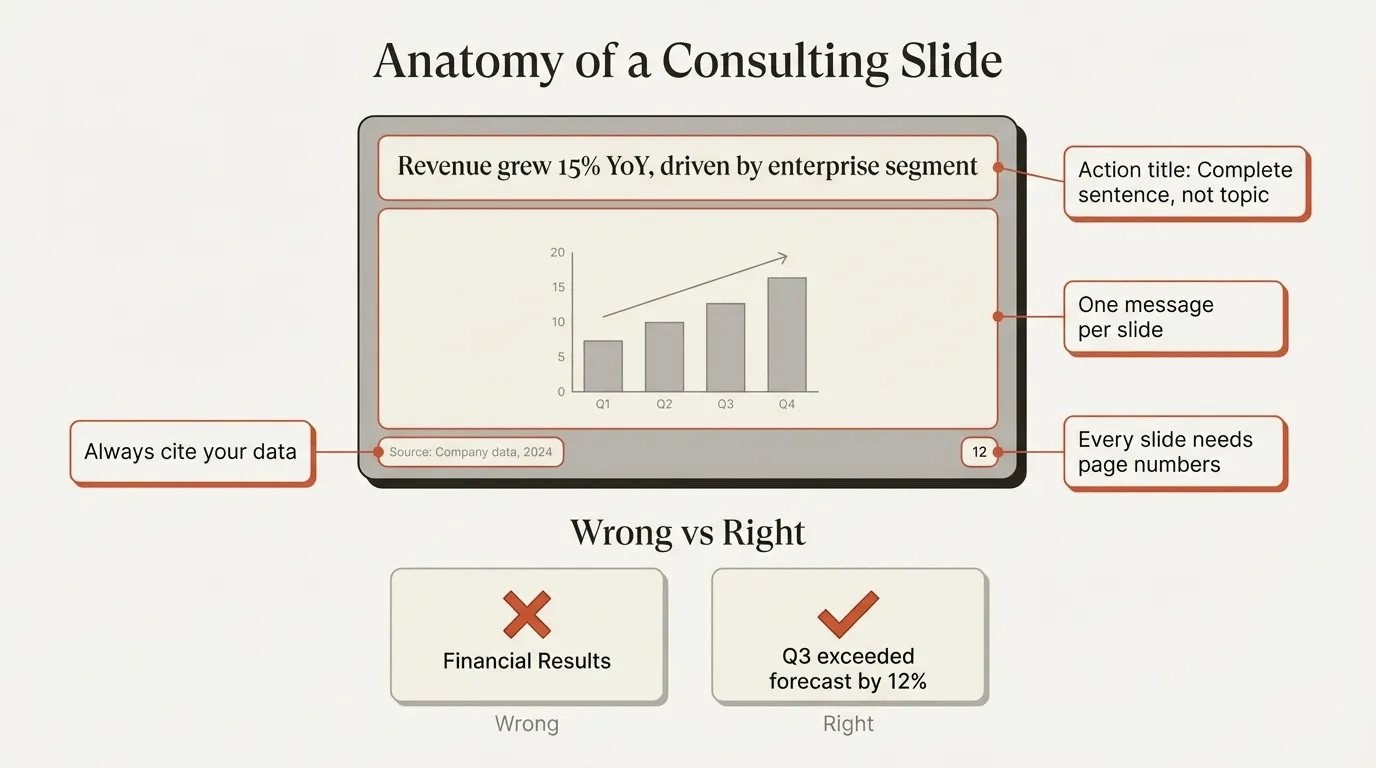
Strategy consulting firms — McKinsey, BCG, Bain — have refined presentation design over decades. Their approach prioritizes clarity, speed of comprehension, and persuasiveness under time pressure.
The Pyramid Principle
McKinsey presentations follow the Pyramid Principle, a top-down structure where the main conclusion is presented first, followed by supporting arguments and detailed evidence. This structure works because executives form credibility judgments within seconds. Making them wait 20 minutes to learn your recommendation loses their attention before you deliver the answer.
Pyramid structure applied to slides:
- Slide 1: Executive summary stating your recommendation
- Slides 2-4: Three supporting arguments (each gets one slide)
- Slides 5-10: Evidence supporting each argument (data, examples, analysis)
- Final slide: Next steps and decisions needed
Situation-Complication-Resolution Framework
McKinsey, Bain, and BCG typically structure presentations using the Situation-Complication-Resolution (SCR) framework:
Situation: What the audience knows. The baseline or shared context.
Complication: What changed or what is at stake. This creates tension and gives the audience a reason to care.
Resolution: Your recommendation or insight. This is where you deliver the answer.
This framework transforms data presentations into narratives. Instead of "Here are some charts," the structure becomes "You expected X, but Y happened, so we should do Z."
Minimalist Design Standards
Consulting firms use strict design minimalism:
Typography:
- BCG: Trebuchet MS for all text
- McKinsey: Arial for body, Georgia for titles
- Maximum two font families per deck
- Title: 28-32pt, body: 14-18pt
Color:
- Simple palettes (typically 2-3 colors plus grayscale)
- Bright colors used selectively to highlight key data
- No decorative gradients or textures
Content:
- Action titles on every slide
- Maximum 6 lines of text per slide
- Maximum 6 words per line
- No animations or transitions (except occasional fade)
- No clip art or decorative graphics
Charts:
- Clean axes and labels
- Minimal gridlines
- Direct labeling (labels on data points, not separate legends)
- Annotations highlighting the insight
MECE Framework for Organizing Content
The MECE principle (Mutually Exclusive, Collectively Exhaustive) ensures that all information is organized without overlaps or gaps. Applied to slides, this means:
- Each slide covers one distinct topic (mutually exclusive)
- All slides together cover the complete argument (collectively exhaustive)
- No redundancy across slides
- No logical gaps requiring audiences to infer missing connections
Common Presentation Design Mistakes
Even experienced presenters fall into these traps. Recognizing them early saves credibility.
Overloading Slides with Text
Cognitive load research shows that many slides contain too much information or have poorly organized information, creating high cognitive load. When audiences read paragraphs on slides, they cannot simultaneously listen to the speaker.
How to fix it:
- Apply the 6x6 rule (6 bullets, 6 words per line)
- Convert paragraphs to bullet points
- Move detailed text to appendix slides
- Use visuals to replace text where possible
Reading Slides Verbatim
If you read bullet points word-for-word, the audience does not need you. Slides should support your spoken words, not replace them.
How to fix it:
- Design slides with fewer words
- Use slides as visual anchors while you provide narrative
- Rehearse so you know what to say for each slide without reading
Poor Chart Design
Poorly designed charts reduce comprehension and undermine credibility. Common errors include:
- Unlabeled axes or missing units
- 3D effects that distort perception
- Too many data series (5+ lines create visual chaos)
- Misleading dual-axis charts with differently scaled axes
- No annotation highlighting the key insight
How to fix it:
- Select chart type matching data (trends→line, comparisons→bar, composition→pie/stacked)
- Remove chart junk (gridlines, backgrounds, 3D effects)
- Use color to highlight the data point supporting your conclusion
- Add title stating what the chart proves
Inconsistent Formatting
Inconsistent fonts, colors, spacing, or alignment forces audiences to process design changes instead of focusing on content.
How to fix it:
- Create a master slide template with all formatting locked
- Use PowerPoint's Slide Master feature to enforce consistency
- Copy-paste formatting (Format Painter tool) rather than manually recreating styles
No Clear Call to Action
Presentations without next steps rarely drive outcomes. Ending with "Any Questions?" wastes the final slide.
How to fix it:
- Final slide should state next steps with owners and deadlines
- Be specific about decisions or approvals needed
- Assign accountability for each action
Tools and Resources for Professional Slide Design
The best presentation skills fail if execution takes too long. Spending four hours aligning objects or reformatting charts wastes time that should go toward refining structure and rehearsing delivery.
PowerPoint Add-ins
PowerPoint handles basic slides, but add-ins accelerate the production work that otherwise drags. Deckary provides keyboard shortcuts for alignment and distribution, consulting-grade chart templates, and an AI slide builder that generates complete slides from text descriptions.
For professionals delivering weekly presentations, automation pays for itself in the first deck. The slide library includes 143 templates across business contexts. Excel-linked charts update automatically when source data changes. The result: less time formatting, more time on the message.
Design Templates and Frameworks
Starting from scratch for every presentation wastes time. Build a master template with:
- Title slide layout
- Standard content layouts (text, two-column, three-column)
- Chart slide layout
- Section divider layout
- Closing slide layout
Lock fonts, colors, spacing, and alignment so every new slide inherits correct formatting.
External Resources
Fonts:
- Professional sans-serif options: Arial, Helvetica, Calibri, Trebuchet MS
- Avoid decorative fonts, script fonts, or fonts under 14pt
Icons and Graphics:
- Deckary's icon library includes 2,000+ business icons
- Use icons sparingly to reinforce concepts, not decorate
Color Palettes:
- Use 2026 color trends like transformative teal, earthy browns, natural greens, and deep purples
- Maintain 4.5:1 contrast ratio for accessibility
- Test colors on projector before presenting
For additional formatting guidance, see our PowerPoint design tips and color scheme guide.
Emerging Trends in Presentation Design (2026)
Presentation design continues to evolve as delivery contexts shift. In 2026, audiences consume slides across live, remote, and mobile environments, making clarity, accessibility, and visual hierarchy essential for effective communication.
Mobile-Optimized Slides
Vertical slides (9:16 aspect ratio) are the fastest-growing category in 2026, driven by mobile viewing and social media sharing. Designing for mobile means larger fonts, less text, and simplified layouts.
AI-Generated Content
AI tools now generate slide outlines, suggest layouts, and create charts from data. Early adopters use AI for first drafts, then refine for clarity and brand consistency. Deckary's AI slide builder generates consulting-style slides in seconds, complete with action titles, structured layouts, and data visualizations.
Dark Mode and High Contrast
Dark mode is standard in boardrooms, with high-contrast neon accents (lime green, electric blue) on deep charcoal or black backgrounds reducing eye strain and making colors pop on modern LED screens.
Data Simplification
The trend for 2026 is data simplification — using clean visualizations like donut charts, Sankey diagrams, and simplified funnels to show only the data point that matters, rather than overwhelming audiences with comprehensive dashboards.
Accessibility-First Design
Accessibility-first presentation design ensures slides are readable, inclusive, and usable by diverse audiences. This includes sufficient color contrast (4.5:1 minimum), alt text for images, readable fonts at distance, and logical reading order for screen readers.
Key Takeaways
- Presentation design prioritizes comprehension speed over aesthetics. Well-designed slides reduce cognitive load and allow audiences to grasp insights in under three seconds, enabling them to focus on the speaker rather than decoding slides.
- The 15 essential slide types cover every business presentation need. Title slides, agenda slides, content layouts (text, image, two-column, three-column), chart slides, comparison tables, timelines, frameworks, case studies, testimonials, appendices, and closing slides form the complete set.
- Visual hierarchy, white space, consistent formatting, action titles, and one message per slide are the five core design principles. These research-backed techniques reduce cognitive load by 20-30% and improve comprehension and retention by 40% compared to conventional designs.
- Consulting firms use minimalist design with strict standards. McKinsey, BCG, and Bain follow the Pyramid Principle (conclusion first, then evidence), use action titles on every slide, limit text to 6 lines and 6 words per line, and avoid decorative elements entirely.
- Common mistakes include overloading slides with text, reading verbatim, poor chart design, inconsistent formatting, and no clear call to action. These errors force audiences to work harder to extract meaning and reduce presenter credibility.
- The three-second rule is the test for effective slide design. If viewers cannot understand a slide's main message in under three seconds, the slide creates cognitive overload and competes with the speaker for attention.
- 2026 trends include mobile optimization, AI-generated content, dark mode with high contrast, data simplification, and accessibility-first design. These trends reflect the shift toward presentations consumed across live, remote, and mobile contexts.
Effective presentation design is built, not decorated. The slide types, design principles, and formatting standards that work consistently are structural — they match how audiences process information under time constraints. Master these 15 slide types and five design principles, and your presentations will clarify rather than confuse, persuade rather than overwhelm, and drive decisions rather than fill calendars.
Sources
- Penn State Engineering Communications — Assertion-Evidence Slides and Comprehension
- SAGE Journals — The Three-Second Rule in Presentation Design (2022)
- NovoResume — Public Speaking Statistics on First Impressions
- Semantic Scholar — Persuasion and Visual Presentation Support (UM Vogel & Dickson)
- Queen's University — Cognitive Load Theory in Engineering Education
- Piktochart — Visual Hierarchy in Design
- Slideworks — BCG Approach to Great Slides (Former Consultant Guide)
- Slideworks — How McKinsey Consultants Make Presentations
- SlideModel — McKinsey Presentation Structure
- The Analyst Academy — PowerPoint Storytelling (McKinsey, Bain, BCG)
- SketchBubble — Presentation Design Trends 2026
- PrzntPerfect — Professional PowerPoint 2026
- Slidesgo — AI Presentations and Presentation Design Trends 2026
- SlidesCorner — Color Contrast and Accessibility in Slide Design 2026
Related Guides
- How to Make a Good PowerPoint — comprehensive PowerPoint creation guide
- Business Presentation Guide — structuring effective business presentations
- Consulting Presentations Guide — structure, design, and executive communication techniques
- PowerPoint Design Tips — detailed design principles and formatting standards
- Title Slide PowerPoint — creating effective cover slides
- Agenda Slide PowerPoint — structuring table of contents slides
- Comparison Slide PowerPoint — designing comparison tables
- Before and After Slide — visual comparison techniques
- Appendix Slide PowerPoint — organizing backup material
- PowerPoint Table of Contents — advanced agenda slide techniques
Create an editable presentation in your browser
Turn a prompt or source files into slides you can edit and export to PowerPoint. 10 free AI prompts. No credit card required.