PowerPoint Design Tips: 10 Research-Backed Strategies for Better Presentations
Research-backed PowerPoint design tips from cognitive science and eye tracking studies. Learn which design choices improve comprehension and which hurt it.
Most PowerPoint presentations fail because of design choices, not content quality. Dense text blocks, inconsistent alignment, and decorative elements that add zero comprehension value turn clear ideas into confusing slides. The audience stops listening and starts reading—or worse, stops paying attention entirely.
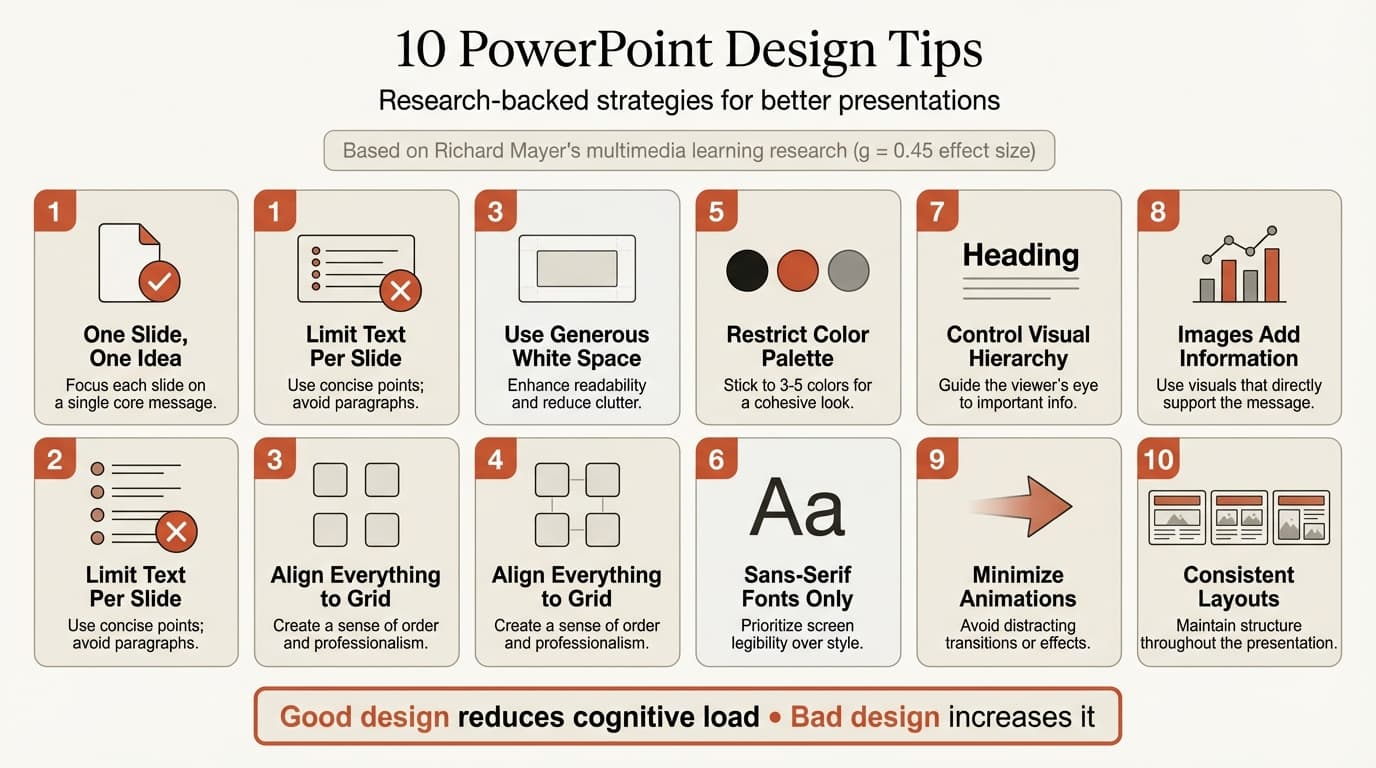
After applying design principles from cognitive science research across 300+ consulting presentations, we have identified 10 strategies that consistently improve slide effectiveness. These are not aesthetic opinions—they are evidence-based approaches grounded in Richard Mayer's multimedia learning research and eye tracking studies from UC San Diego's instructional design team. This guide covers the design tips that work, the mistakes that undermine comprehension, and how to structure slides so your message lands instantly.
Why Design Matters: Cognitive Load Research
Richard Mayer's cognitive theory of multimedia learning establishes that humans have separate channels for processing visual and verbal information, each with limited capacity. When slides overload these channels with dense text, competing visuals, and inconsistent formatting, cognitive load increases and comprehension drops.
A 2025 meta-analysis of Mayer's multimedia learning research published in Educational Research and Evaluation analyzed 181 studies covering 591 separate effects from 1990 to 2022. The research found medium to large positive effects (g = 0.45) for text combined with diagrams compared to text alone. These benefits only appear when design reduces cognitive load rather than adding to it.
1. One Slide, One Idea
Every slide should communicate a single concept through a clear headline and supporting content. Mayer's research demonstrates that people learn better when information is broken into discrete, manageable chunks. A single focused message with a supporting visual outperforms slides dense with bullet points.
In practice:
- One headline that states the slide's conclusion
- Three to four supporting bullets maximum
- One chart or visual that reinforces the headline
If you cannot fit your point into this structure, split it into two slides.
2. Limit Text Per Slide
The biggest PowerPoint design mistake is cramming too much text on a single slide. When slides contain dense paragraphs, audiences read instead of listening. UC San Diego's research-based presentation guidelines emphasize that when presented with large amounts of text, the visual channel is oversaturated and learners struggle to attend effectively to your words as they try to read what appears on screen.
Text guidelines:
- Four bullets per slide maximum
- Each bullet should be one line, two lines maximum
- Use 6-8 words per bullet (short phrases, not sentences)
- If a bullet runs three lines, the content belongs in speaker notes
3. Use Generous White Space
White space is not wasted space—it is visual breathing room that lets the audience focus on what matters. Dense layouts force the audience to hunt for the point, while generous spacing guides the eye naturally to key content.
Guidelines:
- Margins should be at least 0.5 inches on all sides
- Text boxes should not touch slide edges
- Leave space between headline and body content
- Use blank space to group related elements visually
4. Align Everything to a Grid
Alignment separates professional slides from amateur ones. When text boxes, images, and shapes align to a consistent grid, the slide feels organized. When elements sit at arbitrary positions, the slide feels chaotic.
Three alignment rules:
- Align all objects to a grid—use PowerPoint's grid and guides (View → Grid Settings → Display grid on screen)
- Left-align body text for readability, center-align only headlines and titles
- Distribute objects evenly when showing comparisons or sequences
PowerPoint's built-in alignment tools (Home → Arrange → Align) handle most alignment tasks instantly. Tools like Deckary add keyboard shortcuts for alignment and distribution, cutting this process to a single keystroke.
Continue reading: Bar Charts in PowerPoint · Presentation Tips · PowerPoint Icons
Work faster in PowerPoint
Use shortcuts, icons, logos, and reusable slides without leaving PowerPoint. 10 free AI prompts. No credit card required.
5. Restrict Color Palette
Most business presentations suffer from too much color, not too little. UC San Diego's evidence-based design recommendations emphasize using color sparingly and consistently—color should highlight key information, not decorate every element.
Color strategy:
- Black or dark gray for body text
- One accent color for callouts, highlights, and emphasis
- One secondary accent for supporting data or contrast
- White or light gray for backgrounds
Apply colors through your PowerPoint theme so every new shape and chart inherits the palette automatically. See PowerPoint themes for how to set up theme files.
6. Use Sans-Serif Fonts Only
Sans-serif fonts like Calibri, Arial, Verdana, and Aptos maintain clarity at any size and when projected. Research published in Contemporary Educational Technology (Hojjati and Muniandy, 2014) found Verdana delivers 23% faster text comprehension on screens than Times New Roman with identical content.
Font strategy:
- Pick one sans-serif font family and use it everywhere
- Use size and weight for hierarchy, not different fonts
- Headlines: 32-40 point bold
- Body text: 24-28 point regular
- Footnotes: 14-16 point
For comprehensive guidance on font selection and sizing, see our best fonts for PowerPoint guide, which covers cross-platform availability and readability research.
7. Control Visual Hierarchy
Visual hierarchy guides the eye from most important to least important information. Without clear hierarchy, the audience does not know where to look first.
Hierarchy principles:
- Largest text draws attention first (headlines should be biggest)
- Bold text stands out more than regular weight
- High-contrast elements attract attention (dark text on light backgrounds)
- Top-left corner gets viewed first, followed by top-right
Your headline should be the first thing the audience sees, followed by supporting bullets or visuals. Test by standing 10 feet from your projected slide—if your eye does not land on the headline first, adjust size or positioning.
8. Use Images That Add Information
Stock photos of people in suits shaking hands add zero value to business presentations. UC San Diego research on multimedia learning emphasizes that graphics should support comprehension, not merely decorate.
Professional slides use images in three ways:
- Product screenshots—show the interface, feature, or output you are discussing
- Process diagrams—illustrate workflows, decision trees, or system architecture
- Data visualizations—charts, graphs, and infographics that quantify the point
If an image does not fit one of these categories, remove it. For data-heavy consulting work, tools like Deckary generate waterfall charts, Mekko charts, and Gantt charts that match consulting formatting standards.
9. Minimize Animations and Transitions
Animation should control when information appears, not how it appears. Use Fade or Appear for sequential reveals and nothing else. No Fly In, no Bounce, no Spin.
Animation guidelines:
- Limit to three animations per slide maximum
- Use Fade or Appear effects only
- Set duration to 0.5 seconds or less
- Test the click sequence before presenting
For detailed animation guidance, see our PowerPoint animation guide.
10. Maintain Consistent Layouts
Every slide in your presentation should feel like it belongs to the same deck. This means consistent placement of headlines, logos, footers, and page numbers.
Standard layout patterns:
- Title slides: Centered headline, subtitle, presenter name, date
- Content slides: Left-aligned headline at top, body content below
- Chart slides: Headline states the insight, chart fills most of the slide
- Section dividers: Large centered text, minimal decoration
PowerPoint's Slide Master controls layout consistency. Define your layouts once in the Slide Master, then every new slide based on that layout inherits the structure. For a step-by-step walkthrough, see our PowerPoint master slide guide.
Common PowerPoint Design Mistakes
Centering body text. Centered paragraphs force the eye to hunt for the start of each line. Left-align body text, center-align headlines only.
Using bullet points as paragraphs. Each bullet should be a short phrase or sentence. If bullets run longer than two lines, the content belongs in speaker notes.
Mixing too many fonts. Pick one sans-serif font family and use size and weight for hierarchy.
Shrinking font size to fit more text. If the text does not fit at 24-point font, the slide has too much content. Split it into two slides.
Ignoring contrast ratios. Light gray text on white backgrounds is unreadable. Use dark text on light backgrounds or light text on dark backgrounds.
Using 3D charts. Three-dimensional bars and pies distort data perception. Use flat 2D charts with clean axes and labels.
Applying These Tips in Practice
When redesigning an existing presentation:
- Audit text density first. Count bullets per slide. If any slide has more than four, split it.
- Check alignment. Turn on grid lines (View → Grid Settings) and verify all objects snap to the grid.
- Reduce your color palette. Identify the three to four colors you will use and remove all others.
- Replace decorative images. If an image does not show a product, process, or data, delete it.
- Test from 10 feet away. If you cannot read body text comfortably, increase font size.
Key Takeaways
- One slide, one idea. Each slide should communicate a single concept through a clear headline, three to four bullets maximum, and one supporting visual.
- Limit text to reduce cognitive load. Four bullets per slide maximum, each one to two lines. Dense text forces audiences to read instead of listening.
- Use generous white space. Margins of at least 0.5 inches on all sides. Uncluttered layouts guide the eye naturally to key content.
- Align everything to a grid. Consistent alignment separates professional slides from amateur ones. Use PowerPoint's built-in alignment tools.
- Restrict to three to four colors. One primary, one to two accents, and neutral grays. When everything is colored, nothing stands out.
- Sans-serif fonts only. Calibri, Arial, Verdana, or Aptos at 24 points minimum for body text, 32-40 points for headlines.
- Control visual hierarchy. Largest text draws attention first. Headlines should be biggest, followed by supporting content.
- Use images that add information. Product screenshots, process diagrams, and data visualizations only. Remove decorative stock photos.
- Minimize animations. Fade or Appear effects only, 0.5 seconds or less duration. No Fly In, Bounce, or Spin.
- Maintain consistent layouts. Use Slide Master to define layouts once. Every slide should feel like it belongs to the same deck.
Sources:
- Research-Based Presentation Design Guidelines (UC San Diego)
- Evidence-Based Design Recommendations (UC San Diego Multimedia)
- A Meta-Analysis of Richard Mayer's Multimedia Learning Research (ScienceDirect)
- Presentation Design Conference 2026 (CreativePro)
- 10 Presentation Design Trends for 2026 (DoMyPowerPoint)
- Presentation Design Trends 2026 (Slidesgo)
- Design Tips - Microsoft PowerPoint (University of Michigan Library)
Work faster in PowerPoint
Use shortcuts, icons, logos, and reusable slides without leaving PowerPoint. 10 free AI prompts. No credit card required.