Title Slide PowerPoint: Design, Layout, and Best Practices
Title slide PowerPoint guide covering design principles, essential elements, five proven layouts, and mistakes to avoid for professional presentations.
The title slide sets the tone before you say a word. In client meetings, board presentations, and investor pitches, audiences form first impressions within 7 seconds—and your title slide is the first thing they see. A clean, purposeful title slide signals professionalism. A cluttered or generic one undermines credibility before you open your mouth.
At consulting firms like McKinsey, Deloitte, and BCG, title slide design follows strict standards: large action-oriented title, minimal text, consistent branding, and a layout that can be scanned in a single glance. These aren't aesthetic preferences—they are structural choices that keep the audience focused on the message rather than decoding the slide.
After reviewing title slides across 200+ strategy presentations, board decks, and investor pitches, we have identified five layouts that consistently work, the essential elements every title slide needs, and the mistakes that turn opening slides into distractions.
Why the Title Slide Matters
The title slide is not decoration. It serves three functions in professional presentations:
1. Establishing immediate context. The audience needs to know what the presentation is about and who is presenting—before the first word is spoken. A strong title slide answers both questions in under 3 seconds. This is especially critical in back-to-back meetings where attendees arrive from different contexts.
2. Setting professional tone. A polished title slide signals that the content will meet the same standard. Conversely, a poorly formatted title slide—misaligned text, inconsistent fonts, low-resolution images—creates doubt about the rigor of the analysis that follows. First impressions matter, and you have under 30 seconds to make one.
3. Providing visual breathing room. Before diving into dense content slides, the title slide gives the audience a moment to orient themselves. This is similar to how agenda slides provide structural breaks—both serve as visual anchors in longer presentations.
| Presentation Context | Title Slide Critical? | Key Elements |
|---|---|---|
| Client deliverable | Yes | Company logo, date, formal title |
| Board meeting | Yes | Concise title, meeting date, presenter |
| Investor pitch | Yes | Bold headline, company name, funding ask |
| Internal strategy review | Moderate | Title, team name, optional logo |
| Team update (under 10 slides) | Optional | Title only (if used) |
Essential Elements of a Title Slide
Every professional title slide contains these core components. The order and emphasis change by context, but the elements remain consistent.
The Title or Headline
This is the most important element. The title should state what the presentation is about in 6-14 words. Research shows this range balances clarity and brevity.
For formal business presentations, use descriptive titles:
- "Q4 2025 Financial Performance Review"
- "Market Entry Strategy: Germany Expansion Analysis"
- "Digital Transformation Roadmap: 2026-2028"
For investor pitches and client proposals, use headline-style titles that capture the value proposition:
- "Reducing Customer Churn by 40% Through Predictive Analytics"
- "Series A Investment Deck: Building the Future of SaaS Procurement"
- "Three Growth Strategies to Unlock $50M in Incremental Revenue"
The distinction: descriptive titles categorize; headline-style titles persuade. Choose based on your audience and objective.
Subtitle or Tagline
A subtitle adds specificity or context without cluttering the main title. This is optional but useful when the title alone does not provide enough information.
Examples:
- Main: "Customer Retention Analysis" | Subtitle: "January-December 2025 Cohort Performance"
- Main: "AI-Powered Slide Builder" | Subtitle: "Generate Consulting-Grade Presentations in Seconds"
Keep subtitles to one line. If you need two lines of subtitle text, the information belongs on a second slide or in the presentation body.
Presenter or Company Name
Include your name, your company name, or both depending on context:
- Client presentations: Company name and logo
- Board meetings: Presenter name and title
- Investor pitches: Company name (large), founder names (smaller)
- Conference talks: Speaker name, title, and company affiliation
Position this information below the title or in a footer. Never let it compete visually with the headline.
Date or Event Identifier
For board decks, client deliverables, and formal presentations, include the presentation date or meeting name:
- "Board Meeting | March 15, 2026"
- "Q1 2026 Steering Committee"
- "TechCrunch Disrupt 2026"
This helps with version control and provides temporal context when presentations are shared or reviewed weeks later.
Logo and Branding
Corporate presentations should include a company logo in a consistent position. The standard placements:
- Top-left: Most common in consulting and corporate decks
- Bottom-right: Common in investor pitches and marketing presentations
- Bottom-left: Alternative for minimalist layouts
Logo size should be under 1 inch in height. Larger logos dominate the slide and shift focus away from the title. For co-branded presentations (client + consulting firm), position both logos symmetrically at the bottom.
Continue reading: Decision Matrix Template · How to Make a Gantt Chart in PowerPoint (Free Template) · Pitch Deck Guide
Use consulting-grade layouts in PowerPoint
Start from structured business slides and customize them in your own deck. 10 free AI prompts. No credit card required.
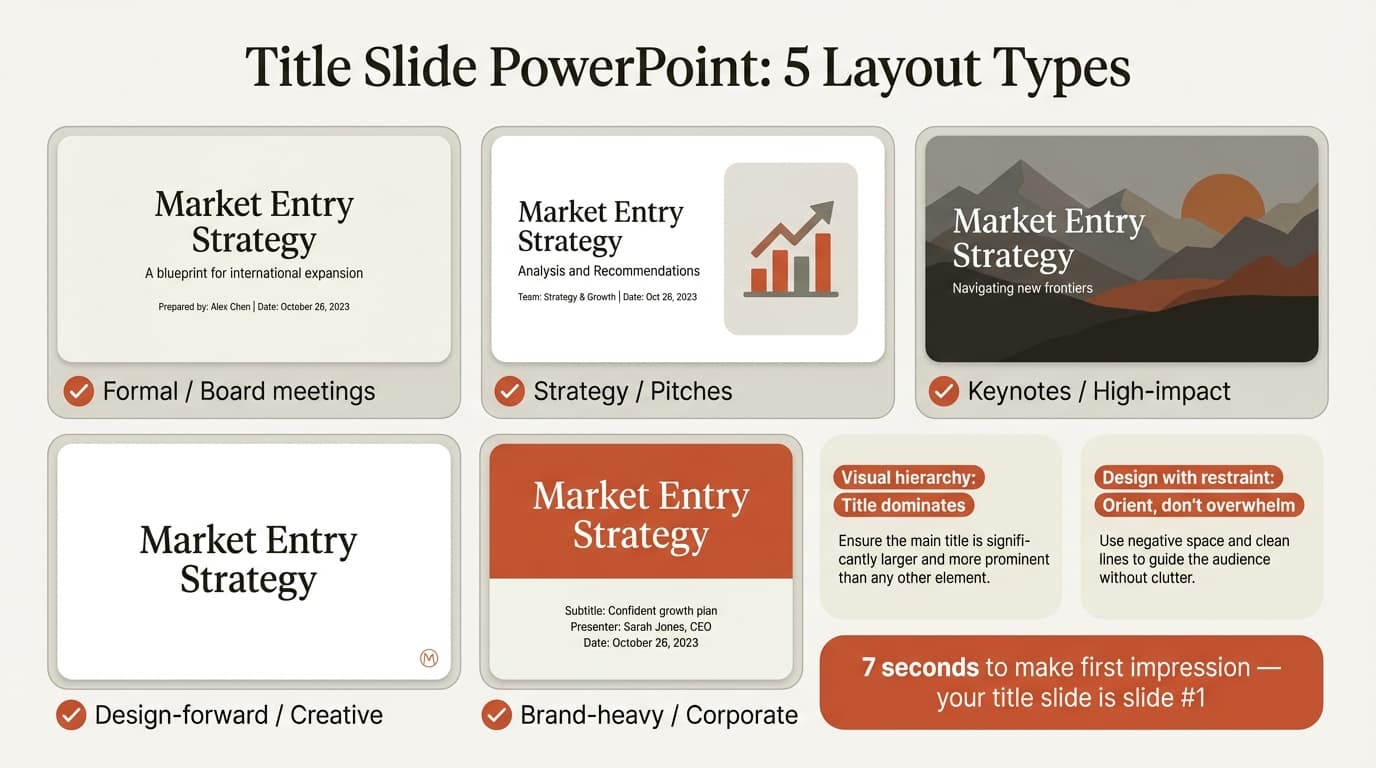
Five Proven Title Slide Layouts
The right layout depends on formality, branding requirements, and the visual tone you want to set. These five formats work across contexts.
1. Centered Text Layout
The simplest and most common format. All text is center-aligned on a solid background or subtle gradient.
Structure:
[Centered, large bold title]
[Centered subtitle or description]
[Centered presenter/company name]
[Centered date]
Best for: Formal board meetings, academic presentations, and any context where maximum clarity is the priority.
Design tips:
- Use a single solid color or subtle gradient as the background
- Title font size: 44-54pt
- Subtitle font size: 24-28pt
- Metadata (name, date): 18-20pt
- Leave 40% of the slide as white space
This layout works because it eliminates visual hierarchy questions. The audience knows exactly where to look. Tools like Deckary provide pre-formatted centered title slide templates that maintain consistent spacing and alignment across decks.
2. Left-Aligned Text with Visual
Text is left-aligned (50-60% of slide), with a high-quality image, chart preview, or brand graphic on the right.
Best for: Investor pitches, product launches, strategy presentations.
Design tips:
- Use a 60/40 or 50/50 column split
- High-resolution images (1920x1080 minimum)
- Visual should reinforce the topic (market map for entry strategy, product screenshot for pitch)
- Align text consistently within the left column
3. Full-Bleed Image with Overlay Text
A high-impact background image fills the slide. Text is overlaid with a semi-transparent box or gradient for readability.
Best for: Keynotes, marketing presentations, high-impact pitches.
Design tips:
- Darken image or add gradient overlay for text readability
- White text on dark images; dark text on light images
- Test by projecting—laptop readability differs from screen
- Avoid busy images
Requires careful execution. If image is too busy or text contrast poor, the slide becomes unreadable.
4. Minimalist Layout
Title only, large white space, minimal additional text.
Best for: Design-forward presentations, creative pitches.
Design tips:
- Title occupies max 30% of slide area
- Bold, modern font
- Single solid color background
- Logo under 0.5 inches in corner (if included)
Works best when the title is compelling: "Building the Future of Healthcare AI" works standalone. "Q3 Update" does not.
5. Divided Layout with Color Blocks
Slide divided into sections using distinct colors or geometric shapes. Text in one section; the other provides visual contrast.
Best for: Brand-heavy presentations, corporate events.
Design tips:
- Use company brand palette colors
- High contrast between text and background
- Simple geometric divisions (one or two shapes max)
- Align text to color blocks
Signals brand identity from slide one. For color guidance, see our PowerPoint color schemes guide.
Layout Comparison
| Layout | Visual Impact | Formality | Ease of Creation | Best Context |
|---|---|---|---|---|
| Centered Text | Low | High | 5 minutes | Board meetings, formal decks |
| Left-Aligned with Visual | Medium | Medium | 15 minutes | Strategy presentations, pitches |
| Full-Bleed Image | High | Low | 20 minutes | Keynotes, product launches |
| Minimalist | Medium | Medium | 5 minutes | Design-forward brands, creative pitches |
| Divided Color Block | Medium-High | Medium | 15 minutes | Brand-heavy presentations |
Design Principles for Professional Title Slides
Principle 1: Visual Hierarchy
The title should dominate. Every other element should be visually subordinate.
How to achieve this:
- Title font size at least 1.5x larger than other text
- Bold weight for title; regular or light for metadata
- Position title in top half or centered
- Use color contrast (dark on light, or vice versa)
Test by squinting at the slide. If the title does not dominate, adjust sizing or contrast.
Principle 2: Consistent Branding
Align with company visual identity: brand colors, approved fonts, standard logo placement.
Checklist:
- Use approved brand colors (2-3 from palette)
- Company-standard fonts (or professional sans-serif: Calibri, Helvetica, Arial)
- Logo in same location across presentations
- Consistent spacing and margins
If your organization has a template, use it. Deviating signals carelessness.
Principle 3: Restraint
Title slides should orient, not overwhelm.
Keep: Title, essential metadata, one high-quality visual (if using visual layout), logo.
Remove: Multiple competing images, decorative borders, shadows, 3D effects, animated transitions, generic stock photography.
The best title slides are forgettable—audiences absorb information without noticing design. For more on restraint, see our PowerPoint design tips.
Common Title Slide Mistakes
| Mistake | Why It Fails | Fix |
|---|---|---|
| Too much information | Audience cannot process walls of text in 10-20 seconds | Limit to title, subtitle (one line), name, date. Move rest to slide 2 or appendix |
| Generic placeholder titles | "Presentation," "Update," "Overview" waste valuable real estate | Use specific titles: "Q4 Revenue Growth Strategy" not "Presentation" |
| Low-quality visuals | Pixelated images or generic stock photos signal low-quality work | Use high-res images (1920x1080 min), product screenshots, or solid backgrounds |
| Inconsistent typography | Mixing fonts or sizes looks unprofessional | Max two fonts. Use sans-serif (Calibri, Arial, Helvetica). See font guide |
| Misaligned layouts | Uneven margins signal carelessness | Use alignment guides. Deckary provides keyboard shortcuts for pixel-perfect alignment |
Context-Specific Guidance
| Context | Layout | Key Elements | Example |
|---|---|---|---|
| Board presentations | Centered text | Logo, formal title, meeting ID, date | "Q1 2026 Financial Performance Review / Board Meeting / March 20, 2026" |
| Investor pitches | Left-aligned with visual or minimalist | Company name, bold headline, funding ask | "Building the Future of SaaS Procurement / Series A Deck / Acme Inc." |
| Client deliverables | Centered or left-aligned | Client + firm logos, project name, date | "Market Entry Strategy: Germany / Prepared for ABC Corp / Deloitte Consulting" |
| Internal reviews | Minimalist or centered | Title, team name, optional logo | "Customer Retention Plan / Product Strategy Team / Q1 2026" |
For investor pitch structure, see our pitch deck template guide.
Tools and Templates
| Tool | Best For | Price |
|---|---|---|
| Deckary | AI-generated slides, templates, consistency | $120-180/yr |
| PowerPoint Master Slides | Enforcing brand standards | Built-in |
PowerPoint Master Slides ensure every title slide follows the same format. Deckary's AI Slide Builder generates title slides from text descriptions, including layout selection, typography, and branding.
Summary
The title slide is the first impression your presentation makes. It sets the tone, provides context, and signals professionalism—or lack thereof.
Key principles:
- Include only essential elements: Title, subtitle (optional), presenter/company name, date, and logo. Remove everything else.
- Choose the right layout: Centered text for formal contexts, left-aligned with visual for strategy decks, full-bleed images for high-impact keynotes, minimalist for design-forward brands, divided color blocks for brand-heavy presentations.
- Establish visual hierarchy: The title should dominate. Use size, weight, and contrast to make it the first thing the audience reads.
- Maintain consistent branding: Use company colors, approved fonts, and standard logo placement.
- Design with restraint: Title slides should orient, not impress. Avoid decorative elements, excessive text, and low-quality visuals.
- Adapt to context: Board meetings favor formality, investor pitches favor bold headlines, client deliverables favor co-branding, internal reviews favor clarity.
The best title slides are the ones nobody remembers—they simply make the entire presentation easier to follow from the first second. For ready-to-use title slide templates and AI-generated layouts, explore Deckary's slide library or build custom title slides with the AI Slide Builder.
Sources
Use consulting-grade layouts in PowerPoint
Start from structured business slides and customize them in your own deck. 10 free AI prompts. No credit card required.