PowerPoint Table of Contents: How to Create Clickable Navigation
PowerPoint table of contents guide covering manual creation, hyperlinks, Summary Zoom, design best practices, and when to use table of contents vs agenda slides.
- Bob · Former McKinsey and Deloitte consultant with 6 years of experience
- 13 min read
PowerPoint has no automatic table of contents feature. Unlike Word, which generates tables of contents from heading styles, PowerPoint requires manual creation—copying slide titles, formatting them into a list, and adding hyperlinks to enable navigation. For presentations with 20 or more slides, this manual process becomes essential for audience navigation and reference.
In consulting, technical documentation, and training contexts, a table of contents serves a different function than an agenda slide. An agenda slide previews high-level sections for a live presentation. A table of contents provides a comprehensive index for self-service reference materials, board appendices, and knowledge-sharing decks where readers navigate slides independently.
After building table of contents slides for 80+ strategy deliverables, compliance training decks, and technical references, we have identified three creation methods that work, when table of contents beats agenda slides, and the design patterns that make navigation actually useful instead of decorative.
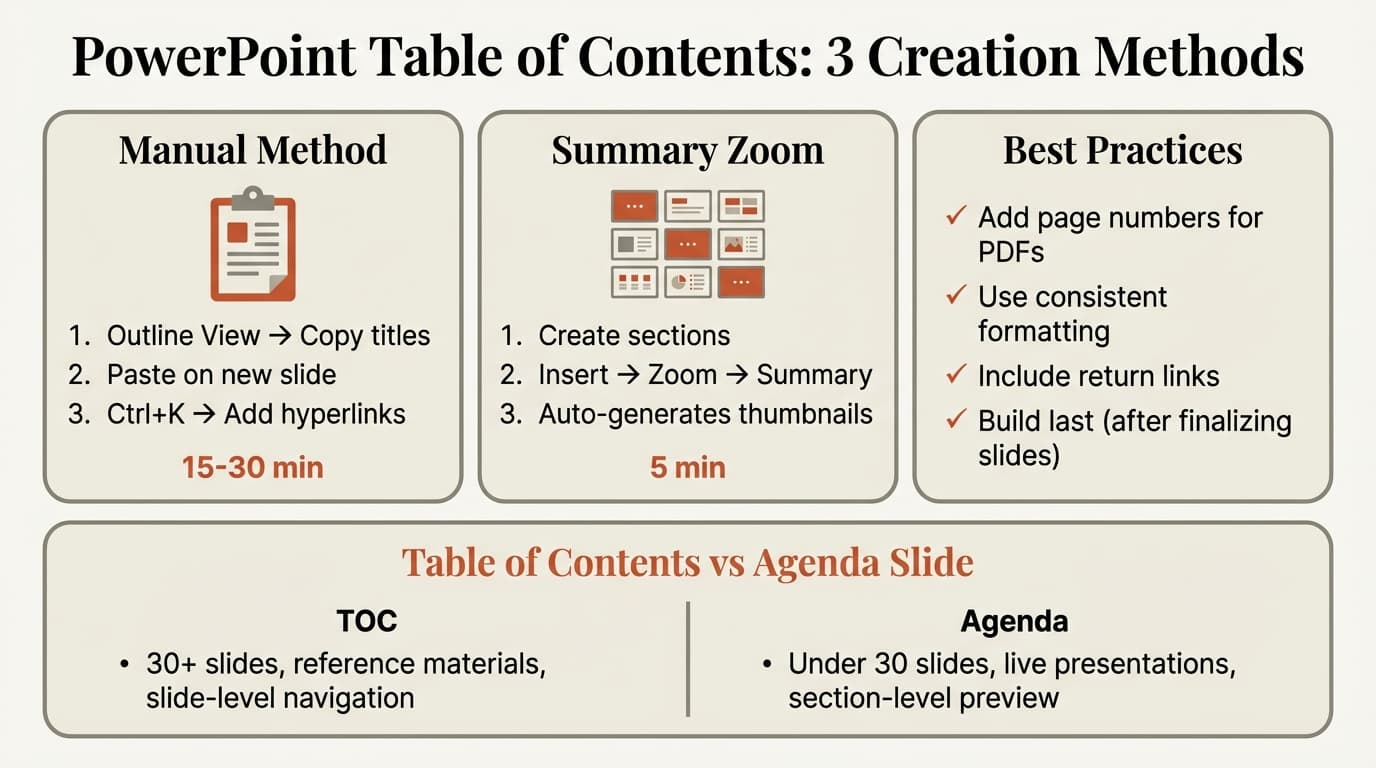
When to Use a Table of Contents in PowerPoint
Tables of contents and agenda slides serve different purposes. Choosing the wrong format wastes time and confuses audiences.
| Scenario | Use Table of Contents | Use Agenda Slide |
|---|---|---|
| Live presentation (under 30 slides) | No | Yes |
| Reference deck (30+ slides, distributed for self-service) | Yes | Optional intro agenda |
| Training materials | Yes | Yes (both) |
| Board appendix | Yes | No |
| Workshop facilitation | No | Yes (clickable) |
| Technical documentation | Yes | No |
| Policy manuals in PowerPoint | Yes | No |
Use a table of contents when:
- The deck will be distributed for reading rather than presented live
- The deck has 30 or more slides
- Readers need to jump to specific topics without watching the full sequence
- The content is reference material (technical specs, training library, compliance)
- Slide-level detail matters (not just section-level navigation)
Use an agenda slide when:
- You are presenting live to an audience
- The deck has 30 or fewer slides
- You want to preview high-level sections, not list every slide
- The presentation follows a linear narrative
Many decks benefit from both: an agenda slide upfront for the live presentation, and a detailed table of contents as slide two for readers who receive the PDF later.
Method 1: Manual Table of Contents with Hyperlinks
This is the most common approach and offers maximum design control. It works for any presentation structure.
Step 1: Create the Table of Contents Slide
Insert a new slide after your title slide. Use a blank layout or a simple title-only layout. Title the slide "Table of Contents" or "Contents."
Step 2: Copy Slide Titles Using Outline View
- Click View > Outline View
- PowerPoint displays all slide titles in text format on the left panel
- Select all the slide titles you want to include
- Press Ctrl+C (or Cmd+C on Mac) to copy
Copy only the titles—not slide numbers or body text.
Step 3: Paste Titles onto the Table of Contents Slide
- Click in the text box on your table of contents slide
- Press Ctrl+V (or Cmd+V on Mac) to paste
For consistent formatting, use Paste Special (Ctrl+Alt+V on Windows or Edit > Paste Special on Mac) and select Unformatted Text. This strips font formatting from source slides. Direct pasting preserves each slide's original font, size, and color.
Step 4: Add Hyperlinks to Each Title
Select the first title in your table of contents. Press Ctrl+K (or Cmd+K on Mac) to open the hyperlink dialog.
In the Insert Hyperlink dialog:
- Click Place in This Document
- Select the corresponding slide
- Click OK
Repeat for each title. This is tedious for decks with 40+ slides, but reliable.
Step 5: Add Page Numbers (Optional but Recommended)
Including page numbers helps readers navigate printed handouts or PDFs:
1. Executive Summary ............................ 2
2. Market Analysis .............................. 5
3. Competitive Landscape ........................ 12
To add page numbers, set a right-aligned tab stop at 9 inches with leader dots (Home > Paragraph > Tabs). Type the title, press Tab, then type the page number.
Step 6: Add Return Links (Optional)
Add a "Return to Contents" button on key slides:
- Insert a shape or text box with "⬅ Back to Contents"
- Select the shape and press Ctrl+K to link to your table of contents slide
- Copy this button to the last slide of each section
This enables non-linear navigation during Q&A sessions.
Method 2: Summary Zoom (Section-Based Presentations)
Summary Zoom is PowerPoint's semi-automated table of contents feature. It generates a visual table of contents with slide thumbnails.
When to Use Summary Zoom
Summary Zoom works best when:
- Your presentation is divided into named sections
- You want a visual, thumbnail-based table of contents
- You are using PowerPoint for Windows or Mac (not PowerPoint Online)
- The deck will be presented live with interactive navigation
Summary Zoom does not work well for:
- Decks without sections
- Decks with more than 10 sections (thumbnails become too small)
- PDFs or printed handouts (thumbnails are hard to read)
How to Create Summary Zoom
Before creating a Summary Zoom, organize your presentation into sections:
- Right-click between slides in the thumbnail pane
- Select Add Section
- Name the section (e.g., "Market Analysis," "Financial Model")
- Repeat for each major section
Once sections are created:
- Click Insert > Zoom > Summary Zoom
- PowerPoint displays a dialog with all sections
- Check the sections you want to include in the table of contents
- Click Insert
PowerPoint generates a new slide with thumbnail images for each selected section. Each thumbnail is automatically hyperlinked to the first slide of that section.
Customizing Summary Zoom
After inserting the Summary Zoom, drag thumbnails to reorder them, resize by selecting all and dragging corner handles, or format using Zoom Tools > Format.
Summary Zoom automatically updates if you rename sections, but not if you add or delete sections. In that case, delete the Summary Zoom slide and regenerate it.
Continue reading: Competitive Analysis Framework · Bar Charts in PowerPoint · Investment Banking Pitch Book
Method 3: Drag-and-Drop Thumbnail Method
For visual table of contents without using Summary Zoom, drag slide thumbnails from the left pane onto your table of contents slide. PowerPoint inserts linked thumbnail images. Resize and arrange manually.
This gives full control over thumbnail placement and works without sections. The downside: time-consuming for decks with 20+ slides, and thumbnails do not auto-update if source slides change.
Design Best Practices for Table of Contents Slides
A poorly formatted table of contents is worse than no table of contents—it confuses readers and wastes a slide. These principles ensure your table of contents is functional, not decorative.
Principle 1: Consistent Formatting
Every entry should use the same font, size, spacing, and alignment:
- 16-20pt font size
- 1.15x or 1.5x line spacing
- Left-aligned text
- Same indentation for hierarchical entries
- Uniform color (black or dark gray; blue if hyperlinked)
Use Format Painter (Home > Format Painter) to standardize formatting across all entries.
Principle 2: Clear Visual Hierarchy for Nested Entries
If your table of contents includes subsections, use indentation and font size to show hierarchy:
1. Market Analysis (18pt, bold)
   1.1 Industry Trends (16pt, regular)
   1.2 TAM/SAM/SOM Breakdown (16pt, regular)
2. Competitive Landscape (18pt, bold)
   2.1 Direct Competitors (16pt, regular)
   2.2 Emerging Threats (16pt, regular)
Do not use more than two levels of hierarchy. Three or more levels turn the table of contents into a nested outline that nobody reads.
Principle 3: Page Numbers for Printed Decks
If your deck will be printed or shared as a PDF, include page numbers next to each entry. Without them, readers must click every hyperlink to find content—which does not work in printed handouts.
To align page numbers, set a right-aligned tab stop at 9 inches with leader dots (Paragraph > Tabs > Leader: 2). Type the title, press Tab, then type the page number.
Principle 4: Highlight Hyperlinks or Make Them Obvious
Hyperlinks should be visually distinct. Use blue and underlined text (web convention), add a subtle icon next to hyperlinked items (e.g., →), or add hover instructions: "Click any title to jump to that slide."
Do not use invisible hyperlinks. Readers should know the table of contents is interactive without guessing.
Principle 5: Limit to One Slide (Two Maximum)
If your table of contents exceeds one slide, your deck is likely too long or poorly structured. Options:
- Group slides into sections and list sections only
- Split into two slides: "Table of Contents (Part 1)" and "Table of Contents (Part 2)"
- Use appendices: Move detailed reference slides to an appendix and list only core content in the table of contents
A two-slide table of contents signals to readers that the deck is dense and long. Make sure the content justifies that length.
Table of Contents vs Agenda Slide: Key Differences
| Feature | Table of Contents | Agenda Slide |
|---|---|---|
| Purpose | Navigation index for reference decks | Preview of presentation structure |
| Ideal Length | 10-50 entries | 3-7 items |
| Detail Level | Individual slide titles | High-level sections |
| Use Case | Distributed decks, training materials | Live presentations |
| Hyperlinks | Optional but recommended | Optional (required for workshops) |
| Page Numbers | Recommended for PDFs | Not needed |
| Visual Style | Text list or thumbnails | Icons, timelines, cards |
| Best Audience | Self-service readers | Live audience |
In consulting, the distinction is simple:
- Client deliverables (50-slide market entry analysis, board appendix): table of contents
- Steering committee presentation (30-slide strategy recommendation): agenda slide
If you are presenting live and the deck will later be distributed, include both: an agenda slide for the presentation and a table of contents on slide two for readers.
Common Table of Contents Mistakes
Mistake 1: Using a Table of Contents for Short Presentations
A 12-slide presentation does not need a table of contents listing all 12 slides. The table of contents takes more time to read than skimming the actual slides.
Fix: For decks under 20 slides, use an agenda slide with 3-5 high-level sections.
Mistake 2: No Hyperlinks
A table of contents without hyperlinks forces readers to manually scroll through slides to find content. It becomes decorative rather than functional.
Fix: Add hyperlinks to every entry using Ctrl+K (or Cmd+K). If the deck will be printed, include page numbers.
Mistake 3: Inconsistent Formatting
Some entries are bold, others are not. Font sizes vary. Indentation is uneven. Inconsistent formatting makes the table of contents harder to scan.
Fix: Use Format Painter to standardize all entries.
Mistake 4: Outdated Table of Contents
The table of contents was created early in the deck-building process. Slides were added, removed, and renamed, but the table of contents was never updated. Broken hyperlinks and incorrect page numbers destroy credibility.
Fix: Build the table of contents last, after finalizing all slides. Or use PowerPoint add-ins that auto-update tables of contents when slides change.
Mistake 5: Two-Level Nested Hierarchies with 40+ Entries
The table of contents includes every slide and sub-slide, creating a multi-page nested outline. Readers cannot scan it quickly. It becomes a bureaucratic index rather than a navigation tool.
Fix: Group slides into 5-10 major sections. List only section titles in the table of contents.
Real-World Table of Contents Applications
Training decks and onboarding materials: List all modules with hyperlinks so learners can jump to specific lessons. Add page numbers for printed workbooks.
Board appendices: A 15-slide live deck often includes a 60-slide appendix with financial models and technical details. The appendix needs a table of contents organized by category (Financial Appendix, Market Data, Technical Specs) with hyperlinks for Q&A navigation.
Compliance and technical documentation: Policy manuals distributed as PowerPoint files need tables of contents with hierarchical indentation for sections and sub-sections. Use a two-column layout for tables of contents with 30+ entries.
Multi-part strategy deliverables: Consulting firms deliver strategy decks in modules: market analysis, competitive landscape, strategic options, financial model, implementation roadmap. List modules as top-level entries (bold, larger font) and individual slide titles as sub-entries. Add "Return to Contents" buttons on the last slide of each module.
Tools for Creating Tables of Contents
| Approach | Best For | Time Required | Auto-Updates? |
|---|---|---|---|
| Manual with hyperlinks | Full design control, any deck structure | 15-30 min | No |
| Summary Zoom | Section-based decks, visual navigation | 5 min | Partial (sections only) |
| Drag-and-drop thumbnails | Custom visual layouts | 20-40 min | No |
| Deckary | Automated table of contents with hyperlinks | 2 min | Yes (with add-in) |
Summary
A table of contents transforms a long PowerPoint deck into a navigable reference document. Unlike agenda slides, which preview high-level sections for live presentations, tables of contents list individual slides for self-service reading.
Key principles:
- Use tables of contents for reference decks, not live presentations. If the deck is under 20 slides or will be presented live, use an agenda slide instead.
- Add hyperlinks to every entry. A non-clickable table of contents is decorative, not functional. Use Ctrl+K (or Cmd+K) to link to slides.
- Include page numbers for PDFs and printed decks. Digital hyperlinks do not work in printed handouts.
- Format consistently. Same font, size, spacing, and alignment for all entries. Use hierarchical indentation for nested items.
- Build the table of contents last. Finalize all slides before creating the table of contents to avoid broken links and outdated entries.
- Use Summary Zoom for section-based presentations. If your deck is organized into named sections, Summary Zoom generates a visual table of contents in under 5 minutes.
- Add return links. Place a "Back to Contents" button on key slides to enable non-linear navigation.
The best table of contents is functional, not impressive. Readers should absorb the structure in under 10 seconds and navigate to any slide in two clicks. For automated table of contents creation with auto-updating hyperlinks, explore Deckary's slide library or use the AI Slide Builder to generate structured decks with built-in navigation.