How to Make a Good PowerPoint: Software Techniques & Best Practices
Learn how to make a good PowerPoint using software features, design tools, and technical techniques. Master slides, templates, shortcuts, and advanced features.
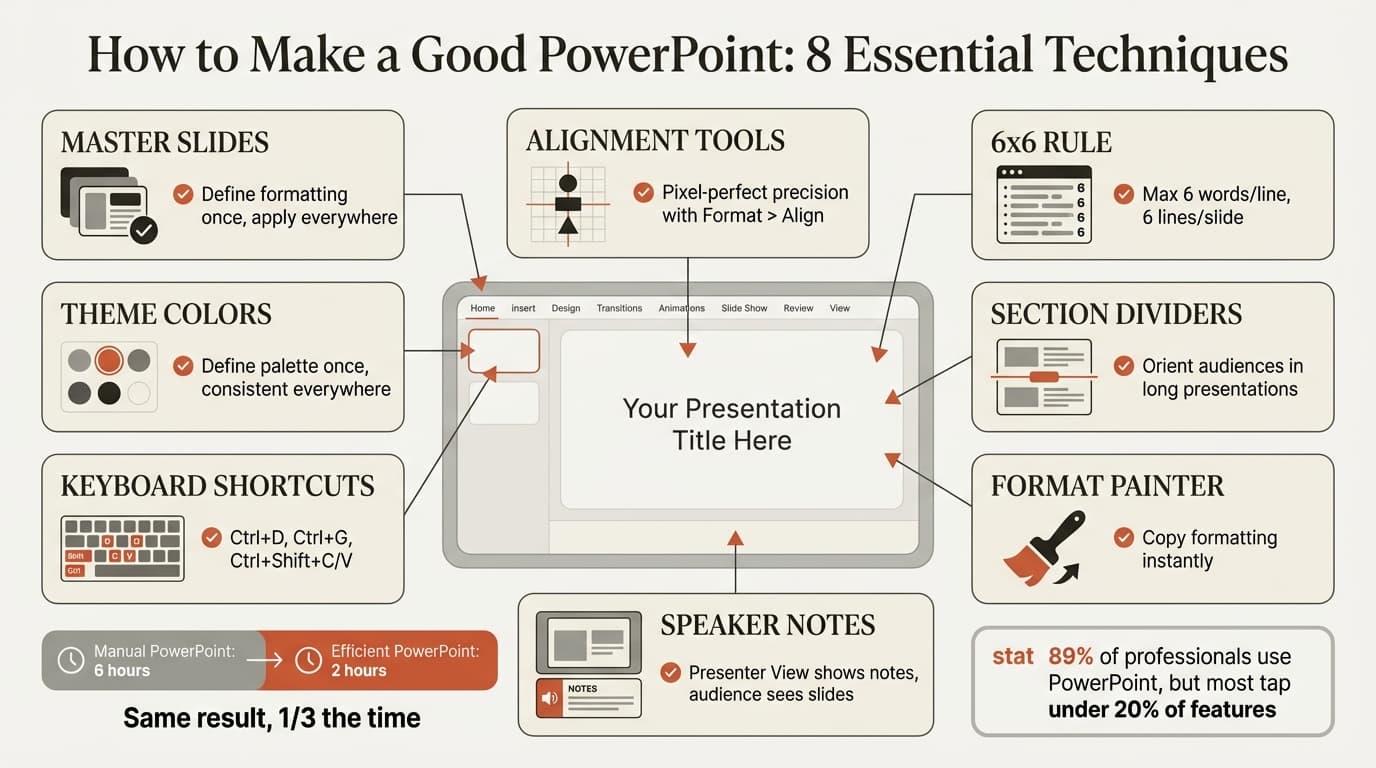
PowerPoint is the most widely used presentation software in business, with 89% of professionals choosing it as their primary tool. Yet most users tap under 20% of its features, spending hours on manual formatting tasks that PowerPoint can handle in seconds.
After building presentations across 220+ consulting engagements, client deliverables, and board meetings, we have found that PowerPoint proficiency is not about design talent—it is about knowing which features to use and when. The difference between a slide deck that takes six hours to build and one that takes two is software technique.
This guide covers the PowerPoint-specific features, tools, and workflows that separate efficient users from those still manually aligning every object. From master slides to keyboard shortcuts, these techniques eliminate production friction so you can focus on content quality.
What Makes a Good PowerPoint (Software Perspective)
A good PowerPoint is not just well-designed—it is efficiently built using PowerPoint's features in ways that maintain consistency, enable fast iteration, and prevent formatting collapse when content changes.
Research from Visme's 2026 Presentation Statistics shows that 91% of respondents believe a well-designed slide deck increases presenter confidence. But confidence also comes from knowing your deck will not break when the CFO asks for revised numbers at 9 PM before an 8 AM board meeting.
Good PowerPoint execution has three technical qualities:
Consistent formatting enforced by master slides. Titles, fonts, colors, and layouts remain uniform across all slides without manual checking. Changes propagate automatically.
Efficient production through shortcuts and automation. Alignment, duplication, formatting, and object manipulation happen in seconds, not minutes. Repetitive tasks use built-in tools rather than manual effort.
Structure that accommodates changes. When you add a section, swap slide order, or replace a chart, the deck adapts without cascading formatting failures.
| Weak PowerPoint Technique | Strong PowerPoint Technique |
|---|---|
| Manually formats every slide | Uses master slides and templates |
| Aligns objects by eye | Uses alignment and distribution tools |
| Copies formatting by recreating it | Uses Format Painter (Ctrl+Shift+C/V) |
| Manually resizes and positions | Uses keyboard shortcuts for precision |
| Inconsistent fonts and colors | Defines theme colors and fonts once |
| No reusable components | Creates custom slide layouts |
The difference is not the final visual result—it is how quickly and reliably you can produce that result and iterate when requirements change.
Start with Master Slides and Layouts
Master slides are PowerPoint's most underused feature. They define formatting rules that cascade to every slide in your deck, eliminating the need to manually adjust fonts, colors, and placeholders on individual slides.
Without master slides, every formatting change requires manual updates across dozens of slides. Master slides solve this by defining formatting once. When you update the master, every slide using that layout updates automatically.
How to Use Slide Master View
Access Slide Master view from View > Slide Master. This shows your master slide at the top, with child layouts below.
What to define in the master slide:
- Fonts (title, body, accent)
- Colors (theme colors available in dropdown menus)
- Logo placement
- Footer format and positioning
- Placeholder styles for titles, text, charts, and images
What to define in layout slides:
- Title slide format
- Section divider format
- Standard content slide (title + body)
- Two-column layout
- Chart slide with title and caption placeholder
Once your master is configured, creating new slides means selecting the appropriate layout—not rebuilding formatting from scratch. For more on PowerPoint master slides, see our master slide guide.
If you regularly build specific slide types—such as executive summaries or recommendation slides—create custom layouts in the master instead of manually creating the structure each time.
Use Alignment and Distribution Tools for Precision
Manual object alignment is time-consuming and error-prone. Objects that look aligned on your screen appear misaligned on a projector.
Select multiple objects by holding Ctrl and clicking each one. Go to Format > Align and choose:
- Align Left, Center, or Right — Lines up objects horizontally
- Align Top, Middle, or Bottom — Lines up objects vertically
- Distribute Horizontally or Vertically — Spaces objects evenly
ClassPoint's 2026 guide emphasizes that smart alignment tools provide pixel-perfect precision without manual adjustment.
Enable guides by right-clicking the slide canvas and selecting Grid and Guides > Display Drawing Guides. Guides are movable reference lines that snap objects into alignment. Hold Shift while dragging objects to constrain movement to horizontal or vertical only.
For professionals building complex slides regularly, add-ins like Deckary provide keyboard shortcuts for alignment and distribution that eliminate menu navigation.
Apply the 6x6 Rule for Text Density
The 6x6 rule is a PowerPoint-specific guideline: maximum six words per line, six lines per slide. Reading and listening use the same cognitive channel. Visme's research found that audiences retain 65% of information when presented visually, compared to just 10% from text-heavy slides.
Aim for 25-30 words per slide. Each bullet point should be one short phrase or sentence.
| Before (60 words) | After (28 words) |
|---|---|
| Our analysis of Q4 performance shows that revenue grew by 22% compared to the prior year, driven primarily by strong performance in the enterprise segment, which grew 40%, while our core SMB segment actually contracted by 8%, which raises concerns about market saturation. | Q4 revenue grew 22%, but growth came from enterprise, not SMB — Enterprise segment: +40%, SMB segment: -8%, Signals potential market saturation |
The second version delivers the same information with half the words. The audience reads the bullets in three seconds and then listens to your explanation.
Continue reading: Brainstorming Template · Waterfall Chart Excel · Competitive Landscape Slide
Create an editable presentation in your browser
Turn a prompt or source files into slides you can edit and export to PowerPoint. 10 free AI prompts. No credit card required.
Use Consistent Fonts and Theme Colors
PowerPoint provides theme fonts and colors that ensure consistency without manually selecting fonts and colors for every object.
Go to Design > Variants > Colors > Customize Colors and define your palette once: two text colors, two background colors, and six accent colors. Once defined, these colors appear in dropdown menus throughout PowerPoint. If your brand updates, change the theme definition once and every object updates automatically.
Go to Design > Variants > Fonts > Customize Fonts and define two fonts: heading font and body font. Limit presentations to two fonts total. Indeed's PowerPoint guide recommends sans-serif fonts like Arial, Calibri, or Helvetica for readability on projectors.
To apply formatting from one object to another, use Format Painter: select the formatted object, press Ctrl+Shift+C, select the target object, and press Ctrl+Shift+V.
Use Keyboard Shortcuts for Speed
Keyboard shortcuts reduce PowerPoint production time by eliminating repetitive menu navigation. Professionals who build presentations weekly save hours per month by mastering five to ten core shortcuts.
| Shortcut | Function | Use Case |
|---|---|---|
| Ctrl+D | Duplicate selected object | Creating icon grids, repeating elements |
| Ctrl+G | Group objects | Managing multi-object layouts |
| Ctrl+Shift+G | Ungroup objects | Editing grouped elements |
| Ctrl+Shift+C | Copy formatting | Applying consistent styles |
| Ctrl+Shift+V | Paste formatting | Matching object styles |
| Alt+Shift+Left/Right | Promote/demote bullets | Adjusting hierarchy |
| Shift+F5 | Start slideshow from current slide | Previewing specific slides |
| Ctrl+M | Insert new slide | Fast slide creation |
| Ctrl+K | Insert hyperlink | Adding navigation or references |
The ClassPoint guide notes that mastering duplication (Ctrl+D) alone saves significant time when building icon grids and repeated visual elements.
For even faster workflows, add-ins like Deckary provide additional shortcuts for alignment, distribution, and chart insertion that native PowerPoint does not include.
Use Section Dividers for Long Presentations
Presentations over 15 slides benefit from section dividers—full slides that signal the start of a new topic. Section dividers should be visually distinct from content slides: full-color background with white text or minimal design with just the section name.
Each section divider should state the topic in 3-5 words. Avoid vague labels like "Analysis." Use specific language: "Enterprise Segment Performance" or "Implementation Timeline." For more on structuring slides, see our business presentation guide.
Insert and Format Charts Efficiently
Insert charts via Insert > Chart > [Chart Type]. PowerPoint opens an Excel datasheet where you enter values. For charts that update when source data changes, paste Excel charts as linked objects: copy the chart from Excel, then in PowerPoint go to Home > Paste > Paste Special > Paste Link.
For professionals building charts weekly, add-ins eliminate manual formatting work. Deckary provides waterfall charts, Mekko charts, and Gantt charts with automatic formatting and Excel linking. On a 30-slide deck with 12 charts, switching from manual to automated tools saves 45-60 minutes per deck.
Use Templates for Consistency
PowerPoint templates enforce consistent formatting across presentations. Rather than rebuilding layouts every time, start with a template that includes your master slides, theme colors, fonts, and standard layouts.
PowerPoint includes built-in templates via File > New, but these lack industry-specific formatting. Organizations with established visual standards should create custom templates: build your master slides and layouts, then go to File > Save As and select PowerPoint Template (.potx). For more on PowerPoint themes, see our themes guide.
If your team regularly reuses specific slides, build a slide library and insert them via Home > New Slide > Reuse Slides. Deckary's slide library includes 143 consulting-grade templates across business contexts.
Optimize File Size for Sharing
Large PowerPoint files fail to send via email or crash during presentations. Compress images via File > Compress Pictures — select Apply to all pictures in this file and choose Use default resolution (220 ppi). This can reduce file size by 70-80%. For more details, see our file size guide.
Avoid Common PowerPoint Mistakes
Manually Recreating Formatting
If you find yourself manually adjusting font sizes, colors, and spacing on every slide, you are not using master slides effectively. Build master slides upfront and use Format Painter (Ctrl+Shift+C/V) to copy formatting.
Inconsistent Alignment
Objects that look aligned on your screen often appear misaligned on a projector. Use PowerPoint's alignment tools (Format > Align) and enable guides for precision.
Excessive Animations
HubSpot's PowerPoint guide emphasizes that excessive animations undermine credibility. Use fade or appear effects for sequencing content. Avoid bouncing or spinning transitions.
Wrong Aspect Ratio
PowerPoint defaults to 16:9 widescreen, but some projectors use 4:3. Confirm the aspect ratio before building via Design > Slide Size. For more on slide size, see our slide size guide.
Tools That Accelerate PowerPoint Production
The right tools reduce production time so you can invest in content quality rather than manual formatting.
| Tool | Best For | Price |
|---|---|---|
| Deckary | Charts, shortcuts, AI slide builder | $120-180/yr |
| PowerPoint Designer | AI-generated layout suggestions | Free (Microsoft 365) |
| Unsplash/Pexels | High-quality free stock images | Free |
| Flaticon | Icon libraries | Free-$10/mo |
Deckary's AI Slide Builder generates complete PowerPoint slides from text descriptions—including consulting-style layouts, charts, and icons—inside PowerPoint. The slide library includes 143 templates across business contexts. For professionals who build presentations weekly, the keyboard shortcuts and chart tools pay for themselves in the first deck.
Summary: PowerPoint as a Production Tool
PowerPoint proficiency is not about design talent—it is about software technique. The difference between efficient users and those still manually formatting every slide is knowing which features to use and when.
Master these five techniques to immediately improve your PowerPoint workflow:
- Use master slides and layouts — Define formatting once, apply it everywhere
- Apply alignment and distribution tools — Achieve pixel-perfect precision without manual adjustment
- Limit text to the 6x6 rule — Maximum six words per line, six lines per slide
- Define theme colors and fonts — Ensure consistency across all slides and objects
- Master five keyboard shortcuts — Ctrl+D (duplicate), Ctrl+G (group), Ctrl+Shift+C/V (copy/paste formatting), Alt+Shift+Left/Right (bullet hierarchy), Shift+F5 (start slideshow)
When you use PowerPoint's features correctly, production time drops, consistency improves, and formatting remains stable when content changes.
For professionals building presentations regularly, Deckary provides AI slide generation, keyboard shortcuts for alignment and distribution, and chart templates that eliminate manual formatting work.
Key Takeaways
- Master slides enforce consistency. Define formatting once in Slide Master view, and every slide using that layout updates automatically.
- Alignment tools provide precision. Use Format > Align instead of manual positioning. Enable guides and grids for reference lines.
- The 6x6 rule limits text density. Maximum six words per line, six lines per slide. Aim for 25-30 words total per slide.
- Theme colors and fonts ensure consistency. Define your palette and fonts once, then select from dropdowns throughout PowerPoint.
- Keyboard shortcuts save hours. Master Ctrl+D (duplicate), Ctrl+G (group), Ctrl+Shift+C/V (copy/paste formatting), and Shift+F5 (start slideshow).
- Excel-linked charts update automatically. Use Paste Special > Paste Link to connect charts to source data.
- Templates speed up production. Start with custom templates that include master slides, theme colors, and standard layouts.
- File size optimization prevents failures. Compress images via File > Compress Pictures to reduce file size by 70-80%.
PowerPoint proficiency is technical skill, not talent. Use the software features, master the shortcuts, and build templates that eliminate repetitive work.
Sources
Create an editable presentation in your browser
Turn a prompt or source files into slides you can edit and export to PowerPoint. 10 free AI prompts. No credit card required.