Diagrams in PowerPoint: Complete Guide to Data Visualization
Learn the essential diagrams and charts for PowerPoint presentations. When to use flowcharts, Venn diagrams, bubble charts, and more with consulting standards.
Every business presentation requires data visualization. The difference between a chart that lands with executives and one that generates confusion comes down to diagram selection—picking the right visual for your data relationship, audience, and message.
PowerPoint offers 50+ chart types and unlimited diagram combinations. Most presenters use 3-4 types repeatedly, defaulting to column charts and pie charts regardless of whether those formats match their data. The result: slides that obscure insights instead of revealing them.
After building diagrams for 300+ strategy presentations across industries and chart types, we have mapped exactly which visualizations work for specific data relationships and when simpler alternatives outperform complex diagrams. This includes testing every PowerPoint chart type against consulting presentation standards and documenting the formatting choices that separate executive-ready slides from draft-quality visualizations.
This guide covers the essential diagram types for business presentations, explains the data relationships each chart type reveals, provides decision frameworks for selecting between visualization options, and includes the formatting standards that professional consultants follow.
Understanding Data Relationships
Before selecting a chart type, identify the relationship you are showing. Data visualization research from Tableau confirms that the most common error in business presentations is choosing visualizations based on aesthetics rather than data structure.
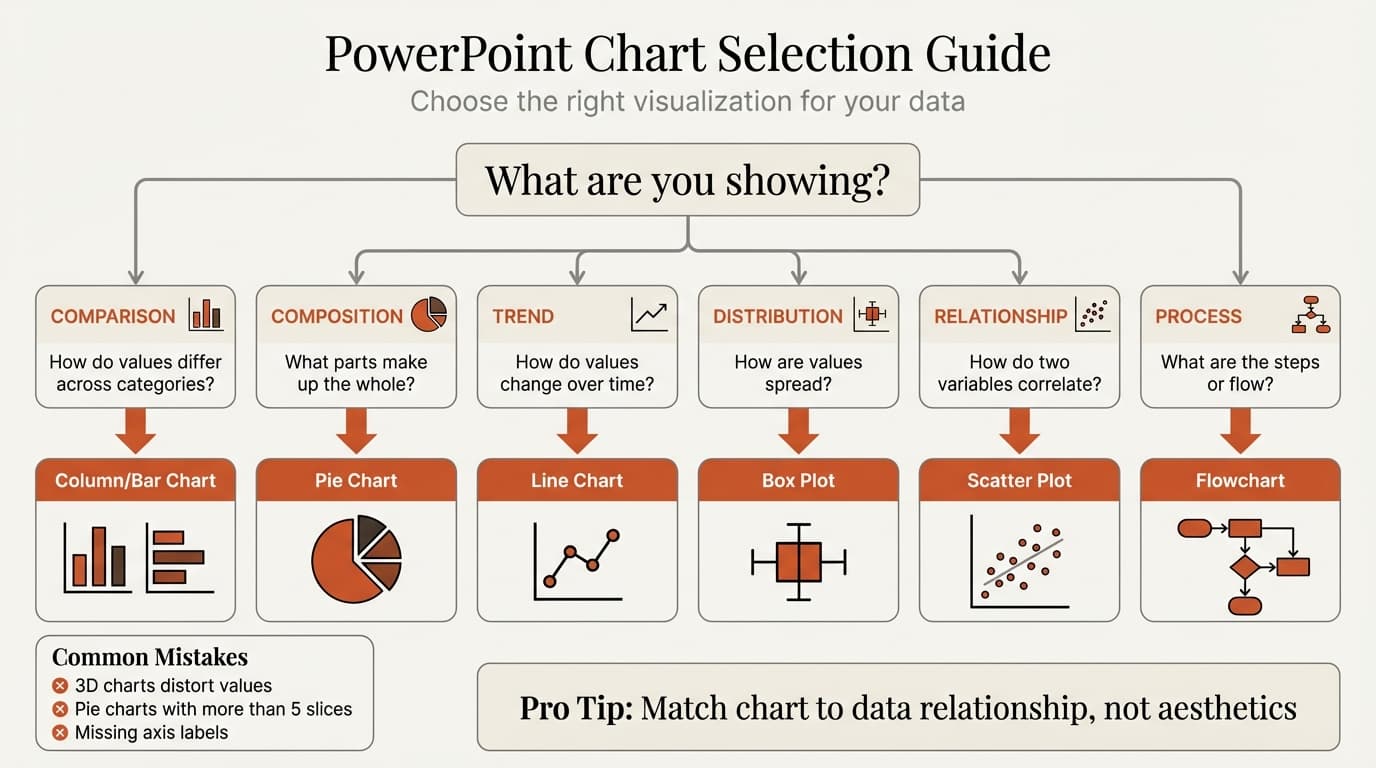
PowerPoint charts map to six core data relationships:
| Relationship | Question | Best Chart Types |
|---|---|---|
| Comparison | How do values differ across categories? | Column chart, bar chart, table |
| Composition | What parts make up the whole? | Pie chart, stacked bar, waterfall |
| Distribution | How are values spread? | Histogram, box plot, scatter plot |
| Trend | How do values change over time? | Line chart, area chart, combo chart |
| Relationship | How do two variables correlate? | Scatter plot, bubble chart, heat map |
| Process | What are the steps or flow? | Flowchart, process diagram, Sankey |
Matching chart type to relationship eliminates 80% of visualization errors. A line chart for categorical comparison or a pie chart for trend analysis confuses audiences because the visual grammar contradicts the data structure.
Core Chart Types for Business Presentations
Column and Bar Charts
Column charts (vertical bars) and bar charts (horizontal bars) compare values across categories. They are the most versatile chart type in business presentations.
When to use:
- Comparing 2-12 categories
- Showing categorical data that does not change over time
- Displaying values that vary significantly in magnitude
Column vs. bar: Use column charts for time-based comparisons where categories follow a chronological sequence. Use bar charts when category labels are long (more than 10 characters) or when comparing more than 12 categories—horizontal orientation provides more label space.
Best practices:
- Start the Y-axis at zero to avoid exaggerating differences
- Limit to 5-7 data series maximum—beyond that, the chart becomes unreadable
- Sort bars by value (highest to lowest or vice versa) unless showing time-based data
- Use consistent bar width and spacing
For detailed column chart guidance, see our bar chart PowerPoint tutorial.
Line Charts
Line charts show trends and changes over continuous time periods. They excel at revealing patterns, growth rates, and inflection points.
When to use:
- Displaying data over time (months, quarters, years)
- Comparing trends across 2-5 data series
- Showing rate of change and momentum
Avoid line charts when:
- Comparing non-sequential categories (use column chart)
- Showing composition or parts of a whole (use stacked bar or pie)
- Data points are sparse (line implies continuity between points)
Best practices:
- Use solid lines for actual data, dashed lines for projections
- Limit to 4-5 lines maximum for readability
- Label endpoints directly instead of using a legend when space permits
- Highlight the most important line with color; use gray for supporting series
See our guide on creating line charts in PowerPoint for step-by-step instructions.
Pie Charts
Pie charts show proportions and parts of a whole. They are the most misused chart type in business presentations.
When to use:
- Showing 3-5 categories that sum to 100%
- Displaying market share, budget allocation, or survey results
- When exact percentages matter less than relative size
Avoid pie charts when:
- Comparing more than 5 categories (use bar chart)
- Showing values that do not sum to 100%
- Differences between slices are small (under 5%)—readers cannot distinguish similar slice sizes
Best practices:
- Order slices from largest to smallest, starting at 12 o'clock
- Label slices with percentages and category names
- Use "Other" category for values under 5% when combining many small slices
- Never use 3D pie charts—they distort proportions and reduce accuracy
Research from Michigan State University found that readers interpret bar charts 25% faster than pie charts for the same data. Use pie charts only when emphasizing part-to-whole relationships, not for precise value comparison.
For more on pie chart alternatives, see our pie chart PowerPoint guide.
Waterfall Charts
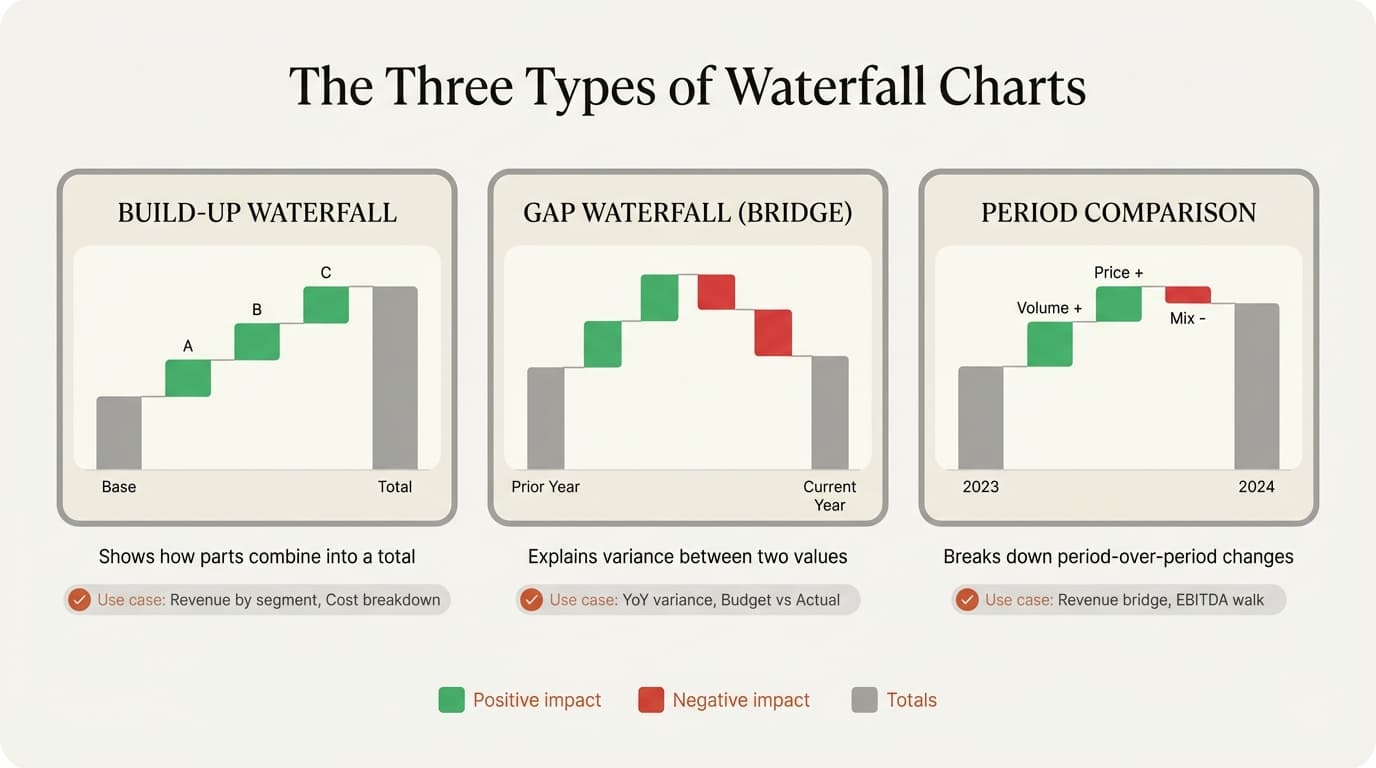
Waterfall charts show how an initial value increases or decreases through intermediate steps to reach a final value. They are essential for financial analysis presentations.
When to use:
- Breaking down revenue or profit bridges
- Showing cost buildup or variance analysis
- Displaying sequential positive and negative contributions
Best practices:
- Color positive contributions one color (typically blue or green)
- Color negative contributions a contrasting color (red or orange)
- Use floating columns for intermediate values
- Add connector lines between bars to show flow
- Label each bar with the value it contributes
Waterfall charts appear in every consulting financial analysis presentation. See our comprehensive waterfall chart guide for creation methods and formatting standards.
Scatter Plots and Bubble Charts
Scatter plots show the relationship between two continuous variables. Bubble charts add a third dimension using circle size.
When to use scatter plots:
- Exploring correlation between two metrics
- Identifying outliers or clusters
- Showing distribution patterns
When to use bubble charts:
- Comparing items across three variables simultaneously
- Portfolio analysis (e.g., market size vs. growth rate vs. competitive position)
- Highlighting priority items using size
Best practices:
- Include a trend line when showing correlation
- Label significant points directly on the chart
- Use quadrant lines to divide the plot into strategic zones
- Limit bubble charts to 15-20 bubbles—more creates visual clutter
For step-by-step instructions, see our guides on scatter plots and bubble charts in PowerPoint.
Heat Maps
Heat maps use color intensity to show patterns across two dimensions. They excel at revealing concentrations and anomalies in large datasets.
When to use:
- Comparing values across a matrix (e.g., performance by region and product)
- Showing intensity or frequency patterns
- Highlighting outliers in multi-dimensional data
Best practices:
- Use a sequential color scale (light to dark) for magnitude
- Use a diverging color scale (blue-white-red) for data with a meaningful midpoint
- Include a legend that explains the color scale
- Limit to 8x8 cells maximum for readability
See our heat map PowerPoint tutorial for formatting techniques.
Process Diagrams
Flowcharts
Flowcharts map sequential processes with decision points, branches, and loops. They are fundamental for operational and workflow presentations.
When to use:
- Documenting decision logic and approval workflows
- Showing process steps with yes/no branches
- Mapping customer journeys or user flows
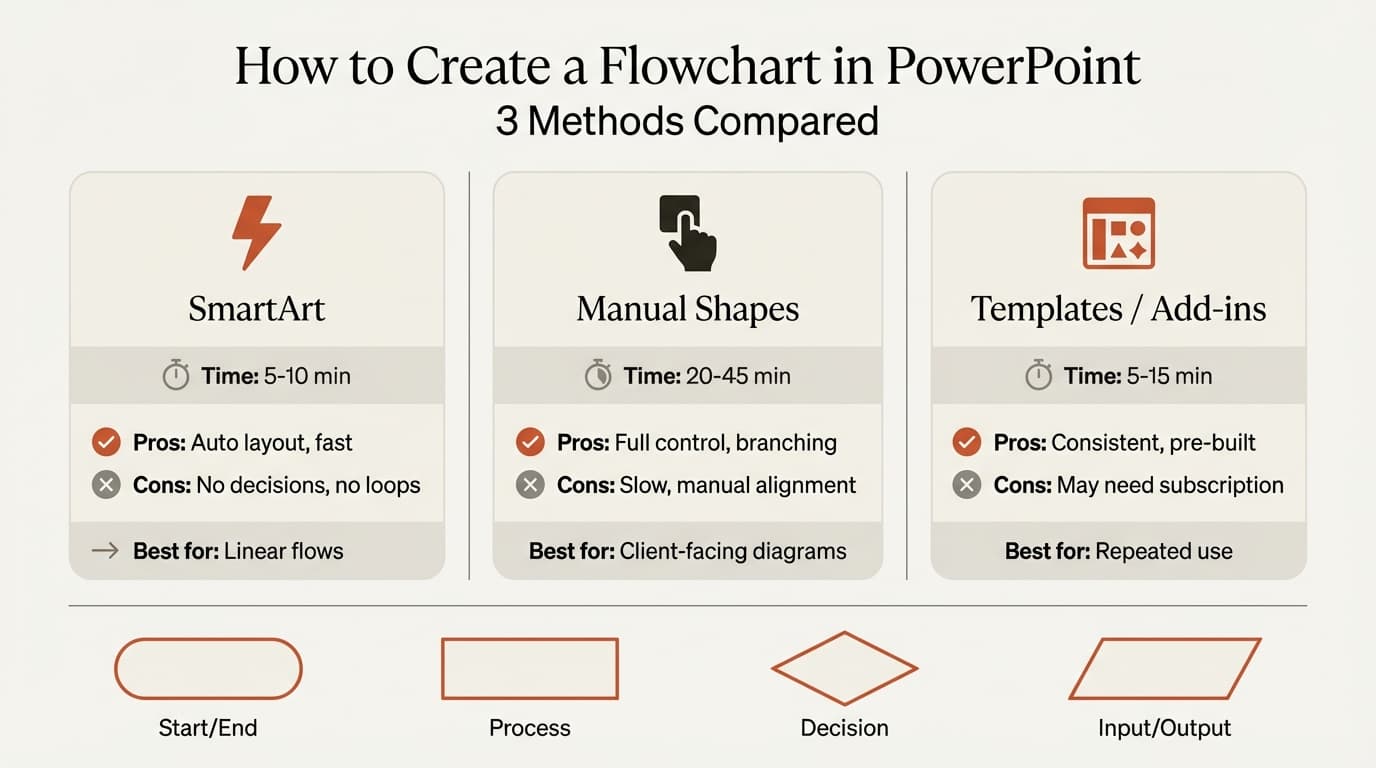
Standard symbols:
- Rounded rectangle: Start and end points
- Rectangle: Process steps
- Diamond: Decision points
- Parallelogram: Inputs and outputs
Best practices:
- Limit to 8-12 steps per slide for readability
- Maintain consistent flow direction (left-to-right or top-to-bottom)
- Use swimlanes to show responsibilities across departments
- Color-code by phase or decision outcome
Our flowchart PowerPoint guide covers three creation methods with pros and cons for each.
Sankey Diagrams
Sankey diagrams show flows between stages using proportional ribbons. They excel at visualizing multi-step transformations.
When to use:
- Conversion funnels with dropoff at each stage
- Budget allocation flows across categories
- Energy or material flows in systems
Best practices:
- Ribbon width must be proportional to flow magnitude
- Use color to distinguish between flow types or paths
- Label each node and major flow with values
- Limit to 4-6 stages for clarity
See our Sankey diagram guide for creation techniques.
Process Flow Diagrams
Process flows map operational workflows without the decision logic of flowcharts. They show inputs, outputs, and transformation steps.
When to use:
- Documenting manufacturing or production processes
- Showing information flows across systems
- Mapping service delivery steps
Best practices:
- Use consistent shapes for process types (rectangles for activities, cylinders for databases)
- Include timing information when relevant
- Show handoffs between departments or systems clearly
- Keep linear flows simple; use swimlanes for complex cross-functional processes
For formatting standards, see our process flow PowerPoint guide. Our Process Cycle Template provides a pre-built circular flow layout for recurring workflows.
Continue reading: Appendix Slide PowerPoint · Agile vs Waterfall · PowerPoint Layout Ideas
Create professional charts in PowerPoint
Build native waterfall, Mekko, Gantt, and business charts without manual formatting. 10 free AI prompts. No credit card required.
Conceptual Diagrams
Venn Diagrams
Venn diagrams use overlapping circles to show relationships between sets. They work for qualitative comparisons but fail for quantitative data.
When to use:
- Showing shared attributes between 2-3 categories
- Product or service feature comparisons
- Market segment overlap analysis
Avoid Venn diagrams when:
- Comparing more than three sets (becomes unreadable)
- Displaying numerical data (use bar chart)
- Showing hierarchies or sequences
Best practices:
- Label all regions including overlaps
- Use color to distinguish categories
- Keep circle sizes equal unless showing proportional set sizes
- Fragment shapes to format intersections independently
Our Venn diagram guide includes three creation methods from SmartArt to manual shapes. For a ready-made starting point, grab our Venn Diagram Template with pre-formatted overlapping circles.
Funnel Charts
Funnel charts show progressive reduction through stages. They are standard for sales pipeline and conversion analysis.
When to use:
- Sales pipeline stages from leads to closed deals
- Conversion funnels with dropoff rates
- Screening or qualification processes
Best practices:
- Order stages from largest (top) to smallest (bottom)
- Show conversion rates between stages
- Use consistent colors for all stages or color-code by health
- Label each stage with counts and percentages
See our funnel chart PowerPoint tutorial for formatting techniques, or start with our Conversion Funnel Template for a pre-built layout.
Fishbone Diagrams
Fishbone diagrams (also called Ishikawa or cause-and-effect diagrams) map root causes contributing to an outcome. They are essential for problem-solving presentations.
When to use:
- Root cause analysis
- Process improvement initiatives
- Quality control and Six Sigma projects
Standard categories:
- People, Methods, Materials, Machines (4M)
- People, Process, Technology (3P)
- Or custom categories matching your analysis
Best practices:
- Limit to 4-6 main cause categories
- Use sub-branches sparingly—too many creates visual clutter
- Validate causes with data before including them
- Position most significant causes closest to the problem head
For step-by-step instructions, see our fishbone diagram guide. For a structured alternative, our Issue Tree Template provides a similar root cause breakdown in a horizontal tree format.
Box Plots
Box plots (box-and-whisker plots) show distribution and statistical spread. They are used in analytical and technical presentations.
When to use:
- Comparing distributions across multiple groups
- Showing outliers and data spread
- Displaying statistical quartiles
Key elements:
- Box shows interquartile range (25th to 75th percentile)
- Line inside box marks the median
- Whiskers extend to minimum and maximum values
- Points beyond whiskers indicate outliers
Best practices:
- Include axis labels and scale
- Explain the box plot format if audience is non-technical
- Limit to 5-8 boxes for readability
- Use color to group related distributions
See our box plot PowerPoint guide for creation methods.
Advanced Charts for Consultants
Mekko Charts
Mekko charts (also called marimekko or market map charts) show data across two dimensions with both axis widths varying by value. They are the signature chart type for market sizing and competitive analysis.
When to use:
- Market share analysis across segments
- Portfolio composition by multiple dimensions
- Competitive landscape mapping
Best practices:
- Limit to 4-6 columns and 4-6 segments for readability
- Label all segments with percentages
- Use consistent color coding across similar segment types
- Include data source and total market size
PowerPoint lacks native Mekko chart support. See our Mekko chart guide for workarounds and add-in options.
Diagram Selection Framework
When facing a blank slide with data to visualize, follow this decision tree (or use our Decision Tree Template to present one visually):
Step 1: Identify the data relationship
- Comparison → Column/bar chart
- Composition → Pie, stacked bar, waterfall
- Trend → Line chart, area chart
- Distribution → Histogram, box plot
- Correlation → Scatter plot, bubble chart
- Process → Flowchart, Sankey, process flow
Step 2: Check data complexity
- 1-2 variables → Simple chart (column, pie, line)
- 3 variables → Bubble chart, grouped column
- 4+ variables → Table, small multiples, or break into multiple charts
Step 3: Assess audience familiarity
- Executives and non-technical → Stick to common charts (column, line, pie)
- Technical or analytical → Can use advanced types (box plot, heat map, Sankey)
- Mixed audience → Use common charts with detailed appendix for those wanting depth
Step 4: Validate clarity
- Can the key message be grasped in 3-5 seconds?
- Would a table be clearer?
- Is the chart self-explanatory without verbal walkthrough?
LinkedIn research on data visualization standards for management consulting confirms that clarity and simplicity outperform complexity. When unsure between two chart types, choose the simpler option.
Formatting Standards for Consulting Presentations
Professional diagrams follow consistent formatting rules regardless of chart type. After reviewing 300+ consulting presentations, these standards separate draft-quality slides from partner-approved work.
Titles
Use direct titles that state the message, not generic labels. Titles should communicate the insight the chart reveals.
Poor titles:
- "Revenue by Region"
- "Customer Satisfaction Results"
- "Market Share Analysis"
Strong titles:
- "North America drives 65% of revenue growth"
- "Customer satisfaction declined 12 points in Q4"
- "We hold under 10% share in high-growth segments"
Color
Use color strategically to highlight insights, not for decoration.
Standard color patterns:
- Primary data: Bold color (blue, green)
- Supporting data: Gray
- Negative values: Red or orange
- Positive values: Green or blue
- Highlights: Accent color that contrasts with primary
Limit charts to 3-4 colors maximum. According to data visualization best practices from George Washington University, excessive color creates cognitive load and reduces comprehension.
Fonts and Labels
- Use sans-serif fonts (Arial, Calibri, Helvetica)
- Chart text: 10-12pt minimum
- Axis labels: 9-10pt
- Data labels: 10-11pt
- Maintain consistent font size across all charts in a deck
Axes and Gridlines
- Always label axes with units
- Start Y-axis at zero for bar and column charts (exceptions: time series with narrow range)
- Use horizontal gridlines sparingly—just enough for reference
- Remove vertical gridlines unless showing time-based data
- Format large numbers with thousands separators (1,250 not 1250)
Data Labels
- Include data labels when exact values matter
- Remove data labels when trends and patterns are the message
- Place labels outside bars for short bars, inside for long bars
- Round to appropriate precision (revenue to nearest million, percentages to one decimal)
Chart Borders and Backgrounds
- Remove chart borders and backgrounds—they add visual noise
- Use white backgrounds for projected presentations
- Ensure adequate contrast between chart elements and background
- Avoid gradients, shadows, and 3D effects
Common Visualization Mistakes
After auditing hundreds of business presentations, these errors appear most frequently.
| Mistake | Problem | Fix |
|---|---|---|
| 3D charts | Distort values and reduce accuracy | Always use 2D charts |
| Dual-axis charts | Mislead by scaling axes independently | Use separate charts or indexed values |
| Too many data series | Creates visual clutter | Limit to 5-7 series; break into multiple charts if needed |
| Pie charts with 8+ slices | Readers cannot distinguish similar sizes | Use bar chart instead |
| Missing axis labels | Audience cannot interpret scale | Always label axes with units |
| Inconsistent color coding | Confuses readers across slides | Establish color scheme and apply consistently |
| Chartjunk | Decorative elements that distract | Remove all non-data elements |
| Wrong chart type | Obscures the data relationship | Match chart to data structure using decision framework |
Data visualization research from Purdue University confirms that reducing non-data ink improves comprehension by 40% on average.
Tables vs. Charts
Not every dataset requires a chart. Tables often communicate more clearly than visualizations.
Use tables when:
- Readers need exact values for decision-making
- Comparing many variables across few items (e.g., feature comparison matrix)
- Showing data with mixed units or data types
- Space is limited and chart would be cramped
Use charts when:
- Showing trends, patterns, or relationships
- Making comparisons where relative magnitude matters more than exact values
- Emphasizing outliers or anomalies
- The visual relationship reveals the insight
For large datasets (more than 20 data points), consider small multiples—a grid of small charts that show the same data relationship across different categories—instead of one complex chart.
PowerPoint Chart Creation Methods
PowerPoint offers three approaches for creating diagrams:
Native PowerPoint Charts
Pros:
- Free, built into PowerPoint
- Charts update automatically when data changes
- Link to Excel for dynamic updates
Cons:
- Limited chart types (no Mekko, no advanced Sankey)
- Time-consuming formatting
- Inconsistent styling across complex presentations
Best for: Standard chart types for small teams and one-off presentations.
Manual Shapes
Pros:
- Full creative control
- Works for custom diagrams
- No add-in required
Cons:
- Labor-intensive (20-60 minutes per complex diagram)
- Not linked to data—manual updates required
- Alignment and spacing require meticulous work
Best for: Custom process diagrams, conceptual frameworks, one-time visualizations.
Add-ins and Templates
Tools like Deckary provide consulting-grade chart templates that reduce creation time from 30 minutes to under 2 minutes. Charts link to Excel data sources and auto-format to MBB standards.
Pros:
- Fast creation (1-3 minutes)
- Consistent formatting
- Access to advanced chart types (Mekko, Gantt, waterfall with connectors)
Cons:
- Annual subscription cost ($120-180/year)
- Requires installation
Best for: Consultants and analysts building 5+ complex charts per week.
For keyboard-driven chart formatting, see our PowerPoint shortcuts guide.
When to Use Interactive Dashboards vs. Static Slides
PowerPoint presentations work for one-time storytelling. Dashboards work for ongoing monitoring.
Use PowerPoint slides when:
- Presenting to live audiences
- Building narrative flow with progressive insight reveals
- One-time analysis or decision support
- Audience consumes content in presentation format
Use interactive dashboards (Power BI, Tableau) when:
- Data updates frequently
- Users need to filter and explore data themselves
- Monitoring ongoing metrics
- Serving diverse stakeholders with different questions
For executive presentations, static PowerPoint slides still outperform interactive dashboards. Executives want curated insights, not data exploration tools.
Summary
Effective data visualization in PowerPoint starts with matching chart type to data relationship, then applying consistent formatting standards that prioritize clarity over decoration. The most common errors—using 3D effects, choosing pie charts for complex comparisons, and failing to label axes—all stem from treating charts as decorative elements rather than communication tools.
Key takeaways:
- Match chart to data relationship using the six core types: comparison, composition, distribution, trend, relationship, and process
- Master 8-10 essential chart types that cover 90% of business communication needs before learning advanced diagrams
- Use direct titles that state the message the chart reveals, not generic labels
- Apply color strategically to highlight insights—limit to 3-4 colors per chart
- Start Y-axis at zero for bar and column charts to avoid exaggerating differences
- Limit data series to 5-7 maximum for readability
- Label all axes with units so charts are self-explanatory
- Remove chartjunk including 3D effects, gradients, shadows, and unnecessary borders
- Choose tables over charts when exact values matter more than visual patterns
- Test clarity by asking whether the key message is graspable in 3-5 seconds
For consultants building complex diagrams regularly, exploring pre-built templates and chart libraries reduces creation time while maintaining formatting consistency. Start with ready-made layouts like our Pyramid Diagram Template for hierarchical concepts or Mind Map Template for brainstorming visuals. Deckary's chart tools and slide library include Mekko charts, waterfall charts, and process diagrams formatted to consulting standards.
Sources
- Tableau — Data Visualization Best Practices
- Michigan State University — Data Visualization Research (DX Studio)
- LinkedIn — Data Visualization Standards for Management Consulting
- George Washington University — Data Visualization Best Practices (LibGuides)
- Purdue University — Data Visualization Research (OWL)
Related Guides
Related guides for specific chart types: flowcharts, Venn diagrams, waterfall charts, funnel charts, and Sankey diagrams.
Create professional charts in PowerPoint
Build native waterfall, Mekko, Gantt, and business charts without manual formatting. 10 free AI prompts. No credit card required.