Heat Map in PowerPoint: 3 Methods Compared
Learn how to create a heat map in PowerPoint using Excel import, tables, or templates. Step-by-step methods with pros, cons, and best practices.
Risk matrices, performance dashboards, and correlation tables in strategy presentations require heat maps—color-coded grids that make patterns instantly visible across large datasets. PowerPoint does not have native heat map functionality. You need either Excel conditional formatting, manual table coloring, or pre-built templates.
After creating heat maps for 50+ risk assessments, product prioritization matrices, and sales performance dashboards, we have tested all three approaches and identified exactly when Excel import saves time and when manual tables provide better control. The right choice depends on whether your data changes frequently and how much customization you need.
This guide covers all three methods with step-by-step instructions, explains when heat maps are the right visualization choice, and includes formatting standards that make patterns immediately obvious.
What Is a Heat Map
A heat map uses color intensity to represent numeric values across a grid. Atlassian defines a heat map as a data visualization tool that depicts values for a main variable across two axis variables as a grid of colored squares. Each cell's color indicates the value—darker or brighter shades correspond to higher or lower magnitudes.
In business presentations, heat maps most often appear as risk matrices (likelihood vs. impact), performance scorecards (metrics across departments or time periods), and correlation matrices.
When to Use a Heat Map
Heat maps work when you need to show patterns across two-dimensional data where color reveals insights faster than reading individual values.
Best uses for heat maps:
| Use Case | Example |
|---|---|
| Risk assessment | Likelihood vs. impact matrix with color-coded severity |
| Performance tracking | Sales metrics by region and month |
| Correlation analysis | Product feature overlap across competitors |
| Resource allocation | Capacity utilization by department and quarter |
| Priority matrices | Effort vs. value for project selection |
Poor uses for heat maps:
| Wrong Application | Better Alternative |
|---|---|
| Small datasets (under 10 points) | Bar chart or table with exact values |
| Time-series trends | Line chart or timeline |
| Part-to-whole relationships | Pie chart or waterfall chart |
| Comparisons needing precision | Data table with sorted values |
| Geographic analysis with irregular boundaries | Choropleth map |
Research from Dundas emphasizes that heat maps excel at displaying generalized views of numeric values, especially when dealing with large volumes of data, because colors are easier to distinguish than raw numbers. However, heat maps sacrifice precision—viewers cannot extract exact values without labels.
Method 1: Heat Map from Excel with Conditional Formatting
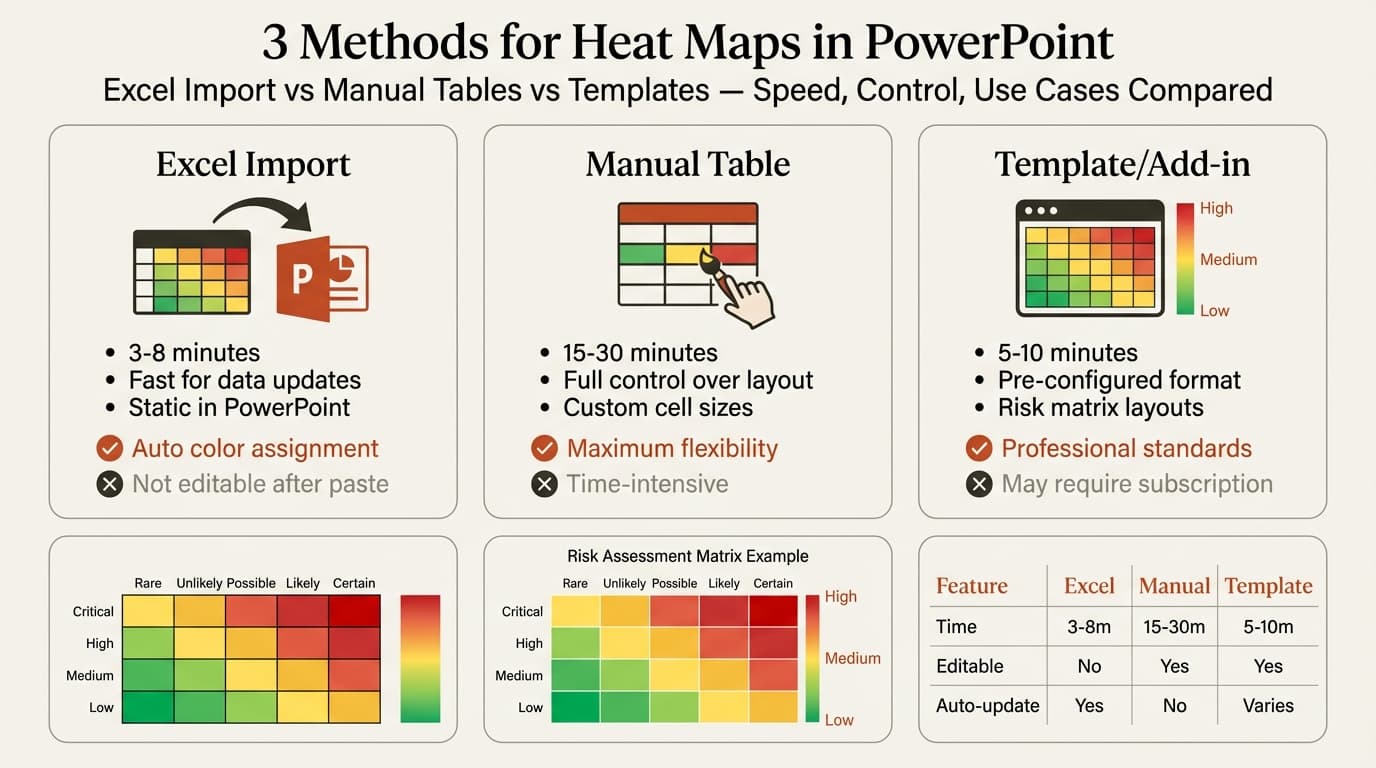
Creating the heat map in Excel and importing it into PowerPoint is the fastest method when you already have data in a spreadsheet. Excel's conditional formatting applies color scales automatically based on cell values.
Time required: 3-8 minutes.
Steps
- Open Excel and select your data range (include headers)
- Go to Home > Conditional Formatting > Color Scales
- Select a gradient (green-yellow-red for risk; blue-white-red for diverging data)
- For custom ranges, click Conditional Formatting > Manage Rules > Edit Rule and set min/midpoint/max values
- Select the formatted range
- Press Ctrl+C (Windows) or Cmd+C (Mac) to copy
- Switch to PowerPoint and press Ctrl+V or Cmd+V—choose Paste as Picture if you do not need to edit values later
Excel handles color assignment automatically and updates quickly—just recopy when data changes. Corporate Finance Institute notes that conditional formatting surfaces potential issues immediately in applications like cash flow modeling.
However, pasting creates a static image—conditional formatting does not transfer if you paste as a table. The entire grid scales proportionally, so you cannot customize cell sizes independently in PowerPoint.
Best for: Data-driven heat maps that update regularly and teams already maintaining data in Excel.
Continue reading: Capacity Planning Template · How to Create an Org Chart in PPT · PowerPoint Conditional Formatting
Create professional charts in PowerPoint
Build native waterfall, Mekko, Gantt, and business charts without manual formatting. 10 free AI prompts. No credit card required.
Method 2: Heat Map with PowerPoint Tables
Building the heat map directly in PowerPoint using tables gives you full control over cell sizes, colors, and layout. This method works when you do not have Excel data or need heavy customization.
Time required: 15-30 minutes depending on grid size.
Steps
- Go to Insert > Table and specify rows and columns matching your data
- Type values or labels in each cell
- Select a data cell and go to Table Design > Shading > More Fill Colors
- Choose the color corresponding to the cell value based on your scale
- Repeat for each cell—use Format Painter to speed up cells with the same color
- Format headers with bold text and a neutral background (gray or white)
- Add a legend showing the color scale with value ranges
Manual Coloring Strategy
Assign colors before formatting. Use exact hex codes—eyeballing creates inconsistency. Example scale: 0-20 (#D4EDDA green), 21-40 (#FFF3CD yellow), 41-60 (#FFE5CC light orange), 61-80 (#FDAC7A orange), 81-100 (#F28B82 red).
Best for: Risk matrices with text labels, custom dimensions, one-off heat maps, and presentations where the structure is unique.
Method 3: Using Templates and Add-ins
Template libraries provide pre-built heat map layouts that eliminate setup time and deliver consulting-grade formatting. Time required: 5-10 minutes.
PowerPoint's built-in templates include risk matrix layouts—go to File > New and search "heat map" to browse options. For consulting-grade heat maps, slide library add-ins like Deckary include risk matrix templates and performance dashboard grids with pre-configured color scales following MBB presentation standards.
Best for: Teams building similar heat maps across multiple presentations and consultants needing consistent formatting without manual setup.
Method Comparison
| Feature | Excel Import | Manual Table | Template/Add-in |
|---|---|---|---|
| Time to create | 3-8 min | 15-30 min | 5-10 min |
| Data refresh | Fast (recopy from Excel) | Manual update per cell | Depends on template design |
| Custom cell sizes | Limited (uniform scaling) | Full control | Pre-configured or customizable |
| Color precision | Automatic gradient | Manual assignment | Pre-configured scale |
| Editable in PowerPoint | No (static image) | Yes | Yes |
| Cost | Free | Free | Free to $180/year |
Heat Map Formatting Standards
Formatting determines whether a heat map communicates patterns instantly or requires explanation.
Color Scale Selection
Use sequential color scales (green to red) when data progresses in one direction. Use diverging scales (blue-white-red) when data has a neutral midpoint with values that can be both positive and negative.
Research on heat map best practices confirms that choosing the right color scale is critical—sequential scales should move from cooler colors to warmer colors (blue to red), while diverging scales use distinct hues for values above and below the midpoint.
Limit your palette to 3-5 color gradients. More gradients reduce readability.
Text and Labels
Every heat map needs row headers (left), column headers (top), optional cell values (inside cells), and a legend (below or right side). For pattern-focused heat maps, omit cell values—color alone is clearer. When precision matters, include values in black or dark gray text that contrasts with all background colors. Use 10-12pt sans-serif font minimum.
Size and Proportion
Heat maps should occupy 50-70% of slide area. For grids larger than 10x10, split into multiple heat maps or aggregate data. Keep cells square or slightly rectangular—extreme rectangles distort color perception.
Common Heat Map Mistakes
After reviewing heat maps across 50+ strategy and operations presentations, these errors appear most frequently.
| Mistake | Fix |
|---|---|
| Too many color gradients | Limit to 3-5 distinct color steps |
| No legend | Add a color scale legend with value ranges |
| Rainbow color scales | Use sequential scales (blue to red) or diverging scales (blue-white-red) |
| Numbers cluttering pattern-focused grids | Show values only when precision matters |
| Inconsistent color assignment | Use conditional formatting or maintain strict color-to-value mapping |
| Grids too large for slides | Aggregate data or split into multiple focused heat maps |
For related visualization techniques, see our guides on creating comparison slides and tables in PowerPoint.
When Not to Use a Heat Map
Data visualization research from Inforiver found that heat maps require large amounts of data to be accurate. For datasets under 20 points, use tables or bar charts. For single-variable comparisons, use bar charts. For time-series trends, use line charts. For precise value comparisons, use data tables.
Heat Map Examples
Risk Assessment Matrix: Rows show risk impact (Low to Critical), columns show likelihood (Rare to Almost Certain), colors range from green (low risk) to red (critical). Used for project risk planning and cybersecurity assessments.
Sales Performance Dashboard: Rows show sales regions, columns show months, colors indicate target achievement (red below 80%, yellow 80-100%, green above 100%). Used for quarterly business reviews.
Product Feature Comparison: Rows show features, columns show competitor products, colors show presence (green) or absence (red) of features. Used for competitive analysis and roadmap prioritization.
Summary
Key takeaways:
- Use Excel conditional formatting for speed when you already have data in spreadsheets and need recurring updates
- Build manual tables for control when you need custom cell sizes, asymmetric layouts, or heavily annotated grids
- Apply sequential color scales (blue to red) for data progressing in one direction; use diverging scales (blue-white-red) for data with a neutral midpoint
- Limit to 3-5 color gradients to maintain readability—more colors reduce pattern visibility
- Always include a legend showing what colors represent so the heat map is self-explanatory
- Omit cell values when showing patterns unless precision is required—numbers clutter the grid and reduce color impact
- Use heat maps for pattern detection not precise value comparisons—switch to tables when exact numbers matter
For teams building heat maps regularly, pre-built templates save significant time over starting from scratch. Explore Deckary's slide library for risk matrix and performance dashboard templates that follow consulting formatting standards.
Sources
Create professional charts in PowerPoint
Build native waterfall, Mekko, Gantt, and business charts without manual formatting. 10 free AI prompts. No credit card required.