Funnel Chart in PowerPoint: 3 Methods Compared
Learn how to create a funnel chart in PowerPoint using SmartArt, shapes, or templates. Step-by-step methods with pros, cons, and best practices for sales and conversion funnels.
Sales presentations and operational reviews frequently require funnel charts in PowerPoint—whether showing lead-to-close conversion rates, e-commerce checkout drop-offs, or recruitment pipeline attrition. PowerPoint offers two native methods for building them: SmartArt for speed and manual shapes for control. Each has significant trade-offs in customization and precision.
After creating funnel charts for 60+ sales strategy and process optimization presentations, we have tested both approaches and identified exactly when SmartArt hits its limits and when manual shapes justify the extra time. The right choice depends on whether you need a quick conceptual diagram or a data-driven funnel with precise proportions.
This guide covers both methods with step-by-step instructions, explains when funnel charts are the right visualization choice, and includes formatting best practices that make drop-off points immediately visible.
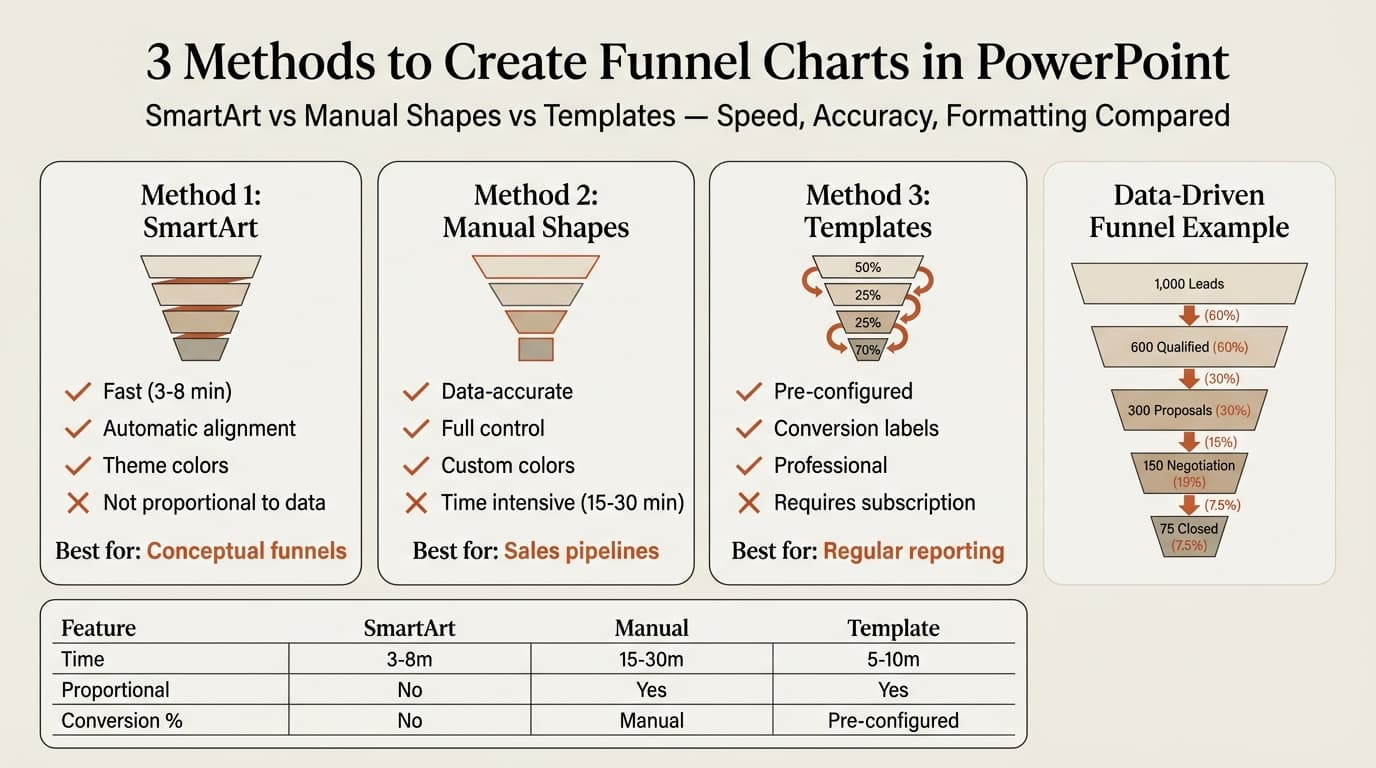
What Is a Funnel Chart
A funnel chart visualizes how data moves through sequential stages where each stage has fewer items than the previous one. The chart resembles a funnel—wide at the top, narrow at the bottom—with horizontal bars organized in decreasing order.
Atlassian defines a funnel chart as a specialized visualization for conversion analysis that shows the progressive reduction of data as it passes through sequential stages. In business presentations, funnel charts most often appear in sales pipeline reviews, marketing conversion analysis, and operational process tracking.
Funnel charts only make sense when the stages are sequential and the metric decreases from one step to the next. If values fluctuate or increase, use a bar chart instead.
When to Use a Funnel Chart
Funnel charts work when you need to show stage-by-stage attrition through a process. Use them for sequential workflows where identifying drop-off points drives decision-making.
Best uses for funnel charts:
| Use Case | Example Stages |
|---|---|
| Sales pipeline | Leads → Qualified → Proposal → Negotiation → Closed |
| E-commerce conversion | Homepage → Product page → Cart → Checkout → Purchase |
| Recruitment funnel | Applications → Phone screen → Interview → Offer → Hire |
| Marketing funnel | Impressions → Clicks → Sign-ups → Trials → Paid customers |
| Customer onboarding | Account created → Profile completed → First action → Active user |
Poor uses for funnel charts:
| Wrong Application | Better Alternative |
|---|---|
| Comparing unrelated categories | Bar chart or column chart |
| Displaying values that increase | Waterfall chart |
| Time-series data | Line chart or timeline |
Domo's funnel chart research emphasizes that funnels excel at spotting conversion bottlenecks but fail when stages are not sequential or when the process involves parallel paths.
Method 1: Funnel Chart with SmartArt
SmartArt is the fastest way to create a funnel chart in PowerPoint. It handles sizing, alignment, and basic formatting automatically.
Time required: 3-8 minutes.
Steps
- Open PowerPoint and select the slide where you want the funnel chart
- Go to Insert > SmartArt
- In the SmartArt gallery, click Relationship in the left panel
- Select Funnel (shows stacked trapezoid segments)
- Click OK
- Type stage names in the text pane (the panel on the left side of the SmartArt graphic)
- Add stages by pressing Enter in the text pane; remove stages by deleting text
- Use SmartArt Design > Change Colors to adjust the color scheme
- Use SmartArt Design > SmartArt Styles to change the visual style
SmartArt Advantages
SmartArt creates consistent, aligned segments with automatic width adjustment. The predefined color schemes match PowerPoint's theme colors.
SmartArt Limitations
SmartArt locks you into a fixed layout. You cannot adjust segment widths to match actual data proportions—all segments scale uniformly regardless of the values they represent. NetSuite's funnel chart guide confirms that accurate representation requires sizing each segment proportionally to its value. SmartArt does not support this.
You also cannot independently format segments with different colors or data labels, add stage-to-stage conversion percentages between segments, or create horizontal funnels.
Best for: Quick strategy slides showing conceptual funnels where exact proportions matter less than the overall pattern.
Continue reading: Capacity Planning Template · How to Create an Org Chart in PPT · PowerPoint Infographic Template
Create professional charts in PowerPoint
Build native waterfall, Mekko, Gantt, and business charts without manual formatting. 10 free AI prompts. No credit card required.
Method 2: Funnel Chart with Manual Shapes
The manual shapes method gives you full control over segment proportions, colors, and labels. This is the standard approach when you need a data-driven funnel where segment widths accurately reflect values.
Time required: 15-30 minutes depending on complexity.
Steps
- Go to Insert > Shapes and select Trapezoid from the Basic Shapes section
- Draw the first trapezoid (top segment) by clicking and dragging on the slide
- To ensure the top edge is wider than the bottom edge, adjust the yellow adjustment handle on the trapezoid after drawing
- Select the trapezoid, press Ctrl+C (Windows) or Cmd+C (Mac) to copy
- Press Ctrl+V or Cmd+V to paste a second trapezoid
- Drag the second trapezoid directly below the first, aligning the top edge of the second with the bottom edge of the first
- Adjust the width and height of the second trapezoid to match your data proportions
- Repeat steps 4-7 to add additional stages (typically 4-7 total segments)
- Select all trapezoids by clicking the first, then holding Shift and clicking the others
- Go to Format > Align > Align Center to center all segments horizontally
- Use Format > Shape Fill to apply different colors to each segment
- Add text boxes using Insert > Text Box and position them inside each segment or to the right showing values and percentages
Calculating Segment Widths
For data-driven funnels, calculate segment widths proportionally to values. If your top stage has 1,000 leads and your second stage has 600 qualified leads, the second segment should be 60% as wide as the first. Use the Format > Size panel rather than eyeballing sizes.
Use Format > Align > Distribute Vertically to create even spacing between segments. For faster alignment, add-ins like Deckary register single-key shortcuts for alignment and distribution.
Best for: Sales pipeline reviews with specific lead counts, conversion funnel analysis where drop-off rates drive action, and client-facing presentations where accurate data representation matters.
Method 3: Using Templates and Add-ins
Template libraries provide pre-built funnel chart layouts with consulting-grade formatting.
Time required: 5-10 minutes.
PowerPoint's built-in templates include several funnel options—go to File > New and search "funnel chart." These provide starter structures but typically require customization to match your data.
Slide library add-ins like Deckary include funnel templates with pre-configured segment proportions, color coding, and annotation placeholders. The icon library provides 2,000+ icons that pair well with funnel stages.
Best for: Teams building similar funnels across multiple presentations and consultants who create funnel charts regularly.
Method Comparison
| Feature | SmartArt | Manual Shapes | Template/Add-in |
|---|---|---|---|
| Time to create | 3-8 min | 15-30 min | 5-10 min |
| Proportional segments | No | Yes (manual calculation) | Yes (pre-configured) |
| Independent segment colors | Limited | Full control | Full control |
| Horizontal orientation | No | Yes | Depends on template |
| Conversion % labels | No | Yes (manual text boxes) | Yes (pre-configured) |
| Excel data linking | No | No (shapes only) | Depends on add-in |
| Cost | Free | Free | Free to $180/year |
SmartArt is fastest but least accurate. Manual shapes take longer but handle precise proportions. Templates balance speed with professional formatting.
Funnel Chart Formatting Standards
Formatting determines whether a funnel chart communicates drop-off patterns instantly or requires verbal explanation. These standards apply regardless of creation method.
Color Coding
Use color to highlight critical stages or drop-off points. A common consulting pattern assigns progressively darker shades of a single color as the funnel narrows—light blue at the top, dark blue at the bottom, with green for the final conversion stage.
Limit your palette to 3-5 colors. For multi-funnel comparisons (e.g., this quarter vs last quarter), use different color schemes for each funnel and position them side-by-side.
Text and Labels
Label each segment with the stage name and key metrics. Position stage names inside segments; use text boxes to the right for detailed metrics like absolute counts, conversion rates, and stage-to-stage drop percentages.
Use a sans-serif font at 10-12pt for labels. Text under 10pt becomes unreadable when projected. Atlassian's funnel chart guide recommends showing stage-to-stage proportions between segments so audiences can see drop-off rates without calculating.
The funnel should occupy 50-70% of the slide area. For horizontal funnels, maintain left-to-right flow.
Common Funnel Chart Mistakes
After reviewing funnel charts across 60+ sales and operations presentations, these errors appear most frequently.
| Mistake | Fix |
|---|---|
| Segments not proportional to data | Size each segment width to match its value relative to the top stage |
| No conversion percentages | Add stage-to-stage conversion rates between segments |
| Too many stages | Limit to 4-7 stages; group related steps |
| Using funnels for non-sequential data | Use bar charts for unrelated categories |
| Inconsistent segment heights | Keep all segment heights uniform; only width should vary |
| Missing stage labels | Label every segment with clear stage names |
When Not to Use a Funnel Chart
Funnel charts are not always the right choice. Picking the wrong visualization type wastes slide space and confuses the audience.
| Visualization Type | Best For |
|---|---|
| Funnel chart | Sequential stages with decreasing values |
| Waterfall chart | Explaining variance or cumulative change |
| Bar chart | Comparing unrelated categories |
| Venn diagram | Overlapping categories and shared attributes |
NetSuite's funnel chart research found that funnel charts work best for linear, sequential processes. For processes with parallel paths or non-decreasing values, alternative chart types communicate more clearly.
Funnel Chart Examples
Sales Pipeline: 1,000 Leads → 600 Qualified (60%) → 300 Proposals (30%) → 150 Negotiation (15%) → 75 Closed (7.5%)
E-commerce Conversion: 10,000 Visitors → 4,000 Product Views (40%) → 1,200 Add to Cart (12%) → 600 Checkout (6%) → 360 Purchase (3.6%)
Recruitment Funnel: 500 Applications → 150 Phone Screens (30%) → 50 Interviews (10%) → 15 Offers (3%) → 10 Hires (2%)
Sources
- Atlassian — A Complete Guide to Funnel Charts
- Domo — Funnel Charts in Analytics: How to Visualize Conversion Drop-Offs
- NetSuite — Funnel Charts: An Expert Guide for Businesses
Summary
Creating a funnel chart in PowerPoint requires choosing the right method for your specific use case. SmartArt works for conceptual funnels but lacks data precision. Manual shapes handle accurate proportions but take longer. Templates provide pre-configured layouts that balance speed with professional formatting.
Key takeaways:
- Use SmartArt for speed when you need a conceptual funnel in under five minutes and exact proportions do not matter
- Use manual shapes for data-driven funnels where segment widths must accurately reflect values
- Size segments proportionally to make drop-off rates visually obvious without requiring calculation
- Limit to 4-7 stages for readability—group related steps for longer processes
- Label every segment with stage names and conversion metrics
- Show stage-to-stage percentages between segments to highlight critical drop-off points
- Use funnels only for sequential processes where values decrease—switch to bar charts for non-sequential data
For sales teams and analysts building funnel charts regularly, pre-built templates save significant time over starting from scratch. Explore Deckary's slide library for funnel chart templates that follow consulting formatting standards.
Create professional charts in PowerPoint
Build native waterfall, Mekko, Gantt, and business charts without manual formatting. 10 free AI prompts. No credit card required.