Process Flow in PowerPoint: 3 Methods for Business Analysts
Learn how to create a process flow diagram in PowerPoint using shapes, SmartArt, or swimlanes. Step-by-step guide with SIPOC and cross-functional standards.
Process flows appear in every operational improvement engagement—mapping order fulfillment workflows, documenting approval chains, or diagnosing where handoffs between departments create delays. The challenge is that PowerPoint treats "process flow" and "flowchart" as the same thing, but consultants know they serve different purposes.
After mapping processes across 120+ business transformation projects, we have identified exactly when to use basic flowcharts versus process flows with swimlanes and SIPOC diagrams. A flowchart shows logical decision paths. A process flow shows operational reality—who does what, where handoffs happen, and which inputs and outputs matter.
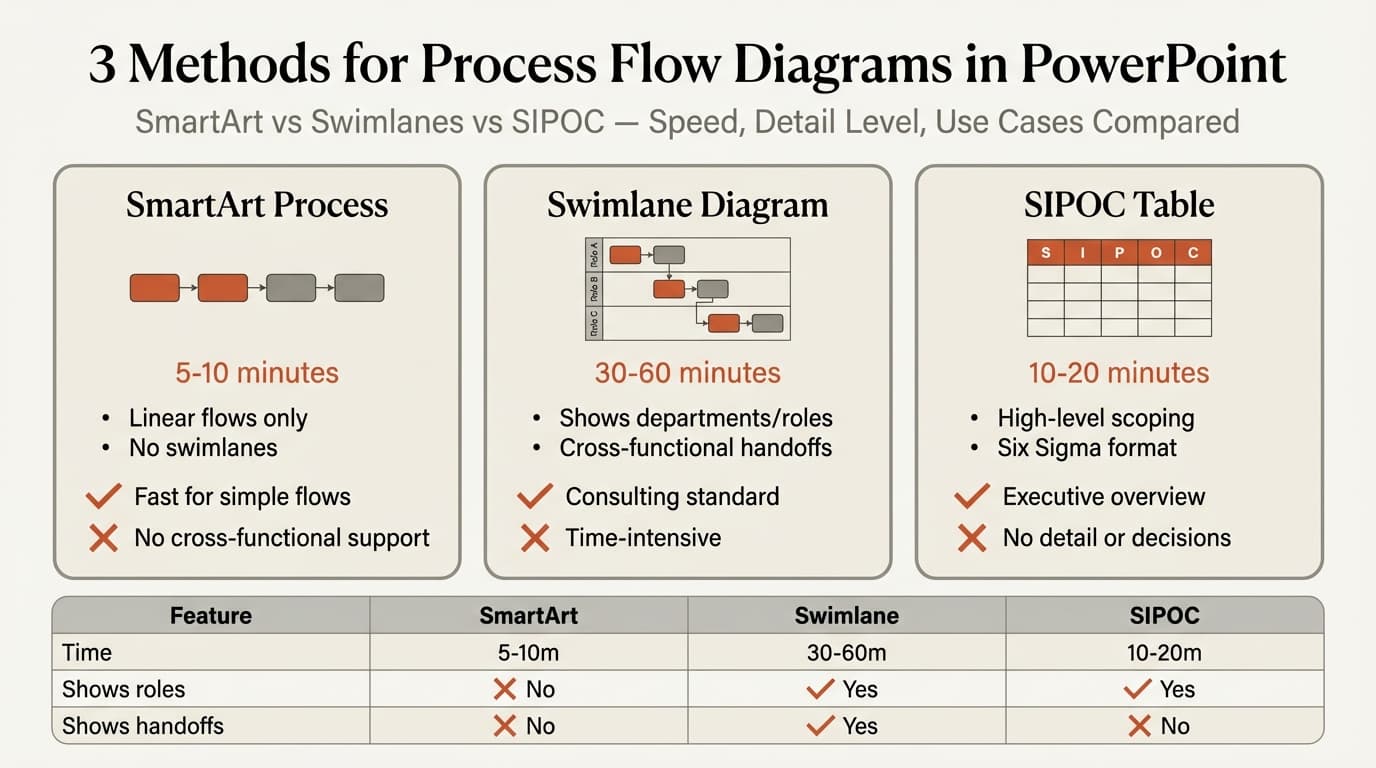
This guide covers three methods for creating process flows in PowerPoint: SmartArt for speed, manual shapes for cross-functional swimlanes, and SIPOC tables for high-level process documentation. Each approach has clear use cases based on whether you need to show decisions, departmental handoffs, or executive-level process overviews.
Process Flow vs. Flowchart: What's the Difference
Both diagrams show steps in a sequence, but they emphasize different aspects of the process.
A flowchart focuses on decision logic and sequential steps. It uses standardized symbols—rectangles for actions, diamonds for yes/no decisions, and arrows for flow direction. Flowcharts answer "What happens next?" and "Which path does the process take?"
A process flow diagram focuses on operational context. According to Slickplan's process mapping guide, process flows include inputs, outputs, handoffs between roles, and who owns each step. Process flows answer "Who does this?" and "What triggers this step?"
| Feature | Flowchart | Process Flow Diagram |
|---|---|---|
| Primary purpose | Show decision paths | Show operational workflow |
| Key elements | Steps, decisions, flow direction | Steps, roles, inputs, outputs, handoffs |
| Symbols | Standardized (diamond = decision) | Flexible (rectangles, swimlanes) |
| Typical use | Software logic, algorithms | Business processes, departmental workflows |
| Detail level | Sequential only | Sequential + contextual |
For a detailed flowchart guide, see our post on creating flowcharts in PowerPoint. This guide focuses on process flow diagrams that show who does what across departments.
When to Use a Process Flow Diagram
Use process flows when mapping business operations that involve multiple departments, roles, or systems. Common scenarios include:
- Order-to-cash processes — Sales creates the order, finance approves credit, warehouse fulfills, accounting invoices
- Employee onboarding — HR sends paperwork, IT provisions accounts, manager assigns work
- Procurement workflows — Requestor submits need, purchasing sources vendors, finance approves, receiving confirms delivery
- Change management processes — Stakeholder submits request, change board reviews, technical team implements, operations validates
According to ASQ's quality resources, process flows work best when you need to identify bottlenecks, clarify accountability, standardize workflows, or reduce handoff delays.
Do not use process flows for:
- Pure decision trees with quantified probabilities (use decision matrices)
- Project timelines with dates and durations (use Gantt charts)
- Hierarchical relationships (use org charts)
- Comparisons or trade-offs (use comparison tables)
Method 1: Process Flow with SmartArt
SmartArt provides the fastest path to a basic process flow—linear sequences without branching or role separation.
Time required: 5-10 minutes.
Steps
- Go to Insert > SmartArt > Process
- Select Basic Process for left-to-right flow or Alternating Flow for compact slides
- Enter process step names in the text pane
- Press Enter to add steps or Delete to remove steps
SmartArt Limitations
Microsoft's SmartArt documentation confirms that SmartArt cannot create swimlanes, decision branches, or role-based separations. You cannot show which department owns each step. You cannot display inputs and outputs. You cannot route processes back to earlier steps (loops).
SmartArt treats every process as a straight line from start to finish. For cross-functional processes or workflows with decision points, SmartArt produces diagrams that oversimplify operational reality.
Best for: Executive summary slides showing high-level phases (e.g., "Discover → Design → Deliver"). Internal brainstorming when you need a visual starting point in under 10 minutes.
Continue reading: Case Study Presentation · How to Create an Org Chart in PPT · PowerPoint SmartArt
Create professional charts in PowerPoint
Build native waterfall, Mekko, Gantt, and business charts without manual formatting. 10 free AI prompts. No credit card required.
Method 2: Cross-Functional Process Flow with Swimlanes
Swimlane diagrams separate process steps by department, role, or system. Each horizontal or vertical lane represents a different actor, showing which team handles each step and where handoffs occur.
Time required: 30-60 minutes depending on complexity.
Steps
- Create lanes — Insert rectangles spanning slide width, stack vertically with 0.5-1 inch spacing
- Label lanes — Type department or role name in each rectangle
- Add process steps — Insert rectangles for each step, place in appropriate lane
- Connect steps — Use elbow connectors between steps
- Align — Use Format > Align > Distribute Horizontally for even spacing
Swimlane Best Practices
According to Draw.io's process mapping guide, effective swimlane diagrams use 3-6 lanes maximum. More than six lanes creates a diagram that is too tall to read at presentation scale.
Arrange lanes by workflow sequence when possible—put the initiating department at the top, the closing department at the bottom. This creates a top-to-bottom reading flow that matches how most business processes move through organizations.
For processes with many cross-lane handoffs, use vertical swimlanes (lanes running top to bottom) rather than horizontal. This reduces the number of connectors that cross lanes and simplifies the visual structure.
Best for: Cross-functional process improvement projects, operational redesign engagements, and any workflow where identifying handoff delays or unclear accountability is the goal.
Method 3: SIPOC Diagram for High-Level Process Mapping
SIPOC diagrams provide a structured, table-based format for documenting processes at a high level. SIPOC stands for Suppliers, Inputs, Process, Outputs, Customers—the five components that define any business process.
Time required: 10-20 minutes.
What is SIPOC
Asana's SIPOC guide defines SIPOC as a Six Sigma tool that maps processes from end to end without excessive detail. It answers five questions:
- Suppliers — Who provides the inputs? (External vendors, other departments, systems)
- Inputs — What resources or information does the process need? (Purchase orders, customer data, raw materials)
- Process — What are the high-level steps? (3-7 major phases, not detailed sub-steps)
- Outputs — What does the process produce? (Invoices, reports, finished goods)
- Customers — Who receives the outputs? (External customers, downstream departments, end users)
SIPOC diagrams work at the 30,000-foot level. According to ASQ's SIPOC resources, they help teams align on process scope before diving into detailed mapping. They prevent scope creep by forcing agreement on what is in scope (the process steps) and what is external (suppliers and customers).
Creating a SIPOC in PowerPoint
- Go to Insert > Table and create a 5-column table with 6-10 rows
- Label the headers: Suppliers | Inputs | Process | Outputs | Customers
- Fill each column with relevant items (suppliers, inputs needed, 3-7 process steps, outputs produced, recipients)
- Format the header row with bold text and darker background
SIPOC Example
Here is a simplified SIPOC for an order fulfillment process:
| Suppliers | Inputs | Process | Outputs | Customers |
|---|---|---|---|---|
| Customer | Purchase order | 1. Receive order | Fulfillment confirmation | Customer |
| Inventory system | Inventory data | 2. Check stock | Packing list | Warehouse |
| Warehouse | Product availability | 3. Pick items | Shipping label | Shipping carrier |
| Finance | Credit approval | 4. Pack order | Invoice | Finance dept |
| Shipping carrier | Delivery capacity | 5. Ship order | Tracking number | Customer |
Miro's SIPOC diagram guide recommends limiting the Process column to 5-7 steps maximum. If you need more steps, you are mapping at too detailed a level—group related activities into higher-level phases.
Best for: Project kickoffs, Lean Six Sigma initiatives, process definition workshops, and executive presentations where the goal is alignment on process scope, not operational detail.
Method Comparison
| Feature | SmartArt | Swimlane Diagram | SIPOC Table |
|---|---|---|---|
| Time to create | 5-10 min | 30-60 min | 10-20 min |
| Shows roles/departments | No | Yes | Yes (as suppliers/customers) |
| Shows decision points | No | Yes | No |
| Shows handoffs | No | Yes | No |
| Detail level | Medium | High | Low (high-level only) |
| Best use case | Phase overviews | Cross-functional workflows | Process scoping |
| Cost | Free | Free | Free |
Use SmartArt for simple linear flows. Use swimlane diagrams for operational workflows with multiple roles. Use SIPOC tables for executive-level process definition and Six Sigma project charters.
Process Flow Formatting Standards
Use color to distinguish roles or departments—one color per swimlane. Limit to 4-5 colors maximum. Use active verbs in step labels: "Approve request" not "Request approval." Keep labels under 6 words.
Maintain consistent left-to-right or top-to-bottom flow throughout. For processes with more than 12 steps, break across multiple slides.
Common Process Flow Mistakes
After reviewing process flows across 120+ projects, these errors appear most frequently:
| Mistake | Problem | Fix |
|---|---|---|
| No clear start/end | Reader does not know where to begin | Use terminators (ovals) or clearly label "Start" and "End" |
| Mixing levels of detail | Step 1 is "Verify credit" but Step 2 is "Send email to finance, wait 2 days, follow up" | Keep all steps at the same level of granularity |
| Unclear handoffs | Connector crosses swimlanes with no indication of what transfers | Label handoffs or use a different connector color |
| Too many swimlanes | 8+ lanes create unreadable diagrams | Group related roles or create separate diagrams |
| Backward flow | Connector loops back to earlier step with no explanation | Add a decision diamond before the loop to show why the process returns |
| No inputs/outputs shown | Process exists in a vacuum | Add input arrows at the start and output arrows at the end |
For animated process flows that reveal steps sequentially during presentations, see our PowerPoint animation guide.
For related diagram types, see our guides on flowcharts, Venn diagrams, and fishbone diagrams.
Sources
- Slickplan — Process Map vs Flowchart: What's the Difference Between Them?
- ASQ — What is a Flowchart? Process Flow Diagrams & Maps
- Microsoft Support — Add a flow chart to a slide in PowerPoint
- Draw.io — Use swimlanes with flowcharts to show who does each step
- Asana — What is a SIPOC Diagram? 7 Steps to Map Business Processes
- ASQ — SIPOC+CM Diagram
- Miro — What is a SIPOC Diagram
Summary
Creating a process flow diagram in PowerPoint requires choosing the right method for your specific workflow. SmartArt works for linear phase overviews but cannot show roles or handoffs. Swimlane diagrams handle cross-functional complexity but take longer to build. SIPOC tables provide high-level process scoping for executive audiences and Six Sigma projects.
Key takeaways:
- Differentiate flowcharts from process flows — flowcharts show decision logic, process flows show operational roles and handoffs
- Use SmartArt only for simple linear flows with no departmental handoffs or decision points
- Swimlane diagrams are the consulting standard for cross-functional process improvement projects
- Limit swimlanes to 3-6 lanes maximum — more lanes create unreadable diagrams at presentation scale
- SIPOC diagrams map processes at the 30,000-foot level — use them for project kickoffs and scope definition, not detailed operational mapping
- Keep process flows to 8-12 steps per slide — break longer processes across multiple slides or group related steps into phases
For consultants building process flows regularly, pre-built templates save significant time over starting from blank slides. Explore Deckary's slide library for cross-functional process flow templates and SIPOC diagrams that follow consulting formatting standards.
Create professional charts in PowerPoint
Build native waterfall, Mekko, Gantt, and business charts without manual formatting. 10 free AI prompts. No credit card required.