Line Charts in PowerPoint: When to Use Them and Best Practices
Learn when line charts work better than bar charts, how to create them in PowerPoint, and formatting rules from analyzing 180+ time-series presentations.
Line charts show changes over time—making trends, growth rates, and cyclical patterns immediately visible. Where bar charts compare discrete categories and scatter plots reveal correlations, line charts answer a specific question: how does this value change as time progresses?
After analyzing 180+ time-series presentations—financial models, KPI dashboards, and market trend reports—we found line charts appear in 62% of decks that include temporal data. They work when the story is about trajectory, not magnitude. The challenge is knowing when to use them and how to avoid the most common formatting mistakes that obscure trends instead of revealing them.
This guide covers when line charts outperform alternatives, how to create them in PowerPoint, and the formatting decisions that separate clear trend visualizations from cluttered "spaghetti charts." For other chart types and when to use them, see our PowerPoint Charts Guide.
What Is a Line Chart?
A line chart displays data points connected by straight line segments, showing how values change across continuous measurements. The horizontal axis typically represents time (days, months, quarters, years), while the vertical axis represents the measured value (revenue, units, percentage, etc.).
| Term | Definition |
|---|---|
| Line chart | Chart showing trends over time with connected data points |
| Time series | Sequential data measured at successive time intervals |
| Trend line | Line showing general direction of change (upward, downward, flat) |
| Data point | Individual value plotted on the chart |
| Axis scale | Range of values shown on vertical or horizontal axis |
Line charts emphasize trends and continuity over time—the connected lines help readers see patterns, rates of change, and overall direction without focusing on individual data points.
When to Use Line Charts
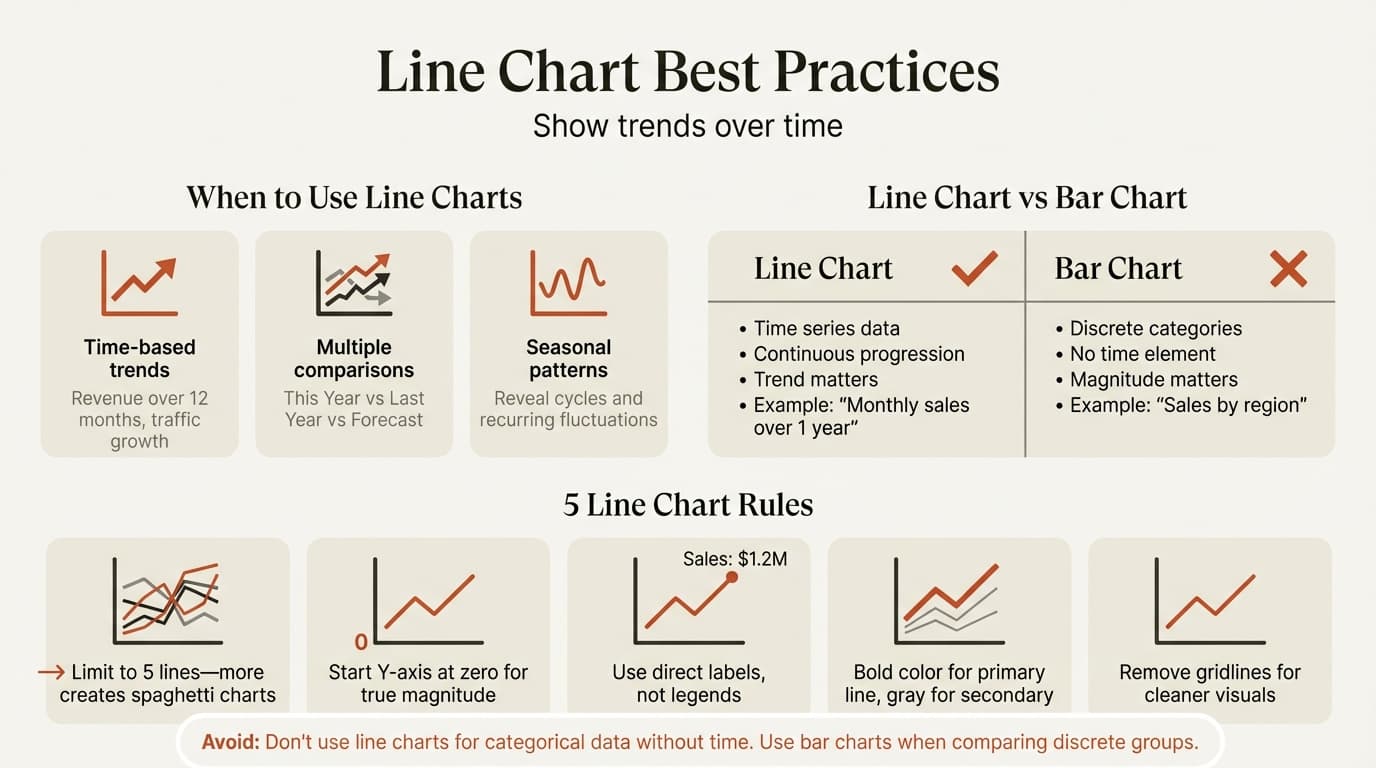
Line charts excel in three scenarios:
Showing trends over time. Revenue growth over quarters, website traffic across months, inventory levels throughout the year. The connected line makes the trajectory obvious—whether values are increasing, decreasing, staying flat, or cycling.
Comparing multiple trends. When you need to show how 2-5 metrics or segments perform over the same time period—This Year vs Last Year revenue, or adoption rates across three regions. Multiple lines on the same time axis make relative performance clear.
Revealing patterns and cycles. Seasonal effects, recurring fluctuations, or periodic spikes become visible in line charts. The continuous line emphasizes rhythm and repetition that discrete bars would hide.
When NOT to Use Line Charts
| Scenario | Problem | Better Alternative |
|---|---|---|
| Comparing discrete categories | No time progression or natural order | Bar chart or column chart |
| Part-to-whole relationships | Doesn't show totals or proportions | Stacked bar or pie chart |
| Showing correlation between variables | Both axes are numeric, not time-based | Scatter plot |
| Few data points (under 5) | Trend unclear with minimal data | Table or bar chart |
| Many overlapping lines (over 5) | Visual clutter obscures all trends | Small multiples or separate charts |
| All values nearly identical | Changes too small to see | Table with exact values |
Line Chart vs. Bar Chart: Which to Use
The most common confusion: when to use line charts versus bar charts.
Use line charts when:
- X-axis represents time or sequential progression
- You want to emphasize trend direction and rate of change
- Data is continuous and points connect logically
- The path between points matters as much as the points themselves
Use bar charts when:
- Comparing discrete categories without time element
- Magnitude comparison is more important than trend
- Data points are independent (not sequential)
- You want to emphasize specific values rather than overall pattern
| Situation | Line Chart | Bar Chart |
|---|---|---|
| Monthly revenue over 12 months | ✓ | |
| Revenue by product category | ✓ | |
| Stock price over 1 year | ✓ | |
| Survey responses by question | ✓ | |
| Website traffic over 6 months | ✓ | |
| Sales by region (no time element) | ✓ |
Example: If you're showing Q1, Q2, Q3, Q4 performance, use a line chart—the quarters progress sequentially and trend matters. If you're showing North, South, East, West regional performance, use a bar chart—the regions are discrete categories with no natural order.
Line Chart vs. Scatter Plot
Another common confusion: when to use line charts versus scatter plots.
Line charts show how one variable changes over time. The X-axis is always time-based, and points connect in chronological order. Use when time progression is the independent variable.
Scatter plots show the relationship between two independent numeric variables. Neither axis is time, and points don't connect because there's no natural sequence. Use when exploring correlations between two measurements.
Example: Monthly sales over 12 months → line chart (time-based). Sales versus marketing spend across 50 campaigns → scatter plot (both variables numeric, no sequence).
How to Create a Line Chart in PowerPoint
Step 1: Insert the Chart
- Click on your slide where you want the chart
- Go to Insert > Chart in the ribbon
- Select Line from the left panel
- Choose your style: Line, Line with Markers, Stacked Line, or 100% Stacked Line
- Click OK
Recommended: Start with "Line with Markers" for under 20 data points, or plain "Line" for monthly/daily data with many points.
Step 2: Enter Your Data
PowerPoint opens an Excel-like data editor with sample data.
- Replace the first column (typically categories) with your time periods (Q1, Q2, Q3, Q4 or Jan, Feb, Mar, etc.)
- Replace values in subsequent columns with your data
- Add additional columns for multiple lines (Series 1, Series 2, etc.)
- Delete extra rows or columns you don't need
- Close the data editor when finished
The chart updates automatically as you type.
Data structure example:
       A        B         C
1   Month   Revenue   Costs
2   Jan     45000     32000
3   Feb     52000     33500
4   Mar     58000     35000
5   Apr     71000     36200
Step 3: Format the Axes
Set clear axis titles. Click the + icon (Chart Elements) > Axis Titles. Label both axes clearly—"Month" and "Revenue ($000)" are better than generic "X" and "Y."
Adjust vertical axis scale. Right-click the value axis > Format Axis > Bounds. Set minimum and maximum to frame your data. Starting at zero shows true magnitude; starting above zero zooms in on changes.
Format time labels. Select horizontal axis labels, increase font size to at least 10pt. For many time periods, rotate labels 45° or show every other label to prevent overlap.
Step 4: Add Direct Labels
Add direct labels to each line with text in the same color as the line, which makes it easier for readers to know what each line represents without checking a legend.
- Click the chart
- Click the + icon (Chart Elements)
- Check Data Labels
- Position at End (shows only final value for each line)
For emphasis, manually add data labels to just the first and last point on each line—this shows starting point, ending point, and total change without cluttering every data point.
Step 5: Format for Clarity
Limit gridlines. Horizontal gridlines compete visually with data lines. Remove them or use light gray (10-20% opacity). Keep only essential reference lines.
Use color strategically. Use one or more bold colors to emphasize the most important lines and muted gray for secondary lines. Make colored lines thicker (2-3pt) so they stand out.
Remove unnecessary elements. Delete the legend if you've added direct labels. Remove chart borders and background fills. Eliminate 3D effects—they distort perception and add no value.
Adjust line weight. Right-click a line > Format Data Series > Line. Set width to 2-3pt for primary lines, 1.5pt for secondary lines. Thicker lines are easier to follow.
Continue reading: Scrum Framework · Agile vs Waterfall · PowerPoint Design Tips
Create professional charts in PowerPoint
Build native waterfall, Mekko, Gantt, and business charts without manual formatting. 10 free AI prompts. No credit card required.
Line Chart Best Practices
After analyzing 180+ time-series presentations, these patterns separate clear visualizations from cluttered ones.
Limit Lines Per Chart
Maximum 5 lines per chart. More than 5 creates "spaghetti charts" where individual trends become impossible to follow. Readers spend time untangling lines instead of understanding the message.
When you have more than 5 series:
- Create separate charts for groups of related lines
- Use small multiples (multiple charts with identical scales)
- Highlight 1-2 key lines and show others in light gray for context
- Filter to top performers and group the rest as "Other"
Start Y-Axis at Zero (Usually)
For absolute values and counts: Start at zero to show true magnitude. A revenue line starting at zero makes a 20% increase look appropriately modest. Starting at $90K makes the same 20% increase look dramatic.
For rates, percentages, and when zooming into small changes: Starting above zero is acceptable. Interest rates moving from 5.1% to 5.3% are clearer when the axis runs 4.5%-5.5% rather than 0%-6%.
The rule: If you're making magnitude comparisons, start at zero. If you're emphasizing rate of change, adjust the axis to show variation clearly.
Use Consistent Time Intervals
All points should represent equal time intervals. Don't mix daily data (Mon, Tue, Wed) with monthly aggregates (Jan, Feb, Mar) on the same chart—it distorts the visual slope and misleads readers about rates of change.
If data is missing for certain periods, either:
- Show gaps by breaking the line (preferred for transparency)
- Interpolate missing values and note it clearly in the title
- Use a different chart type if gaps are frequent
Write Action Titles
| Weak Title | Strong Action Title |
|---|---|
| Monthly Revenue | Revenue grew 38% in Q4, driven by Enterprise expansion |
| User Growth | User growth stalled in March following pricing changes |
| Cost Trends | Operating costs declined 12% after vendor renegotiation |
Action titles tell readers what conclusion to draw from the trend.
Add Context with Annotations
Raw line charts require interpretation. Help your audience by:
- Adding vertical reference lines at key events ("Product launch", "Competitor entry")
- Shading regions ("Recession period", "Holiday season")
- Annotating inflection points ("Policy change led to 40% spike")
- Drawing horizontal reference lines at targets or benchmarks
Common Line Chart Mistakes
Spaghetti charts with too many lines. More than 5 lines creates visual clutter where every line competes for attention. Fix by creating separate charts or highlighting 1-2 key lines while showing others in gray for context.
Misleading scales. Exaggerating the vertical axis scale minimizes visible change, while compressing it exaggerates volatility. A line that looks steep might show only 2% growth when the axis runs from 98-100. Always consider whether your scale tells the truth.
Connecting unrelated data points. Lines imply continuity and causation. If several crisscrossing lines connect unrelated measurements, readers see false patterns. Use bar charts or scatter plots when data points are independent.
Inconsistent time intervals. Mixing daily and monthly data on one axis distorts slope perception. Equal visual spacing should represent equal time intervals.
Using line charts for categorical data. Revenue by product category should be a bar chart, not a line chart—there's no natural progression from "Software" to "Hardware" to "Services."
Poor color choices. Using similar colors (light blue, medium blue, dark blue) for multiple lines makes them hard to distinguish. Use high-contrast colors or vary line styles (solid, dashed, dotted) along with color.
Cluttered data labels. Adding data labels to every point obscures the trend—the message is about overall pattern, not individual values. Label only first and last points, or inflection points where change occurs.
Line Chart Variations
PowerPoint includes specialized line chart types for different analysis needs.
Line Chart (No Markers)
The default type showing only connected lines. Use for data with many points (daily or weekly data over months) where individual markers would create visual clutter. The continuous line emphasizes overall trend.
Line with Markers
Adds dots at each data point. Use when you have fewer than 20 points and want to emphasize both the trend and specific values. Markers make individual data points easier to reference.
Stacked Line Chart
Shows cumulative totals by stacking lines on top of each other. Use when you want to show both individual series and the combined total—for example, revenue by product line with the top edge showing total revenue.
Drawback: Only the bottom line has a straight baseline. Upper lines are difficult to read because they start at varying heights. Consider using a stacked area chart instead.
100% Stacked Line Chart
Lines stack to 100% at each time point, showing proportional contribution rather than absolute values. Use when relative share matters more than magnitude—market share over time, where the sum always equals 100%.
Limitation: Hides absolute growth. You see percentages but lose sense of whether the total is increasing or decreasing.
Creating Line Charts from Excel Data
For presentations with dynamic data, linking line charts to Excel eliminates manual updates.
Manual method: Create your chart in Excel, copy it, then use Paste Special > Paste Link in PowerPoint. When Excel data changes, right-click the chart in PowerPoint and select Update Link. Note that links break when files move or rename.
Add-in method: Tools like Deckary maintain Excel links automatically, updating PowerPoint charts when source data changes. For recurring presentations with multiple charts, this reduces maintenance significantly.
Line Charts in Business Presentations
Consultants and analysts use line charts for specific storytelling needs:
Performance dashboards. KPI trends over time—monthly recurring revenue, customer acquisition cost, or net promoter scores. Multiple lines compare This Year vs Last Year or Actual vs Target.
Financial projections. Revenue forecasts, cost trends, or cash flow projections showing historical actuals (solid line) transitioning to forecast (dashed line).
Market analysis. Market size growth, competitive share trends, or adoption curves. Line charts make inflection points obvious—when growth accelerated, when share shifted, when adoption plateaued.
Operations tracking. Inventory levels, production output, defect rates over time. Line charts reveal cyclical patterns and seasonal effects better than other chart types.
The pattern: line charts when trajectory and timing matter—not just current values, but how we got here and where we're heading.
Key Takeaways
Line charts show trends over continuous time periods. They make growth rates, cycles, and inflection points immediately visible through connected data points.
Limit to 5 lines per chart. More creates visual clutter where individual trends become impossible to follow. Use color hierarchy to emphasize the most important line.
Use line charts for sequential data, bar charts for categories. If your X-axis is time-based with natural order, use a line chart. If it's discrete categories, use a bar chart.
Start Y-axis at zero for magnitude, adjust for rate of change. Show true proportions when comparing absolute values. Zoom in when small variations matter more than scale.
Add context through annotations. Reference lines, event markers, and shaded regions help readers understand what drove changes in the trend.
Format for clarity: remove gridlines, use direct labels instead of legends, apply strategic color, and eliminate decoration. Every element should serve the data.
Line charts answer the question "how did this change over time?" When trajectory matters as much as current value—when you need to show not just where you are but how you got here—no other chart type communicates as clearly.
Sources
- Atlassian: Essential Chart Types for Data Visualization
- Presentation Process: Line Chart in PowerPoint Tips
- Think Outside The Slide: 7 Steps to Make a Professional Looking Line Graph
- Holistics: How To Choose the Right Charts for Your Data
- Medium/Agoda Engineering: 10 Common Data Visualization Mistakes
- Datylon: Bad Data Visualization Examples
- Edward Tufte: Sparkline Theory and Practice
Create professional charts in PowerPoint
Build native waterfall, Mekko, Gantt, and business charts without manual formatting. 10 free AI prompts. No credit card required.