Sankey Diagram in PowerPoint: 3 Methods Compared
Learn how to create a Sankey diagram in PowerPoint using manual shapes, templates, or add-ins. Step-by-step methods with pros, cons, and best practices.
Budget allocation slides, energy flow analyses, and conversion funnels in strategy presentations require Sankey diagrams—flow visualizations where line width represents proportional volume. PowerPoint does not have native Sankey functionality. You need either manual shape construction, pre-built templates, or specialized add-ins.
After building Sankey diagrams for 35+ budget allocation, customer journey mapping, and supply chain presentations, we tested all three approaches. We identified exactly when manual shapes provide sufficient control and when add-ins save hours. The right choice depends on diagram complexity and whether your data changes frequently.
This guide covers all three methods with step-by-step instructions, explains when Sankey diagrams are the right visualization choice, and includes formatting standards that make flow patterns immediately obvious.
What Is a Sankey Diagram
A Sankey diagram uses arrows or lines of varying width to show flow quantities between stages or categories. Domo defines a Sankey diagram as a specific type of flow diagram where the width of arrows is proportional to the quantity of flow—if large amounts of energy, money, or traffic move from point A to point B, the connecting line is thick; if the flow is small, the line is thin.
The diagram consists of nodes (vertical bars or rectangles representing stages or categories) and flows (lines connecting nodes whose width corresponds to the value being transferred). SankeyArt's explanation traces the name to Captain Matthew Henry Phineas Riall Sankey, who used this diagram type in 1898 to visualize the energy efficiency of a steam engine.
In business presentations, Sankey diagrams most often appear in budget breakdowns (revenue sources to expense categories), customer journey mapping (traffic sources to conversion stages), and supply chain flows (raw materials to finished products).
When to Use a Sankey Diagram
Sankey diagrams work when you need to show directional flows where volume matters and the resource splits across multiple paths.
Best uses for Sankey diagrams:
| Use Case | Example |
|---|---|
| Budget allocation | Revenue sources flowing to department budgets to specific expense categories |
| Conversion funnels | Website visitors to sign-ups to paid customers with dropout volumes at each stage |
| Energy flow analysis | Primary energy sources to electricity generation to consumption or waste |
| Supply chain mapping | Raw material suppliers to manufacturing to distribution channels |
| Customer journey tracking | Marketing channels to landing pages to product trials to purchases |
Poor uses for Sankey diagrams:
| Wrong Application | Better Alternative |
|---|---|
| Non-directional relationships | Venn diagram or network graph |
| Simple process flows without volume data | Flowchart |
| Time-series trends | Line chart or timeline |
| More than 10 flows (spaghetti effect) | Aggregate data or use interactive tools |
| Precise value comparisons | Data table or bar chart |
Storytelling with Data explains that Sankey diagrams excel when you need to emphasize flows and proportional relationships, but fail when your data lacks clear directionality or when you need precise numerical comparisons. If there is no clear "start" and "end," a Sankey is the wrong choice.
Method 1: Sankey Diagram with Manual Shapes
Building a Sankey diagram manually using PowerPoint shapes gives you complete control over layout and formatting. This method requires calculating proportional widths yourself and drawing curves to connect nodes.
Time required: 30-60 minutes depending on complexity.
Steps
- Prepare your data — Organize into three columns: source, target, and value. Example: Marketing → Qualified Leads → 500
- Go to Insert > Shapes and select Rectangle to create nodes (vertical bars)
- Draw rectangles for each stage—left side for sources, middle for intermediate stages, right side for endpoints
- Size rectangles proportionally based on total flow values at each stage
- Go to Insert > Shapes and select Curve or Arrow: Curved to draw flows
- Click near the origin of one node and connect to the target node, adjusting the curve path
- Right-click the flow shape and select Format Shape > Line
- Set line width based on the value—for example, if a flow represents 500 units and your total is 1,000, make the line 50% of your reference width
- Repeat steps 5-8 for each flow
- Apply colors to distinguish flow categories
- Add text boxes to label nodes and major flows
Calculating Flow Widths
The critical challenge with manual shapes is calculating proportional widths. If your maximum flow value is 1,000 and you set that flow width to 200 points, a flow with value 500 should be 100 points wide. Use a consistent reference—decide on a maximum width (like 200pt), then calculate each flow as (value / max value) × max width.
When Manual Shapes Work
Manual shapes are viable for simple diagrams with 2-3 stages and 5-7 flows where you need custom styling or asymmetric layouts that templates do not support. Beyond that complexity, the width calculation and curve alignment become error-prone.
Best for: One-off diagrams with unique layouts, presentations where you need non-standard node positioning, and scenarios where installing add-ins is not permitted.
Continue reading: Capacity Planning Template · How to Create an Org Chart in PPT · PowerPoint SmartArt
Create professional charts in PowerPoint
Build native waterfall, Mekko, Gantt, and business charts without manual formatting. 10 free AI prompts. No credit card required.
Method 2: Sankey Diagram with Templates
Template libraries provide pre-built Sankey diagram layouts with editable nodes and flows. This eliminates blank-slide setup time. Templates include correct proportional scaling guidelines.
Time required: 5-15 minutes.
Steps
- Go to File > New in PowerPoint
- Search "sankey diagram" in the template search box
- Select a template that matches your stage count and flow complexity
- Download and open the template
- Edit node labels by clicking text boxes
- Adjust flow widths using the shape handles—drag to resize based on your data values
- Change colors using Shape Format > Shape Fill to match your categories
- Add or delete flows by duplicating existing shapes (Ctrl+D or Cmd+D)
Template Sources
PowerPoint's built-in templates include basic Sankey layouts. For consulting-grade diagrams, third-party template providers like SlideModel and SlideHunter offer Sankey diagram templates with pre-configured multi-stage flows and professional formatting.
Slide library add-ins like Deckary include flow diagram templates with pre-configured colors and layouts following MBB presentation standards.
Best for: Teams building similar Sankey diagrams across multiple presentations and consultants needing consistent formatting without manual width calculations.
Method 3: Using Add-ins
PowerPoint add-ins automate Sankey diagram creation by calculating proportional flow widths from your data input. SankeyArt is a dedicated Sankey diagram add-in available in the Microsoft Office Add-in Store.
Time required: 10-20 minutes including data input.
Steps
- Go to Insert > Get Add-ins in PowerPoint
- Search for "SankeyArt" or "Sankey diagram"
- Install the add-in
- Open the add-in from the Home tab
- Input your data in source-target-value format
- Select layout options (horizontal, vertical, node spacing)
- Click Generate to create the diagram
- Customize colors and labels using the add-in controls
- Export to your slide as an editable PowerPoint shape group
Add-in Advantages
Add-ins handle width calculations automatically, maintaining exact proportions based on your data. When data changes, you can regenerate the diagram without recalculating widths manually. For diagrams with 8+ flows, add-ins prevent the calculation errors and misaligned curves that plague manual approaches.
Best for: Data-driven Sankey diagrams that update regularly, complex flows with many stages, and teams building multiple Sankey diagrams where setup time matters.
Method Comparison
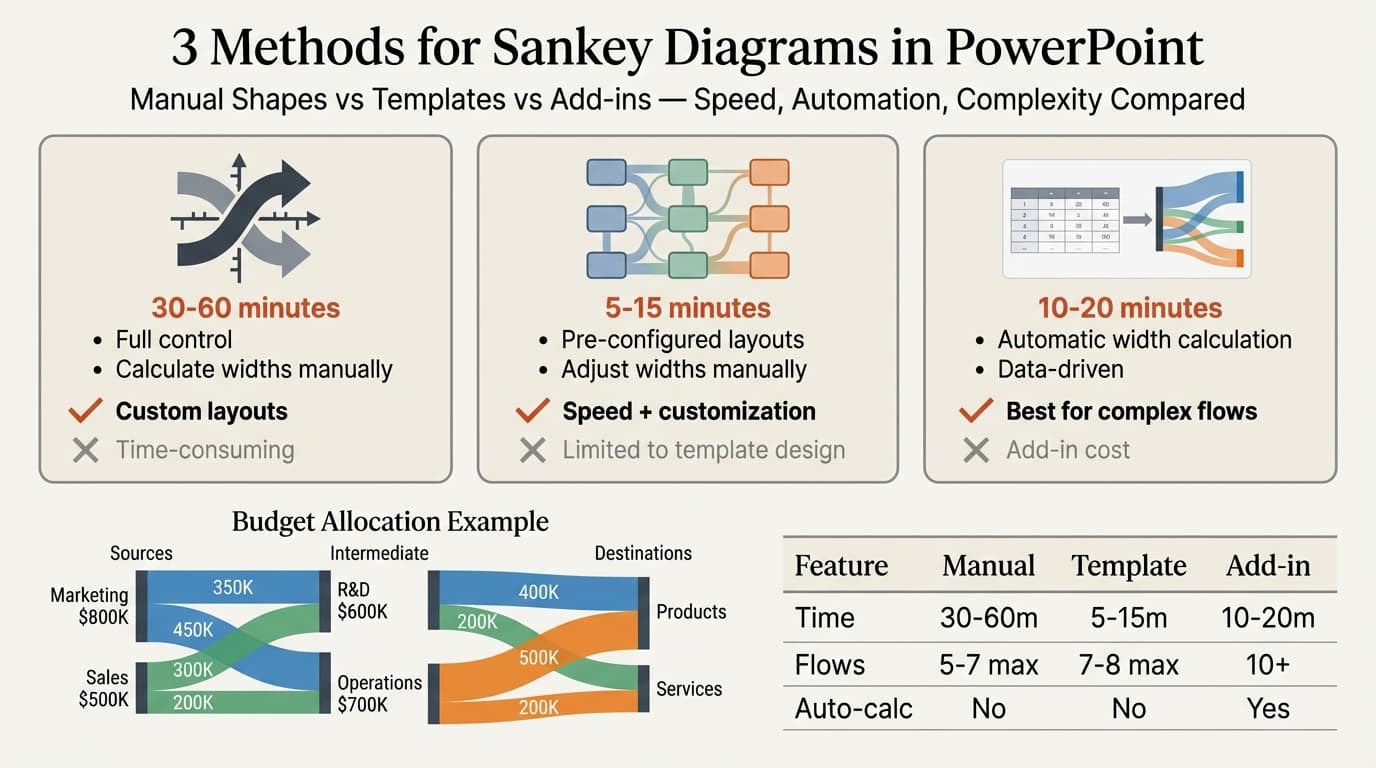
| Feature | Manual Shapes | Template | Add-in |
|---|---|---|---|
| Time to create | 30-60 min | 5-15 min | 10-20 min |
| Width calculation | Manual | Manual with guidelines | Automatic |
| Maximum recommended flows | 5-7 | 7-8 | 10+ |
| Data refresh | Full rebuild | Manual width adjustment | Regenerate from data |
| Customization | Full control | Pre-configured or customizable | Limited to add-in options |
| Cost | Free | Free to $30 one-time | Free to $60/year |
Manual shapes take longest but offer complete control. Templates balance speed with customization. Add-ins are fastest for complex diagrams and data-driven updates.
Sankey Diagram Formatting Standards
LinkedIn analysis of effective Sankey diagrams recommends two principles: keep diagrams simple with no more than 2-3 stages and 7-8 flows, and use interactivity if you insist on a complex diagram for data exploration.
Simplicity Rule
The "spaghetti effect" destroys readability. When flows cross excessively or nodes multiply beyond three stages, the diagram becomes a tangle of lines conveying no information. For presentations, limit to 2-3 stages maximum. If your system has more stages, split into multiple focused diagrams showing specific segments.
Color Coding
Use color to distinguish categories, not individual flows. Assign one color per source category and maintain that color as it flows through stages. Limit your palette to 4-6 colors. More colors reduce pattern visibility.
| Color Strategy | Example |
|---|---|
| By source category | Marketing (blue), Direct Sales (green), Partnerships (orange) |
| By outcome type | Completed (green), In Progress (yellow), Dropped (red) |
| By product line | Product A (blue), Product B (purple), Product C (teal) |
Text and Labels
Every node needs a clear label showing the category name and optionally the total value. For major flows (above 20% of total), add inline labels showing the value. For minor flows, omit labels—they clutter the diagram. Use 10-12pt sans-serif font minimum.
Data formatting guidelines from Flourish emphasize that clear labeling is critical because Sankey diagrams turn abstract numbers into comprehensible "rivers" of information—unlabeled rivers provide no insight.
Node Sizing
Node height should equal the sum of all flows entering or exiting that node. This creates visual consistency—if 1,000 units enter a stage and 1,000 units exit (split across multiple flows), the node height matches the total flow width. Mismatched node sizes create visual confusion.
Common Sankey Diagram Mistakes
After reviewing Sankey diagrams across 35+ strategy and operations presentations, these errors appear most frequently.
| Mistake | Fix |
|---|---|
| Too many flows (spaghetti effect) | Limit to 7-8 flows; aggregate minor flows into "Other" category |
| Inconsistent flow widths | Use exact calculations or add-ins to ensure proportional widths |
| Unlabeled nodes | Add category names and total values to every node |
| Crossing flows with no clear pattern | Reorder nodes to minimize crossings; split into multiple diagrams if necessary |
| Using Sankey for non-directional data | Switch to Venn diagrams or network graphs for bidirectional relationships |
| More than 3 stages in a slide | Split complex systems into focused segment diagrams |
For related flow visualization techniques, see our guides on creating flowcharts in PowerPoint and process flow diagrams.
When Not to Use a Sankey Diagram
Plotly's analysis of Sankey diagrams found that Sankeys are powerful for specific use cases but fail when applied incorrectly. If your data relationships are not directional (no clear "start" and "end"), a Sankey is the wrong choice.
| Scenario | Better Alternative |
|---|---|
| Showing hierarchies | Org chart or tree diagram |
| Comparing discrete categories | Bar chart |
| Displaying time-series trends | Line chart or timeline |
| Non-directional network relationships | Network graph or Venn diagram |
| Precise value comparisons | Data table |
Sankey Diagram Examples
Budget Allocation:
- Stage 1: Revenue sources (Product Sales $800K, Services $500K, Grants $200K)
- Stage 2: Department budgets (R&D $600K, Marketing $400K, Operations $500K)
- Stage 3: Expense categories (Personnel $900K, Technology $300K, Facilities $300K)
Conversion Funnel:
- Stage 1: Traffic sources (Organic Search 10K, Paid Ads 5K, Social 3K)
- Stage 2: Landing pages (Homepage 8K, Product Page 7K, Blog 3K)
- Stage 3: Conversions (Trial Sign-ups 2K, Direct Purchase 500)
Energy Flow:
- Stage 1: Primary sources (Coal 40%, Natural Gas 30%, Renewables 20%, Nuclear 10%)
- Stage 2: Electricity generation (70% converted, 30% lost as heat)
- Stage 3: End use (Residential 35%, Commercial 30%, Industrial 35%)
For more diagram examples, see our business presentation guide.
Sources
- Domo — Sankey Diagrams
- SankeyArt — What is a Sankey Diagram
- Storytelling with Data — What is a Sankey Diagram
- Chantz Strong — Data Visualization: Finding When Sankey Works (LinkedIn)
- Flourish — How to Format Your Data to Build Sankeys and Alluvial Diagrams
- Plotly — Sankey Diagrams
- SankeyArt PowerPoint Add-in — Microsoft Office Add-in Store
Summary
Creating a Sankey diagram in PowerPoint requires choosing the right method for your data complexity and update frequency. Manual shapes work for simple diagrams with full control needs. Templates provide pre-configured layouts that balance speed with customization. Add-ins automate width calculations for complex, data-driven diagrams.
Key takeaways:
- Use add-ins for data-driven diagrams when you have 8+ flows or need to update the diagram as data changes—automation prevents width calculation errors
- Use templates for speed when you need consulting-grade formatting and have 2-3 stages with 7-8 flows maximum
- Limit to 2-3 stages and 7-8 flows to avoid the spaghetti effect—beyond that, split into multiple focused diagrams
- Calculate exact proportional widths using the formula (value / max value) × max width to maintain visual accuracy
- Label all nodes with category names and total values so the diagram is self-explanatory
- Use color by category not by individual flow—assign one color per source category and maintain it through stages
- Organize data in three columns before building: source, target, and value for each flow
For teams building Sankey diagrams regularly, pre-built templates and add-ins save significant time over manual construction. Explore Deckary's slide library for flow diagram templates that follow consulting formatting standards.
Create professional charts in PowerPoint
Build native waterfall, Mekko, Gantt, and business charts without manual formatting. 10 free AI prompts. No credit card required.