PowerPoint Layout Ideas: 9 Proven Structures for Business Presentations
PowerPoint layout ideas backed by analysis of 300+ consulting presentations. Learn which slide structures work for different content types and when to use each layout.
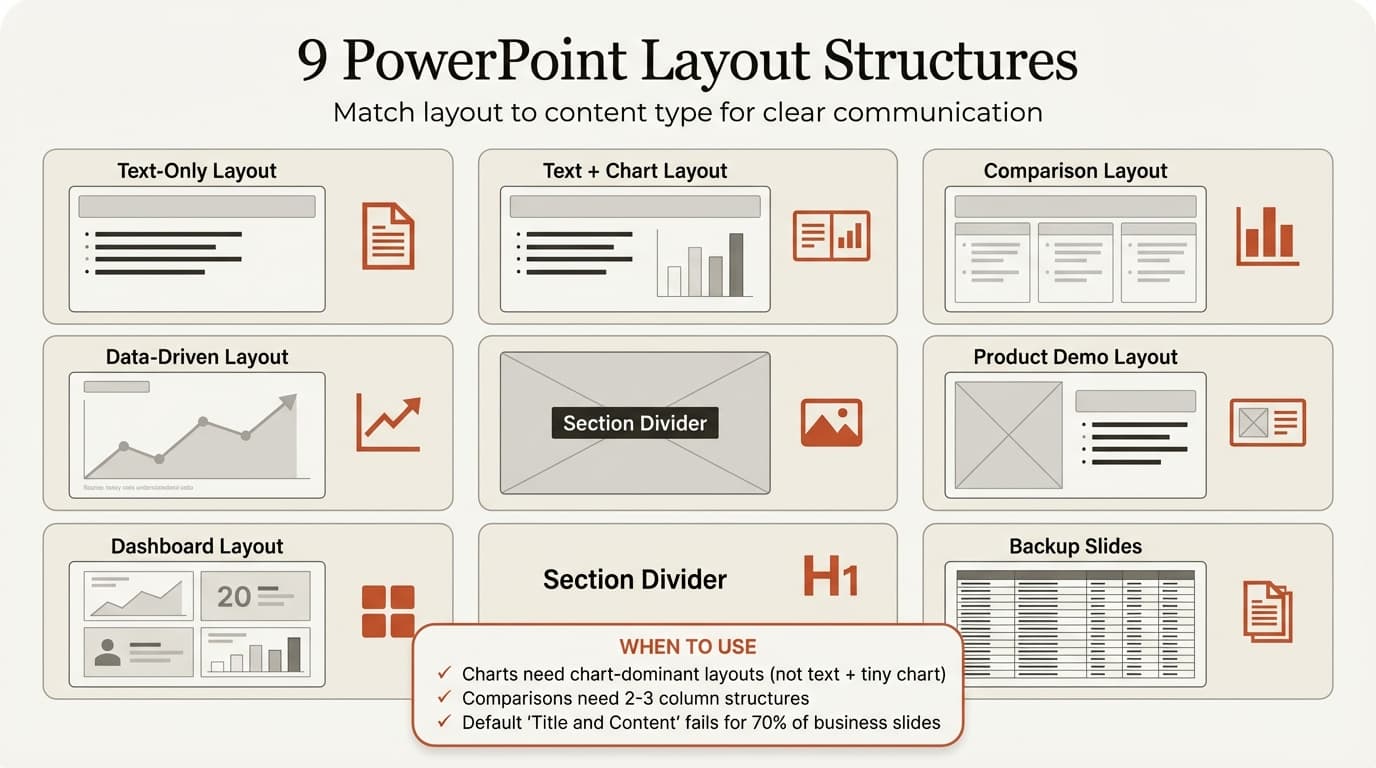
The weakest slide layout decision in business presentations is using PowerPoint's default Title and Content layout for every slide. Charts get squeezed below bullet points. Comparisons appear in paragraph form instead of columns.
After reviewing slide structure patterns across 300+ consulting and corporate presentations from McKinsey, BCG, and Fortune 500 decks, we identified nine layout structures that match content to visual format. This guide covers which layouts work for different content types and the formatting rules that separate professional slides from amateur ones.
Why Slide Layout Structure Matters
Slide layout is information architecture. The layout determines reading order and how audiences parse content during your presentation.
Poor layout choices force audiences to hunt for the point. A chart buried below text gets ignored. A comparison formatted as running text requires audiences to mentally reconstruct the structure.
For broader design principles, see our PowerPoint design ideas guide.
The Nine Core PowerPoint Layout Structures
1. Single-Column Text Layout
When to use: Executive summaries, key takeaways, strategic recommendations where the message is text-only.
Structure:
- Action title stating the conclusion
- Three to four bullet points maximum
- Left-aligned text
- Generous white space
This layout works for strategic conclusions where words carry the weight. Limit to under 20% of slides in data-driven presentations.
McKinsey uses single-column text sparingly—only for opening slides, section summaries, or final recommendations. For structuring consulting narratives, see our data storytelling guide.
2. Two-Column Layout (Text + Visual)
When to use: Most business content. One column explains the insight, the other shows supporting evidence.
Structure:
- Headline spans full width at the top
- Left column: three to four text bullets
- Right column: chart, screenshot, or process diagram
- Even split or 40/60 ratio
This layout separates explanation from evidence, reducing cognitive overload. Two-column layouts dominate BCG and Bain presentations. Charts on the right, takeaways on the left.
Stick to three bullets in the left column. Avoid tiny charts that cannot be read from 15 feet away. Keep the order consistent across slides.
For chart formatting, see our guides on waterfall charts and Mekko charts.
3. Three-Column Layout (Comparison Structure)
When to use: Comparing three options, showing phased approaches, presenting framework components side-by-side.
Structure:
- Headline at top
- Three equal-width columns below
- Each column has a heading and three to four supporting points
- Columns can contain text, icons, or small visuals
Three-column layouts work for strategic frameworks, option comparisons, and process stages. They fail when presenters try to fit four or five columns.
Keep column headings to three words or fewer. Limit each column to three bullets. Use icons at the top for visual differentiation. Distribute columns evenly across the slide width.
Tools like Deckary provide pre-formatted three-column templates with built-in alignment. For framework guidance, see our strategic frameworks guide.
4. Chart-Dominant Layout
When to use: Financial analysis, market trends, performance metrics where data visualization is the primary message.
Structure:
- Action-title headline stating the insight (not "Q4 Revenue" but "Q4 revenue grew 12% driven by enterprise segment")
- Chart fills 70-80% of the slide area
- Small source note at bottom
- No additional text boxes
This layout prioritizes the visual. The headline tells you what the chart proves. The chart provides the evidence.
McKinsey and investment banking presentations use chart-dominant layouts religiously. Avoid headlines that describe the chart—state the insight. Do not shrink the chart to fit decorative shapes.
For chart creation, see our PowerPoint charts guide and data visualization best practices.
5. Full-Bleed Image Layout
When to use: Section dividers, opening slides, high-impact visuals where the image carries the entire message.
Structure:
- Image fills the entire slide edge-to-edge
- Text overlay sits on a semi-transparent dark rectangle for contrast
- Minimal additional content
Full-bleed layouts create visual drama but sacrifice functional space. Use them for section transitions, openers, or product hero shots. Choose high-resolution images (minimum 1920x1080). Limit to under 10% of slides in business presentations.
This layout appears in pitch decks more than consulting decks. For pitch deck strategies, see our pitch deck templates guide.
6. Image + Text Side-by-Side Layout
When to use: Product demos, before/after comparisons, visual explanations where the image and text carry equal weight.
Structure:
- Image on one side (typically left)
- Text on the other side (typically right)
- 50/50 or 60/40 split
- Headline spans full width
This layout differs from the two-column text + chart structure. Here, the image is the content, not supporting evidence. Product screenshots, user interfaces, and process diagrams fit this layout.
Formatting rules:
- Align the vertical center of the image and text for balance
- Use generous padding between image and text
- Keep text concise
For slides mixing images and data, see our guide on PowerPoint table design.
7. Grid Layout (Bento Box Structure)
When to use: Multi-metric dashboards, portfolio showcases, any slide showing distinct but related elements.
Structure:
- Slide divided into rectangular boxes (2x2, 3x2, or custom grids)
- Each box contains a discrete element—metric, image, quote, or mini-chart
- Boxes align to a consistent grid
- Minimal text within each box
Bento grid layouts surged in popularity in 2026 according to Slidesgo's Presentation Design Trends 2026 report. The structure organizes disparate content types without visual chaos.
Limit grids to six boxes. Use subtle borders to distinguish boxes. This layout works for dashboard-style content but disrupts flow in narrative-driven presentations—use sparingly.
8. Title-Only Layout (Section Divider)
When to use: Transitioning between presentation sections, creating visual breaks in long decks.
Structure:
- Large centered text (section name or key message)
- Minimal or no additional content
- Optional subtle background color
- No bullets, charts, or data
Section dividers give audiences a mental reset. Use large font sizes (44-64 pt), keep text to five words or fewer, and maintain consistent styling for all section dividers.
9. Appendix/Reference Layout
When to use: Supporting data, detailed methodology, backup charts that may be referenced during Q&A.
Structure:
- Smaller font sizes (10-12 pt acceptable here)
- Denser data—tables, detailed charts, footnotes
- Less white space than main slides
Appendix slides do not follow the same formatting rules as the main deck. Number them separately (A-1, A-2) or exclude from main slide count. Group by topic for easy navigation during Q&A.
For more on structuring full presentations, see our business presentation guide.
Continue reading: Pie Charts in PowerPoint · Presentation Design · How to Add Icons to PowerPoint
Use consulting-grade layouts in PowerPoint
Start from structured business slides and customize them in your own deck. 10 free AI prompts. No credit card required.
How to Choose the Right Layout for Your Content
- Data-driven? → Chart-dominant (Layout 4)
- Comparing 2-3 options? → Two/three-column (Layouts 2-3)
- Strategic conclusion, no visual? → Single-column text (Layout 1)
- Section transition? → Title-only (Layout 8)
- Product showcase? → Image + text (Layout 6)
- Multiple metrics? → Grid (Layout 7)
- High-impact opener? → Full-bleed image (Layout 5)
- Backup material? → Appendix (Layout 9)
The most common mistake is defaulting to single-column text for everything.
Creating Consistent Layouts Across Your Deck
Use Slide Master to lock layout structures. Define layouts once—title slide, two-column, chart-dominant, section divider—and every new slide inherits the structure.
Professional decks use three to five layout types maximum. More variety creates visual inconsistency.
For Slide Master setup, see our PowerPoint tutorial. For templates, see our PowerPoint themes guide.
Common PowerPoint Layout Mistakes
Using default "Title and Content" for everything. Match layout to content type—default layouts fail for charts and comparisons.
Centering body content. Centered layouts work for titles, not body content. Use left-aligned text.
Shrinking content to fit. If your chart does not fit, use a dedicated slide—not a smaller font.
Ignoring alignment. Align everything to a grid. Use PowerPoint's alignment tools (Home → Arrange → Align) or Deckary for instant alignment.
Layout Workflow for Professional Presentations
- Categorize slides by content type—text-only, chart, comparison, image, section divider.
- Match each slide to one of the nine structures.
- Define layout templates in Slide Master.
- Apply consistently across all slides.
- Test in slideshow mode. If inconsistent, consolidate.
For pre-formatted layouts, see Deckary.
Key Takeaways
- Two-column layouts work for most business content. One side explains, the other shows evidence.
- Chart-dominant layouts prioritize data. Headlines state the insight, charts fill 70-80% of the slide.
- Three-column layouts work for comparisons only. Beyond three columns, readability drops.
- Use Slide Master to lock layout structures. Define templates once, apply consistently.
- Limit layout variety to three to five types per presentation. More variety confuses audiences.
- Match layout to content type. Charts need chart layouts. Comparisons need columns.
For broader design principles, see our PowerPoint design guide. For typography details, see best fonts for PowerPoint.
Sources:
- McKinsey Presentation Structure (SlideModel)
- 3 Great Examples Of Slide Structure From McKinsey, Bain, And BCG (Analyst Academy)
- BCG's Approach to Great Slides: A Practical Guide From a Former Consultant (Slideworks)
- Presentation Design Trends 2026: 10 Styles Shaping Your Slides (Slidesgo)
- 7 Top Presentation Design Trends for 2026 (SlideEgg)
- 6 Must-Have Layout Slides For Your Business PowerPoint Templates (Chillibreeze)
- Presentation Layout: How to Create a Stunning Deck + Examples (Visme)
- Create Professional Slide Layouts with Designer (Microsoft Support)
Use consulting-grade layouts in PowerPoint
Start from structured business slides and customize them in your own deck. 10 free AI prompts. No credit card required.