PowerPoint Design Ideas: 8 Strategies That Work for Business Presentations
PowerPoint design ideas backed by research and used in 300+ consulting presentations. Learn which design principles improve comprehension and which hurt it.
The most polished PowerPoint presentations share the same underlying structure: one idea per slide, generous white space, and visual hierarchy that guides the eye without effort. But most business presentations fail at this. They layer too much text, mix inconsistent colors, and bury the main point beneath decorative elements that add zero comprehension value.
After reviewing design patterns across 300+ consulting and corporate presentations and applying research from Richard Mayer's multimedia learning studies, we have identified eight design principles that consistently produce professional slides. These are not trends or aesthetic opinions — they are proven strategies that improve audience comprehension and retention. This guide covers the design principles that work, the mistakes that undermine credibility, and how to structure slides so executives absorb your message instantly.
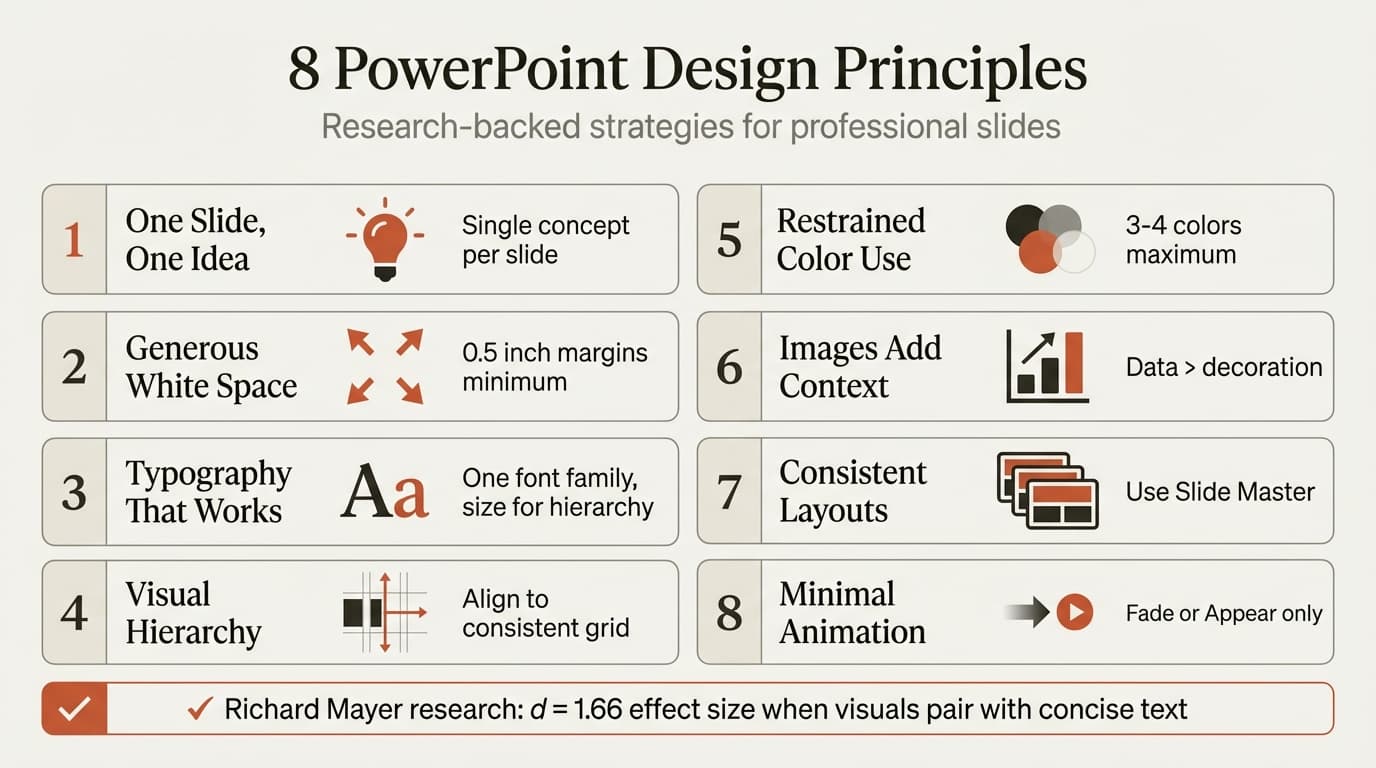
One Slide, One Idea
The single most effective PowerPoint design principle is focus. Every slide should communicate one concept through a clear headline and supporting visuals. When you try to fit multiple ideas on a single slide, you force the audience to parse competing messages while you speak — creating cognitive overload.
Research from Richard Mayer's work on multimedia learning demonstrates that people learn better when information is broken into discrete, manageable chunks. His studies show a median effect size of 1.66 when visuals are paired with concise text, indicating strong learning improvement over text-only formats. This applies directly to slide design: a single focused message with a supporting visual outperforms slides dense with bullet points every time.
In practice:
- One headline that states the slide's conclusion
- Three to four supporting bullets maximum
- One chart or visual that reinforces the headline
- Everything else removed
This constraint forces clarity. If you cannot fit your point into this structure, the slide is trying to do too much. Split it into two slides instead. For more on structuring business presentations, see our guide to building professional slides efficiently.
Generous White Space
White space is not wasted space. It is visual breathing room that lets the audience focus on what matters. Cramming every inch of the slide with text, images, and decorative shapes signals insecurity about the content — as if filling the canvas will disguise a weak argument.
Professional slides use white space to create hierarchy. The eye naturally moves through uncluttered layouts and stops where content sits. Dense layouts force the audience to hunt for the point.
Guidelines:
- Margins should be at least 0.5 inches on all sides
- Text boxes should not touch slide edges
- Leave space between headline and body content
- Use blank space to group related elements visually
For slides with charts or data, white space becomes even more critical. Charts need room to breathe. Labels, legends, and axis titles should sit comfortably without overlapping or fighting for attention. If a chart feels cramped, it is too large for the slide or the slide has too many other elements competing with it.
Typography That Works
Font choice matters less than font consistency. The worst design mistake in business presentations is mixing three or four typefaces across a single deck. Every font change breaks visual rhythm and forces the audience to re-adjust.
Professional font strategy:
- Pick one sans-serif font family and use it everywhere (Calibri, Arial, Verdana, Aptos)
- Use size and weight for hierarchy, not different fonts
- Headlines: 28-36 point bold
- Body text: 18-24 point regular
- Footnotes and citations: 12-14 point
Avoid decorative fonts, script fonts, and serif fonts below 18 points. These fonts lose legibility on projectors, especially in dimmed rooms. Also avoid underlining for emphasis — use bold instead. Underlined text on slides reads as a hyperlink, creating false expectations.
For comprehensive guidance on setting up consistent fonts across your deck, see our PowerPoint themes tutorial, which covers how to lock font choices into your theme so every new slide inherits the correct typeface automatically.
Visual Hierarchy Through Alignment
Alignment separates professional slides from amateur ones more than any other single factor. When text boxes, images, and shapes align to a consistent grid, the slide feels organized. When elements sit at arbitrary positions, the slide feels chaotic even if the content is solid.
Three alignment rules:
- Align all objects to a grid — use PowerPoint's grid and guides (View → Grid Settings → Display grid on screen)
- Left-align body text for readability, center-align only headlines and titles
- Distribute objects evenly when showing comparisons or sequences
PowerPoint's built-in alignment tools (Home → Arrange → Align) handle most alignment tasks instantly. Select multiple objects, then choose Align Left, Align Center, or Distribute Horizontally. Tools like Deckary add keyboard shortcuts for alignment and distribution, cutting this process to a single keystroke so formatting becomes automatic instead of manual.
Vertical rhythm matters too. Keep consistent spacing between headline and first bullet, between bullets, and between content sections. Inconsistent spacing makes slides feel sloppy even when the text is well-written.
Restrained Color Use
Most business presentations suffer from too much color, not too little. Every added color creates a new visual variable the audience must interpret. Professional decks use three to four colors maximum: one primary brand color, one or two accent colors, and neutral grays for text and backgrounds.
Research-based design guidelines from the University of California San Diego recommend using color sparingly and consistently. Color should highlight key information, not decorate every element. When everything is colored, nothing stands out.
Color strategy:
- Black or dark gray for body text
- One accent color for callouts, highlights, and emphasis
- One secondary accent for supporting data or contrast
- White or light gray for backgrounds
Apply colors through your PowerPoint theme so every new shape and chart inherits the palette automatically. Manual color picking leads to drift — someone picks a slightly different shade of blue, then the next person picks another, and within three editing rounds the deck has seven blues instead of one. Locking colors into the theme prevents this. See PowerPoint themes for how to set up and distribute a theme file across your team.
Continue reading: How to Make Charts in PowerPoint · Presentation Design · How to Add Icons to PowerPoint
Work faster in PowerPoint
Use shortcuts, icons, logos, and reusable slides without leaving PowerPoint. 10 free AI prompts. No credit card required.
Images That Add Context, Not Decoration
Stock photos of people in suits shaking hands add zero value to a business presentation. Neither do generic cityscapes, light bulbs representing "ideas," or arrows pointing upward symbolizing growth. These images are visual filler — they occupy space without communicating information.
Professional slides use images in three ways:
- Product screenshots — Show the interface, feature, or output you are discussing
- Process diagrams — Illustrate workflows, decision trees, or system architecture
- Data visualizations — Charts, graphs, and infographics that quantify the point
If an image does not fit one of these categories, remove it. The slide will be clearer without it. When you do use images, give them space. Images should be large enough to parse from the back row of a conference room. Small images squeezed into a corner fail on projectors.
For data-heavy consulting work, charts and diagrams do the heavy lifting. Tools like Deckary generate waterfall charts, Mekko charts, and Gantt charts that match consulting formatting standards instantly, so your visuals look professional without manual tweaking.
Consistent Layouts Across the Deck
Every slide in your presentation should feel like it belongs to the same deck. This means consistent placement of headlines, logos, footers, and page numbers. It also means using the same layout structure for similar content types.
Standard layout patterns:
- Title slides: Centered headline, subtitle, presenter name, date
- Content slides: Left-aligned headline at top, body content below
- Chart slides: Headline states the insight, chart fills most of the slide
- Section dividers: Large centered text, minimal decoration
PowerPoint's Slide Master controls layout consistency. Define your layouts once in the Slide Master, then every new slide based on that layout inherits the structure. Editing layouts manually on individual slides creates drift — headlines shift up or down, footers disappear, and the deck loses visual cohesion.
For a step-by-step walkthrough of Slide Master setup, see our PowerPoint tutorial. For design-specific guidance, see our PowerPoint design guide.
Minimal Animation and Transitions
Animation should control when information appears, not how it appears. The audience should notice the content, not the entrance effect. This means Fade or Appear for sequential reveals and nothing else. No Fly In, no Bounce, no Spin.
The same rule applies to slide transitions. Use Fade or None between slides. Consistency matters more than variety. A deck with 12 different transitions signals an amateur who experimented with every option instead of choosing one and sticking with it.
Animation guidelines:
- Limit to three animations per slide
- Use Fade or Appear only
- Set duration to 0.50 seconds or less
- Test the click sequence before presenting
For detailed animation guidance, including how to use the Animation Pane and avoid common mistakes, see our PowerPoint animation guide.
PowerPoint Design Ideas You Should Ignore
Not all design advice improves presentations. Some trends actively hurt comprehension and credibility.
Dark mode slides. Dark backgrounds with neon text look striking on a monitor but fail on most projectors. Ambient light in conference rooms washes out contrast, making text hard to read. Dark mode works for product demos on screens, not for boardroom presentations on projectors.
3D charts and effects. Three-dimensional bars, pies, and area charts distort data perception. They add visual complexity without adding information. Use flat 2D charts with clean axes and labels instead. For more on effective chart design, see our guides on waterfall charts and Mekko charts.
Full-bleed images with text overlays. Placing white text over a photograph works when the background has a consistent tone. Most photos have varied tones, making text unreadable in some areas. If you must overlay text on an image, add a semi-transparent dark rectangle behind the text for contrast.
Mixing portrait and landscape images on one slide. Inconsistent image orientation creates visual chaos. If you show multiple images, crop them to the same aspect ratio and align them to a grid.
Using every PowerPoint feature. SmartArt, WordArt, 3D models, stock icons, and Designer suggestions can all produce acceptable slides in isolation. Using them all in one deck creates a visual grab bag with no coherent identity. Pick a restrained design language and apply it consistently.
Common PowerPoint Design Mistakes
Centering body text. Centered paragraphs force the eye to hunt for the start of each line. Left-aligned text creates a predictable reading path. Center-align headlines and titles only.
Using bullet points as paragraphs. Each bullet should be a short phrase or sentence, not a three-line paragraph. If bullets run longer than two lines, the content belongs in speaker notes, not on the slide.
Inconsistent capitalization. Mixing sentence case, title case, and all caps across slides breaks visual rhythm. Pick one style for headlines and one for bullets, then apply it everywhere. Most professional decks use title case for headlines and sentence case for bullets.
Shrinking font size to fit more text. If the text does not fit at 18-point font, the slide has too much content. Split it into two slides instead of reducing legibility.
Ignoring contrast ratios. Light gray text on a white background is unreadable from more than 10 feet away. Use dark text on light backgrounds or light text on dark backgrounds. Test your slides on a projector before finalizing. For more on ensuring accessibility, see our PowerPoint accessibility guide.
PowerPoint Designer: When to Use It
PowerPoint's built-in Designer feature suggests layout options based on your slide content. It works best for image-heavy slides and simple layouts where you want quick visual polish without manual effort.
Designer works well for:
- Single-image slides with a headline and caption
- Photo collages and image galleries
- Simple icon-and-text combinations
- Title slides with background images
Designer struggles with:
- Data-heavy slides with charts and tables
- Slides requiring precise alignment and spacing
- Complex multi-column layouts
- Content that follows strict brand guidelines
Use Designer for inspiration and starting points, then refine manually. It generates generic layouts that need customization for professional work. For consulting-grade precision, manual control over alignment, spacing, and color remains essential.
Microsoft's official guide to PowerPoint Designer covers the feature's capabilities in detail. For broader design principles grounded in research, see the University of Michigan's presentation design guidelines and UC San Diego's evidence-based design recommendations.
Key Takeaways
- One slide, one idea. Every slide should communicate a single concept through a clear headline and supporting visual.
- Generous white space improves comprehension. Margins, spacing, and uncluttered layouts let the audience focus on what matters.
- Use one sans-serif font for the entire deck. Calibri, Arial, Verdana, or Aptos. Control hierarchy through size and weight, not different typefaces.
- Align everything to a grid. Professional slides feel organized because every element sits at predictable positions.
- Limit color to three or four shades maximum. Too much color creates visual noise without adding clarity.
- Images should add context, not decoration. Use screenshots, diagrams, and charts — not generic stock photos.
- Consistent layouts across the deck. Use Slide Master to control structure so every slide feels cohesive.
- Minimal animation. Fade or Appear only, with duration under 0.50 seconds.
For layout inspiration and specific use cases, explore our PowerPoint layout ideas guide. For overall design strategy, see our PowerPoint design guide. For advanced chart formatting and consulting-grade visuals, see our guides on waterfall charts and Mekko charts.
Sources:
- Mayer's Principles of Multimedia Learning (Educational Technology)
- Research-Based Presentation Design Guidelines (UC San Diego)
- Design Tips for PowerPoint (University of Michigan Library)
- Create Professional Slide Layouts with Designer (Microsoft Support)
- Presentation Design Trends 2026 (Slidesgo)
Work faster in PowerPoint
Use shortcuts, icons, logos, and reusable slides without leaving PowerPoint. 10 free AI prompts. No credit card required.