PowerPoint Infographic Template: How to Create Professional Data Visuals
Create professional infographics in PowerPoint using templates, SmartArt, and data visualization techniques that improve retention by 78%. Step-by-step tutorial with proven design principles.
Most business presentations bury data in dense bullet points and spreadsheet tables. An infographic transforms that same information into a visual story that audiences absorb in seconds instead of minutes. PowerPoint has the tools to build professional infographics without switching to dedicated design software — you just need to know which features work and how to combine them effectively.
After building data visualizations for 80+ consulting presentations and analyzing design patterns across successful infographics, we have found that the gap between cluttered amateur graphics and polished professional ones comes down to five core principles: focus, hierarchy, color restraint, data-ink ratio, and alignment. This guide covers how to build infographics in PowerPoint from scratch, which templates accelerate the process, and the design mistakes that undermine credibility.
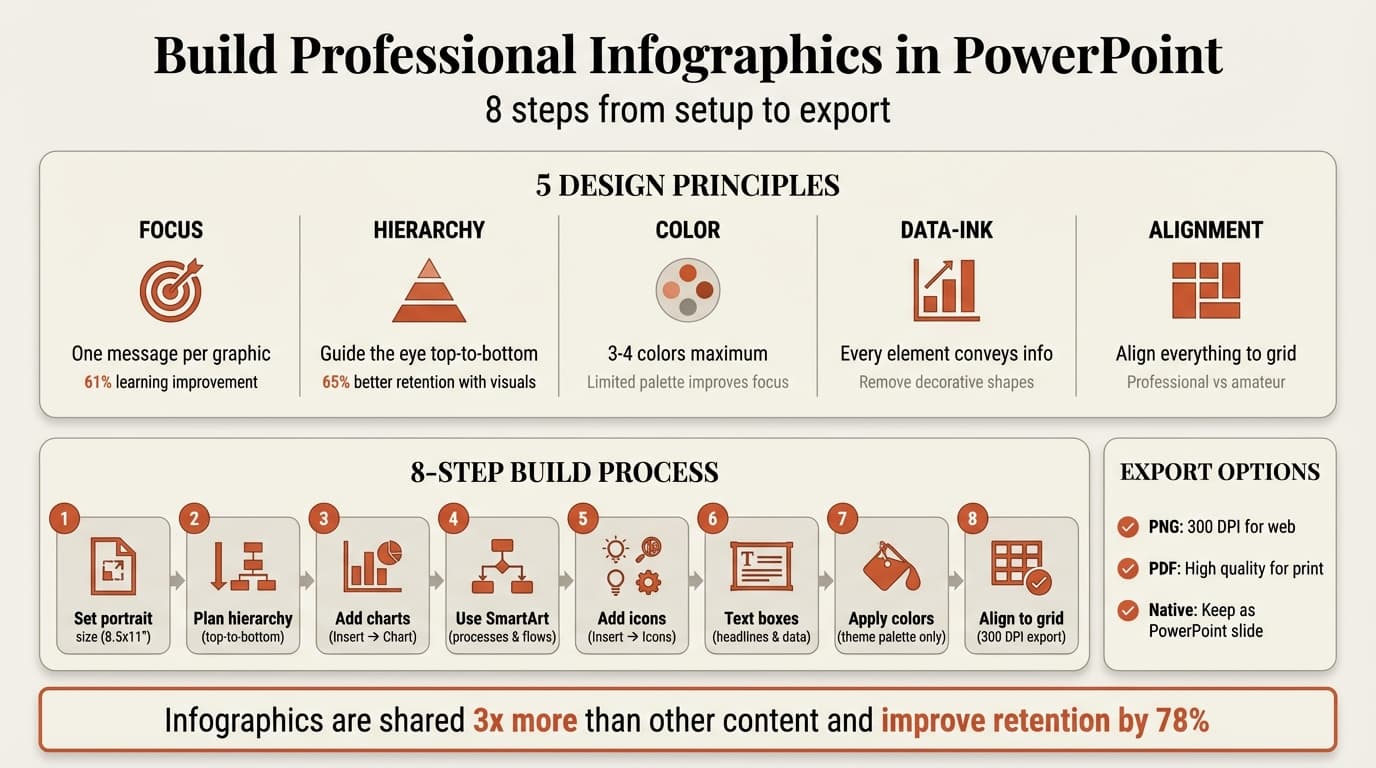
What Makes an Infographic Effective
An infographic combines data visualizations with explanatory context — charts, illustrations, facts, and captions arranged to communicate complex information quickly. Research demonstrates substantial impact: people retain 65% of information when paired with relevant images, and infographics affect learning by 61% compared to text-only content, according to studies compiled by Venngage.
Nielsen Norman Group's research on designing effective infographics shows that the most important principle is presenting data clearly and truthfully, with charts scaled accurately. Color and layout matter only after establishing accurate data representation.
What distinguishes professional infographics from amateur ones:
| Professional | Amateur |
|---|---|
| One focused message per graphic | Multiple competing messages crammed together |
| Limited color palette of three to four shades | Seven or more colors with no hierarchy |
| High data-ink ratio — every element conveys information | Low data-ink ratio — decorative shapes add no meaning |
| Consistent alignment to grid | Random positioning of elements |
| Readable fonts above 14 points | Decorative fonts below 12 points |
| Verified data sources cited | Vague attributions or no sources |
| Generous white space for visual breathing room | Every inch filled with text and shapes |
For more on visual hierarchy and design principles, see our PowerPoint design guide.
How to Create an Infographic in PowerPoint
Building an infographic in PowerPoint follows a structured process that starts with planning your message, then translates data and concepts into visual elements using PowerPoint's built-in tools.
Step 1: Set Up Custom Slide Dimensions
Infographics typically use portrait orientation. Go to Design, Slide Size, Custom Slide Size, then choose Portrait orientation. Standard dimensions: 8.5 x 11 inches for documents, 800 x 2000 pixels for web, or social-specific sizes like 1080 x 1350 pixels for Instagram.
Step 2: Plan Your Visual Hierarchy
Effective infographics guide the eye through a clear sequence: headline at the top stating your main insight, data visualizations or process flows in the middle, and supporting details plus sources at the bottom. Place your most important message at the top. For principles of visual hierarchy, see our guide on PowerPoint design ideas.
Step 3: Add Data Visualizations Using Charts
Click Insert, then Chart, and select the type that matches your data: bar charts for comparisons, line charts for trends, pie charts for proportions, or waterfall charts for cumulative effects. Enter data in the Excel sheet that appears, then format by removing unnecessary gridlines and applying theme colors.
For consulting-grade charts, tools like Deckary automate waterfall, Mekko, and Gantt charts with MBB-standard formatting. See our waterfall chart tutorial.
Step 4: Use SmartArt for Process Flows and Hierarchies
SmartArt converts bullet points into visual diagrams. Click Insert, then SmartArt, and browse categories: Process for workflows, Hierarchy for org charts, Relationship for Venn diagrams. SmartArt updates automatically when you add or remove items. For more complex diagrams, see our flowchart tutorial.
Step 5: Add Icons and Shapes for Visual Interest
Click Insert, then Icons to search PowerPoint's library of 2,000+ icons. Insert, resize proportionally (hold Shift), and change colors via Graphics Format and Graphics Fill. Keep icon style consistent — mixing flat and 3D styles creates visual discord. Deckary provides 2,000+ consulting-specific icons with keyword search.
Step 6: Add Text Boxes for Headlines and Data Points
Click Insert, then Text Box to position text anywhere. Typography guidelines: headlines at 28-36 point bold, section headers at 20-24 point bold, body text at 14-18 point regular, and data callouts at 24-32 point bold. Avoid mixing multiple font families. See our best fonts for PowerPoint guide.
Step 7: Apply Color Strategically
UC San Diego research recommends using color sparingly. Professional strategy: one primary color for main data and headlines, one secondary color for contrast, neutral grays for text and backgrounds, and optionally one bright accent for callouts. Use only colors from your PowerPoint theme palette. See our PowerPoint themes tutorial.
Step 8: Align Everything to a Grid
Alignment separates professional infographics from amateur ones. Enable gridlines via View tab, select multiple objects, then go to Home, Arrange, Align to choose alignment options. See our PowerPoint keyboard shortcuts guide. Deckary adds single-keystroke alignment and distribution.
Step 9: Export for Web or Print
For web use, right-click the slide thumbnail and select Save as Picture. Choose PNG for graphics with transparency or JPG for photos, and set resolution to 300 DPI. For print, go to File, Export, Create PDF/XPS Document, and select High Quality.
Continue reading: How to Make a Gantt Chart in PowerPoint (Free Template) · How to Make a Good PowerPoint · PowerPoint Icons
Use consulting-grade layouts in PowerPoint
Start from structured business slides and customize them in your own deck. 10 free AI prompts. No credit card required.
PowerPoint Infographic Templates: Built-In vs. Custom
PowerPoint includes SmartArt layouts (Vertical Block List, Continuous Block Process, Vertical Circle List, Radial Cycle) and chart types (waterfall, funnel, hierarchy) that handle 70% of business infographic needs. These update automatically when data changes.
Sites like Slidesgo and SlidesCarnival offer free templates, but you'll need to replace fonts and colors to match your brand.
For client work, build custom templates: start with portrait orientation, add placeholders for headlines, icons, charts, and citations, apply theme colors, then save via File, Save As, PowerPoint Template (.potx). See our PowerPoint tutorial.
Infographic Design Best Practices
Focus on One Message
Each infographic should communicate a single insight or conclusion. Nielsen Norman Group's infographic design research shows that effective infographics present complex information by maintaining focus. If secondary information does not directly support the main message, remove it.
Maximize Data-Ink Ratio
Edward Tufte's data-ink ratio measures how much of a graphic represents data versus decoration. UC San Diego's guidelines recommend high ratios: chart bars showing values directly, minimal gridlines, no 3D effects. Avoid decorative backgrounds, excessive borders and shadows, and stock photos that add no information.
Simplify Charts for Quick Comprehension
UC San Diego's research recommends charts simple enough to grasp in ten seconds: remove gridlines, eliminate borders, label data points directly, use one or two colors maximum, and round numbers when precision is not critical. Split complex data across multiple simple charts. See our guides on waterfall charts and Mekko charts.
Use White Space Strategically
White space provides visual breathing room that improves comprehension. Use at least 0.5-inch margins, leave space between sections, group related elements with proximity, and avoid filling every inch. If cramped, split into two graphics.
Cite Data Sources
Every data point needs a verifiable source. Venngage research shows infographics are shared on social media three times more than other content — unverified claims spread quickly. Format: organization name + year + report title, placed at the bottom in 10-12 point font. See our consulting slide standards.
Common PowerPoint Infographic Mistakes
Cramming too much information. When you pack 15 data points into one graphic, it becomes a wall of text with icons. Split dense content across multiple infographics.
Typography errors. Script fonts and decorative serifs below 14 points lose legibility on projectors. Use sans-serif fonts like Calibri or Arial at 14 points minimum.
Inconsistent visual style. Mixing flat icons with 3D illustrations or multiple icon styles creates visual chaos. Pick one style and apply it consistently.
Low-resolution exports. PowerPoint's default 96 DPI looks pixelated. Always export at 300 DPI.
Wrong orientation timing. Set portrait orientation before adding content. Switching after building causes scaling issues.
Decorative stock photos. Generic images of people in meetings add zero information. Every image should communicate data or illustrate a process. See our PowerPoint accessibility guide.
Key Takeaways
- Set portrait orientation before building your infographic. Go to Design, Slide Size, Custom Slide Size to avoid scaling issues later.
- One message per infographic. Every element should support a single insight or conclusion. Split complex content across multiple graphics.
- Use PowerPoint's built-in tools first. SmartArt, charts, icons, and shapes handle 70% of business infographic needs without third-party templates.
- Maximize data-ink ratio. Every visual element should convey information. Remove decorative shapes, unnecessary gridlines, and stock photos.
- Limited color palette improves focus. Use three to four colors maximum — one primary, one secondary, and neutral grays for text and backgrounds.
- Align everything to a grid. Consistent alignment separates professional infographics from amateur ones. Use PowerPoint's alignment tools and guides.
- Export at 300 DPI for professional quality. Right-click the slide thumbnail and Save as Picture for PNG export with high resolution.
- Cite data sources at the bottom. Include organization name, year, and report title for every statistic or claim.
For layout ideas and design principles, see our PowerPoint design guide. For specific chart types, explore our guides on waterfall charts, Mekko charts, and flowcharts. For overall PowerPoint capabilities, see our PowerPoint tutorial.
Sources:
- 20+ New Infographic Statistics & Facts for 2026 (Venngage)
- Infographic Statistics 2026 (99firms)
- Designing Effective Infographics (Nielsen Norman Group)
- Best Practices — Data Visualization & Infographics (UC San Diego)
- Infographics and Data Visualization (University of Wisconsin Design Lab)
Use consulting-grade layouts in PowerPoint
Start from structured business slides and customize them in your own deck. 10 free AI prompts. No credit card required.