Get started with Deckary in PowerPoint
Install the Deckary PowerPoint add-in from Microsoft AppSource, sign in, and open the AI slide builder in your presentation.
Last verified: 2026-09-09
Install Deckary from Microsoft AppSource, open it from PowerPoint's Add-ins menu, and sign in to your Deckary account. The same Deckary Office add-in supports PowerPoint, Excel, and Word, but the tools shown in its task pane depend on the Office application that is currently open.
Install on Windows
- Open PowerPoint and go to Home → Add-ins → More Add-ins.
- Search for Deckary.
- Select Add, then open Deckary from the Home ribbon.
- Sign in when the task pane asks you to authenticate.
You can also begin from Deckary's Office add-in install page, which opens Microsoft's official add-in installation flow.
Install on Mac
- Open the Deckary install page and continue to Microsoft AppSource.
- Select Get it now and sign in with the Microsoft account you use for Office.
- In PowerPoint, go to Home → Add-ins and select Deckary.
- Sign in to Deckary in the task pane.
Start an AI slide task
Open the presentation you want to change before you start the task. In the Deckary pane, choose the AI slide builder, describe the result you need, and identify any slide, selection, or source file that matters.
A useful first request is explicit about the audience, purpose, and slide outcome:
Create one executive-summary slide for a CFO audience. Use the current
presentation style, show the three main findings, and keep the recommendation
editable in PowerPoint.
Deckary reads the current presentation through the add-in. It does not edit a different cloud copy of the file.
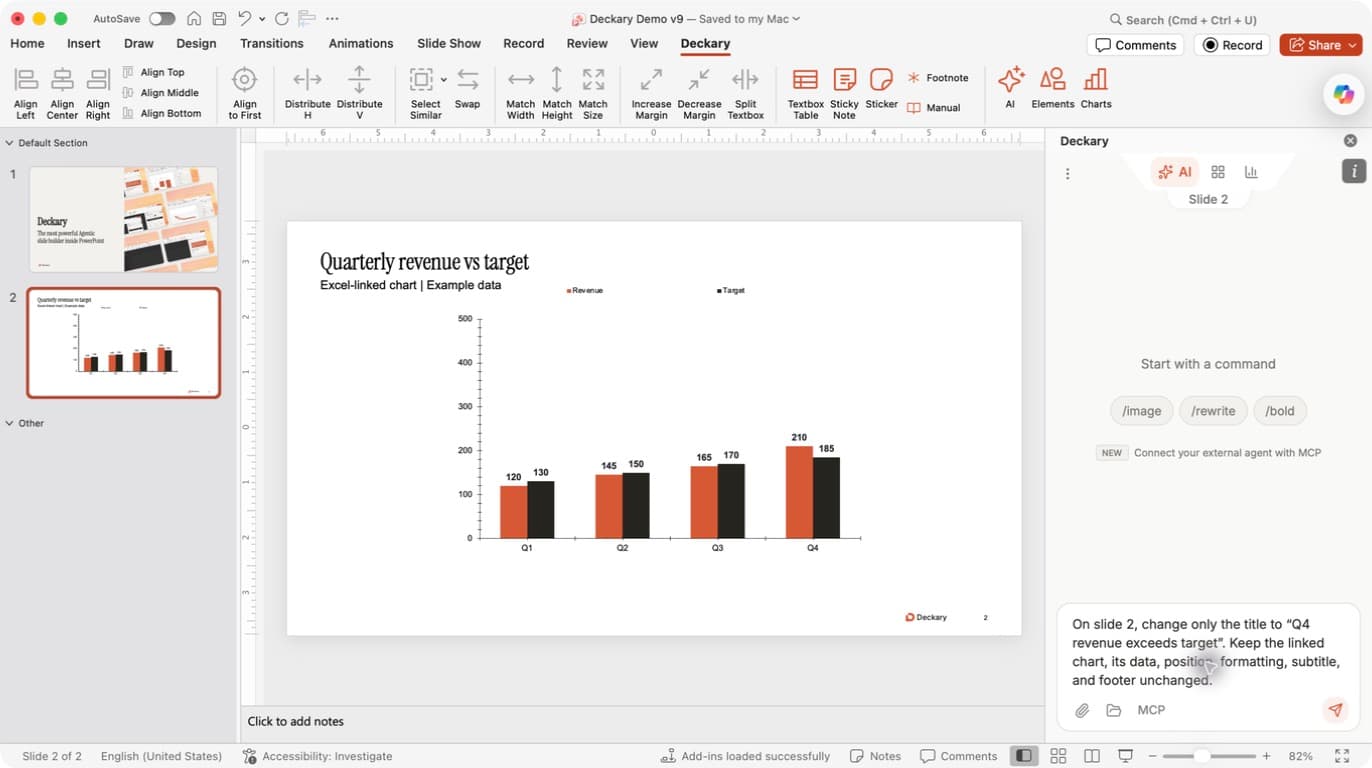
Where to start: choose Deckary → AI. The slide indicator above the conversation identifies the current slide, and the message box is at the bottom. The screenshot asks for a small change to an existing slide; the AI slide-builder guide shows the completed result.
If Deckary is listed in Home → Add-ins but its ribbon tab does not appear, open More Add-ins → My Add-ins, select Deckary, and choose Add to activate it for the presentation. Then select the Deckary ribbon tab.
Add source material
The PowerPoint agent can use attached briefs, PDFs, Word documents, and spreadsheets. When the task needs current public information, it can also conduct web research and retain the canonical sources used for the slide. Tell the agent which source should control if two files disagree.
Continue with Build and edit slides with AI or link Excel data to a PowerPoint chart.