Link Excel data to PowerPoint charts
Select an Excel range, create a Deckary link, and use that source in a native PowerPoint chart with account-scoped refreshes.
Last verified: 2026-09-09
Link a worksheet range in Excel, then use its published values in a Deckary chart in PowerPoint. When the numbers change, publish them again from Excel to update the linked charts.
The update sequence is: edit cells in Excel → Refresh the link in Excel → check the chart in PowerPoint. Editing or saving the workbook alone does not publish new values.
Before you start
- Open Deckary in both Excel and PowerPoint and sign in with the same Deckary account. You need a connection to publish and retrieve link data.
- Save your source workbook before creating links, and save the presentation after inserting or updating charts.
- Link the worksheet cells, including the headers your chart needs. You do not need to create or select an Excel chart first.
- Use a Deckary chart in PowerPoint. Pasting an Excel chart or using PowerPoint's Paste Link is a separate workflow.
The screenshots below were captured in the Excel and PowerPoint add-ins on Mac, with the Deckary ribbon tab selected. Button placement can vary with your installed add-in version; some versions show the linked source as a label, while newer versions show it in a source dropdown.
1. Select the source range in Excel
Arrange the data as one contiguous block. For a clustered bar chart, put category names in the first column, series names in the first row, and numeric values in the remaining cells. Avoid including unrelated notes or a grand-total row unless you want it plotted as a category.
This example uses Sheet1!A1:C5: Quarter, Revenue, and Target, followed by Q1–Q4. The first row contains headers, leaving four data rows and two series.
- Select the complete block, including headers. You can enter
A1:C5in Excel's Name Box, to the left of the formula bar, and press Enter. - On the Deckary ribbon tab, choose Manage Links to open the Linking pane.
- Check Current Selection before creating the link.
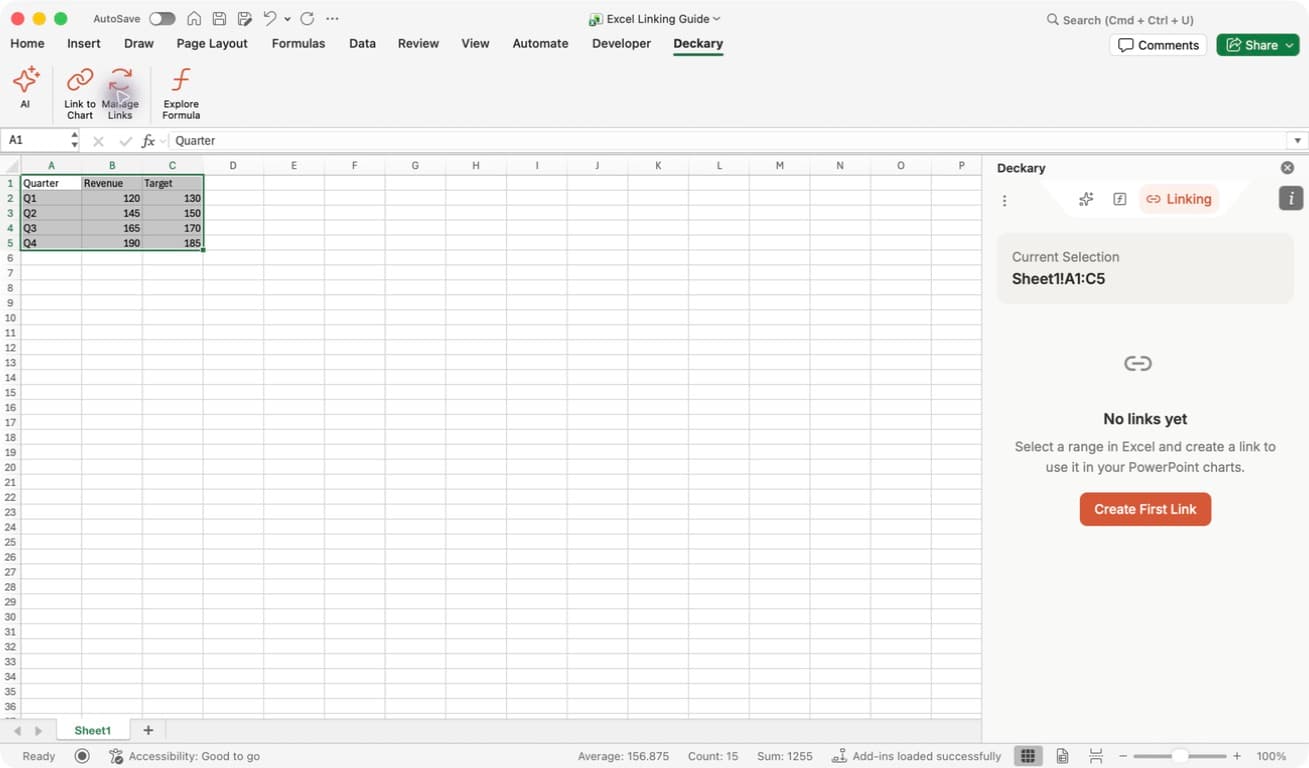
Check the range: the highlighted cells on the left and Current Selection on the right should identify the same block. Include both the quarter labels and the Revenue/Target headers.
Empty ranges cannot be linked. A link can contain at most 10,000 cells and 2,000,000 text characters. Use separate links for unrelated data blocks. Other chart families can require different column roles; check the chosen chart's Edit data example before preparing its source.
2. Create and name the link
- Choose Create First Link. If the workbook already has links, choose Create New Link.
- Wait for the link card to appear in Links in this workbook.
- Choose the pencil icon (Rename link), enter a recognizable name, and choose Save. Here, the name is Quarterly revenue vs target.
- Save the workbook to retain its link information.
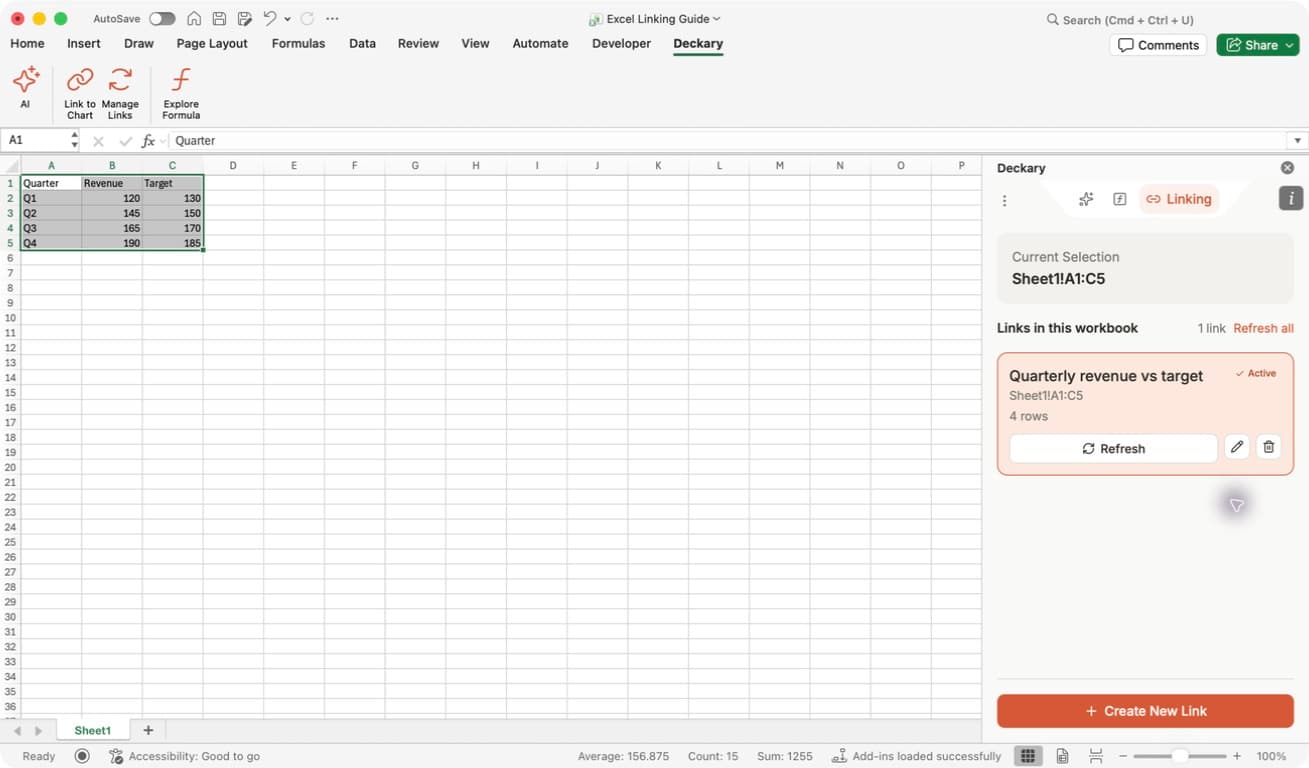
Read the link card: the name identifies the source, Sheet1!A1:C5 is its saved range, and 4 rows excludes the header row. Refresh publishes this source; Refresh all publishes the workbook's sources. The pencil renames a source and the trash icon deletes it.
Active is a selection indicator: it means your current Excel selection exactly matches that source range. It does not confirm that all PowerPoint charts have the latest values. Overlaps means your selection partly overlaps a source.
Renaming changes the source's label without disconnecting charts. Reusing the same saved range does not create an independent source for another chart; several charts can use one link.
3. Use the Excel source in PowerPoint
- Open the destination slide and choose Deckary → Charts.
- Choose a chart family, such as Clustered Bar, or select an existing Deckary chart to edit it.
- Choose Use Excel data in the chart data controls.
- If a source list appears, choose the link by its name, workbook, and range. The most recently published source appears first. Some installed versions apply the only available source immediately.
- Check the source name and data dimensions. For a new chart, choose Insert Clustered Bar (or the insertion button for your selected family). For an existing chart, choosing the source applies the data directly.
- Save the presentation.
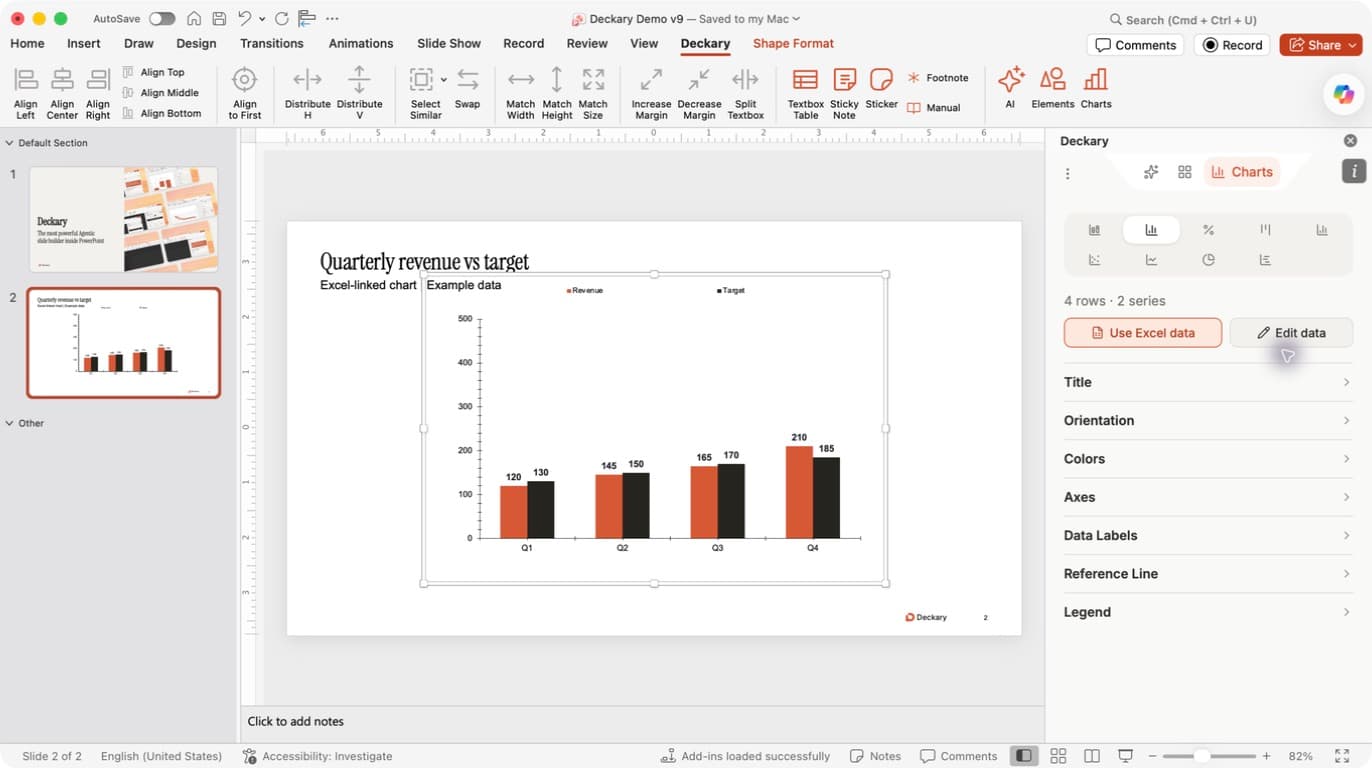
Where to click: Use Excel data sits below the chart-type icons, beside Edit data. Once linked, the data controls identify the selected Excel source. In this example, expect Quarterly revenue vs target, 4 rows, and 2 series.
The chart stays editable in PowerPoint. Its Deckary source binding is saved with the presentation. You can change chart colors, labels, and other formatting through Deckary while retaining the link.
4. Publish changes and update the chart
- Change values or formulas inside the saved source range in Excel. In this example, change Q4 Revenue in
B5from 190 to 210. - Open Deckary → Manage Links and choose Refresh on the correct source card. Use Refresh all when several sources in this workbook need updating.
- Wait for confirmation, such as Link refreshed. If there is an error, resolve it before assuming the new data was published.
- Return to PowerPoint with Deckary open. The add-in applies newer published values to linked charts. If the pane was closed, open Deckary → Charts again.
- Check a changed value on the chart and save the presentation.
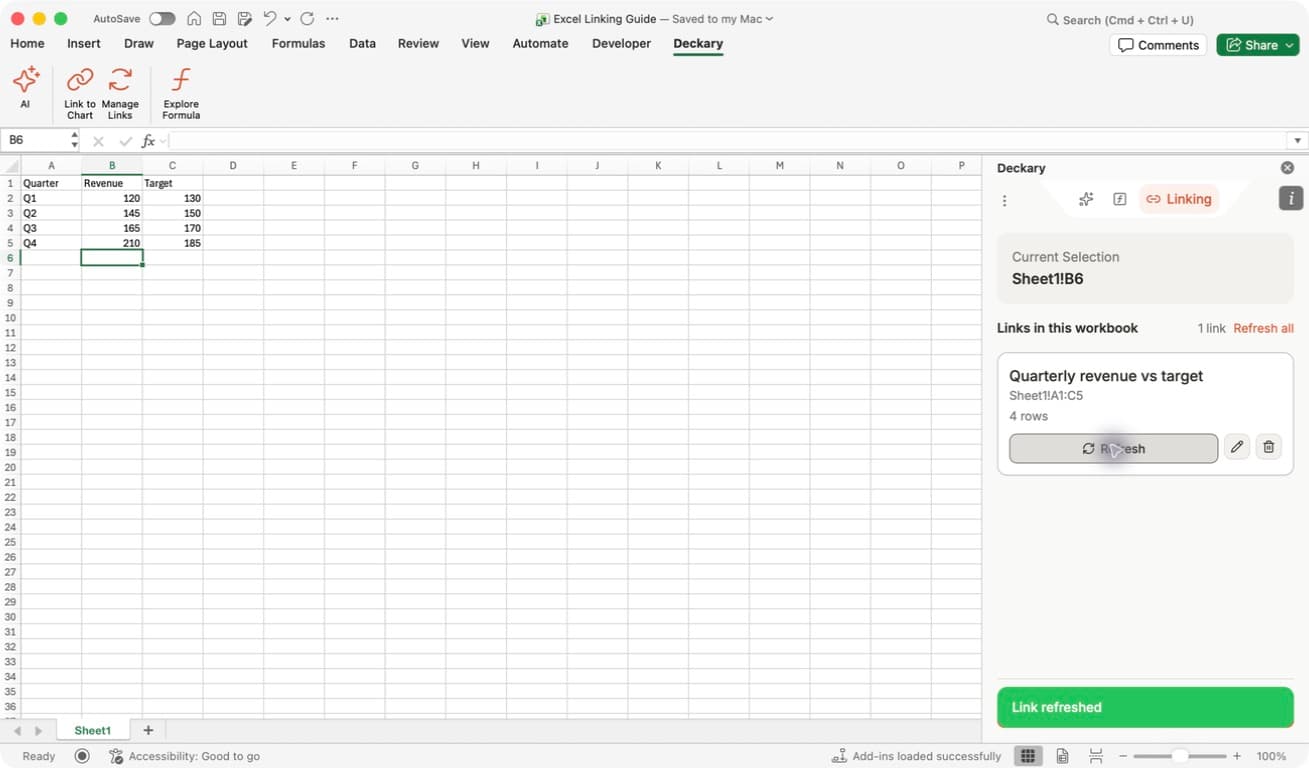
Refresh uses the saved range: even though Current Selection is now Sheet1!B6, the source card still points to Sheet1!A1:C5. You do not need to reselect the original cells to publish their updated values. Selecting a different range does not retarget the link.
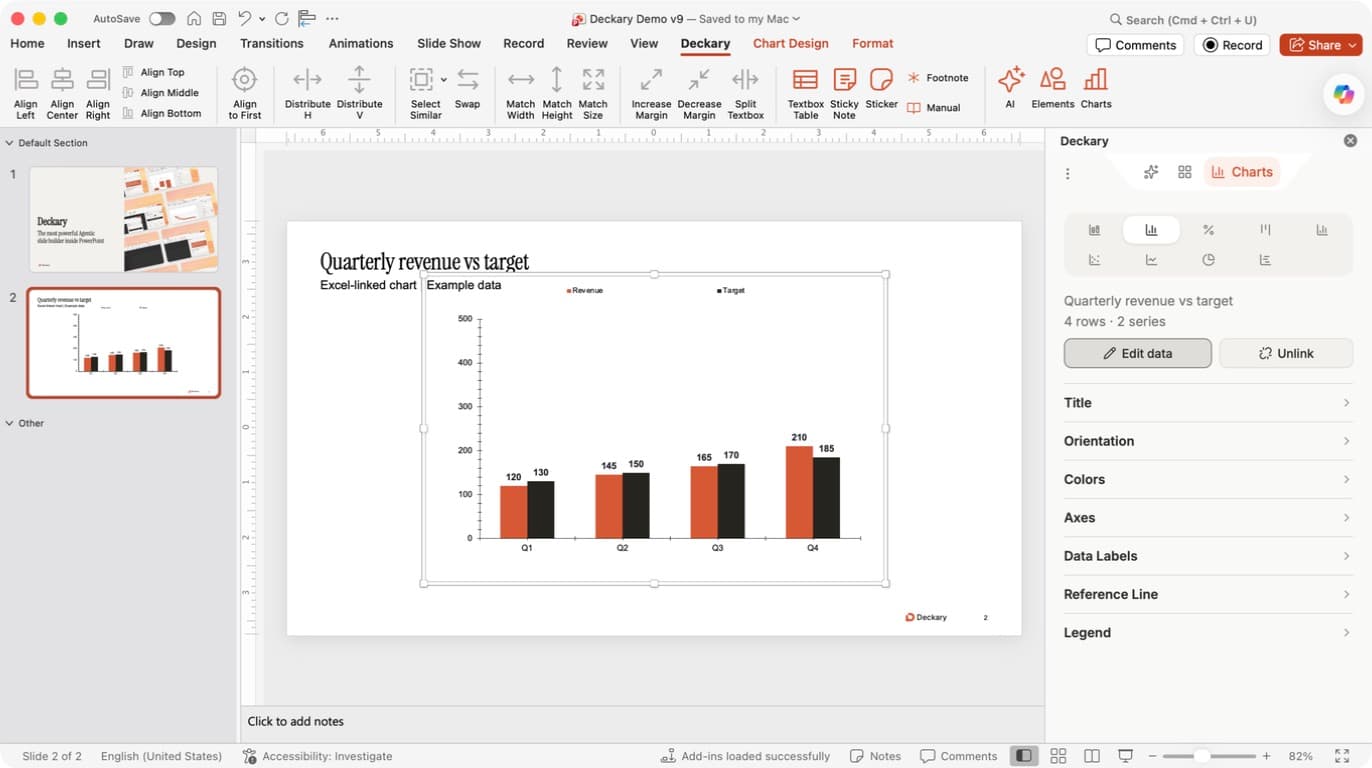
Verify the result: the orange Q4 Revenue bar now reads 210; the dark Target bar remains 185. The source name is still Quarterly revenue vs target.
One published source can update multiple linked charts in the presentation, including charts on other slides. Let updates finish before editing those charts. PowerPoint uses the last published snapshot, so Excel does not need to stay open after a successful refresh. When PowerPoint is closed, its saved presentation is not being edited in the background; reopen it with Deckary to apply newer published data.
Change the range or switch sources
To include a different block or additional rows: select the full intended range in Excel, create a new link, and give it a distinct name. Switch each intended PowerPoint chart to that source. Refreshing the old link does not replace its range with your current selection. If you insert rows or move cells, verify the saved range rather than assuming new data is included.
To switch a chart: in versions with a source dropdown, open the current source and choose the replacement. In versions showing a source label and Unlink, unlink the chart first, then choose Use Excel data and the replacement source. Check its data before saving. Publishing or renaming an unrelated source does not redirect an already linked chart.
If the new data is incompatible with the chart family, fix its layout or choose a suitable chart type. Do not assume every Excel block works with every chart family.
Unlink a chart, edit manually, or delete a source
These actions have different effects:
| Action | Result |
|---|---|
| Unlink in PowerPoint | Disconnects that chart while retaining its current data. The Excel source remains available for other charts. |
| Edit data, then Save in Deckary | Saves manual chart data and disconnects the Excel link. Close without saving to keep the existing link. |
| Rename link in Excel | Changes the source name without replacing its data or disconnecting charts. |
| Delete link in Excel | Removes the source for all charts that rely on it. Those charts cannot receive further updates from that source. It does not delete worksheet cells. |
Keep Excel as the source of truth: for a linked chart, make data changes in the original Excel range and publish them. Editing the chart's embedded workbook through PowerPoint's native Edit Data can prevent Deckary from safely applying later updates.
To reconnect an unlinked chart, select it and use Use Excel data again. Recreating a deleted source creates a new link; explicitly select it in the affected charts.
Reopen, move, copy, and share files
Save both Office files after setup. Reopening the saved presentation preserves its binding, and reopening the saved workbook lets you publish from its saved sources.
After moving a workbook or using Save As, Deckary may ask how to treat the new location:
- Reconnect existing links keeps this workbook updating the existing sources. Use it when the file is the continuation of the original workbook.
- Start independent links treats the copy as a separate source workbook. It removes Deckary source markers from the copy, preserves cell values and the original links, and lets you create new links for the copy. Existing charts continue using their original source until you switch them.
Sharing the presentation does not grant access to the Excel source. Recipients can view its saved chart data, but source discovery and refresh require the owning Deckary account. Do not assume that copying a chart into a different presentation carries all Deckary link information; if it is not recognized, insert a new Deckary chart there and select the source again.
Troubleshooting
| What you see | What to check or do |
|---|---|
| No source in PowerPoint | Confirm both apps use the same Deckary account, the Excel link was created successfully, and the connection is available. Reopen the Deckary pane to reload sources. |
| Old chart values | Refresh in Excel, wait for success, then reopen the PowerPoint Charts pane and verify the source name. Saving Excel alone is not enough. |
| Disconnected or disabled link buttons | Restore the connection and check sign-in, then retry the action. |
| Wrong rows or missing new categories | Check the saved address on the source card. Create and select a new link for the full intended range if needed. |
| Source range missing or invalid | Restore the original range if possible, or create a replacement link and select it in the affected charts. The current Linking pane does not expose a Change range button, even if an error mentions it. |
| Invalid numeric data | Correct text or formula errors in numeric cells, then refresh again. The last successfully applied chart is retained when new source data cannot be applied. |
| Source unavailable or deleted | Reconnect the correct source workbook or explicitly select a replacement source. Deckary does not silently substitute another link. |
| A chart copied into another presentation is not recognized | Insert and link a new Deckary chart in that presentation. |
Data handling
Excel linking is optional. It sends the selected cell snapshot to Deckary's relay so Excel and PowerPoint sessions signed in to the same account can resolve it. It publishes the selected range, not the entire workbook. Source discovery returns summaries; the full snapshot is retrieved when needed to apply chart data.
Use manual data entry if your organization does not allow worksheet data to be relayed, and review the Deckary privacy policy before linking confidential data.
For chart families and editability, see Native PowerPoint charts. The Excel documentation covers the separate Excel AI agent.