Complete your first task
Start with a small, clear request in PowerPoint, Excel, or Word, then inspect and save the result.
Last verified: 2026-09-09
Start with one slide, one worksheet range, or one passage. Tell Deckary what to change, where to change it, and what to preserve.
PowerPoint: revise a title
Open a presentation, select the slide, and choose Deckary → AI. Name the slide and the intended change:
On slide 2, change only the title to “Q4 revenue exceeds target”.
Keep the linked chart, its data, position, formatting, subtitle,
and footer unchanged.
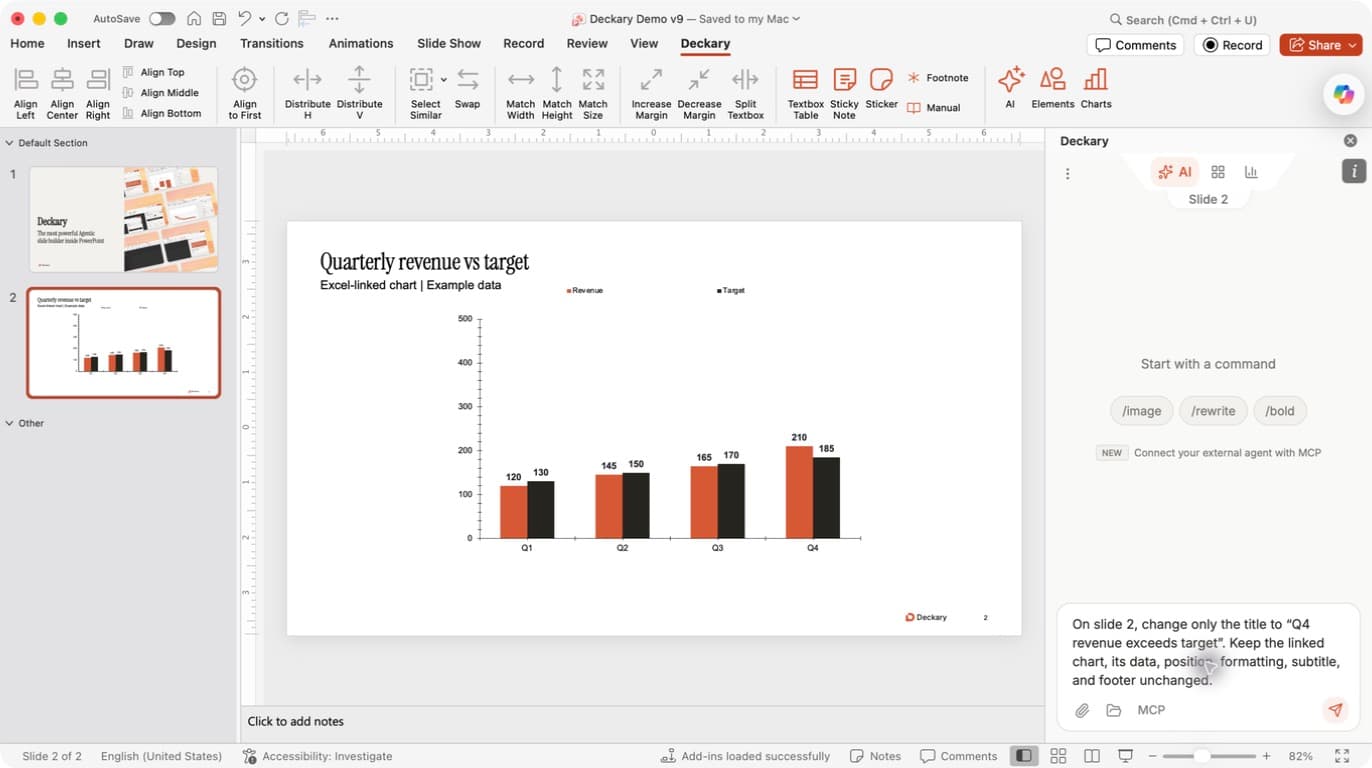
Check before sending: the pane and your request should identify the intended slide. After the run, compare the title with the requested text and confirm that the rest of the slide was preserved. Save after review. See the completed walkthrough.
Excel: inspect a small range
Open a workbook and choose Deckary → AI. Replace the example worksheet and range below with your own:
Read 'Audit Demo'!A1:E6. Explain how the formulas work and identify
errors or unusual hardcoded values. Do not edit any cells.
A read-only task lets you check the agent's interpretation before requesting edits. Review the cell addresses in the response, then ask for a specific correction or a separate output sheet. See Formula auditing and the Excel AI workflow.
Word: review a selected passage
Open a document, select the passage, and open Deckary. Start with a review:
Review the selected paragraph for unclear wording. Suggest a shorter
version that preserves every factual claim. Do not change the document yet.
Read the suggestion before asking Deckary to apply it. For edits that need headings, lists, or several paragraphs, describe that structure explicitly. See Editing and review in Word.
Review the result before moving on
Wait for the final response and check the file itself. Resolve any pending approval or reported limitation before assuming the requested work is complete. If an operation was only partly completed, inspect the affected content before retrying.
Keep changes small until you are comfortable with the workflow, then move on to multi-slide work, larger calculation blocks, or document-wide edits.