Gemini in Google Slides: What It Does for Business Decks, Plans and Limits (2026)
What Gemini in Google Slides can do for business presentations in November 2026: full decks, single slides, whole-deck edits, text and images. Plans, prices, data protection, limits for data-heavy decks, and a free 6-slide practice deck.
- Bob · Former McKinsey and Deloitte consultant with 6 years of experience
- 17 min read
Pricing and feature information was accurate at the time of publication. Competitor products change frequently — verify current details on each provider's website.
Gemini in Google Slides is Google's AI assistant inside Slides. In November 2026 it can build a full editable presentation from a prompt and your Drive files, create or redesign a single slide, edit every slide in a deck with one instruction, rewrite text in a text box, and generate images. It is included in Google Workspace Business Standard and Plus, Enterprise Standard and Plus, and the Google AI Pro and Ultra plans. It is not in Business Starter.
For a business deck, it is good at turning notes into a first draft and at whole-deck clean-up. The checks still fall to you: numbers, charts beyond what Google Sheets can draw, and corporate PowerPoint templates.
How we wrote this: we read Google's Workspace Updates posts, Docs Editors Help articles, Gemini Apps Help, the Workspace privacy hub and the Workspace pricing page on 1 November 2026, and every product fact links to one of them. We could not sign in to a Workspace account with Gemini, so this page shows no Gemini output: Google's own posts, linked below, carry its demos. The practice kit is ours, built with python-pptx and python-docx and rendered with Deckary's renderer. Last verified 1 November 2026.
Format: ZIP · PPTX "before" deck (6 slides, a Gemini prompt in each slide's speaker notes) + DOCX prompt sheet (6 tasks) · No signup. Download the Gemini practice kit, or the files one by one: before deck (PPTX), prompt sheet (DOCX).
Gemini in Google Slides at a glance
| Feature | Where you find it | What it does | Rollout started |
|---|---|---|---|
| Generate a presentation | Presentation on the Slides start screen, or Ask Gemini in a blank deck | Builds a multi-slide deck from a prompt, Drive files and an optional style deck, after you approve an outline | 29 June 2026 |
| Create or enhance a slide | Ask Gemini (top right); Create, or Enhance this slide | Generates one editable slide, or redesigns the current one, shown as a preview first | 31 March 2026 |
| Edit the whole deck | Ask Gemini side panel | Applies one instruction across many slides and lists what it changed | 29 October 2026 |
| Refine text | Gemini icon on a selected text box | Rephrase, shorten, formalise, bullet points, or a custom instruction | 1 September 2025 |
| Help me visualize | Insert > Help me visualize | Generates or edits images; Slide and Infographic options (beta) produce images of slides | Not dated in Google's help article |
| Canvas in the Gemini app | gemini.google.com > Canvas | Drafts a slide deck outside Slides, then Export to Slides | Announced 24 October 2025 |
Dates are the rollout start in Google's Workspace Updates posts, which are published a day or more later. All of the in-Slides features need an eligible plan and a computer.
What Gemini in Google Slides can do today
Generate a full presentation from a prompt
This is the feature most people mean by "can Gemini make Google Slides". Its rollout started on 29 June 2026, and Google's announcement calls the result "fully native and editable" slides. The help article gives the flow:
- Choose Presentation on the Slides start screen, or click Ask Gemini in a blank deck.
- Describe the presentation: topic, audience, goal.
- Optionally click Add sources to add Drive files, or Match presentation style to pick a deck.
- Answer Gemini's follow-up questions (or skip them) and click Next.
- Review the plan: an overview, sources and a slide-by-slide outline. Edit it if needed and click Update plan.
- Click Approve. Generation can take a few minutes; don't close Slides or the side panel.
Google's July 2026 post adds that reference files can be "Google Docs, Sheets, PDFs, or previous decks", and that you can ask Gemini to "update generated charts on any slide". The help article itself does not mention charts or tables, and it states no limit on slide count, file size, number of reference files or prompt length.
Use it for a first draft from a document you already have, such as a project plan or meeting notes in Drive.
Create or redesign one slide
Since 31 March 2026, Gemini creates "fully editable, brand-matched slides using dynamic layouts tailored to your specific content", per Google's April 2026 post (the "enerate" is in Google's own URL). You open Ask Gemini at the top right, then Create for a new slide or Enhance this slide to change the current one. The help article shows a preview first; you then Replace the selected slide or Insert it as a new one. You can pull in a Drive file by typing @ and picking it from the menu, or pick Match a presentation style.
This change is why many people can't find Beautify this slide any more: the April post says beautifying a slide as an image "is now only available from the Slide menu".
Two limits matter. It generates one slide at a time, and Google's March 2026 post says it can "turn brainstorm sketches or tables into fully editable charts and diagrams", which is exactly the step to check number by number.
Edit the whole deck with one prompt
The newest feature: rollout started on 29 October 2026, per the October post. Gemini decides which slides need changing, applies the edits to the native slides, and lists the changes in the side panel. Google's examples: restyle the deck to match a reference file, "summarize slides 5–7 into a single slide", make all titles the same font size and colour. Because edits are applied as if you made them, "you can use undo or version history to review or revert them."
This is the consistency pass that takes an analyst an hour: title style, fonts, colours, condensing an appendix.
Rewrite text in a text box
Select a text box and click the Gemini refine icon. The September 2025 post lists "rephrase, shorten, formalize, or bulletize", plus a custom prompt. The side panel help notes that generating text in a text box needs existing slide content to work from.
Help me visualize: images, and images of slides
Insert > Help me visualize > Image generates a picture from a prompt in square (1:1), wide (16:9) or tall (9:16) format. The image help article names the model as Gemini 3 Pro Image. The same menu has Slide and Infographic options, marked beta, that generate an image of a slide or infographic. An image is not editable text: you can't correct one number in it. Google also says "Generated images are for use only within Google Slides and Google Vids."
Canvas in the Gemini app, then Export to Slides
Outside Slides, the Gemini app's Canvas drafts a deck from a topic or an uploaded source, and Gemini Apps Help lists Export to Slides or PDF. Google's October 2025 Gemini Drop launched it for Pro subscribers and said free users would follow "in the coming weeks"; check the Canvas help page for your account. Gemini Enterprise's Canvas also exports to Microsoft PowerPoint.
Continue reading: Bar Charts in PowerPoint · PowerPoint Layout Ideas · 95 Real BCG Presentations
Which plans include Gemini in Google Slides
| Plan | Gemini in Slides | Source |
|---|---|---|
| Workspace Business Starter | Not included | Workspace pricing |
| Workspace Business Standard and Plus | Included | Workspace pricing, Workspace Updates |
| Workspace Enterprise Standard and Plus | Included | Workspace Updates |
| Google AI Pro and Ultra (personal) | Included | Workspace Updates |
| Google AI Pro for Education (add-on) | Included | Workspace Updates |
| Free personal Google account | Only through Google Workspace Experiments, "a trusted tester program" | Help article |
What it costs. Google's pricing page served us euro prices only, so we can't quote US dollars. On 1 November 2026 it showed, per user per month on an annual plan and excluding tax: Business Starter €6.80, Business Standard €13.60 and Business Plus €21.10, with a temporary introductory discount on top. Check the page for your country before you budget.
Three more things to know before a team rollout:
- Usage limits are changing. The October post says Workspace customers get "promotional access to higher limits" for whole-deck editing "through at least December 1, 2026", and that "per-user usage limits will apply after that date". Google publishes no figure for those limits in the posts or help articles we read.
- Admins can't switch these features off individually. The April, June and October posts each say "There is no admin control for this feature."
- Languages differ by feature. The June post says deck generation launched in "English (United States) only" and the October post says whole-deck editing launched in English only. For single slides, the April post says English "and several additional languages", while the current help article says English only.
Is client data safe in Gemini in Slides?
For Workspace business, enterprise and education accounts, Google's Generative AI in Google Workspace Privacy Hub says prompts "are considered customer data" and that "Workspace does not use customer data for training models without customer's prior permission or instruction." Two details from the side panel help: Slides conversations "are not saved to Gemini Apps Activity", and feedback you submit "shouldn't contain personal, sensitive, or confidential information" because people may read it.
That privacy hub does not cover personal Google AI Pro or Ultra accounts, and we did not verify what applies to Slides prompts there. Until your firm has checked, keep client material on a Workspace account your firm controls.
How to use Gemini in Google Slides on a business deck: six tasks
The quickest way to learn what Gemini does well is to run it on a draft that has the usual problems. The practice kit's "before" deck is a fictional Q3 business review for Kestrel Home Goods with topic titles, a dense paragraph, a table that should be a chart and an empty next-steps slide. Each slide's speaker notes carry its prompt, and the prompt sheet adds where to click, the target output and what to check by hand. The target outputs are what we would accept from an analyst, not results we observed from Gemini.
To start: upload the PPTX to Drive, open it in Google Slides, and use File > Save as Google Slides so you keep the original for comparison.
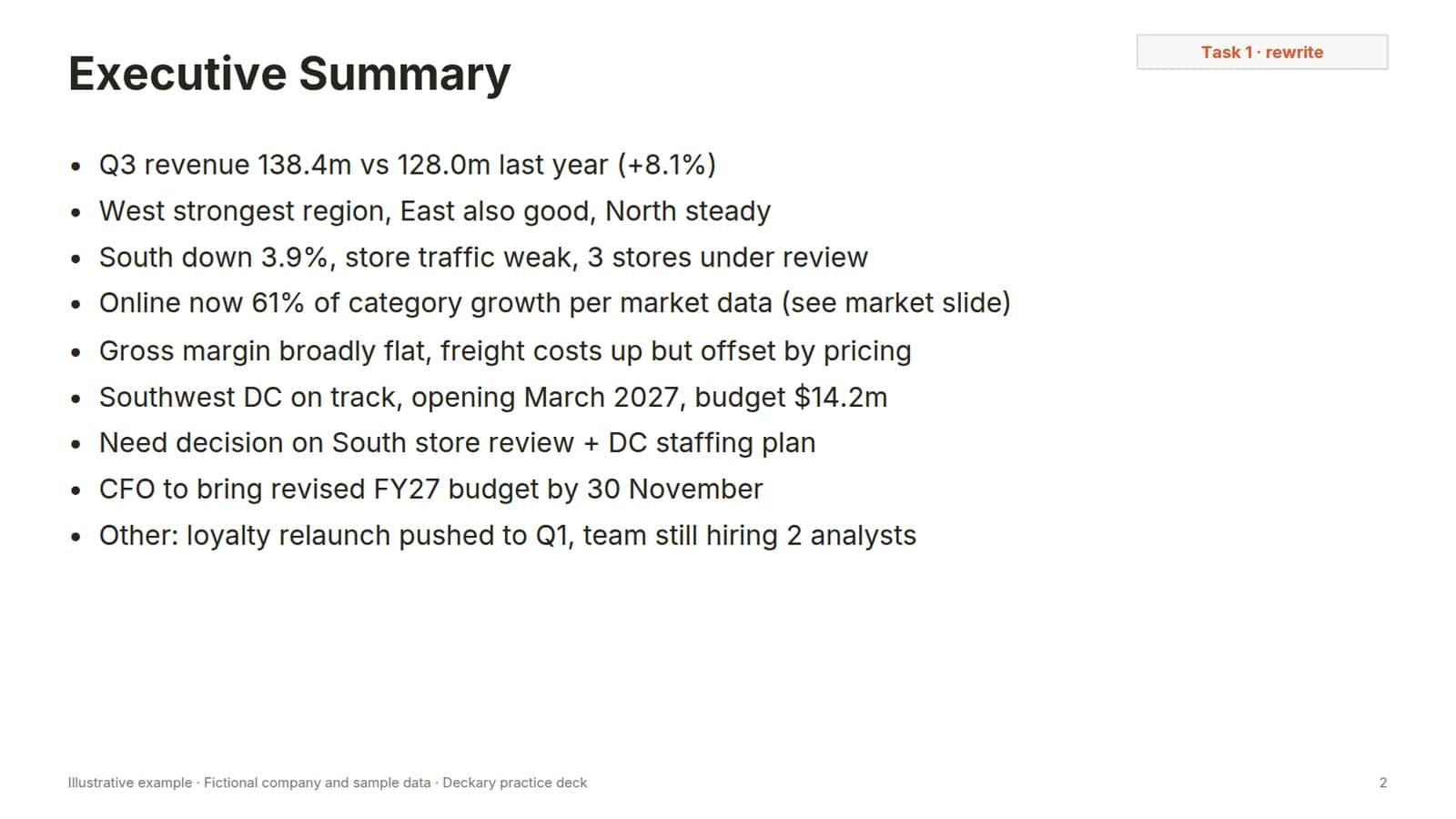
1. Turn notes into an executive summary (slide 2)
Open Ask Gemini on slide 2 and paste: "Rewrite this slide as an executive summary for the leadership team. Title: one sentence stating the main finding. Body: three numbered points, one sentence each, each with a number from this deck. Keep every figure exactly as written and do not add new numbers."
Target output (not tested): a full-sentence title that states the answer, such as "Q3 revenue rose 8% to $138.4m; the South is the only region in decline", and three points each carrying one figure. Check every number against slides 3 to 5, and delete any claim the draft doesn't support, such as "the West led again". Our guide to executive summary slides shows the structure to aim for.
2. Tighten a dense paragraph (slide 3)
Select the 136-word market paragraph, click the refine icon, and either choose Shorten and then bullets, or type: "Turn this into four bullets of no more than 12 words each. Keep every number and keep the source line." Target output (not tested): four bullets that lead with the point. Check that 4%, 61%, 2%, 9%, 1% and 14 stores all survive, and that the source line is still there.
3. Turn a table into a chart (slide 4)
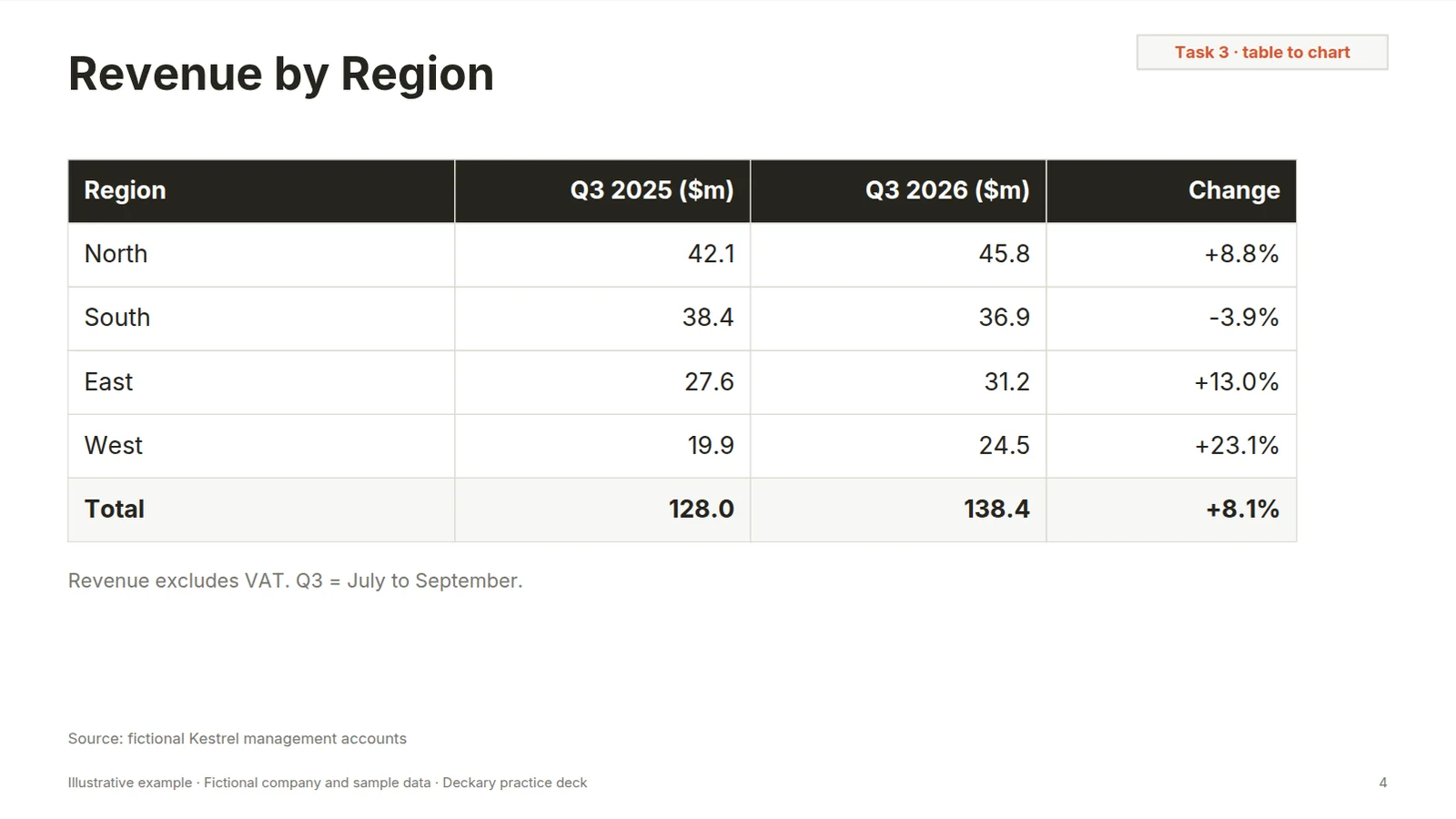
Ask Gemini: "Turn the table on this slide into an editable clustered column chart of Q3 2025 and Q3 2026 revenue by region in $m. Use the table values exactly. Change the title to one sentence stating which region grew fastest."
Then click the chart. If you can only crop or resize it, it is an image, not a chart. The dependable route is the manual one Google documents: put the numbers in Google Sheets, build the chart there, and use Insert > Chart > From Sheets. Either way, check all eight bars against the table. Target title: "West grew 23% and East 13%, while South fell 4%".
4. Add an image that doesn't carry facts (slide 5)
Insert > Help me visualize > Image, choose Wide (16:9), and prompt: "A modern single-storey distribution warehouse with loading docks at dusk, photographic style, no text, no logos, no people." Zoom in for garbled lettering or invented signage. Keep the facts (opening March 2027, $14.2m capex) in the slide text, where they can be corrected.
5. Build a next-steps slide from the deck (slide 6)
Ask Gemini: "Create a next-steps slide from this presentation: a table with columns Action, Owner and Due date. Use only actions stated on slides 2 to 5. Write [TBC] wherever the deck does not name an owner or date." The deck's only named owner with a dated deadline is the CFO (revised FY27 budget, 30 November). The staffing plan is due "in November" with no owner, so its owner should read [TBC]. Any other name or date Gemini fills in is invented: delete it.
6. One consistency pass across the whole deck
With the deck open, paste into the side panel: "Across the whole deck: rewrite each slide title as a one-sentence takeaway of no more than 15 words, in sentence case, and give all titles the same font and size. Do not change any numbers or the footer." Then read only the titles, top to bottom: they should tell the story on their own, as our consulting slide standards describe. Compare with the import in File > Version history and undo what you didn't ask for. This feature is still rolling out, so it may not appear on your account yet.
Limits for consulting-style and data-heavy decks
Charts are Google Sheets charts
Charts in Google Slides come from Google Sheets. Sheets' chart list covers column, bar, line, combo, area, pie, scatter, waterfall, tree map, an annotated timeline and more, so a simple bridge can use its waterfall chart. It has no Marimekko and no native Gantt type; a stacked bar chart can stand in for a basic Gantt. Gemini's help pages for slide and deck generation don't describe chart types or data links. If the deck's argument rests on a market map or a detailed Gantt timeline, plan to build it by hand.
Numbers are your responsibility
The side panel help says Gemini "may not be able to support your request" and that its features "may suggest inaccurate or inappropriate information". On a business deck, the risky moments are table-to-chart conversions, summaries that round or restate figures, and next-steps slides that invent owners. Keep a source line on every data slide and check against it.
Templates mean "match a deck's style", not a PowerPoint master
Gemini can match the visual style of an existing presentation you point it at. Google's help pages describe nothing beyond that: no option to pick a corporate theme, and nothing about PowerPoint slide masters. If your firm's template is a PowerPoint file with locked layouts, test one imported slide before you build 30.
Side panel history doesn't last
The side panel loses its conversation when you refresh, close and reopen the deck, or lose your connection (help). Copy a prompt that worked into the speaker notes before you move on.
When to take the deck to PowerPoint
Stay in Google Slides when the team collaborates there, the audience is internal, and the charts are standard column, bar, line or waterfall charts. Take the deck to PowerPoint with File > Download > Microsoft PowerPoint (.pptx) when:
- the client or your firm works in PowerPoint and expects a .pptx on its own template;
- the deck needs Mekko or Gantt charts that stay editable, or charts linked to an Excel model;
- several people will keep revising one long deck in Office.
After download, click each chart in PowerPoint. Chart Design and Edit Data mean it is a native chart. Picture Format means it is an image you will rebuild. Our Google Slides vs PowerPoint comparison covers the wider trade-offs. If you're comparing assistants, our Copilot in PowerPoint review covers Microsoft's equivalent and which AI tool is best for slides the wider field.
Once the deck is in PowerPoint, Deckary's add-in for PowerPoint works inside that file and adds Excel-linked waterfall, Mekko and Gantt charts; the Premium plan adds AI that creates and edits native slides in the presentation you already have open.
FAQ
Can Gemini make Google Slides?
Yes. Since a rollout that started on 29 June 2026, Gemini in Google Slides can build a full, editable presentation from a prompt, optional Drive files and a deck whose style to match, after you approve an outline. Google's help article says it works on a computer and in English only.
Is Gemini in Google Slides free?
Not on a free Google account by default. It needs Workspace Business or Enterprise Standard or Plus, Google AI Pro for Education, or a personal Google AI Pro or Ultra plan; Business Starter does not include it. Personal accounts can also get access through Google Workspace Experiments, a trusted tester programme.
Why is Beautify this slide not showing in Google Slides?
Since 31 March 2026, Gemini creates and redesigns slides as editable slides through Create and Enhance this slide. Google says beautifying a slide as an image is still possible, but only from the Slide menu.
Can Gemini export slides to PowerPoint?
Any Google Slides deck downloads with File > Download > Microsoft PowerPoint (.pptx). The Gemini app's Canvas exports slides to Google Slides or PDF; Gemini Enterprise's Canvas also lists Microsoft PowerPoint.
Sources
All checked on 1 November 2026.
- Google Workspace Updates: Edit entire presentations with Gemini in Google Slides (30 October 2026)
- Google Workspace Updates: Create fully native and editable presentations with Gemini in Google Slides (30 June 2026)
- Google Workspace Updates: Generate beautiful and editable slides with ease in Google Slides (1 April 2026)
- Google Workspace Updates: Use Gemini to refine text in Slides (5 September 2025)
- Google Workspace blog: Create on-brand presentations in minutes with Gemini in Google Slides (23 July 2026) and Reimagining content creation with Gemini (10 March 2026)
- Docs Editors Help: Generate presentations with Gemini in Google Slides, Generate a slide with Gemini in Google Slides, Collaborate with Gemini in Google Slides, Generate & edit images with Gemini in Google Slides & Vids, Switch from PowerPoint to Google Slides, Types of charts & graphs in Google Sheets
- Google Workspace Admin Help: Generative AI in Google Workspace Privacy Hub
- Gemini Apps Help: Create docs, apps & more with Canvas; Gemini Enterprise Help: Create and edit documents and slides in Canvas
- Google: Gemini Drop, October 2025 (24 October 2025)
- Google Workspace pricing (euro prices as served to us)