PowerPoint Transitions: The Professional's Guide to Slide Flow
PowerPoint transitions guide for business professionals. Learn which transition effects maintain focus, how to apply them efficiently, and which effects to avoid in formal settings.
PowerPoint transitions control how you move from slide to slide. Most presenters ignore them or apply them randomly, which produces one of two outcomes: jarring visual jumps that break flow, or flashy effects that distract from the message. Neither outcome helps the audience absorb your content.
After reviewing transition usage across 250+ consulting and corporate presentations, we have identified a clear pattern. Professionals who use transitions well follow a simple rule: apply one subtle transition consistently across the entire deck, set the duration below 0.50 seconds, and never use effects that call attention to themselves. This guide covers the transition categories PowerPoint offers, how to apply transitions step by step, which effects work in business settings, and how to use advanced features like Morph without undermining your credibility.
What Are PowerPoint Transitions
A slide transition is the visual effect that occurs when you move from one slide to the next during a presentation. The transition determines how a slide enters and how the previous one exits. Without a transition, slides simply cut from one to the next — an instant jump. With a transition, PowerPoint animates the change.
Transitions apply to entire slides, not individual objects. If you want to control how a single text box or image appears on screen, use PowerPoint animations instead. Transitions handle the slide-to-slide flow. Animations handle within-slide reveals.
The purpose of transitions is to create visual continuity. When used correctly, they provide a smooth rhythm that helps audiences absorb content without noticing the mechanism. When used poorly, they become the presentation itself — a distraction that signals the presenter values effects over substance.
Types of PowerPoint Transitions
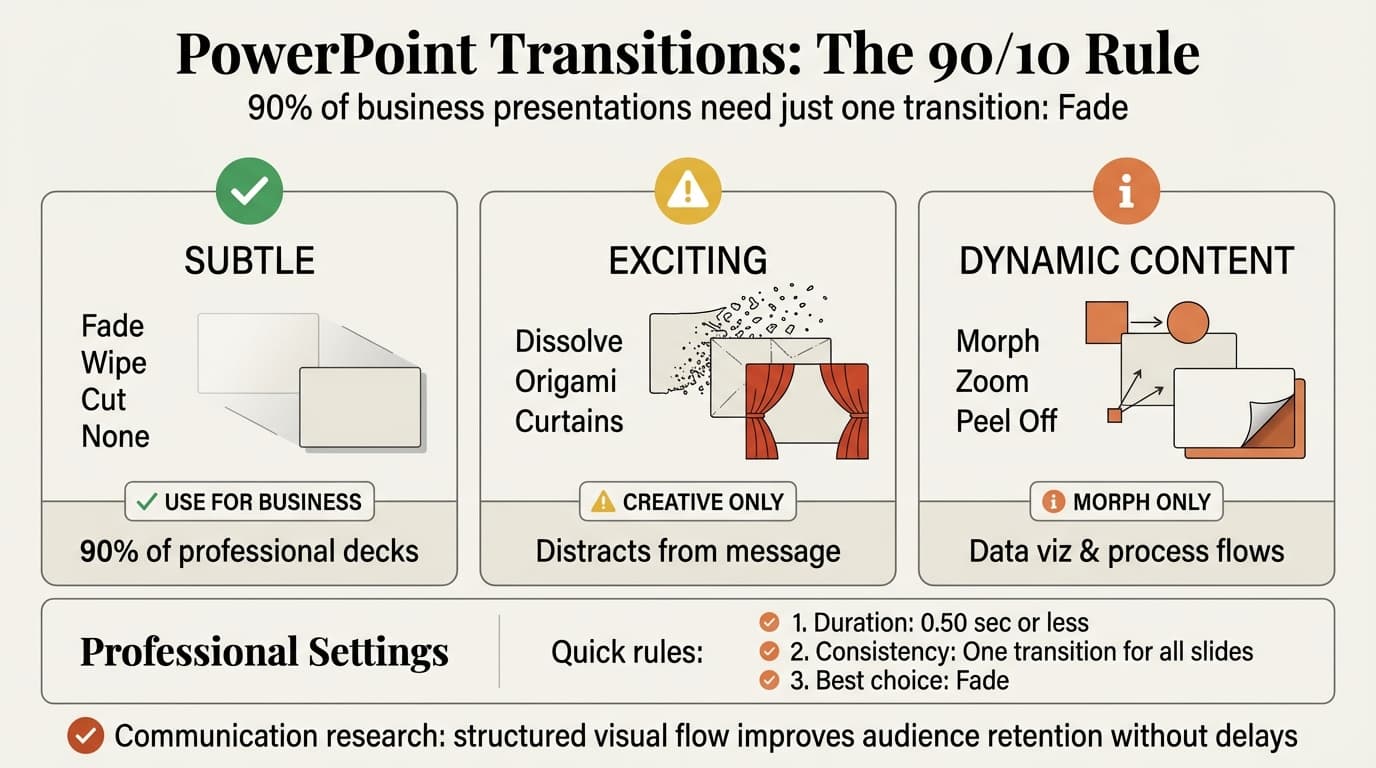
PowerPoint organizes transitions into three categories: Subtle, Exciting, and Dynamic Content. Each category is designed for different presentation contexts, though only one category belongs in formal business settings.
| Category | Examples | Use Case | Business Appropriateness |
|---|---|---|---|
| Subtle | Fade, Wipe, Shape, Cut | Smooth flow without drawing attention | High — Fade is the professional standard |
| Exciting | Dissolve, Origami, Curtains, Reveal, Glitter | High-energy presentations, creative contexts | Low — signals experimentation, not confidence |
| Dynamic Content | Morph, Zoom, Peel Off | Content that evolves or carries between slides | Medium — Morph works for data visualizations, the rest are decorative |
Subtle transitions are what most professionals need. They provide visual continuity without calling attention to the transition effect itself. Fade is the industry standard for business presentations because it creates a smooth opacity shift that feels natural.
Exciting transitions are misnamed. They do not excite audiences — they distract them. Effects like Curtains, Glitter, and Origami were designed for creative industries and educational settings where personality matters more than precision. In consulting or corporate contexts, these effects undermine credibility before you deliver a single word.
Dynamic Content transitions have narrow use cases. Morph can produce professional results when used intentionally for data-driven storytelling. The rest — Zoom, Peel Off, Conveyor — are gimmicks. Avoid them unless you work in design or marketing roles where visual experimentation is expected.
How to Add Transitions in PowerPoint
Adding a transition takes three clicks. The complexity comes from choosing the right effect and configuring its behavior.
- Select the slide you want to add a transition to (click the thumbnail in the slide panel)
- Click the Transitions tab in the ribbon
- Click a transition from the gallery — start with Fade
The transition applies immediately. PowerPoint displays a small star icon beneath the slide thumbnail to indicate a transition is present. To preview it, click Preview on the left side of the Transitions tab.
Applying Transitions to All Slides
The fastest way to create consistent flow is to apply one transition to every slide in the deck.
- Select any slide with the transition you want to use
- Click the Transitions tab
- Click Apply To All on the right side of the ribbon
Every slide in the presentation now uses the same transition. This is the correct approach for business presentations. Mixing different transitions across slides creates visual inconsistency that signals amateur work.
Configuring Transition Settings
After selecting a transition, configure these settings in the Transitions tab:
- Duration: How long the transition takes. Default is often 1.00 second, which is too slow. Set this to 0.50 seconds or below for responsive flow.
- Effect Options: Direction or style variations. For Wipe, you can choose left, right, up, or down. For most Subtle transitions, the default setting is fine.
- Sound: Adds audio to the transition. Never use this in professional settings. Sound effects trivialize content.
- Advance Slide: Choose between "On Mouse Click" (manual control) or "After" a set time (automatic). For live presentations, stick with "On Mouse Click" so you control the pace.
Keep Duration at 0.50 seconds or less. Slow transitions waste audience time. A 2-second transition on every slide in a 40-slide deck adds over a minute of dead time where nothing happens except waiting for the animation to finish.
Continue reading: How to Make a Gantt Chart in PowerPoint (Free Template) · Business Model Slide · How to Add Icons to PowerPoint
Work faster in PowerPoint
Use shortcuts, icons, logos, and reusable slides without leaving PowerPoint. 10 free AI prompts. No credit card required.
PowerPoint Transition Best Practices for Business
The difference between professional and amateur transition use comes down to restraint.
Use Fade or None across the entire deck. Fade creates smooth visual flow. None provides instant cuts. Both signal confidence. Mixing transitions signals experimentation. Pick one and apply it to all slides.
Set duration to 0.50 seconds or below. Fast transitions feel responsive. Slow transitions feel sluggish and waste audience time.
Avoid Exciting and decorative Dynamic Content transitions entirely. Curtains, Glitter, Origami, Conveyor, and Random belong in middle school science fair projects, not boardroom presentations. If a transition draws more attention than the slide content, it is the wrong choice.
Test your deck on a projector before presenting. Transitions that look smooth on your laptop may lag on slower computers or when projecting wirelessly. A 0.50-second Fade that becomes a 2-second stutter on the projector breaks flow and wastes time.
Match transitions to the presentation context. For client presentations, board meetings, and investor pitches, Fade or None is correct. For internal team meetings where you are demonstrating a product feature or showing before-and-after design comparisons, Morph has a role. Context determines which effects are appropriate.
When building professional slides efficiently, treat transitions as a final formatting step — not a creative playground. Apply your chosen transition to all slides at once, verify the duration, and move on.
Using the PowerPoint Morph Transition
Morph is the only transition effect in PowerPoint that requires intentional design to work properly. Unlike Fade or Wipe, which apply universally, Morph analyzes objects across consecutive slides and animates the differences. When used well, it creates smooth movement, scaling, and transformations. When used carelessly, it produces chaotic motion that confuses audiences.
How Morph works: Morph compares two consecutive slides and identifies objects that appear on both. It then animates the position, size, rotation, and formatting changes between the two slides. If a circle on Slide 1 sits on the left and the same circle on Slide 2 sits on the right, Morph slides it across the screen during the transition.
When to use Morph:
- Process diagrams that evolve across slides (adding steps or stages sequentially)
- Data visualizations where one chart transforms into another
- Before-and-after design comparisons
- Geographic maps showing movement or growth across regions
When not to use Morph:
- Slides with completely different content — Morph will attempt to animate unrelated objects, creating visual chaos
- Decks with tight timing constraints — Morph requires longer durations (1-2 seconds) to work smoothly, which slows pacing
- Presentations where consistency matters more than visual flair — using Morph on three slides and Fade on 37 others breaks visual rhythm
Morph setup example (process diagram):
- Create Slide 1 with Step 1 of your process
- Duplicate the slide
- On Slide 2, add Step 2 while keeping Step 1 in place
- Apply Morph to Slide 2
- Preview to verify smooth movement
For detailed guidance on Morph, Microsoft's official Morph transition documentation walks through advanced use cases including animating text, shapes, and SmartArt graphics.
Transitions That Help vs. Transitions That Hurt
Not all transitions are equal. Some improve flow. Most degrade it. We have seen enough partner reactions to be clear about which effects belong in professional decks.
Transitions that help:
- Fade — Smooth opacity transition. Best all-purpose transition for business presentations. Works for every slide type.
- None — Instant cut between slides. Faster than Fade and equally professional. Use when pacing matters more than visual smoothness.
- Wipe — Directional reveal. Acceptable for process flows or sequential comparisons where direction reinforces the narrative (left-to-right progression, top-to-bottom hierarchy).
- Morph — Object-level animation between slides. Use sparingly for data visualizations that transform or process diagrams that build incrementally.
Transitions that hurt:
- Curtains / Reveal / Peel Off — Theatrical effects with no business use case. Signals the presenter prioritized entertainment over content.
- Glitter / Vortex / Random — Novelty effects that trivialize the presentation before the first word is spoken.
- Origami / Conveyor / Ferris Wheel — Gimmicks designed to showcase PowerPoint's capabilities, not to improve comprehension.
- Dissolve / Checkerboard / Blinds — Dated effects from PowerPoint 2003. Their presence signals the template has not been updated in 20 years.
The rule: if someone watching your presentation remembers the transition effect, it was the wrong choice. Transitions should be invisible infrastructure that controls pacing.
Common PowerPoint Transition Mistakes
Using different transitions on every slide. Mixing Fade, Wipe, Push, and Zoom across a single deck creates visual inconsistency. Audiences notice the variation, which breaks their focus. Pick one transition and apply it everywhere.
Setting transitions to auto-advance with timing. Automatic slide advancement removes your control over pacing. You cannot pause to answer a question or expand on a point without the deck advancing past you. Default to "On Mouse Click" for all transitions unless you are creating a kiosk display or video export.
Leaving inherited transitions from copied slides. When you paste slides from other decks, they carry their transition settings. A slide that used Origami in the source deck will still use Origami in your deck. After pasting slides, select all slides and apply your standard transition to override inherited settings.
Ignoring transition duration. PowerPoint defaults to 1.00-second duration for many transitions. This is too slow for business presentations. Always verify duration is set to 0.50 seconds or below.
Using transitions as a substitute for clear content. Flashy transitions do not fix unclear messaging or weak structure. If your slides need visual effects to hold attention, the problem is content, not transition choice. Fix the slides first, then apply subtle transitions as a finishing step.
When designing professional PowerPoint slides, transitions are the last consideration — not the first. Structure, content, and formatting precede transition selection.
Removing Transitions from PowerPoint Slides
Sometimes the best transition decision is removing them entirely.
To remove a transition from one slide:
- Select the slide
- Click the Transitions tab
- Click None in the transition gallery
The star icon beneath the slide thumbnail disappears, indicating no transition is present.
To remove transitions from all slides:
- Select any slide
- Click the Transitions tab
- Click None
- Click Apply To All
Every slide now uses instant cuts with no transition effects. This is a valid choice for presentations where speed matters more than visual smoothness — internal team updates, sprint reviews, or rapid-fire product demos.
PowerPoint Transitions and Presentation Flow
Transitions are one component of overall presentation rhythm. They work in combination with animations, slide pacing, and speaker delivery to create flow.
Visual continuity strategy:
- Use Fade or None for transitions between slides
- Use Fade or Appear for animations within slides
- Set all durations to 0.50 seconds or below
- Test the full deck in slideshow mode to verify rhythm
Consistency across transitions and animations creates a predictable visual language. Audiences stop noticing the mechanism and focus entirely on content. That is the goal.
For presentations with charts and data, tools like Deckary generate consulting-grade waterfall charts, Mekko charts, and Gantt charts that fit professional formatting standards instantly. Pairing clean data visualizations with subtle transitions like Fade produces decks that feel polished without calling attention to the formatting itself.
Key Takeaways
- Fade is the professional standard for business presentations. Use it across all slides for smooth, unobtrusive flow.
- Set transition duration to 0.50 seconds or below. Slow transitions waste audience time and make presentations feel sluggish.
- Apply one transition to the entire deck. Consistency signals professionalism; variation signals experimentation.
- Avoid Exciting transitions entirely. Curtains, Glitter, Origami, and Random undermine credibility in formal settings.
- Use Morph sparingly for data visualizations and process diagrams. It requires intentional design and longer durations.
- Test on a projector before presenting. Transitions that work on your laptop may lag on slower hardware.
- Remove transitions if pacing matters more than visual smoothness. None is a valid choice for fast-paced presentations.
For a comprehensive walkthrough of every PowerPoint feature, see our PowerPoint tutorial. For guidance on within-slide animations, see PowerPoint animation. For overall design strategy, see our PowerPoint design guide.
Sources:
- Add, change, or remove transitions between slides (Microsoft Support)
- Use the Morph transition in PowerPoint (Microsoft Support)
- Best Slide Transitions And Animations For Business Presentations (24Slides)
- The best PowerPoint transitions (with example GIFs) (Plus AI)
Work faster in PowerPoint
Use shortcuts, icons, logos, and reusable slides without leaving PowerPoint. 10 free AI prompts. No credit card required.