PowerPoint Chart Templates: Free & Professional Options for Consultants
Find the best PowerPoint chart templates for consulting presentations. Covers free and premium sources for waterfall, Mekko, Gantt, and org charts.
- Bob · Former McKinsey and Deloitte consultant with 6 years of experience
- January 9, 2026
- 8 min read
We downloaded 200+ "free chart templates" from the most recommended sources online. The results were discouraging: waterfall templates with images instead of editable charts, Gantt templates that break when you add a task, and countless "consulting chart packs" that require 30 minutes of reformatting before they are usable.
The template search typically happens at 10 PM when you need a specific chart for tomorrow's steering committee. You do not have time to evaluate fifteen download sites. This guide cuts through the noise: which sources provide genuinely editable templates, which chart types have usable free options, and which charts require add-ins because no template can compensate for PowerPoint's architectural limitations.
The market includes add-ins like think-cell, Deckary, Mekko Graphics, and Power-user alongside standalone template sources. We have organized recommendations by chart type so you can jump directly to what you need. If you are still deciding which chart type to use, start with our PowerPoint Charts Guide for a complete overview.
The Template Trap
Most chart templates optimize for visual appeal in thumbnails, not practical usability. After testing hundreds of downloads, the same issues appear consistently:
| Common Problem | Impact |
|---|---|
| Non-editable charts | Template is an image, not a real chart |
| Decorative colors | Rainbow palettes instead of data-meaningful colors |
| Missing labels | Looks clean but communicates nothing |
| No Excel linking | Every update requires manual data entry |
| Wrong chart types | Pie charts for time series, 3D effects everywhere |
The templates that look best in preview galleries are often the least useful for actual work.
Chart Types Consultants Need Most
Waterfall Charts (Bridge Charts)
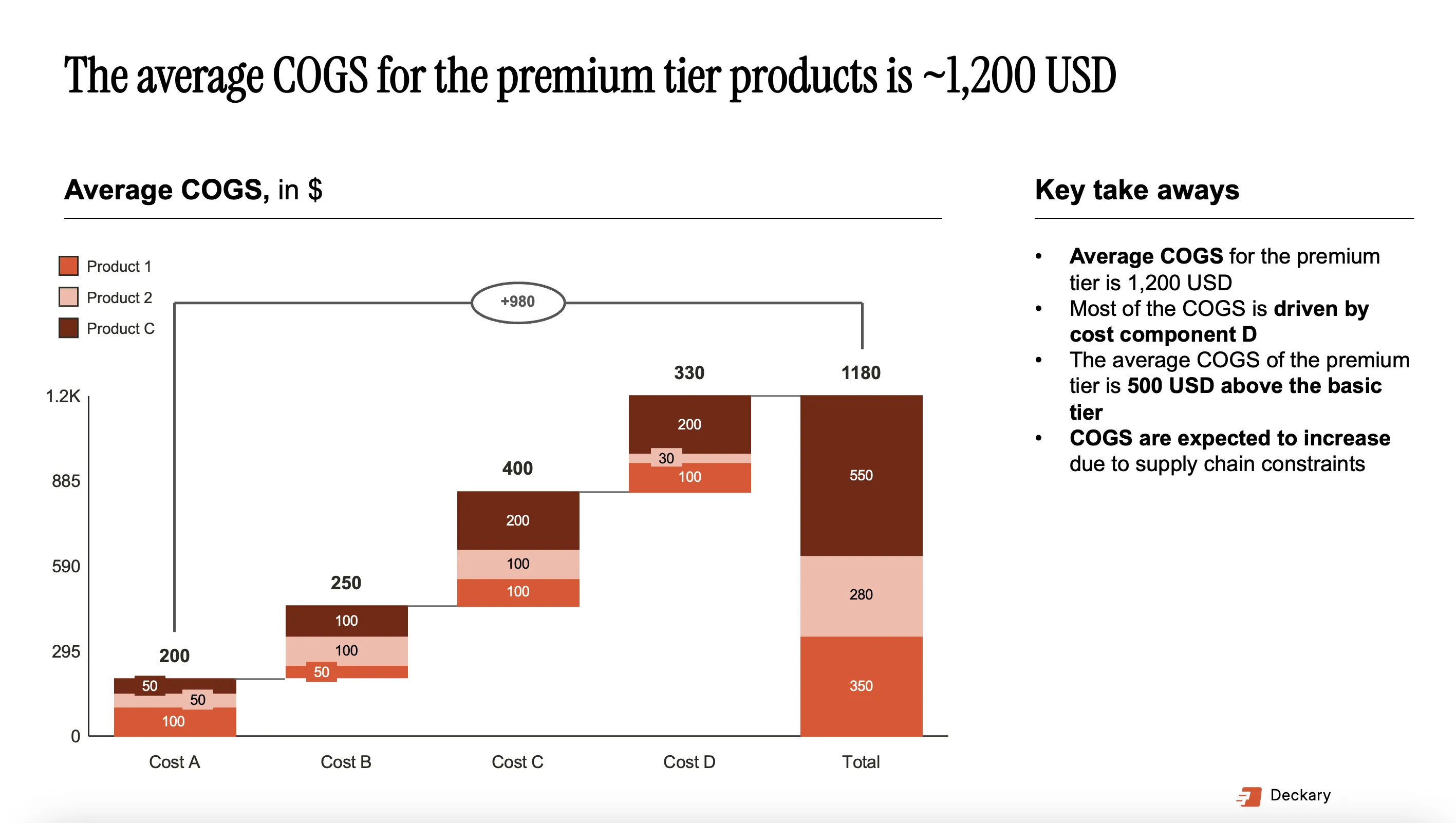
The consulting workhorse. Waterfall charts visualize how an initial value changes through positive and negative contributions to reach a final value. Used for revenue bridges, EBITDA walks, and cost variance analysis. Templates need automatic connectors, color coding for positive/negative values, and Excel linking. Native PowerPoint includes a basic waterfall chart but lacks connectors and cannot link to Excel.
Mekko Charts (Marimekko)
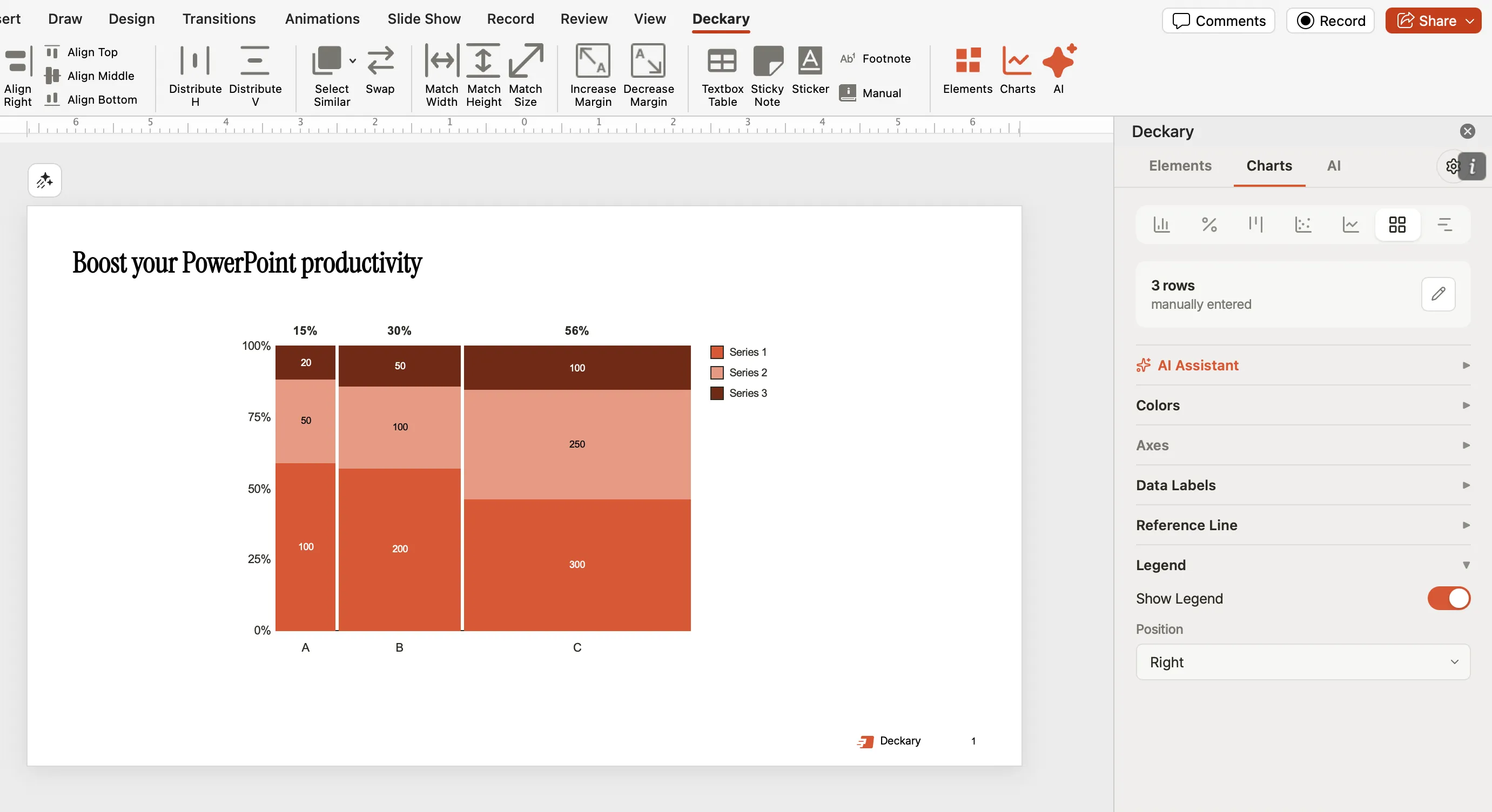
Mekko charts show two dimensions simultaneously through variable-width columns -- width represents one variable (typically market size), height represents another (typically market share). Used for market sizing, competitive landscape mapping, and portfolio breakdowns. PowerPoint cannot create Mekko charts natively. There is no template workaround.
Gantt Charts
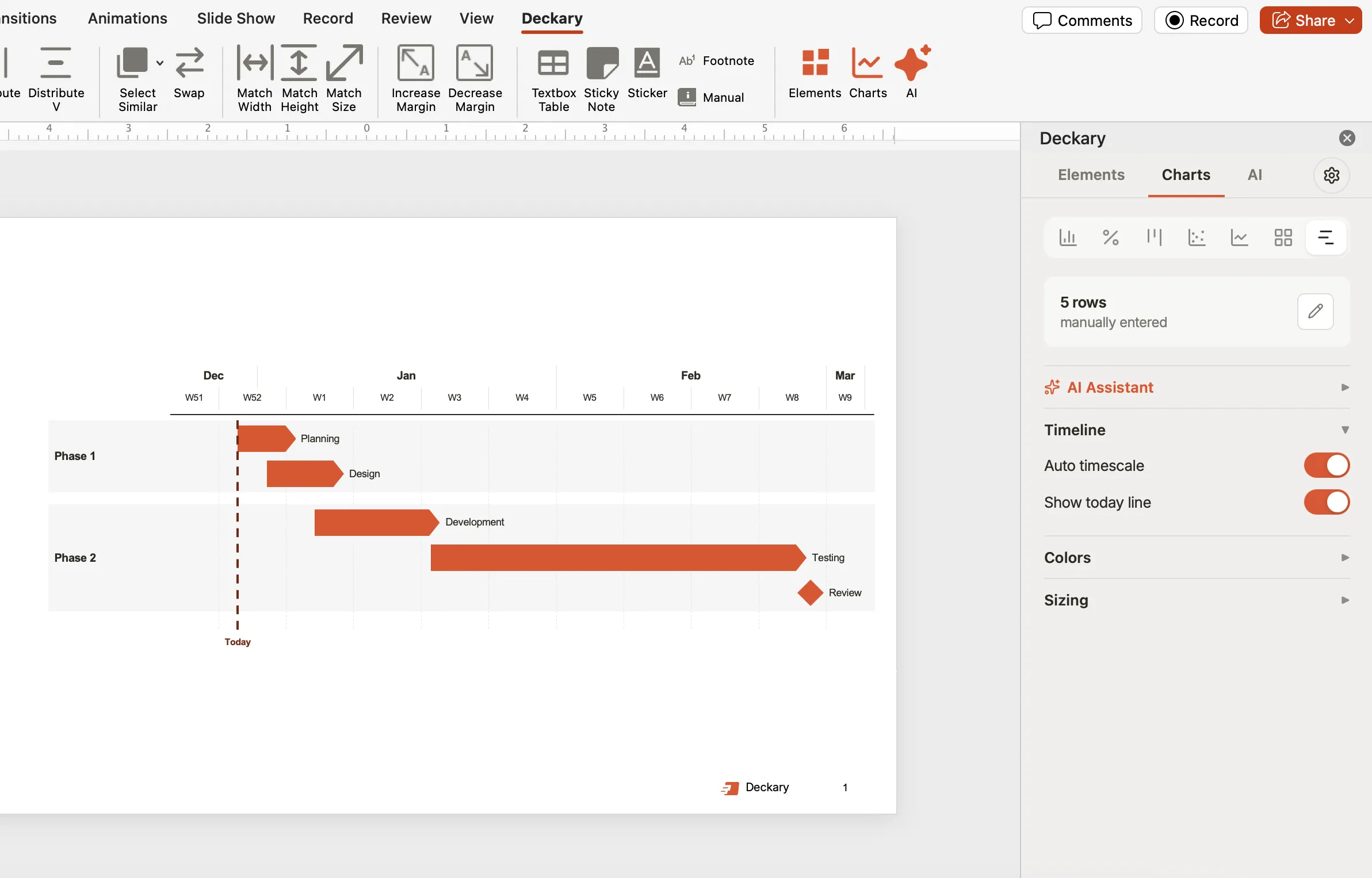
Gantt charts visualize project schedules as horizontal bars against a timeline. Used for implementation roadmaps and workstream timelines. Templates need proper date scaling, milestone markers, and ideally Excel linking. PowerPoint has no native Gantt chart, and stacked bar workarounds break when dates change.
Stacked Bar, Process Flow, and Org Charts
Stacked bar and column charts handle composition analysis -- market share over time, revenue by segment, cost structure breakdowns. PowerPoint manages these natively, but templates save formatting time by providing consistent color schemes and label placement.
Process flows and org charts are visual diagrams showing workflows, organizational structures, or decision frameworks. PowerPoint's SmartArt handles basic versions, but complex flows with multiple branches or custom styling benefit from dedicated templates beyond what SmartArt provides.
Free Chart Template Sources
We evaluated the major free sources based on quality, usability, and consulting relevance.
Tier 1: Best Free Options
Microsoft Office Templates (templates.office.com) -- Fully editable native chart objects, no registration required. Limited to basic chart types with generic styling. Best as starting points that need customization.
PresentationGo (presentationgo.com) -- 1,2,000+ chart and diagram templates in PowerPoint and Google Slides. Professional quality with regular updates. No consulting-specific charts, but excellent for process diagrams, org charts, and standard data visualizations.
SlideHunter (slidehunter.com) -- Chart-focused collection with multiple design variations per type. Smaller library and some dated styles, but good for quick bar and pie chart starting points.
Smartsheet Gantt Templates (smartsheet.com) -- Dedicated Gantt chart templates with multiple time scales and milestone markers. Static only (no Excel linking), best for one-time Gantt charts.
Tier 2: Decent Free Options
24Slides (24slides.com/templates) -- Data-focused templates updated weekly. Requires email signup for some downloads.
Slidesgo (slidesgo.com) -- Large collection of infographic and chart templates. Tends toward marketing aesthetics rather than conservative consulting style.
Showeet (showeet.com) -- 100% free downloads, no registration for most templates. Smaller library.
What Free Templates Cannot Provide
| Chart Type | Free Template Status |
|---|---|
| Waterfall with connectors | Not available |
| Mekko/Marimekko | Not possible in PowerPoint |
| Gantt with Excel linking | Not available |
| Stacked waterfall | Not available |
| CAGR lines on bar charts | Not available |
For these consulting staples, you need specialized tools.
Continue reading: Agenda Slide PowerPoint · Best Tools for Creating Business Case Presentations in PowerPoint · PowerPoint Infographic Template
Premium Template Libraries and Add-ins
Consulting Template Libraries
Slideworks (slideworks.io) -- Created by ex-McKinsey and BCG consultants. Strategy framework templates, MBB-standard charts, and Excel financial models. Individual templates from $29, bundles from $99.
Flevy (flevy.com) -- 700+ consulting templates with visual concepts, data visualization, and industry-specific content. Per-template and subscription pricing.
Umbrex (umbrex.com/resources/powerpoint-slides) -- Template library used by 70,000+ professionals with MBB-style formatting. Subscription-based.
PowerPoint Add-ins
Templates are static files that require manual updates. Add-ins generate charts dynamically with live data connections.
| Tool | Waterfall | Mekko | Gantt | Excel Link | Price |
|---|---|---|---|---|---|
| Deckary | Yes | Yes | Yes | Yes | $120-180/yr |
| Mekko Graphics | Yes | Yes | Limited | Yes | $399/yr |
| Office Timeline | No | No | Yes | Yes (Plus) | $108-249/yr |
| Native PowerPoint | Basic | No | No | No | Included |
Deckary -- Waterfall charts with automatic connectors, Mekko charts with variable-width columns, Gantt charts with date handling, plus alignment shortcuts and 2,000+ icons. Works on Windows and Mac. $15/month or $120/year (Starter), $19/month or $180/year (Premium).
Mekko Graphics (mekkographics.com) -- 30 chart types including Marimekko. $399/year ($299/year renewal).
Office Timeline (officetimeline.com) -- Focused on Gantt charts and timelines with Project/Smartsheet import. Free basic, $108-249/year for paid plans.
Template Source Comparison Table
| Source | Price | Waterfall | Mekko | Gantt | Excel Link | Quality |
|---|---|---|---|---|---|---|
| PresentationGo | Free | No | No | Basic | No | Good |
| SlideHunter | Free | No | No | No | No | Moderate |
| Smartsheet | Free | No | No | Yes | No | Good |
| Microsoft Templates | Free | Basic | No | No | No | Moderate |
| Slideworks | $29+ | Yes | No | Yes | No | Excellent |
| Flevy | Varies | Yes | No | Yes | No | Excellent |
| Deckary | $120-180/yr | Yes | Yes | Yes | Yes | Excellent |
| Mekko Graphics | $399/yr | Yes | Yes | Limited | Yes | Excellent |
How to Customize Chart Templates
Establish a Color System
| Element | Recommended Approach |
|---|---|
| Primary data | Client's brand color or consistent blue |
| Secondary data | Complementary color, lower saturation |
| Positive values | Green (for change charts) |
| Negative values | Red (for change charts) |
| Totals/subtotals | Gray or dark neutral |
| Highlights | Accent color for key insights |
Simplify Default Formatting
| Remove | Keep |
|---|---|
| 3D effects | Flat bars |
| Gradient fills | Solid colors |
| Heavy gridlines | Minimal or no gridlines |
| Decorative borders | Clean edges |
| Shadow effects | Direct labeling |
Add meaningful labels back to templates that minimize them for aesthetics: data values on bars (not just axes), axis titles explaining units, chart titles stating the insight, and source citations for external data.
After formatting a chart properly, right-click it, select "Save as Template," and name it descriptively (e.g., "Waterfall_Standard_Blue"). Access saved templates via Insert > Chart > Templates. Building a personal library saves hours over time.
When to Use Templates vs. Add-ins
| Scenario | Recommendation |
|---|---|
| One-time presentation, simple charts | Free templates |
| Need consulting frameworks (SWOT, Porter) | Premium template libraries |
| Building charts weekly or daily | Add-in (Deckary) |
| Data lives in Excel, changes frequently | Add-in with Excel linking |
| Chart types PowerPoint cannot create | Add-in (Mekko, waterfall with connectors) |
| Multiple team members need consistency | Add-in with standardized output |
For most consultants building charts regularly, add-ins like Deckary pay for themselves within the first few weeks. The $120-180/year subscription recovers quickly when each chart saves 10-20 minutes of formatting time.
Summary
- Free templates work for simple charts -- bar, pie, line, and basic diagrams
- Consulting-grade charts need specialized tools -- waterfall with connectors, Mekko, Gantt with Excel linking
- Best free sources: PresentationGo, Smartsheet (Gantt), Microsoft Office templates
- Add-ins beat templates for recurring work -- live data linking saves hours over time
- Always customize -- no template should be used as-is
The goal is not finding the cheapest option -- it is finding the option that produces professional output with minimal friction. A chart that should take two minutes should not take twenty.