Canva vs PowerPoint: Which One Should You Use?
Canva vs PowerPoint compared across design, templates, collaboration, charts, and pricing. Clear recommendations for business and creative professionals.
Canva produces visually stunning presentations faster than any tool on the market. Its drag-and-drop interface, designer-quality templates, and extensive asset library make it effortless to create polished slides in minutes. For social media content, marketing materials, and visually driven presentations, Canva is genuinely excellent.
The problem is that Canva optimizes for speed and aesthetics while most business presentations require data visualization, offline reliability, and file format compatibility. After building presentations in both tools for 120+ client engagements and internal decks — including strategy presentations, board materials, and pitch decks — we found that Canva's design advantages get erased by workflow friction the moment you need advanced charts, Excel linking, or deliverables in .pptx format.
This guide compares Canva and PowerPoint across design, templates, ease of use, collaboration, charts, AI features, and pricing. We end with clear recommendations so you know which tool fits your workflow without creating extra conversion work.
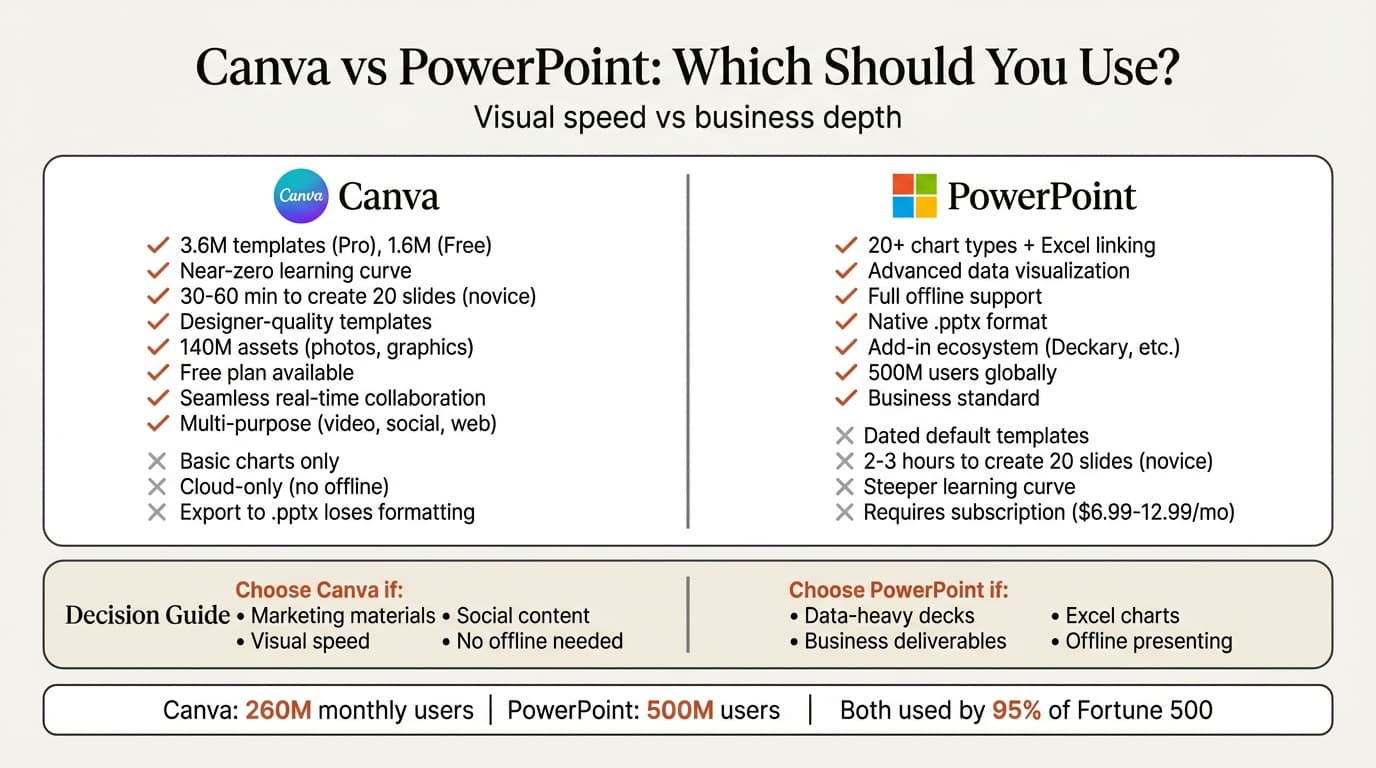
Canva vs PowerPoint: Feature Comparison Table
This is the core comparison. Save this table for reference when choosing between the two.
| Feature | Canva | PowerPoint | Winner |
|---|---|---|---|
| Price (personal) | Free (limited), $19/mo (Pro) | $6.99-12.99/mo (M365) | Canva |
| Platform support | Web, iOS, Android (cloud-only) | Windows, Mac, web, mobile, offline | PowerPoint |
| Template library | 3.6M templates (Pro), 1.6M (Free) | ~300 native, 1000s marketplace | Canva |
| Design quality | Superior (modern, designer-quality) | Good (requires customization) | Canva |
| Ease of use | Near-zero learning curve | 2-4 hours to master basics | Canva |
| Speed to create | 30-60 min (20 slides, novice) | 2-3 hours (20 slides, novice) | Canva |
| Animations/transitions | Basic transitions, creative animations | Advanced (Morph, 3D, motion paths) | PowerPoint |
| Collaboration | Seamless real-time, contextual comments | Co-authoring via M365 (2-3 sec lag) | Canva |
| File format | Native .canva, exports .pptx (formatting loss) | Native .pptx | PowerPoint |
| Chart types | Basic via integrated charts | 20+ native types, Excel linking | PowerPoint |
| Data visualization | Limited chart automation | Advanced Excel integration | PowerPoint |
| Add-in ecosystem | None | Extensive (charts, AI, productivity) | PowerPoint |
| Offline editing | None (cloud-only) | Full offline support | PowerPoint |
| Business adoption | 95% of Fortune 500, marketing focus | Dominant (global standard) | PowerPoint |
| Asset library | 140M assets (Pro), 5M (Free) | Limited native, marketplace available | Canva |
| Multi-purpose tool | Yes (social, video, web, print) | Presentations only | Canva |
Score: Canva 7, PowerPoint 7, Tie 0. Canva wins on design speed, ease of use, templates, and visual assets. PowerPoint wins on data visualization, offline access, file format compatibility, and business workflow integration. The question is whether visual polish or business functionality matters more for your use case.
Design Quality and Templates: Where Canva Dominates
Canva's design quality is in a different league from PowerPoint's defaults. Industry comparisons consistently note that "Canva destroys PowerPoint on visual appeal, with templates that look contemporary and polished right out of the box, understanding color theory, typography, and white space in ways that make content look professional without requiring a design degree."
The numbers support this. Canva Pro offers 3.6 million templates, compared to PowerPoint's few hundred native templates. More importantly, Canva's templates look modern immediately. PowerPoint's default templates often look dated without significant manual formatting.
Template library comparison:
| Tier | Canva Free | Canva Pro | PowerPoint |
|---|---|---|---|
| Templates | 1.6 million | 3.6 million | ~300 native |
| Design assets | 5 million | 140 million | Limited native |
| Stock photos | Limited | 100+ million | Limited native |
| Style | Modern, designer-quality | Modern, designer-quality | Traditional, business-focused |
The practical impact: For marketing presentations, conference talks, pitch decks where visual polish drives impact, and social media content, Canva produces better-looking results faster. For data-heavy client deliverables that require charts and Excel integration, PowerPoint's business-oriented templates are more functional even if less visually striking.
Ease of Use: Canva's Near-Zero Learning Curve
Canva has a near-zero learning curve compared to PowerPoint's steeper onboarding. Research shows that "Canva allows creating a professional 20-slide presentation in 30-60 minutes using a template and adapting it to content. PowerPoint requires 2-3 hours for an equivalent result" for novice users.
PowerPoint's ribbon menu system organizes hundreds of features across multiple tabs. This gives you more control but creates complexity that requires upfront learning. Users report that "PowerPoint requires initial learning time of 2-4 hours to master basic functions, with advanced features requiring several days of practice."
Canva's drag-and-drop interface makes common tasks intuitive. Templates are pre-designed with placeholder text and images. The asset library is searchable directly in the editor. There is no ribbon menu complexity — just a clean sidebar with clear categories.
The trade-off: Canva's simplicity is both its strength and limitation. The interface makes basic tasks effortless, but you hit feature ceilings faster. PowerPoint's complexity means more time upfront, but deeper capabilities for advanced needs like custom animations, advanced charting, and precise object control.
For occasional presenters, marketers, and creators building visually driven decks, Canva's ease of use is a genuine advantage. For professionals who create data-intensive presentations monthly, PowerPoint's learning curve pays dividends through features Canva cannot match.
Speed: Canva Is Objectively Faster for Standard Presentations
The speed difference is measurable. Industry testing found that "Canva has a near-zero learning curve, allowing a user without experience to create a professional presentation in 15-20 minutes, whereas PowerPoint requires initial learning time of 2-4 hours to master basic functions."
This speed advantage comes from three factors:
-
Pre-designed templates. Canva templates are finished designs with placeholder content. Just replace text and images. PowerPoint templates often require formatting adjustments.
-
Integrated asset library. Search for "mountain photo" or "chart icon" directly in Canva's editor. PowerPoint requires external stock photo sites or icon libraries.
-
AI-assisted design. Canva's Magic Design feature generates slide layouts in seconds based on a prompt. PowerPoint Designer offers layout suggestions but requires more manual setup.
When speed matters most: Marketing teams creating campaign decks, educators building lesson slides, startup founders iterating on pitch decks, and any scenario where visual polish matters more than precise data visualization.
When speed matters less: Strategy presentations with custom charts, financial analysis decks with Excel-linked data, and client deliverables that require offline editing or .pptx format.
Collaboration: Canva's Seamless Real-Time Editing
Canva's real-time collaboration is smoother than PowerPoint's Microsoft 365 co-authoring. Comparisons note that "Canva excels in real-time collaboration with a smooth and latency-free experience, with contextual comments positioning directly on concerned elements. PowerPoint via Microsoft 365 also offers simultaneous co-editing but with some limitations, with synchronization potentially presenting a slight delay of 2-3 seconds."
Canva's collaboration features:
- Real-time editing with live cursors
- Contextual comments pinned to specific elements
- Link sharing with granular permissions (view, comment, edit)
- Version history with one-click restore
- No software installation required for collaborators
PowerPoint's collaboration features:
- Co-authoring via OneDrive or SharePoint
- Comments and threaded conversations
- Track changes and version comparison
- Integration with Microsoft Teams
- Requires Microsoft 365 subscription for collaborators
For cross-functional teams — marketing, product, and design iterating on campaign decks — Canva's collaboration is more accessible. No licensing barriers, no software installation, just share a link.
For corporate teams already on Microsoft 365 with Teams and SharePoint infrastructure, PowerPoint's collaboration integrates better with existing workflows. The 2-3 second sync delay matters less when your organization already lives in the Microsoft ecosystem.
Continue reading: Pie Charts in PowerPoint · PowerPoint Design Tips · Case Study Template PowerPoint
Create an editable presentation in your browser
Turn a prompt or source files into slides you can edit and export to PowerPoint. 10 free AI prompts. No credit card required.
Charts and Data Visualization: PowerPoint's Biggest Advantage
This is where the gap is widest. PowerPoint supports over 20 native chart types with full formatting control, plus Excel linking that automatically updates charts when data changes. Industry reviews acknowledge that "PowerPoint stands out for creating and customizing various types of charts, ideal for business and academic presentations, with every chart backed by Excel for access to more data analysis tools."
Canva offers basic charting through its integrated chart editor — bar, line, pie, and a handful of others. Comparisons note that "Canva's automation capabilities for charts are less robust than those found in PowerPoint and Excel."
More critically, PowerPoint's add-in ecosystem unlocks consulting-grade visualizations like waterfall charts, Mekko charts, and Gantt charts through tools like Deckary. Canva has no equivalent ecosystem for advanced charting.
| Chart Capability | Canva | PowerPoint |
|---|---|---|
| Basic bar, line, pie | Yes (integrated editor) | Yes (native + Excel) |
| Waterfall charts | No | Yes (native + add-ins) |
| Mekko / Marimekko | No | Add-ins only |
| Gantt charts | No | Add-ins only |
| Combo charts | No | Yes |
| Excel auto-update | No | Full Excel linking |
| Formatting control | Basic | Advanced |
For data-heavy presentations — financial analysis, strategy consulting, investor updates, board decks — PowerPoint is the clear choice. The combination of native chart depth plus add-in extensibility means you can build any visualization a client or board member expects. Canva cannot match this, and no amount of workarounds will close the gap.
AI Features: Both Improving, Different Strengths
Both tools have invested in AI, but with different focuses.
Canva + Magic Design:
- Magic Design creates "a slide deck with 7 to 10 slides in just a few seconds, eliminating the guesswork of layout and design"
- AI image generation (Magic Media)
- AI photo editing and background removal
- Text-to-image for slide visuals
- Template suggestions based on content
PowerPoint + Copilot (requires Microsoft 365 Copilot add-on, $30/user/month):
- Generate full presentations from text prompts or documents
- Agent Mode for multi-step AI editing
- PowerPoint Designer for automatic layout suggestions
- Speaker notes generation
- Real-time translation and subtitles
Canva's AI focuses on speed and visual creation. Magic Design is included in Canva Pro ($19/month). PowerPoint's AI focuses on content generation and productivity. Copilot requires an additional $30/month on top of Microsoft 365.
For visual content creation and quick slide generation, Canva's AI is more accessible and integrated. For text-heavy presentations and document-to-deck generation, PowerPoint's Copilot is more capable — but significantly more expensive.
File Compatibility: PowerPoint's Universal Format
The business world runs on .pptx files. Clients, partners, and executives expect PowerPoint format. Canva can export to .pptx, but conversion introduces issues:
- Custom fonts may revert to system defaults
- Animations simplify or disappear
- Precise object positioning can shift
- Design elements may not transfer perfectly
- Canva-specific effects have no PowerPoint equivalent
If your final deliverable must be a .pptx file — and in most corporate contexts it must — building in PowerPoint avoids the conversion tax entirely. Canva works best when presentations stay within Canva's ecosystem or are exported to PDF for viewing only.
The reality for business professionals: Consulting firms, investment banks, and Fortune 500 companies standardize on PowerPoint. Strategy presentations, board decks, and client deliverables need to be .pptx format. You can draft in Canva, but expect to spend time fixing formatting issues after export.
Offline Access: PowerPoint Works Without Internet
PowerPoint works fully offline. Install the desktop application, and you can create, edit, and present without an internet connection. For consultants presenting in client conference rooms with unreliable Wi-Fi, or executives running board presentations in locations without connectivity, this is non-negotiable.
Canva is cloud-only. The entire application runs in the browser or mobile app. Without internet connection, you cannot access your presentations. There is no offline mode.
When offline access matters:
- Client presentations in conference rooms without Wi-Fi
- International travel without reliable connectivity
- Board meetings in secure environments with restricted network access
- Field presentations at events or remote locations
If offline reliability is a requirement, PowerPoint is the only option. Canva's cloud-only architecture is a strength for collaboration but a weakness for offline scenarios.
Pricing: Canva Is Cheaper for Personal Use
Personal use:
| Plan | Annual Cost | Includes |
|---|---|---|
| Canva Free | $0 | 1.6M templates, 5M assets, basic features |
| Canva Pro | $120/year ($19/month billed monthly) | 3.6M templates, 140M assets, brand kit, Magic Design |
| Microsoft 365 Personal | $99.99/year | PowerPoint + Word, Excel, Outlook, 1 TB OneDrive |
| Microsoft 365 Family | $129.99/year | Same as Personal, up to 6 users |
For personal use, Canva Free is the best value — genuinely free with functional features. Canva Pro at $120/year is comparable to Microsoft 365 Personal at $99.99/year, and Canva doesn't require paying for apps you may not use.
Business use:
| Plan | Monthly Cost (per user) | Includes |
|---|---|---|
| Canva Free | $0 | Limited team features |
| Canva Pro | $15 | Full features, 5 team members |
| Canva Teams | $30-40 | Enterprise features, unlimited team |
| Microsoft 365 Business Basic | $6 | Web-only Office apps, Teams, 1 TB OneDrive |
| Microsoft 365 Business Standard | $14 (after July 2026) | Desktop + web Office apps, Teams, 1 TB OneDrive |
At the business tier, pricing depends on needs. Canva Teams at $30-40/user is more expensive than Microsoft 365 Business Standard at $14/user — but Microsoft 365 includes the entire Office suite, not just presentations.
Market Adoption: Both Tools Serve Different Audiences
The market data tells an interesting story about how these tools are used differently.
Canva has 260 million monthly users globally and is used by 95% of Fortune 500 companies. However, this adoption is concentrated in marketing departments, social media teams, and creative roles. Canva holds 46% market share in presentation software when measured broadly.
PowerPoint has over 500 million users globally and dominates in business and corporate environments. Microsoft 365 is the standard enterprise productivity suite, making PowerPoint the default presentation tool in most organizations.
The difference: Canva is the tool of choice for marketing materials, social media content, and visually driven presentations. PowerPoint is the tool of choice for business presentations, financial analysis, and corporate deliverables.
Many organizations use both. Marketing teams use Canva for campaign assets and social content. Business teams use PowerPoint for board decks, strategy presentations, and client deliverables.
Canva is not just a presentation tool — it also handles social media graphics, video editing, print materials, and website design. PowerPoint is exclusively a presentation tool. For marketing teams needing multi-format output, Canva's versatility matters. For business professionals who only need presentations, the additional features are unused.
When to Choose Canva
Canva is the right choice when:
- Visual appeal is the priority — marketing presentations, pitch decks, conference talks where design quality drives impact
- Speed matters — quick turnaround presentations, social media content, tight deadlines
- Collaboration is across non-technical teams — marketing and design teams without enterprise software
- Budget is constrained — free plan is functional, Pro at $19/month for freelancers and small teams
- Charts are basic — simple bar and line charts without Excel integration
- Deliverables are PDF or web-based — not .pptx format
When to Choose PowerPoint
PowerPoint is the right choice when:
- Deliverables must be .pptx format — client presentations, board decks, investor materials
- Data visualization is central — financial models, strategy presentations, advanced charts, Excel-linked data
- Offline access is required — presenting without reliable internet
- Your organization uses Microsoft 365 — Teams, SharePoint, and OneDrive integration
- You need specialized features — add-ins for consulting charts, productivity shortcuts, advanced animations
The Hybrid Approach: Using Both
Many professionals use both tools strategically:
Pattern 1: Canva for draft, PowerPoint for delivery — Draft slides quickly in Canva using templates, export to PowerPoint for final formatting and charts. Trade-off: Export cleanup time erases some of Canva's speed advantage.
Pattern 2: PowerPoint for business, Canva for marketing — Use PowerPoint for client deliverables, board decks, and financial presentations. Use Canva for internal updates, marketing materials, and social content.
Pattern 3: Canva for visuals, embed in PowerPoint — Create custom graphics in Canva, export as PNG or SVG, and embed in PowerPoint presentations with advanced charts.
Canva vs PowerPoint: Key Takeaways
- Canva wins on design quality, speed, ease of use, template library, and multi-purpose functionality. Choose it for marketing materials, social content, and visually driven presentations where .pptx format is not required.
- PowerPoint wins on data visualization, offline access, file format compatibility, add-in ecosystem, and business adoption. Choose it for professional deliverables, data-heavy decks, and enterprise workflows.
- For data-intensive presentations — the kind consultants, analysts, and strategists build daily — PowerPoint's charting capabilities and Excel integration create a gap Canva cannot close.
- Speed is genuinely faster in Canva for standard presentations. Industry testing shows 30-60 minutes vs 2-3 hours for novice users creating 20-slide decks.
- Canva has 260 million monthly users and 95% Fortune 500 adoption, but primarily in marketing roles. PowerPoint dominates in business and corporate environments with over 500 million users.
- Many organizations use both: Canva for marketing and creative work, PowerPoint for business presentations and client deliverables.
Related Guides
- Google Slides vs PowerPoint — full comparison of the two most collaborative presentation tools
- Best Presentation Software in 2026 — comparison of 9 tools across every category
- How to Make Charts in PowerPoint — step-by-step guide to PowerPoint's native and add-in charting
- PowerPoint Keyboard Shortcuts Guide — productivity shortcuts that speed up deck creation
Sources
- Canva vs PowerPoint (2026) — Which is Better? - Style Factory Productions
- Canva vs. PowerPoint in 2025: Full comparison - 24Slides
- Canva vs PowerPoint in 2026: Which Tool to use for Presentations? - Free PowerPoint Templates
- PowerPoint vs Canva: Ultimate Guide to Choosing the Best Presentation Tool - INK PPT
- Canva vs PowerPoint for Business Presentations - Presentation Base
- Canva Statistics 2026: Market Share & Users Data - DemandSage
- 50+ Canva Statistics [2026]: The Untold Story of Visual Marketing's Evolution - Cropink
- Canva Usage, Revenue & Growth Statistics (in 2026) - Famewall
- Microsoft 365 Statistics By Revenue and Facts (2025) - ElectroIQ
- Presentation Software Market Share & Opportunities 2025-2032 - Coherent Market Insights
Create an editable presentation in your browser
Turn a prompt or source files into slides you can edit and export to PowerPoint. 10 free AI prompts. No credit card required.