Radar Charts in PowerPoint: When They Work and When to Use Alternatives
Learn when radar charts clarify multi-variable comparisons, how to create them in PowerPoint, and when bar charts communicate insights more effectively.
Radar charts divide opinion more sharply than any other business visualization. HR teams use them extensively for performance reviews because they show skill profiles at a glance. Data visualization experts advise against them because humans compare lengths more accurately than radial distances.
After reviewing 120+ consulting presentations and strategy decks, we found radar charts appear in under 8% of slides—far less than bar charts or scatter plots. When they do appear, they either provide immediate insight into multi-dimensional profiles or confuse audiences who expected simpler comparisons. The difference comes down to matching use case to visualization strengths.
This guide covers when radar charts outperform alternatives, how to create them in PowerPoint, and the formatting decisions that separate meaningful patterns from misleading polygons. For a complete chart type reference, see our PowerPoint Charts Guide.
What Is a Radar Chart?
A radar chart is a graphical method of displaying multivariate data in the form of a two-dimensional chart with three or more quantitative variables represented on axes starting from the same point. The resulting graph resembles a spider web, which explains why radar charts are also called spider charts, spider web charts, star charts, polar charts, or Kiviat diagrams.
| Term | Definition |
|---|---|
| Radar chart | Circular chart with axes radiating from center, one per variable |
| Spider chart | Alternative name for radar chart (identical visualization) |
| Axis | Line extending from center representing one variable or dimension |
| Polygon | Shape formed by connecting data points across all axes |
| Filled radar | Chart where the polygon area is colored or shaded |
When to Use Radar Charts
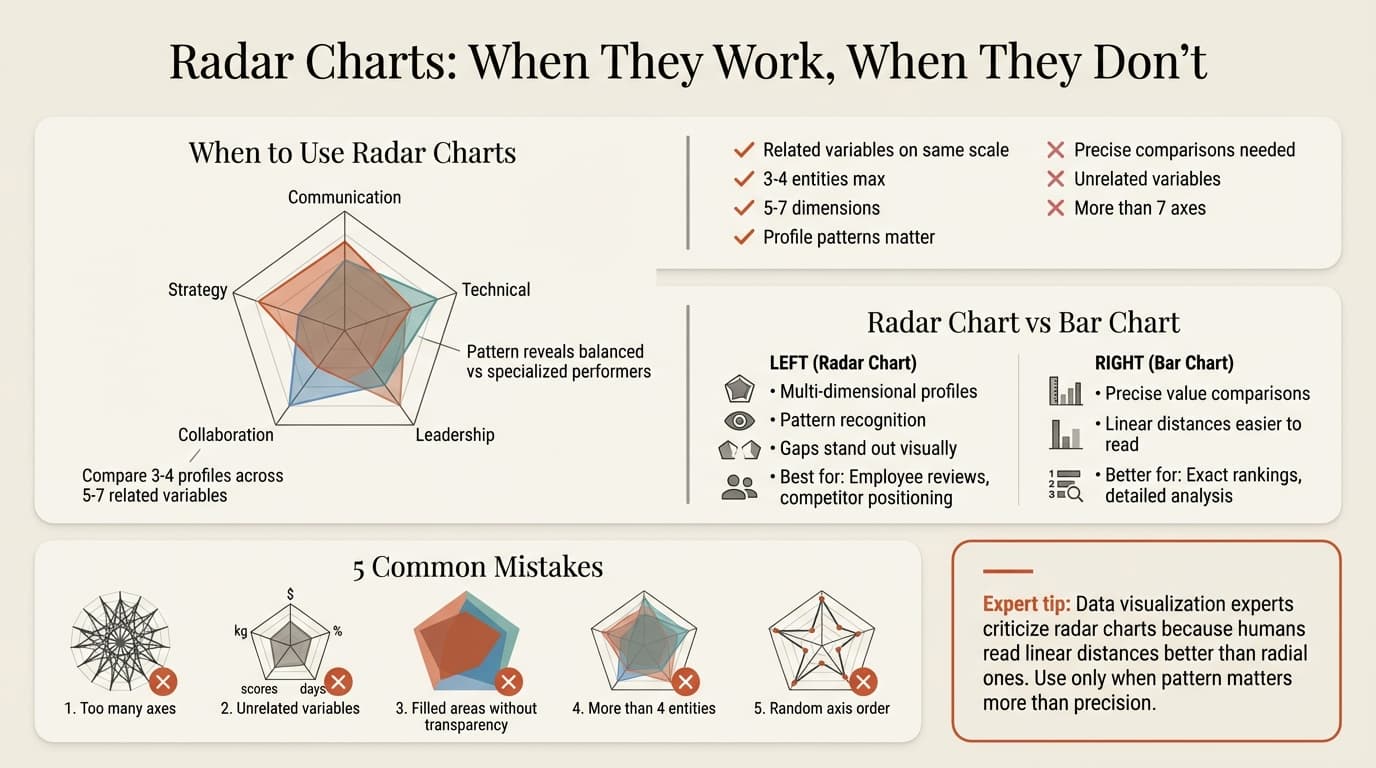
Radar charts work best when comparing multiple entities across the same set of variables and when the overall profile pattern matters as much as individual values. Specifically, they excel in three scenarios:
Comparing 3-4 profiles across related dimensions. Employee skill assessments across communication, technical expertise, leadership, collaboration, and strategic thinking. Product feature comparisons showing how three competing solutions perform across speed, ease of use, customization, support, and integration capabilities. The circular format reveals whether profiles are balanced or skewed toward specific strengths.
Highlighting gaps and outliers. Performance analysis using radar charts helps identify areas where improvement is needed. When one entity scores significantly lower on a dimension, the visual dip in the polygon makes this immediately obvious. Similarly, consistently high performance creates a large, symmetrical polygon that signals balanced excellence.
Showing relative positioning when variables are interrelated. Market positioning where dimensions like price, quality, innovation, customer service, and brand strength relate to overall competitive strategy. The radar chart shape communicates strategic positioning—price leaders look different than premium quality players—in ways that lists of numbers cannot.
When NOT to Use Radar Charts
| Scenario | Problem | Better Alternative |
|---|---|---|
| Variables have different units or scales | Creates misleading comparisons | Table or separate bar charts |
| Precise value comparisons needed | Radial distances are hard to judge accurately | Bar chart |
| More than 7 variables | Becomes cluttered and unreadable | Heatmap or table |
| Comparing more than 4 entities | Overlapping polygons create confusion | Small multiples or grouped bars |
| Variables are unrelated | Implies connections that do not exist | Bar chart or table |
| Time series data | Circular format obscures trends | Line chart |
Radar Charts vs. Bar Charts: The Trade-Offs
The debate between radar charts and bar charts centers on readability versus pattern recognition.
The Case Against Radar Charts
Data visualization expert Stephen Few criticized radar charts in his book Show Me the Numbers in a chapter called "Silly graphs that are best forsaken." His primary objection: quantitative values are easier to compare when laid out along a single axis rather than radiating from a center point. Humans judge linear distances more accurately than radial ones.
Additional research confirms these limitations:
- Category order changes perception. If you reorder axes, the polygon shape changes dramatically even though data remains identical. Readers focus on shape, not values, making interpretation unreliable.
- Area distortion. When radar charts fill the polygon area with color, area increases quadratically rather than linearly. Small value increases create disproportionately larger visual changes.
- Meaningless connections. Lines connecting data points between axes are arbitrary—they connect unrelated variables simply because they sit adjacent on the circle.
The Case For Radar Charts
Despite criticism, radar charts remain popular in business presentations because they solve specific communication problems:
- Immediate profile recognition. A balanced performer creates a symmetric polygon. Specialists show spiky patterns. This instant pattern recognition helps teams visualize strengths and weaknesses across multiple dimensions.
- Compact multivariate display. Radar charts can visually encode substantial information in a small area, useful when space is limited or when showing 5-7 variables for 3-4 entities.
- Gap identification. Supervisors and managers use radar charts for employee feedback because they easily compare individual metrics to team averages, making development areas visually obvious.
Which Should You Use?
| Your Goal | Best Choice | Why |
|---|---|---|
| Show overall profile patterns | Radar chart | Shape communicates balance or specialization |
| Enable precise value comparisons | Bar chart | Linear distances are easier to judge |
| Compare more than 4 entities | Bar chart or small multiples | Overlapping polygons confuse |
| Display unrelated variables | Bar chart or table | No implied connections |
| Highlight gaps from benchmarks | Radar chart | Visual dips stand out immediately |
| Compare across time periods | Line chart | Shows progression naturally |
Continue reading: Scrum Framework · Agile vs Waterfall · PowerPoint Layout Ideas
Create professional charts in PowerPoint
Build native waterfall, Mekko, Gantt, and business charts without manual formatting. 10 free AI prompts. No credit card required.
How to Create a Radar Chart in PowerPoint
Step 1: Insert the Chart
- Click on your slide where you want the chart
- Go to Insert > Chart in the ribbon
- Select Radar from the left panel
- Choose your style: Radar, Radar with Markers, or Filled Radar
- Click OK
Recommended: Start with Radar with Markers (unfilled). Filled radar charts exaggerate visual differences due to quadratic area growth.
Step 2: Enter Your Data
PowerPoint opens an Excel-like spreadsheet.
- Replace row labels in Column A with your variable names (Communication, Technical Skills, Leadership, etc.)
- Replace column headers (Series 1, Series 2) with entity names (Employee A, Employee B, Benchmark)
- Enter values for each entity across all variables
- Each column represents one entity's complete profile
- Delete extra rows or columns you do not need
- Close the spreadsheet when finished
The chart updates automatically.
Data structure example:
              Series 1    Series 2    Benchmark
              (Employee A) (Employee B) (Team Avg)
Communication    8           7           8
Technical        9           6           7
Leadership       6           8           8
Collaboration    7           9           7
Strategy         8           7           6
Step 3: Format Axes and Scale
Set consistent scale. Right-click the chart > Format Axis > Axis Options. Set minimum to 0 and maximum to your scale's top value (typically 10 or 100). Using different scales for each axis creates misleading visual comparisons.
Remove axis labels if cluttered. For cleaner slides, hide numeric labels on the axes. Right-click axis numbers > Format Axis > Number > Category: None. The polygon shape communicates patterns even without precise numbers.
Add gridlines for reference. Click the + icon (Chart Elements) > Gridlines > Primary Major Horizontal. Circular gridlines help readers estimate values across all axes.
Step 4: Adjust Line and Marker Formatting
Choose distinct colors and line styles. Right-click a data series > Format Data Series > Line. Use high-contrast colors (blue, orange, gray) with different line styles (solid, dashed, dotted) so series remain distinguishable even in grayscale.
Adjust marker size. Make markers 8-12 points depending on chart size. Larger markers are easier to see but may overlap with many data points.
Use transparency for filled radar charts. If using filled polygons, set Fill > Transparency to 40-60% so overlapping areas remain visible. Without transparency, one polygon completely obscures another.
Step 5: Add Clear Labels
Label variables clearly. PowerPoint automatically places variable names around the perimeter. Ensure these are concise (2-3 words maximum) and readable at 10pt font minimum.
Add a descriptive title. Use action titles that tell readers what the pattern means, not just "Performance Comparison."
Include a legend. Click + icon > Legend > Right. Position legend outside the chart area to avoid obscuring data.
Radar Chart Best Practices
After analyzing radar chart usage across 120+ business presentations, these patterns separate insightful visualizations from confusing ones.
Limit to 5-7 Variables
Fewer than 5 axes makes the circular format unnecessary—a simple bar chart works better. More than 7 creates visual clutter. For optimal clarity, limit radar charts to 5-8 axes.
Use Related Variables Only
Radar charts imply that variables are related or comparable. When variables have different units (revenue in millions, satisfaction score 1-10, market share as percentage), radar charts create misleading comparisons and suggest relationships that do not actually exist. Stick to variables measured on consistent scales.
Order Variables Strategically
Category order changes the polygon shape dramatically. Arrange axes so related variables sit adjacent (group all customer-facing skills together, separate from technical skills). This creates meaningful shape patterns rather than arbitrary zigzags.
Avoid Comparing Too Many Entities
Limit to 3-4 data series (polygons) maximum. More than four overlapping shapes become impossible to distinguish. If you need to compare many entities, use small multiples—separate radar charts arranged in a grid, each showing one entity.
Start Axis Scales at Zero
Unlike bar charts where zero-baselines are sometimes optional, radar charts require zero baselines. Starting axes at non-zero values distorts the polygon shape and makes small differences appear dramatically larger.
Prefer Unfilled Polygons
Filled radar charts suffer from quadratic area growth—small value changes create disproportionately larger visual differences. Use line-only or line-with-markers styles unless the filled area specifically communicates your message.
Write Interpretive Titles
| Weak Title | Strong Interpretive Title |
|---|---|
| Employee Performance Comparison | Employee A excels technically but needs leadership development |
| Product Feature Analysis | Competitor B leads on ease of use; we lead on customization |
| Team Skills Assessment | Team shows balanced skills except strategy (3 points below target) |
Common Radar Chart Mistakes
Using unrelated variables. Plotting revenue, employee headcount, and customer satisfaction on one radar chart implies these metrics are comparable. They are not. Use separate visualizations or a table.
Too many axes. Eight or more variables create unreadable clutter. Combine related variables or use a different chart type.
Comparing too many entities. Five overlapping polygons turn into visual spaghetti. Show the 3-4 most important comparisons or use small multiples.
Ignoring axis order. Random axis arrangement creates meaningless polygon shapes. Group related variables and order them logically around the circle.
Inconsistent scales. Using a 1-10 scale for some variables and 1-100 for others distorts visual comparison. Normalize all variables to the same scale before charting.
Filling areas without transparency. Solid-filled polygons completely obscure entities beneath them. Use transparency or line-only styles.
Missing benchmarks. Radar charts show relative positioning but lose meaning without context. Add a benchmark series (industry average, team average, target profile) for comparison.
Radar Chart Variations in PowerPoint
PowerPoint offers three radar chart styles, each suited for different purposes.
Standard Radar (Lines Only)
Connects data points with lines but does not fill the polygon. Use this when you want to show profiles without emphasizing area. Best for comparing 3-4 entities because overlapping lines remain distinguishable.
Radar with Markers
Adds circular markers at each data point along the lines. Use when individual values matter as much as overall pattern. Markers help readers see exact values even when lines cross.
Filled Radar
Colors the polygon area enclosed by data points. Use sparingly and only when the area comparison specifically supports your message. Remember that area grows quadratically, making small value differences look larger than they are.
Creating Radar Charts from Excel Data
For presentations with dynamic data, linking radar charts to Excel eliminates manual updates.
Manual method: Create your radar chart in Excel, copy it, then use Paste Special > Paste Link in PowerPoint. When Excel data changes, right-click the chart in PowerPoint and select Update Link. Links break when files move or rename.
Add-in method: Tools like Deckary maintain Excel links automatically, updating PowerPoint charts when source data changes. For recurring presentations with multiple linked charts, this reduces maintenance time significantly.
Radar Charts in Business Presentations
Consultants and analysts use radar charts selectively for specific multi-dimensional comparisons.
Performance reviews. Comparing employee skills across communication, technical expertise, leadership, and collaboration. The polygon shape shows whether performance is balanced or concentrated in specific areas.
Competitive positioning. Plotting competitors across price, quality, features, service, and innovation. Shape reveals strategic positioning—low-cost providers look different than premium specialists.
Product feature comparison. Evaluating software tools across ease of use, customization, speed, integration, and support. Helps teams visualize trade-offs when choosing between options.
Market attractiveness assessment. Comparing market segments across growth rate, size, competitive intensity, and profitability. Shape identifies most attractive opportunities.
The pattern: use radar charts when multi-dimensional profiles matter more than precise value comparisons, and when you are comparing 3-4 entities across 5-7 related variables.
Alternatives to Radar Charts
When radar charts do not fit, these alternatives often communicate more clearly:
Grouped bar charts. For precise value comparisons across multiple entities and variables. Bars enable accurate length-based comparison.
Heatmaps. For comparing many entities across many variables. Color intensity shows relative performance without implying connections between unrelated dimensions.
Small multiples. For comparing many entities across the same variables. Separate bar charts arranged in a grid enable individual profile examination without overlapping confusion.
Parallel coordinates. For showing individual profiles across many variables. Each entity is a line crossing vertical axes, revealing patterns while maintaining precise value readability.
Tables. For maximum precision when exact values matter more than visual patterns. Nothing beats a table for lookup tasks.
Key Takeaways
When radar charts work: Comparing 3-4 entities across 5-7 related variables when overall profile patterns matter as much as individual values, and when highlighting gaps or balance.
When to use alternatives: Precise value comparisons needed, comparing more than 4 entities, displaying unrelated variables, showing trends over time, or when variables use different scales.
Core formatting rules: Limit to 5-7 axes, use consistent scales starting at zero, order variables logically, prefer unfilled or transparent polygons, and add benchmarks for context.
Critical limitation: Humans compare linear distances more accurately than radial distances. Use radar charts only when pattern recognition outweighs the need for precise value comparison.
Radar charts solve a specific problem: showing multi-dimensional profiles for a handful of entities when the shape communicates meaningful patterns. Use them for that purpose, format them for clarity, and your audience will grasp relative positioning instantly. For everything else, simpler visualizations communicate more effectively.
Create professional charts in PowerPoint
Build native waterfall, Mekko, Gantt, and business charts without manual formatting. 10 free AI prompts. No credit card required.