PowerPoint Fonts: How to Add, Change, Embed, and Fix Font Issues
Complete guide to managing PowerPoint fonts: how to change fonts globally, embed custom fonts, fix compatibility issues, and avoid font substitution.
PowerPoint font management is straightforward until you share your presentation with someone on a different computer. The custom font you installed looks perfect on your screen but gets replaced by Calibri when your colleague opens the file because their system lacks that font. Line wrapping breaks, titles overflow, and formatting collapses.
After troubleshooting font issues across 300+ shared consulting presentations and testing font embedding workflows on both Windows and Mac systems, we have documented every reliable method for changing fonts globally, embedding custom fonts for cross-platform compatibility, and fixing font substitution problems.
How PowerPoint Handles Fonts
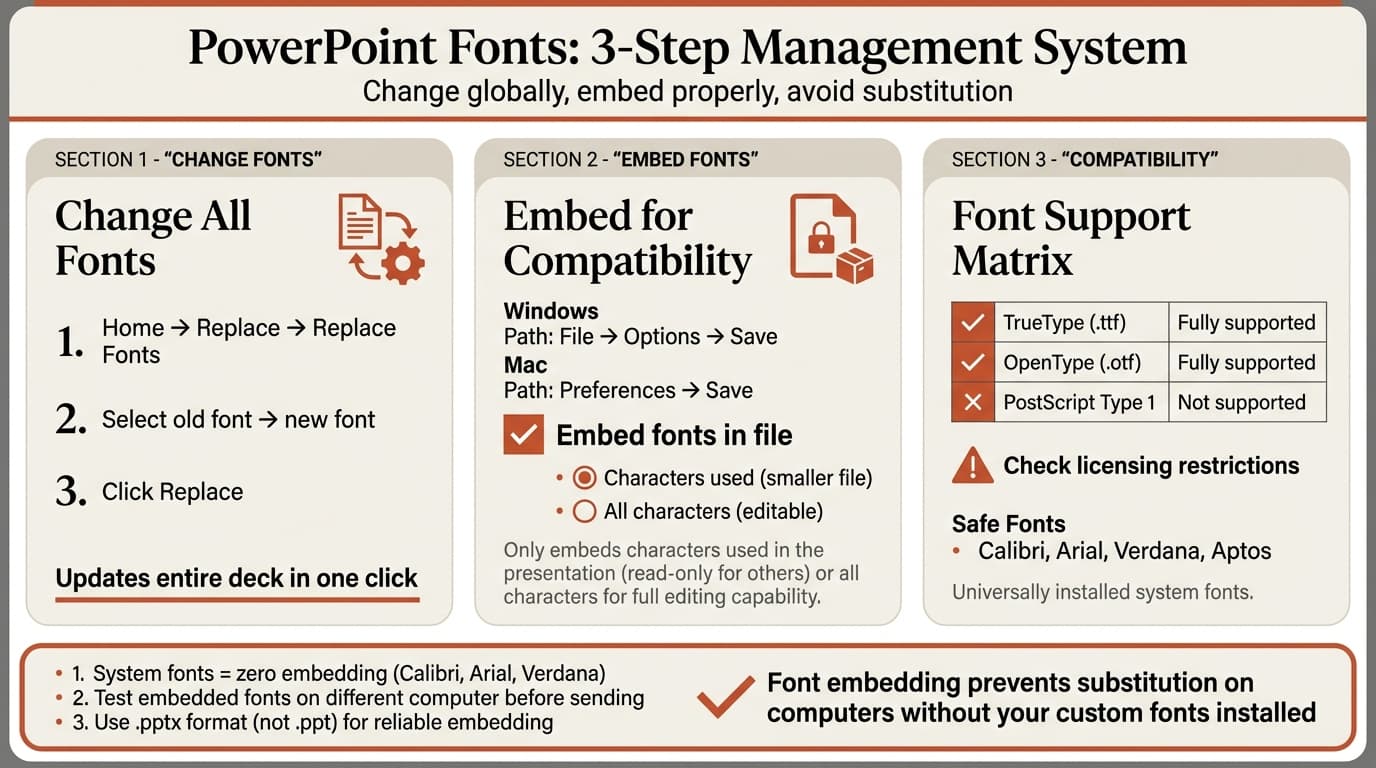
PowerPoint records font names in the presentation file. When someone opens the file, PowerPoint searches their system for matching fonts. If the font is missing, PowerPoint substitutes a default — usually Calibri or Arial. This breaks line wrapping and shifts text boxes.
Font embedding packages font data directly into the PowerPoint file. Recipients use the embedded font instead of requiring local installation. System fonts like Calibri and Arial permit embedding. Many commercial fonts restrict embedding through licensing metadata.
How to Change Fonts in PowerPoint
Change All Instances of a Font (Replace Fonts)
The Replace Fonts command swaps every instance of one font for another throughout the entire presentation:
- Go to Home → Editing → Replace dropdown → Replace Fonts
- In the Replace dropdown, choose the current font
- In the With dropdown, choose the new font
- Click Replace
Note: The Replace Fonts command only appears if your presentation uses multiple fonts.
Change Default Fonts Using Themes
Go to Design → Variants → Fonts → Customize Fonts. Choose a heading font and body font, name the set, and click Save. This creates a reusable font pairing. Distribute the .thmx theme file to your team. See our PowerPoint themes guide for more.
How to Add Custom Fonts to PowerPoint
PowerPoint displays fonts installed on your operating system. To use a custom font, install it first.
Windows: Right-click the font file (.ttf or .otf) and select Install for all users.
Mac: Double-click the font file to open Font Book, then click Install Font.
Installing a font on your computer does not make it available on other computers. For cross-platform compatibility, embed the font in the PowerPoint file.
How to Embed Fonts in PowerPoint
Windows:
- Click File → Options → Save
- Check Embed fonts in the file
- Choose:
- Embed only the characters used (smaller file, view-only)
- Embed all characters (larger file, allows editing)
- Click OK and save
Mac (Office 365 or Office 2021+):
- Go to PowerPoint menu → Preferences → Save
- Check Embed fonts in the file
- Save the presentation
Mac always embeds all characters, resulting in larger file sizes.
When to Use "Embed Only Characters Used" vs "Embed All Characters"
Use embed only characters used for final presentations that will not be edited. This reduces file size but new text may not display correctly if recipients add content.
Use embed all characters for presentations that others will modify.
Font Embedding Compatibility and Limitations
Font Licensing Restrictions
Each font file contains metadata specifying whether it can be embedded. Four levels exist: no embedding, preview/print only, editable, or installable. Most system fonts like Calibri and Arial allow editable embedding. Commercial fonts vary. PowerPoint honors these restrictions but provides no warning when embedding fails — the file simply will not include the font data.
Font Type Support
PowerPoint supports TrueType (.ttf) and OpenType (.otf) fonts for embedding. It does not support PostScript Type 1 fonts (.pfb, .pfm). Windows PowerPoint no longer recognizes PostScript fonts, making them unusable.
Cross-Platform Font Issues
Font names can differ between Mac and Windows for the same typeface. "Helvetica Neue" on Mac might appear as "Helvetica" on Windows, causing substitution even when both systems have the font.
PowerPoint 2011 and earlier for Mac cannot embed fonts. Recipients need Office 365 or Office 2021+ for Mac to use embedded fonts.
When sharing between Mac and Windows, stick to pre-installed fonts: Calibri, Arial, Verdana, Times New Roman, Georgia.
File Format Constraints
Font embedding works in .pptx format but has limitations in older .ppt formats. Always use .pptx for presentations with embedded fonts. If you must use .ppt for legacy compatibility, stick to system fonts only.
File Size Impact
Each embedded font family adds 500 KB to 2 MB. Three font families can add 3-6 MB to your file. Many email systems limit attachments to 10-25 MB. Use cloud sharing (OneDrive, Google Drive, Dropbox) for large presentations.
Continue reading: How to Link Excel Charts to PowerPoint (Auto-Update Guide) · Best AI Presentation Maker for Consultants · How to Add Icons to PowerPoint
Work faster in PowerPoint
Use shortcuts, icons, logos, and reusable slides without leaving PowerPoint. 10 free AI prompts. No credit card required.
Fixing Font Substitution Problems
Identify Which Fonts Are Missing
PowerPoint sometimes displays a font substitution warning when you open a file with missing fonts. If you miss the warning, open Home → Replace → Replace Fonts to see all fonts in the presentation. Fonts you do not recognize may be substitutes.
Fix by Embedding Fonts
If you have the original file on the computer where it was created:
- Open the file on the original computer
- Go to File → Options → Save
- Check Embed fonts in the file
- Choose Embed all characters
- Save and send the updated file
Fix by Replacing Fonts
If you do not have access to the original computer:
- Open Home → Replace → Replace Fonts
- Select the missing font in the Replace dropdown
- Choose a universal font (Calibri, Arial, Verdana) in the With dropdown
- Click Replace
Prevent Font Substitution in Team Presentations
Create a PowerPoint theme with approved fonts and distribute the .thmx file to all team members. Lock font choices into the Slide Master. See our PowerPoint themes guide.
Tools like Deckary enforce consistency by generating charts, icons, and layouts that inherit theme fonts automatically.
Best Practices for PowerPoint Font Management
Stick to System Fonts for Maximum Compatibility
Calibri, Arial, Verdana, Aptos, and Times New Roman are pre-installed on Windows and Mac. Using these eliminates embedding requirements and ensures identical rendering across platforms. For presentations that will be widely shared, system fonts are the safest choice.
For detailed font selection guidance, see our best fonts for PowerPoint guide.
Test Embedded Fonts Before Distributing
After embedding fonts, test the file on a different computer:
- Save the presentation with embedded fonts
- Copy the file to another computer
- Open the file and check that fonts match the original
- Verify text wrapping and spacing remain intact
Minimize the Number of Fonts
Professional presentations use one or two font families maximum. If your presentation uses five or six different fonts, consolidate using Home → Replace → Replace Fonts. This reduces file size and improves visual consistency.
Common Font Issues
"Embed fonts in the file" checkbox is grayed out Fonts in the presentation cannot be embedded due to licensing restrictions. Replace with embeddable fonts.
File size increases dramatically after embedding Use "Embed only the characters used" if the presentation will not be edited. Remove unused fonts with Replace Fonts.
Embedded fonts work on Windows but not Mac Older Mac PowerPoint (2011 and earlier) does not support embedded fonts. Recipients need Office 365 or Office 2021+ for Mac.
Key Takeaways
- Change all fonts at once using Replace Fonts. Go to Home → Replace → Replace Fonts, select the old font and new font, then click Replace.
- Embed fonts to prevent substitution. Go to File → Options → Save → Embed fonts in the file. Choose "Embed all characters" if others will edit.
- Not all fonts can be embedded. Font licensing controls whether fonts can be included. System fonts like Calibri and Arial allow embedding.
- Use system fonts for maximum compatibility. Calibri, Arial, Verdana, and Aptos are pre-installed on Windows and Mac.
- Font embedding increases file size. Each embedded font adds 500 KB to 2 MB. Use "Embed only characters used" for view-only presentations.
- Mac PowerPoint requires Office 365 or later for embedding. PowerPoint 2011 and earlier do not support embedded fonts.
- Test embedded fonts on another computer. Verify fonts render correctly and text wrapping remains intact before distributing.
For font selection guidance, see our best fonts for PowerPoint guide. For theme setup, see our PowerPoint themes tutorial.
Sources
- Benefits of embedding custom fonts (Microsoft Support)
- Embed, subset or remove embedded fonts in PowerPoint or Word (Neuxpower Support)
- Some fonts not embedded when a PowerPoint 2010 or above presentation is saved in an earlier format (Microsoft Learn)
- The ultimate guide to solving your PowerPoint font issues (SketchDeck)
- Solving The Font Embedding Problem in Word & PowerPoint (Office Watch)
Work faster in PowerPoint
Use shortcuts, icons, logos, and reusable slides without leaving PowerPoint. 10 free AI prompts. No credit card required.