ChatGPT for Word: What Actually Works in Microsoft Word
ChatGPT for Word works best for drafts, summaries, and rough rewrites. Compare browser, file upload, add-ins, Copilot, and Word-native document workflows.
ChatGPT for Word is useful, but only if you use it for the right part of the job. For outlines, first drafts, and quick summaries, ChatGPT is still one of the fastest tools available. For live proposal edits, review comments, and style-aware rewrites inside Word, a native tool like Deckary is the better fit.
For this guide, we reviewed the top 5 Google results for "chatgpt for word" on May 25, 2026, verified 16 current product, pricing, help, and research sources from OpenAI, Microsoft, Grammarly, GPT for Work, and Deckary, and mapped 4 real document jobs: drafting, rewriting, summarizing, and review. The search results were heavily vendor-led, which is a useful signal in itself. People searching for ChatGPT for Word usually want a practical workflow inside Microsoft Word, not a general AI explainer.
| Option | Works inside Word | Best for | Starting price | Main drawback |
|---|---|---|---|---|
| Browser ChatGPT | No | Outlines, first drafts, summaries | Free or ChatGPT Plus at $20/month | Manual copy-paste back into Word |
| GPT for Work | Yes | Prompt-based edits with Track Changes | $29 credits | Third-party add-in, still prompt-first |
| Microsoft 365 Copilot | Yes | Native drafts, summaries, rewrites | From $18/user/month paid yearly, plus qualifying Microsoft 365 plan | Availability and edit mode still vary by license and rollout |
| Deckary | Yes | Selected rewrites, comments, styles, proposal review | $180/year | Built for business documents, not general chat |
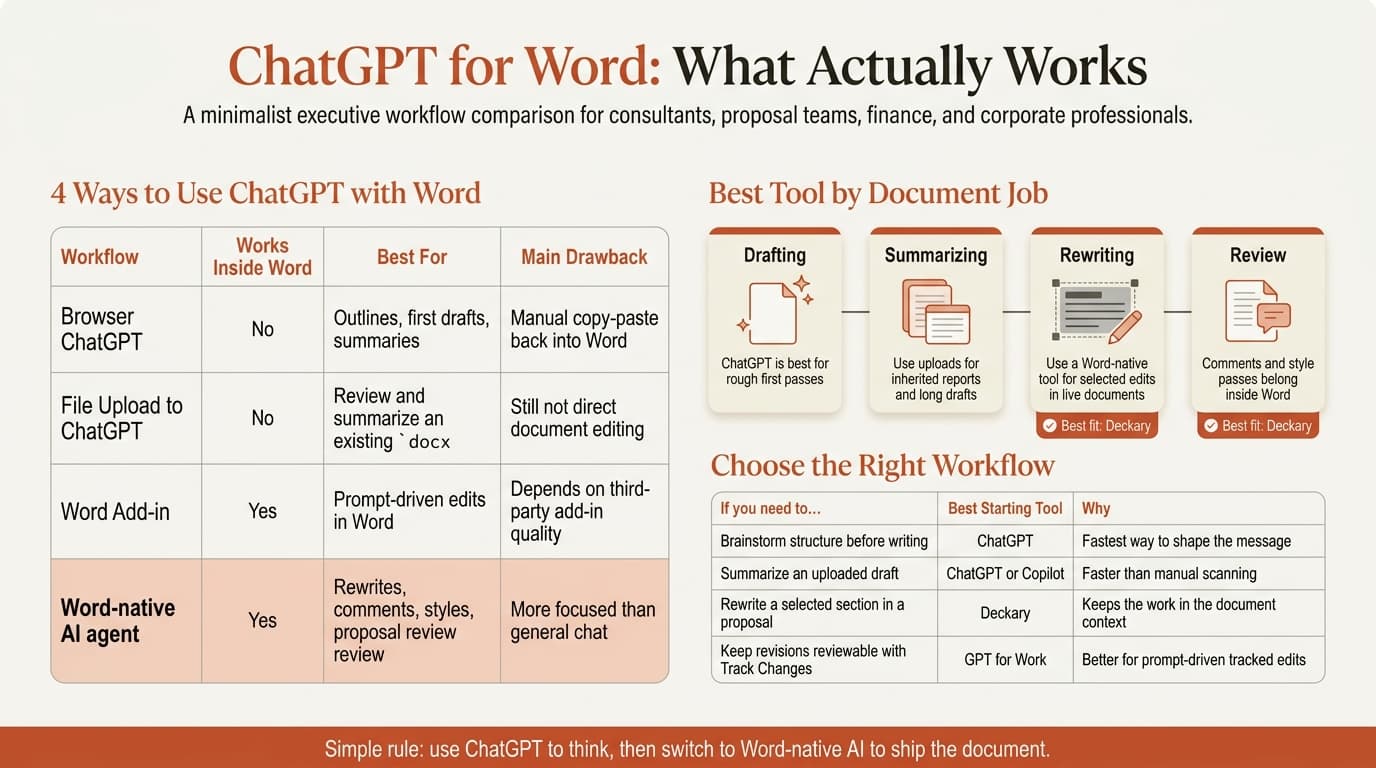
ChatGPT for Word works in four different ways
ChatGPT for Word is not one product. It is four different workflows that solve different problems.
The first is the plain browser workflow. You keep Word open, ask ChatGPT for a draft or rewrite in the browser, then paste the result back into your document. This is still the simplest setup, and it is enough for rough writing tasks.
The second is file upload. OpenAI's File Uploads FAQ says ChatGPT supports common document file types, including Word files, and can help with synthesis, extraction, and turning a presentation into a document. That makes ChatGPT more useful for inherited reports, messy meeting notes, and long draft reviews than it was a year ago.
The third is the desktop-companion workflow. OpenAI's Help Center says the macOS app launches with Option + Space, and the Windows app includes a Companion Window opened with Alt + Space. This does not turn ChatGPT into a Word add-in, but it does remove some tab switching.
The fourth is the add-in route. This is the strongest signal from the live SERP. The top results we reviewed were dominated by GPT for Work and Microsoft marketplace listings for Word add-ins, not by general advice articles. That suggests search intent is practical: people want ChatGPT-style help while staying in Word.
| Workflow | What you actually do | Best use case | Weak spot |
|---|---|---|---|
| Browser chat | Paste notes or text into ChatGPT | Fast first drafts and outlines | Formatting and comments stay outside Word |
| File upload | Upload the .docx and ask questions about it | Summaries, extraction, rewrite ideas | Still not direct in-document editing |
| Desktop app | Keep ChatGPT beside Word with a shortcut | Faster side-by-side drafting | No true Word-native review controls |
| Word add-in | Prompt inside Word | Real document work with less copy-paste | Depends on the add-in's quality and limits |
ChatGPT for Word is best for drafts and summaries, not final document control
ChatGPT for Word is strongest when the output is still early.
OpenAI's Writing with ChatGPT guide lays out a simple pattern that fits Word work well: Plan -> Draft -> Revise -> Package. That is a good mental model because it separates idea work from document-control work. ChatGPT is strong at the first three. Word-native tools become more useful in the last step.
OpenAI's guide also says ChatGPT works best when you provide context and constraints and treat the result as a draft you will review, not a final authority. That matches what actually happens in consulting, finance, and proposal writing. Most of the time, you do not need AI to write the entire document. You need it to turn rough notes into a usable first pass or shorten a bloated paragraph without losing the core message.
These are the jobs where ChatGPT still does good work:
| Job | Why ChatGPT works well | Example prompt |
|---|---|---|
| Turn notes into a draft | It is fast at building structure from loose inputs | "Turn these meeting notes into a one-page decision memo for a CFO. Keep the recommendation in the first paragraph." |
| Summarize a long document | File uploads make review faster | "Read this draft and give me the decision, risks, and next steps in 150 words." |
| Rewrite for tone | Good at shortening, simplifying, and changing audience | "Rewrite this section for an executive audience. Keep the facts, cut jargon, and shorten by 25%." |
| Generate alternatives | Useful when you want 2 or 3 different openings or structures | "Give me 3 openings for a board memo on this topic: direct, conservative, and commercial." |
Where it breaks down is the moment the document itself becomes the work product. ChatGPT does not inherently manage Track Changes, comment threads, selection-aware rewrites, or built-in Word styles. That is why many teams like ChatGPT for thinking, but switch to Word-native tools when they are getting the document ready to send.
Continue reading: How to Make a Gantt Chart in PowerPoint (Free Template) · How to Align Objects in PowerPoint · Best AI Presentation Maker for Consultants
Create and edit Word documents with AI
Draft new content and edit professional documents directly in Word. 10 free AI prompts. No credit card required.
ChatGPT for Word add-ins are better than copy-paste when the document matters
ChatGPT for Word becomes more practical once you move from copy-paste to a native workflow.
The clearest third-party option in the current SERP is GPT for Work. Its Word page says you can highlight text or use the full document in a prompt, keep rich-text formatting, and work in Word's Track Changes mode. The pricing page says usage starts with a $29 credit pack rather than a fixed per-seat subscription. For prompt-heavy users who want ChatGPT-style interaction in Word, that is a real step up from browser copying.
Microsoft's own route is Copilot in Word. It is stronger than plain ChatGPT when you want native Microsoft integration, especially for drafting and summaries. But Microsoft's Edit with Copilot in Word page still says the feature is rolling out worldwide and depends on license and preview status in some cases. Microsoft's business pricing page currently shows Microsoft 365 Copilot Business from $18/user/month paid yearly, with a qualifying Microsoft 365 plan required.
If your documents are proposals, SOWs, memos, and board papers, Deckary is the cleaner fit than pure ChatGPT prompting. Deckary's current pricing page lists Premium at $180/year and says that plan includes the AI Word Agent. The product is built around document work inside Word: rewrite selected text, insert at the cursor, summarize structure, and add comments on weak passages. That is a different job from general chat.
| Tool | What it does better than browser ChatGPT | What to watch |
|---|---|---|
| GPT for Work | Prompt directly in Word, keep Track Changes, preserve formatting | Still centered on prompt-response editing |
| Copilot in Word | Native Microsoft workflow, draft and summarize inside Word | Licensing and rollout still matter |
| Deckary | Better for controlled rewrites, comments, styles, and proposal review | Less suited if you only want general chat outside the document |
This is the practical split we recommend:
| If you need to... | Best tool |
|---|---|
| Brainstorm structure before writing | ChatGPT |
| Summarize an uploaded draft fast | ChatGPT or Copilot |
| Rewrite a selected section in a live proposal | Deckary |
| Keep edits reviewable with Track Changes | GPT for Work |
| Stay fully inside the Microsoft stack | Copilot |
ChatGPT for Word prompts work best when you specify audience, format, and action
ChatGPT for Word prompts improve fast when you stop asking for "better writing" and start asking for a document job.
OpenAI's writing guide recommends naming the goal, audience, raw material, and output format. That is exactly how Word users should prompt. If you leave those details out, ChatGPT will fill the gaps with generic wording.
Use prompt patterns like these:
| Document type | Prompt that works |
|---|---|
| Proposal section | "Draft a 180-word approach section for a supply chain diagnostic. Audience: COO. Tone: direct, commercial, low jargon. End with the workstreams." |
| Executive summary | "Turn these notes into a one-page executive summary. Put the recommendation first, then evidence, then risks, then next steps." |
| Memo rewrite | "Rewrite this memo so it reads like a decision memo, not meeting notes. Keep the facts. Cut repetition. Add a clearer ask." |
| Board paper review | "Read this draft and list 5 places where the recommendation is weak, unsupported, or buried too late." |
| Scope clarification | "Rewrite this SOW section so deliverables, exclusions, and acceptance criteria are explicit." |
Two habits matter more than any magic phrase:
- Paste the exact text you want changed, not a vague description of it.
- Say what should happen after the reader finishes the document.
That second point is where Word documents often fail. A proposal should lead to approval. A memo should lead to a decision. A board paper should lead to action or sign-off. If you include the intended action in the prompt, ChatGPT usually gives you a better result.
ChatGPT for Word needs a privacy and review check before business use
ChatGPT for Word is useful, but you still need to think about data handling and final review.
OpenAI's Data Controls FAQ and How your data is used to improve model performance say that, for individual services such as ChatGPT, OpenAI may use your content to train models unless you turn off Improve the model for everyone. The same FAQ also says Temporary Chats are deleted after 30 days and are not used to train models. That does not mean you should panic. It means you should not paste sensitive client material into a casual workflow without thinking through the setting and the policy path first.
Microsoft makes a similar point from a different angle. Its Copilot in Word FAQ says Copilot can make mistakes, misinterpret facts, or produce inaccurate results, and users should review, edit, and verify the output. Microsoft Research's April 2026 paper From Use to Oversight tested 48 participants and found that better system understanding did not remove the need for oversight.
The short rule is simple:
| Situation | Better choice |
|---|---|
| You need ideas, outlines, or a rough first pass | ChatGPT |
| You need a document reviewed and cleaned up inside Word | Deckary or Copilot |
| You need sentence polish only | Grammarly |
| You need the final client version | Human review, always |
For most teams, the best stack is not "ChatGPT only." It is ChatGPT first, then a Word-native editing workflow before the document leaves your hands.
The short answer
ChatGPT for Word works best as a drafting and summarization layer, not as the final operating system for business documents.
If your workflow is still mostly blank-page drafting, ChatGPT is enough. If you are editing live proposals, memos, SOWs, and reports in Word, move to a native workflow sooner. That is where tools like Deckary, How to Use AI in Microsoft Word, Word AI, and How to Use Copilot in Word become more useful than another browser tab.
Sources
- OpenAI Academy: Writing with ChatGPT
- OpenAI Help Center: What is ChatGPT Plus?
- OpenAI Help Center: File Uploads FAQ
- OpenAI Help Center: Downloading the ChatGPT macOS app
- OpenAI Help Center: Using the ChatGPT Windows app
- OpenAI Help Center: Data Controls FAQ
- OpenAI Help Center: How your data is used to improve model performance
- Microsoft Support: Frequently asked questions about Copilot in Word
- Microsoft Support: Edit with Copilot in Word
- Microsoft 365 Copilot pricing
- GPT for Work: GPT for Word
- GPT for Work pricing
- Grammarly for Microsoft Word
- Grammarly pricing
- Deckary pricing
- Microsoft Research: From Use to Oversight
Related Guides
Create and edit Word documents with AI
Draft new content and edit professional documents directly in Word. 10 free AI prompts. No credit card required.