How to Use AI in Microsoft Word: 4 Workflows That Hold Up at Work
How to use AI in Microsoft Word with Copilot, Deckary, Grammarly, and ChatGPT. Step-by-step workflows for drafts, rewrites, summaries, and review.
How to use AI in Microsoft Word depends on the job. If you need a first draft, Copilot is the obvious starting point. If you need a paragraph rewritten, styled, or reviewed inside a live .docx file, Deckary is the better fit. If you only need sentence polish, Grammarly is faster than either. If you want to turn rough notes into a working outline, ChatGPT still earns a place in the workflow.
For this guide, we reviewed the top 5 Google results for "how to use ai in microsoft word" on May 25, 2026, verified 8 official Microsoft, OpenAI, Grammarly, and Microsoft Research sources, and mapped 4 common document jobs across Copilot, Deckary, Grammarly, and ChatGPT: drafting, rewriting, summarizing, and review. The pattern was simple: the teams getting real value from AI in Word were not asking one tool to do everything.
| If you need to... | Best starting tool | Why |
|---|---|---|
| Draft a section from notes | Copilot or ChatGPT | Fast first pass |
| Rewrite selected text in a proposal | Deckary | Edits inside Word with document context |
| Tighten grammar and tone | Grammarly | Best sentence-level polish |
| Summarize a long document | Copilot or Deckary | Better than manual scanning |
| Leave review comments on weak sections | Deckary | Better review workflow than chat-style output |
| Rework a memo without breaking formatting | Deckary or Copilot | Keeps the work in Word |
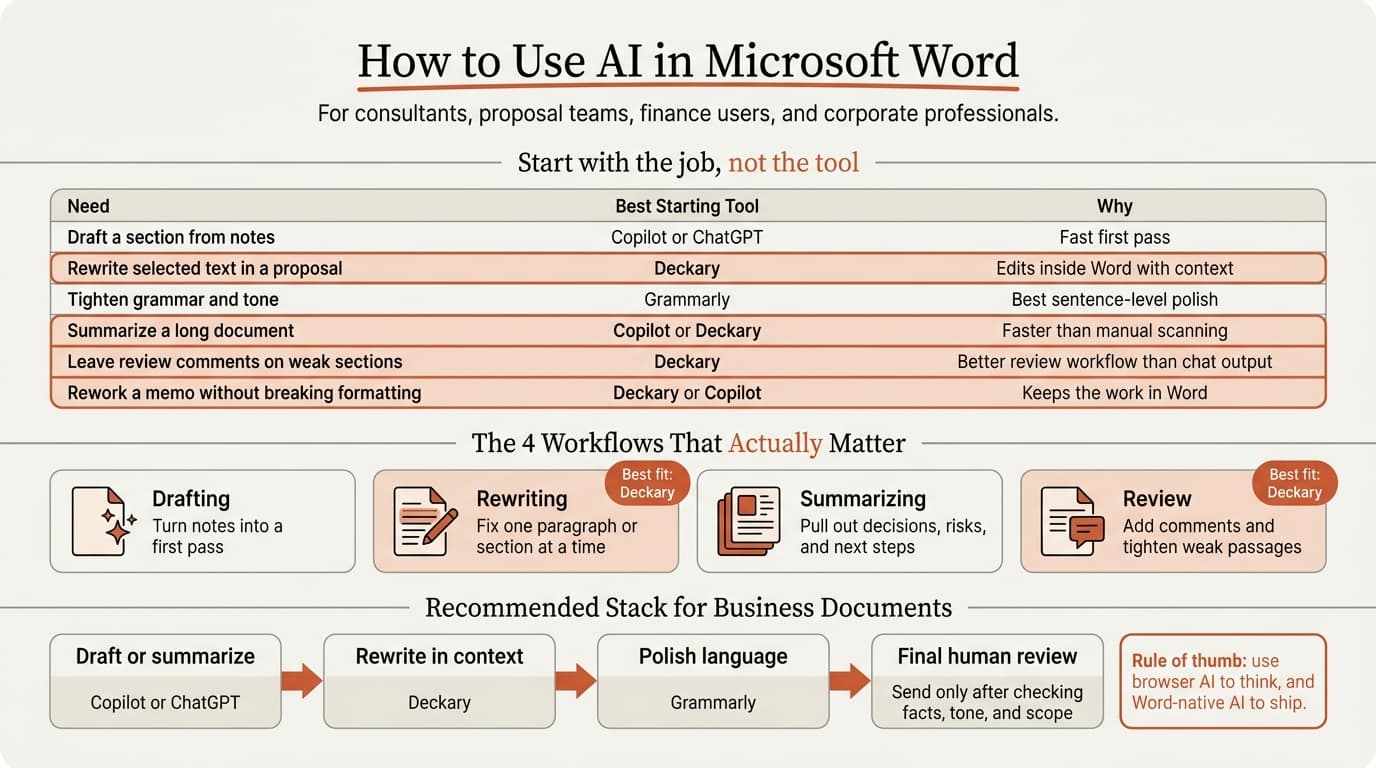
How to use AI in Microsoft Word starts with the right workflow
How to use AI in Microsoft Word is not one feature. It is a stack of different workflows that happen to share the same document.
Microsoft's current Word pages frame AI around Copilot: drafting, editing, and summarizing inside Word. That matches the live SERP. The top results are mostly Microsoft support pages, product pages, and generic tutorials that explain where the button is. What they usually miss is workflow choice.
The better question is not "How do I turn AI on?" It is "What part of the document job am I trying to speed up?"
| Workflow | Best tool type | What it does well | What to watch for |
|---|---|---|---|
| Blank-page drafting | Copilot or ChatGPT | Turns notes into a usable first pass | Can sound generic if the prompt is vague |
| Selected-text rewrite | Word-native add-in | Preserves nearby context and formatting | Still needs review |
| Sentence polish | Grammarly | Fixes clarity, fluency, and tone fast | Weak on document logic |
| Long-document review | Copilot or Deckary | Summaries and targeted rewrites | Do not trust the summary alone |
Microsoft and LinkedIn's 2024 Work Trend Index surveyed 31,000 people across 31 countries and found that 75% of knowledge workers already use AI at work. That makes Word AI a workflow decision, not an experiment.
If you work on proposals, memos, board papers, or reports, the fastest setup is usually:
- Draft or summarize with Copilot or ChatGPT.
- Rewrite or structure the live document inside Word.
- Polish the final language.
- Review the output like any other client-facing draft.
How to use AI in Microsoft Word with Copilot
How to use AI in Microsoft Word with Copilot is straightforward once access is in place.
Microsoft's Copilot in Word page says the basic flow is: open a new or existing Word document, ask Copilot what to create, rewrite, or summarize, attach files or links for reference if needed, review the draft, then insert it into the document. Microsoft's rewrite support page adds a more precise rewrite flow for selected text.
Start here:
- Confirm that Copilot is available in your Microsoft 365 plan and Word build.
- Open a new document or the document you want to edit.
- Use Copilot for one clear task at a time: draft, summarize, or rewrite.
- Review the output before inserting or replacing text.
Two access details matter. Microsoft's subscription FAQ says Copilot features in Word that come with Microsoft 365 Family and Premium plans are only available to the subscription owner. Microsoft's Edit with Copilot in Word support page also says the newer editing experience is still rolling out worldwide and may require preview access in some cases.
Copilot workflow for first drafts
Copilot is best when you already know the task and just need a usable first pass.
Use prompts like these:
| Document job | Prompt pattern |
|---|---|
| Proposal section | "Draft a 150-word approach section for a supply chain diagnostic. Audience: COO. Tone: direct, commercial, low jargon." |
| Memo | "Turn these notes into a one-page decision memo with recommendation, evidence, risks, and next steps." |
| Executive summary | "Summarize this document for an executive who needs the decision, numbers, and open risks in under 200 words." |
| Rewrite | "Tighten this paragraph for a CFO audience. Keep the facts. Cut filler. Make the recommendation clearer." |
Copilot is also solid for selected-text rewrites. Microsoft's support page says you can select text, choose the Copilot icon in the margin, use Auto Rewrite, then choose Replace or Insert below. Microsoft also says that rewrite flow is available on the web, Windows, Mac OS, and iPad.
Where Copilot fits best
Copilot is strongest in three situations:
| Best use case | Why it works |
|---|---|
| Turning notes into a first draft | Fastest native path inside Word |
| Summarizing a long draft | Good when you need the main points quickly |
| Rewriting one block of text | Stronger than manual edit cycles for rough versions |
Where Copilot is weaker is document-specific review. If you want comment-style feedback on weak passages, built-in style application, or consultant-style rewrites on selected sections, Copilot can feel broad rather than precise.
Continue reading: AI PowerPoint for Finance Teams · Best Fonts for PowerPoint · Case Study Template PowerPoint
Create and edit Word documents with AI
Draft new content and edit professional documents directly in Word. 10 free AI prompts. No credit card required.
How to use AI in Microsoft Word for rewrites, styles, and review
How to use AI in Microsoft Word for live document editing is a different workflow from prompt-first drafting.
This is where Deckary fits. Deckary's AI Word Agent is built for the documents that consultants, finance teams, and business users actually ship: proposals, memos, SOWs, reports, and board papers. Instead of pushing everything through a side chat and then cleaning up the result, the agent works from the current selection or insertion point in Word.
The practical flow looks like this:
- Select the paragraph, section, or list that needs work.
- Ask for a specific rewrite, summary, comment pass, or style change.
- Review the proposed change in the document context.
- Keep, reject, or refine from there.
That selection-first pattern matters because document quality problems are usually local. One scope paragraph is vague. One recommendation is too soft. One section needs a stronger heading hierarchy. One list needs to become comments instead of prose.
| If the problem is... | Better Deckary task |
|---|---|
| The paragraph is too long | Rewrite for a shorter executive tone |
| The section is structurally weak | Ask for a tighter outline or heading pass |
| The proposal needs review notes | Add Word comments on unclear scope or weak logic |
| The draft looks messy | Apply built-in Word styles to the selected content |
| You need a fresh section | Draft at the cursor from a short brief |
Deckary also solves a common business-writing problem: keeping the work in the document. If your proposal later becomes a deck, the handoff is cleaner when the source document stays structured. That is why the related bridges matter: Word to PowerPoint, PowerPoint to Word, Word AI, and AI Writing Assistant for Word.
For consultants and proposal teams, this is usually the best split:
| Task | Better tool |
|---|---|
| First rough draft from nothing | Copilot |
| Rewrite a selected section in place | Deckary |
| Add review comments to weak passages | Deckary |
| Apply Word structure and styles | Deckary |
| Clean up one sentence | Grammarly |
When ChatGPT or Grammarly fit better than Word-native AI
ChatGPT and Grammarly still belong in the mix. They just solve narrower problems.
OpenAI's Writing with ChatGPT guide recommends a simple workflow for writing tasks: Plan -> Draft -> Revise -> Package. It also says ChatGPT works best when you provide context and constraints and treat the output as a draft to review, not a final authority.
That makes ChatGPT a good choice when:
- You are staring at a blank page.
- Your notes are messy.
- You need three alternative structures before you start writing in Word.
It is a worse choice when formatting, comments, and document context matter. Copy-paste is fine for planning. It becomes tedious when you are revising a live proposal for the fourth time.
Grammarly fits later in the workflow. It is strongest as a polish layer for grammar, tone, and fluency. Grammarly's support docs say Word use now runs through Grammarly for Windows or Grammarly for Mac rather than relying on the old Microsoft Office add-in path, which is being retired. That is useful if the document is mostly right and you want cleaner wording without a full rewrite pass.
| Tool | Best moment to use it | Wrong expectation |
|---|---|---|
| ChatGPT | Before the document is fully formed | It will preserve Word formatting and review logic |
| Grammarly | After the structure is mostly finished | It will fix weak argument structure |
| Copilot | Drafting and summarizing in Word | It will behave like a focused proposal reviewer |
| Deckary | In-document rewrite, review, and style work | It will replace final human approval |
Common mistakes when you use AI in Microsoft Word
The most common mistake is asking AI to do a document job with no constraints.
OpenAI says stronger prompts come from audience, format, and clear goals. Microsoft Research's April 2026 paper From Use to Oversight tested 48 participants and found that even users with stronger mental models of the system could still produce more grammatical errors in some conditions. Familiarity does not remove the need to review.
Avoid these mistakes:
| Mistake | Better move |
|---|---|
| "Make this better" with no audience or purpose | Specify audience, tone, and what should change |
| Full-document rewrite for a high-stakes proposal | Work section by section |
| Trusting the first summary | Compare the summary to the source text |
| Using browser AI for formatting-heavy revision | Use a Word-native workflow |
| Using Grammarly for logic problems | Use Copilot or Deckary for structure, then polish |
The rule we use is simple: use AI to get to version two faster, not to skip review.
Recommended setup for most business teams
For most teams, the best answer to "how to use AI in Microsoft Word" is a split workflow, not a single winner.
- Use Copilot for first drafts, rewrites, and quick summaries.
- Use Deckary when the live Word document needs targeted rewrites, comments, style cleanup, or structured review.
- Use Grammarly at the end for sentence-level polish.
- Use ChatGPT before Word when you need help framing the message.
That keeps each tool in the job it actually does well.
Sources
- Microsoft Word: Copilot in Word
- Microsoft Support: Edit with Copilot in Word
- Microsoft Support: Rewrite text with Copilot in Word
- Microsoft Support: Frequently asked questions about Copilot in Microsoft 365 subscriptions
- Microsoft and LinkedIn: 2024 Work Trend Index Annual Report
- OpenAI Academy: Writing with ChatGPT
- Grammarly Support: Does Grammarly support Word Online?
- Grammarly Support: Grammarly for Microsoft Office will be discontinued soon
- Microsoft Research: From Use to Oversight: How Mental Models Influence User Behavior and Output in AI Writing Assistants
Related Guides
Create and edit Word documents with AI
Draft new content and edit professional documents directly in Word. 10 free AI prompts. No credit card required.