How to Use Copilot in Word: Setup, Prompts, and Limits
How to use Copilot in Word step by step: setup, prompts, rewrites, summaries, Edit with Copilot limits, and when to switch to a Word agent.
How to use Copilot in Word is now a practical document workflow. If you already work in Microsoft 365, Copilot is the fastest way to draft, rewrite, and summarize inside Word. If you need more control over a live proposal, memo, or report, Deckary is the better handoff for in-document rewrites, comments, and style work.
For this guide, we reviewed the top 5 Google results for "how to use copilot in word" on May 25, 2026, verified 8 current Microsoft support, pricing, FAQ, and research sources, and mapped 4 document jobs: first draft, selected-text rewrite, summary, and direct document editing. The ranking pages mostly show where to click. The gaps are access requirements, rollout status, and edit-mode limits.
| If you need to... | Best starting tool | Why |
|---|---|---|
| Draft a first pass from notes | Copilot | Fastest native Microsoft option |
| Rewrite one paragraph in place | Copilot or Deckary | Both keep the work in Word |
| Review a long document fast | Copilot | Good summary workflow |
| Add comments or apply Word styles as part of the edit | Deckary | Better fit for proposal review and document control |
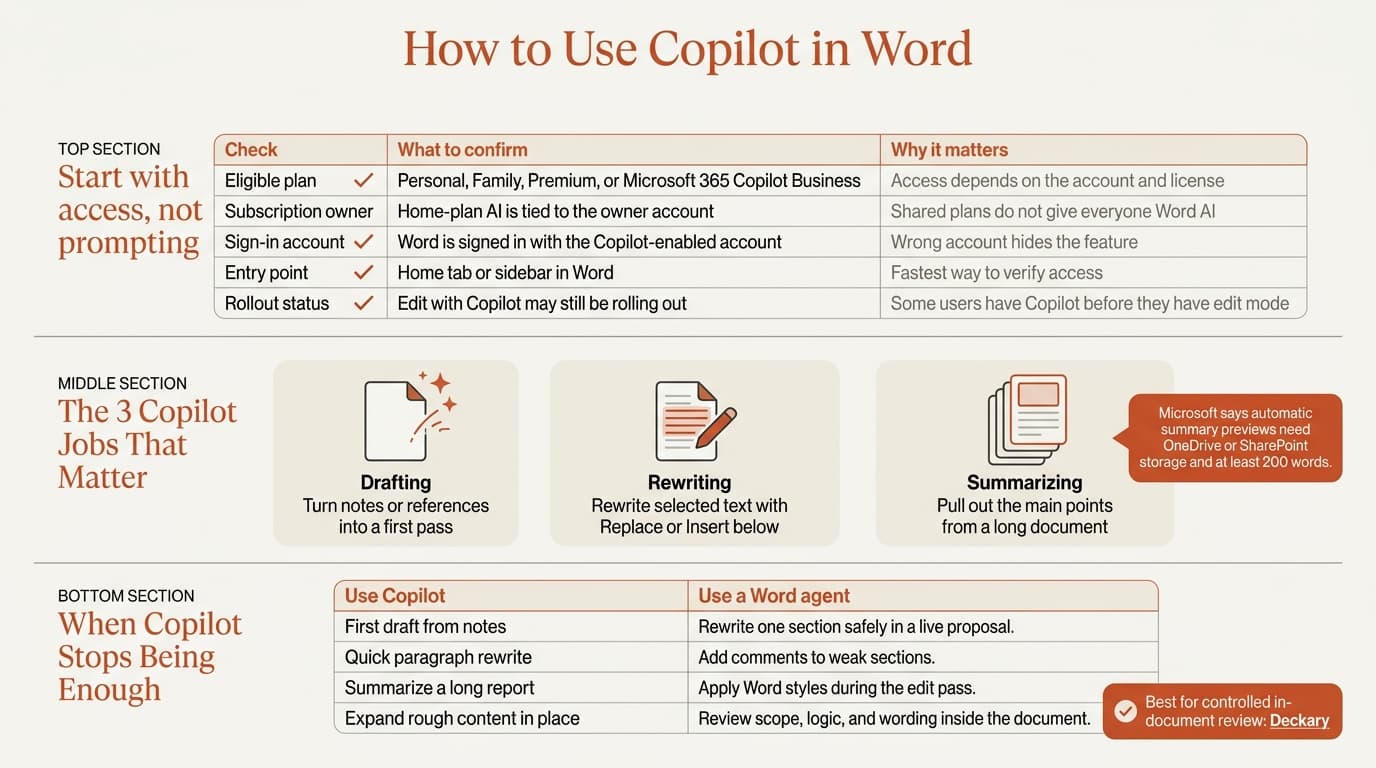
How to use Copilot in Word: setup checklist
How to use Copilot in Word starts with access, not prompting.
Microsoft's current support and pricing pages show that Copilot access now depends on which Microsoft account you use and which plan that account holds. Microsoft also says some newer editing features are still rolling out, so "I don't see it yet" can be a rollout issue, not only a user error.
| Check | What Microsoft says | Why it matters |
|---|---|---|
| Eligible plan | Microsoft says Copilot in Word is included with Microsoft 365 Personal, Family, and Premium for home users, while Microsoft 365 Copilot Business starts at $18/user/month paid yearly and requires a qualifying Microsoft 365 plan | Missing access is still the most common reason Copilot does not appear |
| Subscription owner | Microsoft says AI benefits in Family and Premium plans are only available to the subscription owner | Shared household plans do not give every member Word AI access |
| Sign-in account | Word must be signed in with the Copilot-enabled account | The wrong account can hide the feature |
| Entry point | Microsoft points users to the Home tab or the sidebar in Word | This is the quickest way to confirm whether access is live |
| Rollout status | Microsoft says Edit with Copilot is still rolling out worldwide | You may have Copilot, but not every editing feature yet |
If Copilot is missing, check licensing before you reinstall Word. Microsoft's Word support pages repeatedly note that Copilot may not be included with your subscription or may be unavailable because of organization settings. That is the right first check.
Microsoft and LinkedIn's 2024 Work Trend Index Annual Report surveyed 31,000 knowledge workers across 31 countries and found that 75% already use AI at work. Access and workflow fit are now the real questions.
How to use Copilot in Word for drafts, rewrites, and summaries
How to use Copilot in Word well is mostly about picking the right job for it.
Microsoft's Word support docs break the workflow into three main tasks: drafting new content, rewriting selected text, and summarizing existing documents.
Draft new content
For a blank-page start, Copilot is straightforward:
- Open a blank document or place the cursor on a new line in an existing document.
- Open Copilot from the prompt box or the left-margin icon.
- Give a specific request with audience, format, and tone.
- Review the draft, then keep it, regenerate it, or discard it.
Microsoft's Draft and add content with Copilot in Word page says you can also ground a new draft on existing files, emails, or meetings, and business users can reference up to 20 items. That matters when you are drafting from internal material rather than from a blank prompt.
| Document job | Weak prompt | Better prompt |
|---|---|---|
| Proposal section | "Write an approach section" | "Write a 150-word approach section for a procurement diagnostic. Audience: COO. Tone: direct, commercial, low jargon." |
| Memo | "Summarize this decision" | "Draft a one-page decision memo with recommendation, evidence, risks, and next steps for an executive sponsor." |
| Report intro | "Start this report" | "Write a short introduction for a Q2 performance report. Explain the purpose, the scope, and the three sections that follow." |
| Rewrite | "Make this better" | "Rewrite this paragraph for a CFO audience. Keep the facts, cut filler, and make the recommendation clearer." |
The pattern is simple: name the audience, name the output, and state what should change.
Rewrite selected text
Selected-text rewriting is one of Copilot's best Word workflows because it stays local.
Microsoft's Rewrite text with Copilot in Word page says rewrite is available on the web, Windows, Mac OS, and iPad. The steps are:
- Select the text you want to improve.
- Click the Copilot icon in the left margin.
- Choose
Auto Rewrite. - Compare the suggested versions.
- Use
ReplaceorInsert below.
This workflow is best for tightening a paragraph, changing tone, or shortening a block of text without rebuilding the whole document.
Summarize a document
Copilot is also useful for inherited documents that you need to review fast.
Microsoft's summary support page says summary previews can appear at the top of the document depending on license and settings. Microsoft also says automatic summaries require the document to be saved in OneDrive or SharePoint and that the reference content needs at least 200 words for automatic generation.
| Task | Best Copilot move | What to watch |
|---|---|---|
| Review a long report | Use summary at the top or ask Copilot to summarize the document | Check the summary against the original before forwarding it |
| Pull out actions | Ask for decisions, risks, and next steps only | Broad summaries can hide weak sections |
| Understand one section | Highlight the section and ask for a rewrite or explanation | Narrow prompts are usually more accurate |
If your document is short, you can still click Summary manually.
Continue reading: Donut Chart PowerPoint · PowerPoint SmartArt · Appendix Slide PowerPoint
Create and edit Word documents with AI
Draft new content and edit professional documents directly in Word. 10 free AI prompts. No credit card required.
How to use Copilot in Word with Edit with Copilot
Edit with Copilot is the part many older tutorials miss.
Microsoft's Edit with Copilot in Word page says this editing mode is rolling out worldwide and is available only for certain licenses and preview paths. Microsoft positions it as a direct document-editing flow: you open Word, sign in with a Copilot-enabled account, choose Tools > Edit with Copilot, give a clear request, and let it work on the current document.
It is most useful for updating sections in an existing report, pulling content in from referenced files, and reshaping a rough draft inside the live document.
It also has real limits, and these are worth knowing before you trust it with a client document:
| Current limit | Microsoft's documented behavior |
|---|---|
| Comments | Edit with Copilot cannot add or modify comments |
| Track Changes controls | It cannot turn Track Changes on or off, or accept or reject tracked changes |
| Shared docs | Microsoft says shared-document edits show a preview first, and you must confirm changes before they are applied |
| New files | It can only create content in the currently open document |
| External tools | Integration with external tools is not supported |
This is the point where many business teams hit the handoff. Copilot is good at broad drafting and broad editing. It is weaker when the workflow depends on comments, selection-safe edits, or structured review inside a live proposal.
When Copilot in Word is not enough
Copilot is not the best answer for every Word job.
If you are writing a memo, board paper, SOW, or proposal, the problem is usually not "write something from nothing." The problem is "fix this section without breaking the rest of the document." That is where Deckary fits better. Deckary's Word agent is built for selected rewrites, insert-at-cursor drafting, review comments, built-in Word styles, and host-confirmed edits inside the document itself.
Use Copilot when the job is:
- first draft creation
- quick rewrite options
- summary of a long document
- broad content expansion inside Word
Use Deckary when the job is:
- rewrite a specific section in a proposal
- add review comments to weak passages
- apply styles during the edit pass
- work carefully in a live business document
Microsoft Research's April 2026 CHI paper From Use to Oversight: How Mental Models Influence User Behavior and Output in AI Writing Assistants tested 48 participants and found that better understanding of the system did not remove the need for review. In one condition, participants who understood the system better still produced more grammatical errors. Familiarity is not the same as oversight.
Recommended Copilot in Word workflow for business documents
For most teams, the cleanest operating model is:
- Use Copilot for the first draft or for a fast summary.
- Use Copilot rewrite for paragraph-level cleanup.
- Switch to a Word-native agent if the document needs comments, styles, or controlled section edits.
- Review every final change before the document leaves your hands.
That last step matters more than most AI tutorials admit. Microsoft's own Copilot in Word FAQ says the content can be inaccurate or inappropriate and should be reviewed, edited, and verified before use.
Sources
- Microsoft Support: Welcome to Copilot in Word
- Microsoft Support: Draft and add content with Copilot in Word
- Microsoft Support: Rewrite text with Copilot in Word
- Microsoft Support: Create a summary of your document with Copilot in Word
- Microsoft Support: Frequently asked questions about Copilot in Word
- Microsoft Support: Frequently asked questions about Copilot in Microsoft 365 subscriptions
- Microsoft 365 Copilot pricing
- Microsoft and LinkedIn: 2024 Work Trend Index Annual Report
- Microsoft Research: From Use to Oversight: How Mental Models Influence User Behavior and Output in AI Writing Assistants
Related Guides
Create and edit Word documents with AI
Draft new content and edit professional documents directly in Word. 10 free AI prompts. No credit card required.