GPT-6 Astra Computer Use: What It Means for PowerPoint
GPT-6 Astra can operate desktop apps, inspect results, and build decks. Learn what computer use changes for PowerPoint, Deckary, and agent workflows today.
- Bob · Former McKinsey and Deloitte consultant with 6 years of experience
- 11 min read
Pricing and feature information was accurate at the time of publication. Competitor products change frequently — verify current details on each provider's website.
GPT-6 Astra can operate the software interface in front of it. In a presentation workflow, that means the model can inspect a slide, click a PowerPoint control, type or format content, see the rendered result, and correct its own work.
That changes the practical boundary of an AI presentation agent. A feature no longer needs a dedicated API before an agent can reach it. If PowerPoint, an add-in, or another desktop tool exposes the action on screen, computer use gives the agent a path to that control. Success still depends on permissions, a stable session, and visual verification.
For Deckary, the opportunity is concrete. The same icons, flags, templates, charts, brand controls, and editing tools a person uses inside PowerPoint can become actions in an Astra-driven workflow. Deckary also offers a second route through Deckary MCP, which gives external AI agents structured access to a shared live presentation without making them drive every step through the interface.
This article uses OpenAI's published launch measurements and developer documentation. We selected the benchmarks that bear on desktop control and long-running agent work, then redrew their bars from the reported values for legibility. These are OpenAI's evaluations, not Deckary-run benchmarks.

Image: OpenAI. Source: GPT-6 Astra launch announcement.
If the deliverable needs to remain editable in PowerPoint, see the Deckary slide creation and editing workflow. Keep the browser or code-based format when its interactive behavior is the reason for choosing it.
What Is Computer Use?
Computer use lets an AI model operate browser and desktop interfaces through screenshots, mouse actions, keyboard input, and repeated observation. The model works with the application as a user would see it instead of requiring a bespoke tool for every control.
A typical loop looks like this:
- Capture the current screen or application state.
- Ask the model for the next action.
- Execute a click, keystroke, scroll, drag, or code-driven UI action.
- Capture the result.
- Continue until the result matches the request and the checks pass.
OpenAI's computer use documentation supports two execution paths. One uses code in an environment with tools such as PyAutoGUI or Playwright. The other uses structured mouse and keyboard actions through the computer tool. OpenAI recommends code execution for Astra, while the computer tool remains available.
The distinction matters. Computer use removes an API as a prerequisite for many visible actions. It doesn't remove the need for a controlled environment, an execution harness, or application permissions. APIs and MCP tools still provide faster and more dependable paths when a structured integration exists.
GPT-6 Astra Computer Use Benchmarks
OpenAI reports a 72.6% score for GPT-6 Astra on the OSWorld 2.0 offline partial benchmark, ahead of GPT-5.6 Sol at 65.7% and Claude Opus 5 at 70.2%. OSWorld tests an agent's ability to complete tasks across desktop applications, so it is the closest launch benchmark to a PowerPoint workflow.
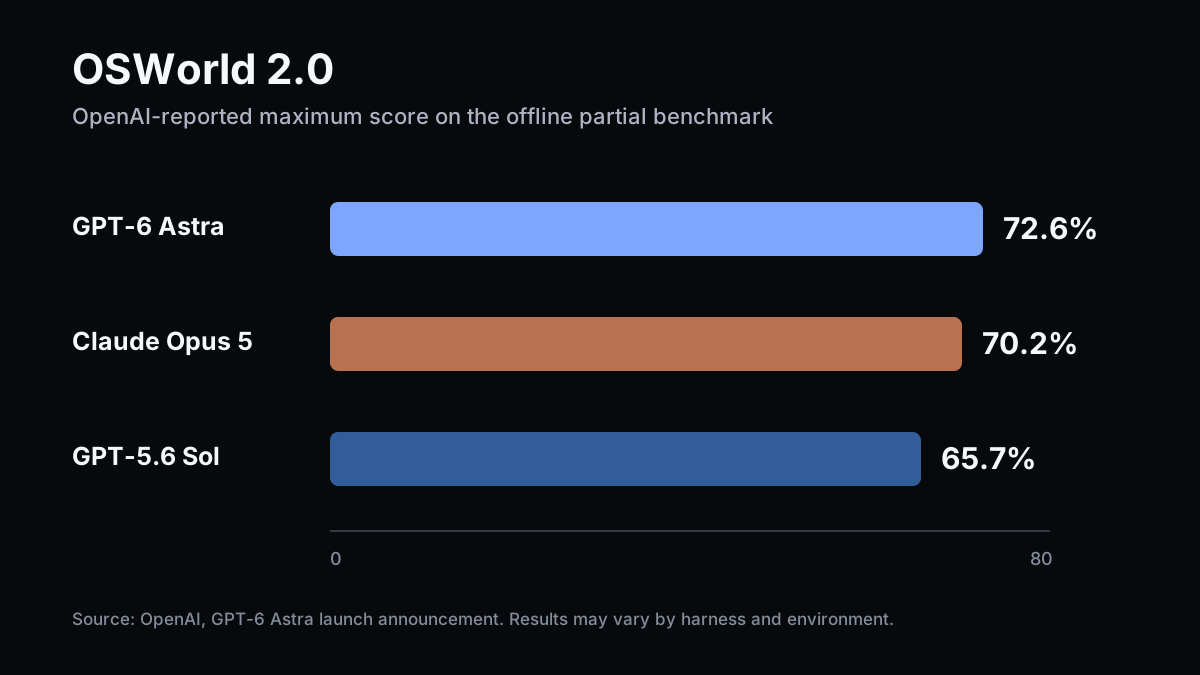
OpenAI-reported maximum scores. Deckary redrew the chart from the GPT-6 Astra launch announcement.
OpenAI also reports that Astra reaches stronger OSWorld results in about 47% less time than Sol under its latency simulation, at about 40 minutes per task versus 75 minutes. That measurement covers a research harness, not a promise that a presentation edit will take 40 minutes. It does suggest that the new model handles longer desktop sequences with fewer delays.
Agents' Last Exam measures multi-step knowledge work. OpenAI reports 59.3% for Astra, compared with 55.5% for Claude Opus 5, 53.6% for Sol, and 48.7% for Claude Fable 5.
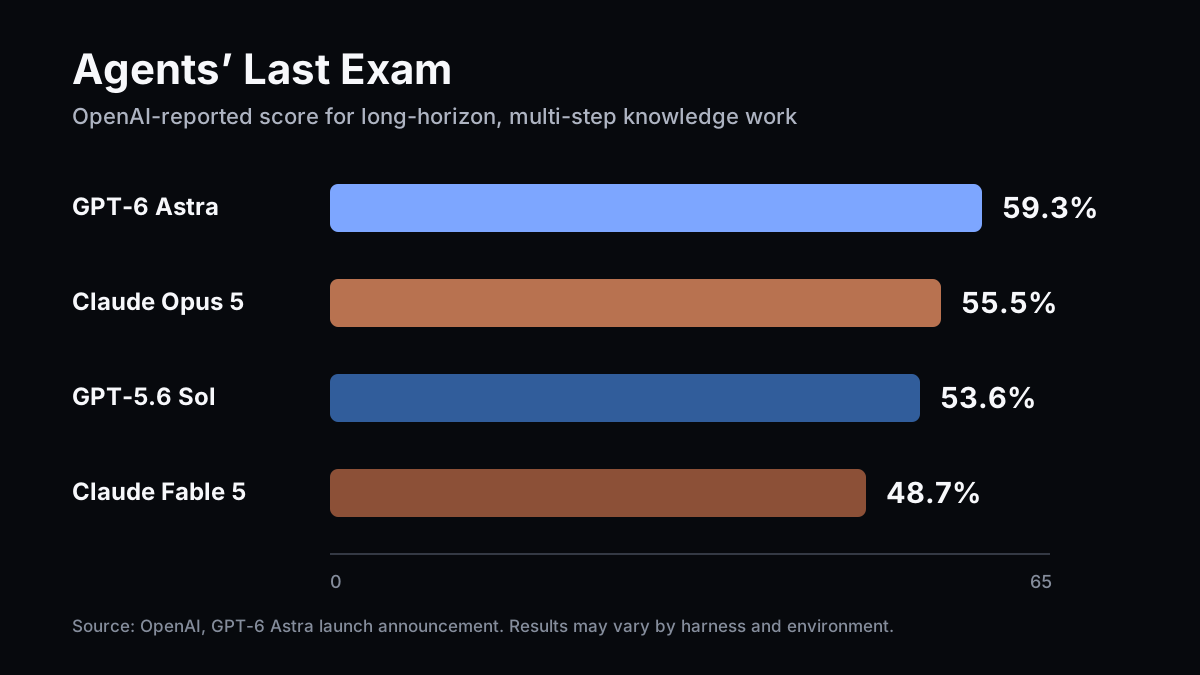
OpenAI-reported scores. Deckary redrew the chart from the GPT-6 Astra launch announcement.
The launch data supports three claims that matter for deck work:
| Signal | OpenAI-reported result | Presentation implication |
|---|---|---|
| OSWorld 2.0 offline partial | Astra 72.6% | Stronger desktop task execution across multi-step interfaces |
| OSWorld latency simulation | About 47% less time than Sol | Less waiting during long interaction loops |
| Agents' Last Exam | Astra 59.3% | Better performance on research and knowledge-work sequences |
Benchmarks compress diverse tasks into one score. PowerPoint has its own failure modes: selection state, hidden panes, theme behavior, layout collisions, and add-in timing. A production deck workflow still needs slide-level checks.
Why Computer Use Changes Presentation Creation
Computer use gives presentation agents access to the long tail of features already present in PowerPoint and its add-ins. That access reaches far beyond text boxes and image placement.
Earlier automation paths often required a developer to expose each capability through code. The system generated a file or issued a narrow command, rendered the output, then sent the image back to a model for review. Each new feature needed a schema, an executor, and error handling before the agent could use it.
An Astra workflow can work through the visible interface. If the session exposes a shape format pane, chart menu, template library, icon picker, or review tool, the model can attempt the same sequence a person would. This expands coverage without waiting for every menu item to receive a custom endpoint.
The feedback loop also gets shorter in conceptual terms. The agent acts on the slide it can see, observes PowerPoint's rendered result, and decides whether the outcome matches the request. It can catch obvious overflow, overlap, bad alignment, missing content, or a failed action in the same working loop.
That does not guarantee good design. A screenshot proves what appeared on screen. It does not prove that the chart uses the right source, that every object remains editable, or that an off-screen slide preserved its layout. Agentic slide editing needs artifact checks alongside visual review.
Continue reading: Bar Charts in PowerPoint · PowerPoint Color Schemes · Go-to-Market Slide
What an Astra Deck Workflow Could Look Like
A useful computer-use workflow alternates focused actions with visible checkpoints. Consider a request to update a market-entry slide for a client meeting:
- Astra opens the target slide and inspects the current layout.
- It rewrites the headline to state the decision.
- It uses a Deckary control to add a flag or choose an icon that matches the message.
- It adjusts the chart, spacing, or emphasis inside PowerPoint.
- It reviews the rendered slide at presentation scale.
- It fixes defects, confirms the requested elements, and returns control.
This workflow works best when each action leaves the application in a clear state. Stable windows, predictable pane positions, explicit slide targets, and checkpoints reduce ambiguity. The agent should know which deck it may edit and what counts as completion.
Human interruption needs a protocol. A computer-use agent shares mouse focus, keyboard focus, windows, and selection state with the person at the computer. If the person clicks another slide during an action, the next command may land in the wrong place. A dedicated desktop session, a separate virtual machine, or scheduled handoff windows can keep work out of the user's way.
Advantages and Disadvantages for PowerPoint
Computer use trades broad interface access for more state, latency, and operational risk. The gains are substantial, but presentation teams should plan for both sides.
| Area | Advantage | Disadvantage |
|---|---|---|
| Feature coverage | Reaches controls that lack an API or agent tool | UI changes can break a learned sequence |
| Visual review | Sees PowerPoint's rendered output after each step | Can miss subtle spacing, source, or editability defects |
| Add-ins | Can use specialized tools already installed in the session | Pop-ups, loading states, and focus shifts create ambiguity |
| Native output | Works inside the presentation people will continue editing | Long action chains can be slower than structured calls |
| Human handoff | Leaves work in a familiar application | Sharing the same screen and input devices is awkward |
| Safety | Can stop at visible checkpoints | Needs scoped permissions, cancellation, and confirmation for consequential actions |
The best environment treats screen content as untrusted input, limits the apps and files the agent can reach, and requests confirmation before destructive or consequential actions. OpenAI's guidance recommends those controls for computer-use deployments.
Why Astra Makes Deckary's Manual Tools More Valuable
A computer-use model benefits from presentation tools that package complex work into clear controls. Deckary's PowerPoint add-in already gives people quick access to more than 2,000 professional icons, vector flags for sovereign nations and territories, consulting templates, native charts, brand controls, and keyboard shortcuts.
Those manual features become useful agent surfaces. Choosing a correct flag from a focused library is easier than drawing one from shapes. Inserting a presentation-ready icon is more dependable than searching the web, handling licenses, removing backgrounds, and importing the file. A purpose-built chart or layout control can replace a fragile chain of PowerPoint clicks.
The AI still needs tools worth clicking. Computer use broadens access to software; Deckary concentrates high-value deck actions into the environment where the presentation lives. Explore the existing PowerPoint AI agent, PowerPoint icons, and native chart tools to see the available surface.
This pairing also preserves human choice. A person can take over the same add-in controls for a quick correction. The workflow does not depend on an agent for every step.
Computer Use, the Deckary Add-in, or Deckary MCP?
The right route depends on whether the task needs broad UI access, specialist controls, or structured live-deck operations. These options can work together in one workflow.
| Route | Best fit | Main strength | Main constraint |
|---|---|---|---|
| Astra computer use | Tasks spread across PowerPoint, browser research, files, and other apps | Broad access to visible software features and visual feedback | Occupies a desktop session and depends on UI state |
| Deckary add-in | Human or agent use of presentation-specific controls inside PowerPoint | Fast access to icons, flags, charts, templates, and editing tools | Each action still runs through the visible PowerPoint session |
| External agent with Deckary MCP | Repeatable work on a live presentation shared by its owner or a saved Deckary web deck | Structured reads, edits, object inspection, and exact PowerPoint renders | The MCP contract defines the available capabilities |
Deckary MCP gives an external agent five focused live-presentation tools: list shared presentations, read presentation state, inspect objects, render slides, and author one slide at a time. The agent can inspect exact PowerPoint-rendered pixels after an edit. Deckary rejects stale writes, and the deck owner must share the live presentation before the agent can reach it.
That structured route is valuable when speed and repeatability matter. An agent can request slide state and submit a precise authoring operation without navigating ribbons, panes, and dialogs. The UI route remains useful for a feature that the MCP contract does not expose.
The two approaches solve different parts of the problem. Computer use supplies reach. MCP supplies a stable contract. The add-in supplies presentation-specific actions for both agents and people.
A Practical Choice for Each Presentation Task
Use the narrowest route that can complete and verify the job. A simple selection rule keeps the workflow predictable:
- Choose computer use when the task crosses applications or depends on a PowerPoint control that has no structured integration.
- Choose the Deckary add-in when a person wants focused presentation actions or when a computer-use agent can benefit from those controls.
- Choose Deckary MCP when an external agent needs fast, structured edits and exact renders from a shared live deck.
- Combine them when research, actions confined to the UI, and repeatable slide authoring belong in the same assignment.
A team can also separate phases. Astra can gather information in a browser, use Deckary MCP to build or revise slides, then open PowerPoint through computer use for a final visual inspection. A person can review the result and make the last judgment call.
What Astra Changes for PowerPoint
GPT-6 Astra makes the desktop interface a practical part of the agent toolset. For presentations, the important shift is access: an agent can reach more of PowerPoint, work with installed add-ins, and review the actual screen after it acts.
The tradeoffs remain physical. UI actions take time. Focus can drift. The agent may occupy the same screen a person needs. Visual review can catch visible defects while missing structural ones. Teams need scoped sessions, checkpoints, recovery, and artifact-level verification.
Deckary supports both sides of that workflow. Its PowerPoint interface gives humans and computer-use agents a richer set of professional presentation controls. Its MCP server gives external agents a faster, structured route into a live deck shared by its owner. Read the PowerPoint MCP server comparison for the wider integration landscape, or see why a durable presentation agent should remain provider independent.
Sources and method
- OpenAI: GPT-6 Astra launch announcement
- OpenAI: Computer use tool guide
- OpenAI: Latest model guide
- Deckary product behavior checked against the current website routes and presentation-agent architecture on 4 September 2026.